

Introduction

Hello. In today's article you will learn about Rain Effect in Photoshop CS5. Through this article you can add Rain Effect to any image.
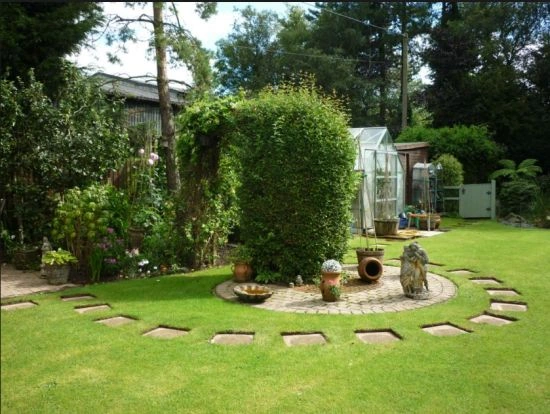
My previous image
After complicit effect
Step 1
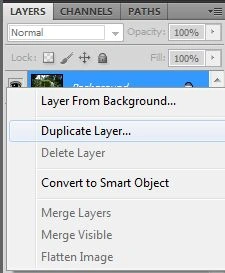
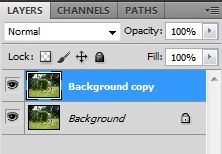
Open Photoshop and click on "File" that is in the Menu Bar, then click "Open" and select an image. Create a duplicate layer of the original image; the shortcut key of the keyboard is "Ctrl+J "or right-click on the layer and select "Duplicate layer".
Step 2
click on "Layer" that is held in menu bar and select "New" > "Layer" or the shortcut key of the keyboard is "Shjift+Ctrl +N" and choose Background color black.
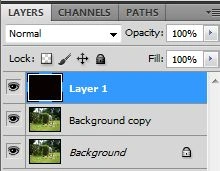
Step 3
The Filter option is available in the Menu Bar, click in "Filter" then select "Noise" then "Add Noise".
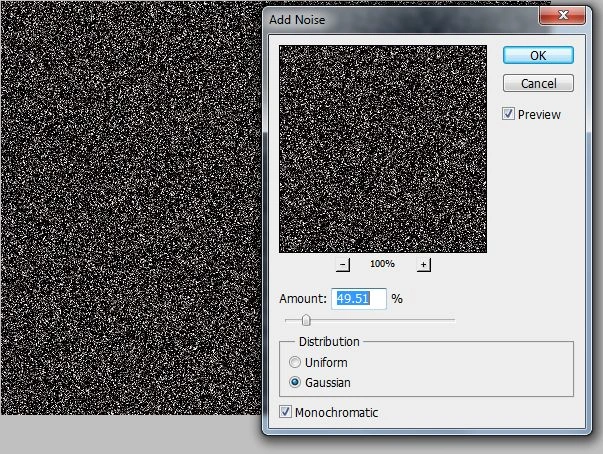
Step 4
Click in "Filter" > "Blur" > "Motion blur".
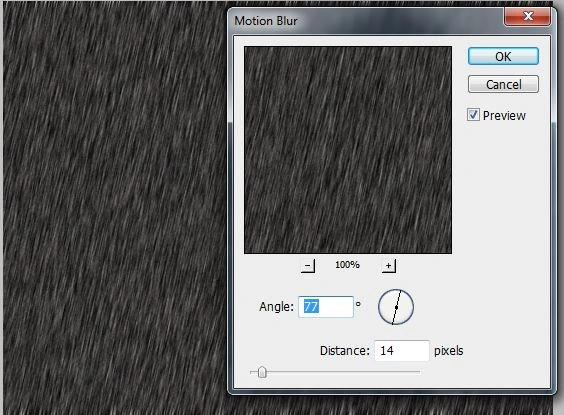
Step 5
Go to "Image" in the Menu Bar, click on "Image" then select "Adjustment" then "Label" then adjust the rain effect on that box.
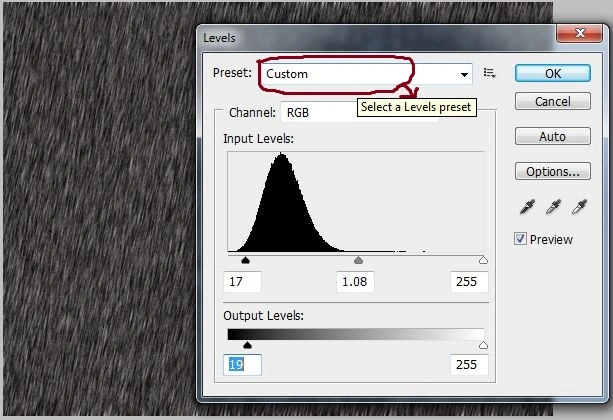
Step 6
Set the rain layer to "Screen" and set the "Opacity" to 50%.
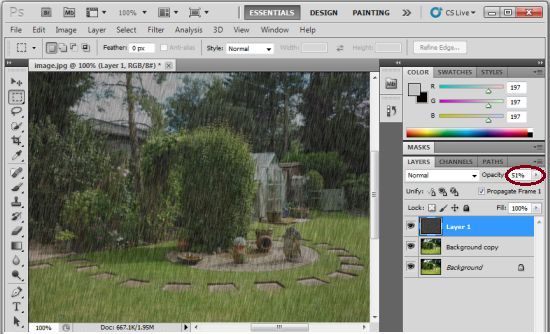
Create a duplicate layer named "layer1", the shortcut key of the keyboard is "Ctrl+J".

Step 7
Go to "Window" in the Menu Bar and select "Animation".


Michael GriffithsPosted Feb 6, 2018, 6:46 AM
Simple and effective
Sr KarthigaPosted Jan 19, 2017, 7:54 AM
Nice one sir...........it was very beautyful
Santhakumar MunuswamyPosted Jul 8, 2015, 3:41 PM
Thanks for sharing
Kush MuchaalPosted Apr 11, 2013, 11:20 PM
NIce article, Very different article worth learning..
Kush MuchaalPosted Apr 11, 2013, 11:20 PM
NIce article, Very different article worth learning..
Anubhav ChaudharyPosted Apr 11, 2013, 2:02 PM
Nice one Sudhir.
Manoj RajputPosted Apr 10, 2013, 3:24 AM
Nice Article......