
Introduction
To get a rating you will use "getRating()".
The "getRating()" method returns the rating as a float.
Step 1
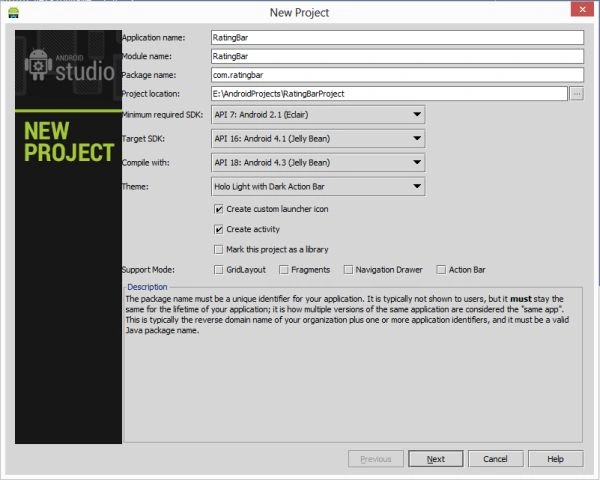
Create a project like this:
 Step 2
Create an XML file with the following.
In this XML file, you will use a Button, RatingBar and TextView. The rating will show the rating as a toast Notification.
Step 2
Create an XML file with the following.
In this XML file, you will use a Button, RatingBar and TextView. The rating will show the rating as a toast Notification.
- <RelativeLayout xmlns:android="http://schemas.android.com/apk/res/android"
- xmlns:tools="http://schemas.android.com/tools"
- android:layout_width="match_parent"
- android:layout_height="match_parent"
- android:paddingLeft="@dimen/activity_horizontal_margin"
- android:paddingRight="@dimen/activity_horizontal_margin"
- android:paddingTop="@dimen/activity_vertical_margin"
- android:paddingBottom="@dimen/activity_vertical_margin"
- tools:context=".MainActivity"
- android:background="#524ff0">
- <TextView
- android:layout_height="wrap_content"
- android:layout_width="wrap_content"
- android:text="RATINGBAR"
- android:textColor="#000000"
- android:textStyle="bold"
- android:textSize="25dp"
- android:layout_centerHorizontal="true"/>
- <Button
- android:layout_width="150dp"
- android:layout_height="70dp"
- android:text="Button"
- android:id="@+id/button"
- android:textSize="30dp"
- android:layout_centerInParent="true"
- />
- <RatingBar
- android:layout_width="wrap_content"
- android:layout_height="wrap_content"
- android:layout_marginTop="50dp"
- android:id="@+id/ratingBar"
- android:layout_centerHorizontal="true">
- </RatingBar>
- </RelativeLayout>
Step 3
Create a Java file with the following.
In this, you will create the id of the RatingBar and button. Call the getRating() method that returns the rating that is of float type. Set the button on its click listener and write the code for the toast notification that will show you the rating as a PopUp message.
- package com.ratingbarexample;
- import android.os.Bundle;
- import android.app.Activity;
- import android.view.Menu;
- import android.view.View;
- import android.widget.Button;
- import android.widget.RatingBar;
- import android.widget.Toast;
- public class MainActivity extends Activity {
- Button button;
- RatingBar ratingBar;
- @Override
- protected void onCreate(Bundle savedInstanceState) {
- super.onCreate(savedInstanceState);
- setContentView(R.layout.activity_main);
- //Create id of button and RatingBar
- button=(Button)findViewById(R.id.button);
- ratingBar=(RatingBar)findViewById(R.id.ratingBar);
- //perform click event on button
- button.setOnClickListener(new View.OnClickListener() {
- @Override
- public void onClick(View v) {
- String rating= String.valueOf(ratingBar.getRating());
- Toast.makeText(getApplicationContext(),rating,Toast.LENGTH_LONG).show();
- }
- });
- }
- @Override
- public boolean onCreateOptionsMenu(Menu menu) {
- // Inflate the menu; this adds items to the action bar if it is present.
- getMenuInflater().inflate(R.menu.main, menu);
- return true;
- }
- }
Step 4
Android Manifest.xml file
- <?xml version="1.0" encoding="utf-8"?>
- <manifest xmlns:android="http://schemas.android.com/apk/res/android"
- package="com.ratingbarexample"
- android:versionCode="1"
- android:versionName="1.0" >
- <uses-sdk
- android:minSdkVersion="7"
- android:targetSdkVersion="16" />
- <application
- android:allowBackup="true"
- android:icon="@drawable/ic_launcher"
- android:label="@string/app_name"
- android:theme="@style/AppTheme" >
- <activity
- android:name="com.ratingbarexample.MainActivity"
- android:label="@string/app_name" >
- <intent-filter>
- <action android:name="android.intent.action.MAIN" />
- <category android:name="android.intent.category.LAUNCHER" />
- </intent-filter>
- </activity>
- </application>
- </manifest>
Step 5
Rating Bar with no star selected
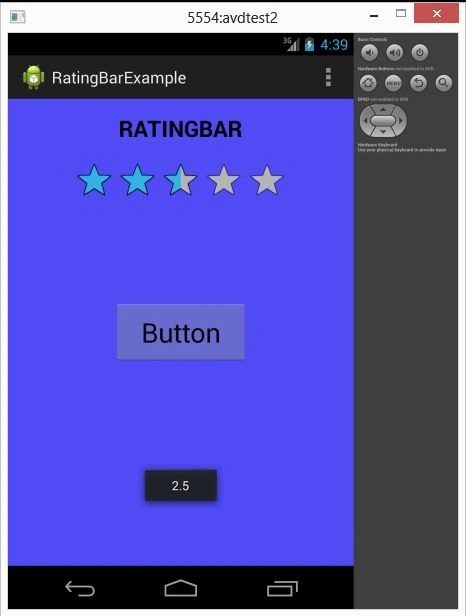
 Rating bar with 2.5 stars selected
sahil bhatiaPosted Apr 11, 2016, 10:32 AM
hello sir but how to this rating link to google play store my app