

Introduction
In this article we will learn how to use the React Bootstrap Table in React applications. I will also explain how we can implement paging, searching, and sorting in this Table.
Prerequisites
- We should have the basic knowledge of React.js and Web API.
- Visual Studio and Visual Studio Code IDE should be installed on your system.
- SQL Server Management Studio
- Basic knowledge of Bootstrap and HTML
Implementation Steps
- Create a Database and Table
- Create Asp.net Web API Project
- Create React App
- Install React-bootstrap-table2
- Implement Sorting
- Implement Searching
- Implement Custom Pagination
- Install Bootstrap
- Install Axios
Create a table in the database
Open SQL Server Management Studio, create a database named "Employee", and in this database, create a table. Give that table a name like "Employee".
- CREATE TABLE [dbo].[Employee](
- [Id] [int] IDENTITY(1,1) NOT NULL,
- [Name] [varchar](50) NULL,
- [Age] [int] NULL,
- [Address] [varchar](50) NULL,
- [City] [varchar](50) NULL,
- [ContactNum] [varchar](50) NULL,
- [Salary] [decimal](18, 0) NULL,
- [Department] [varchar](50) NULL,
- CONSTRAINT [PK_Employee] PRIMARY KEY CLUSTERED
- (
- [Id] ASC
- )WITH (PAD_INDEX = OFF, STATISTICS_NORECOMPUTE = OFF, IGNORE_DUP_KEY = OFF, ALLOW_ROW_LOCKS = ON, ALLOW_PAGE_LOCKS = ON) ON [PRIMARY]
- ) ON [PRIMARY]
- GO
Now add some demo data in this table.
Create a new Web API project
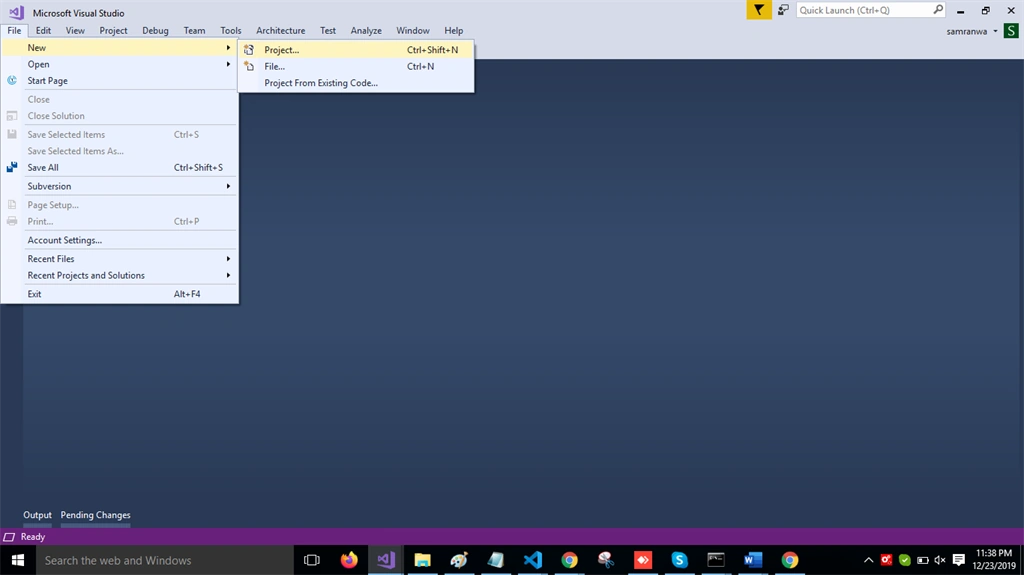
Open Visual Studio and create a new project.
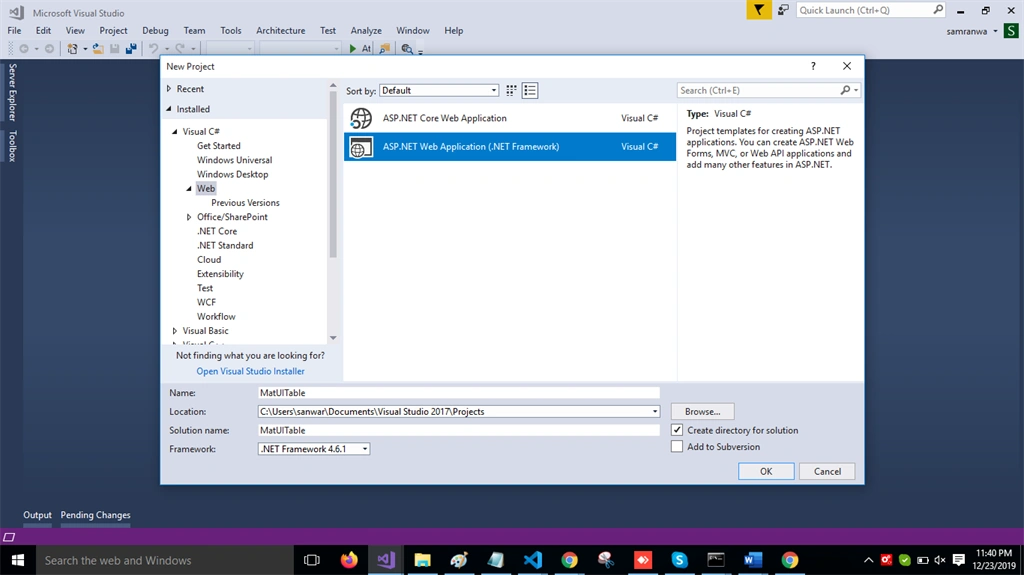
Change the name to MatUITable.
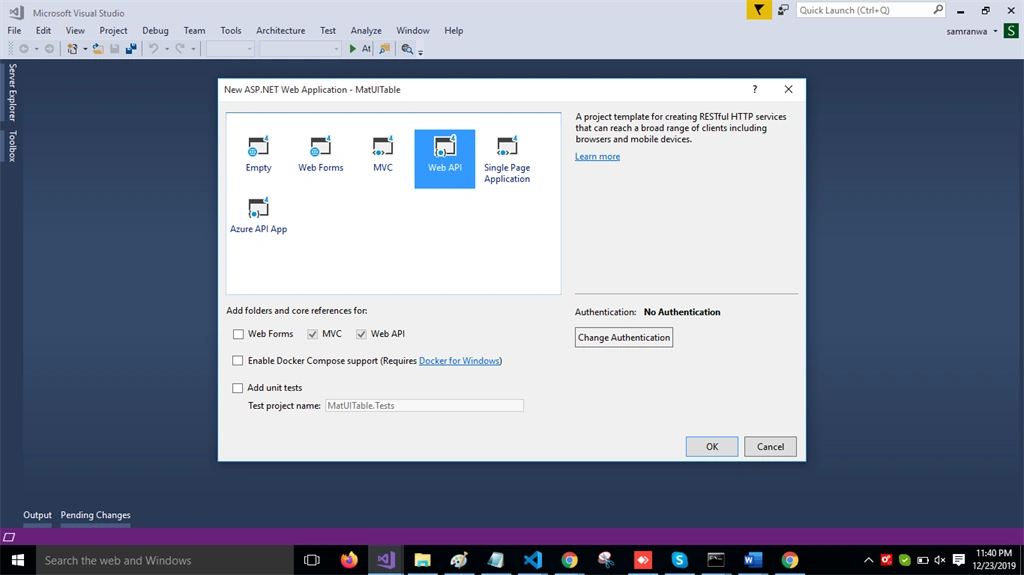
Choose the template as Web API.
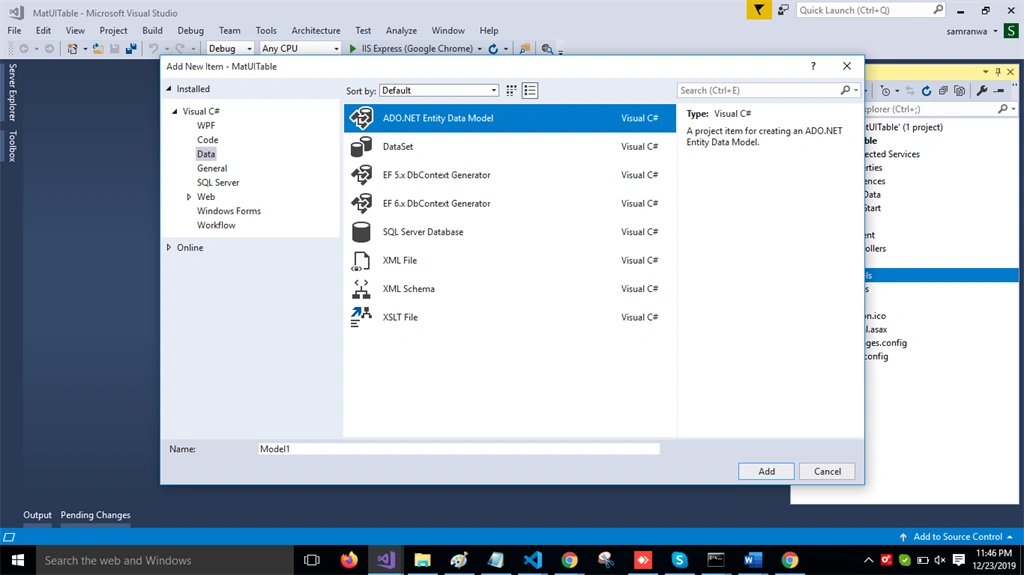
Right-click the Models folder from Solution Explorer and go to Add >> New Item >> data.
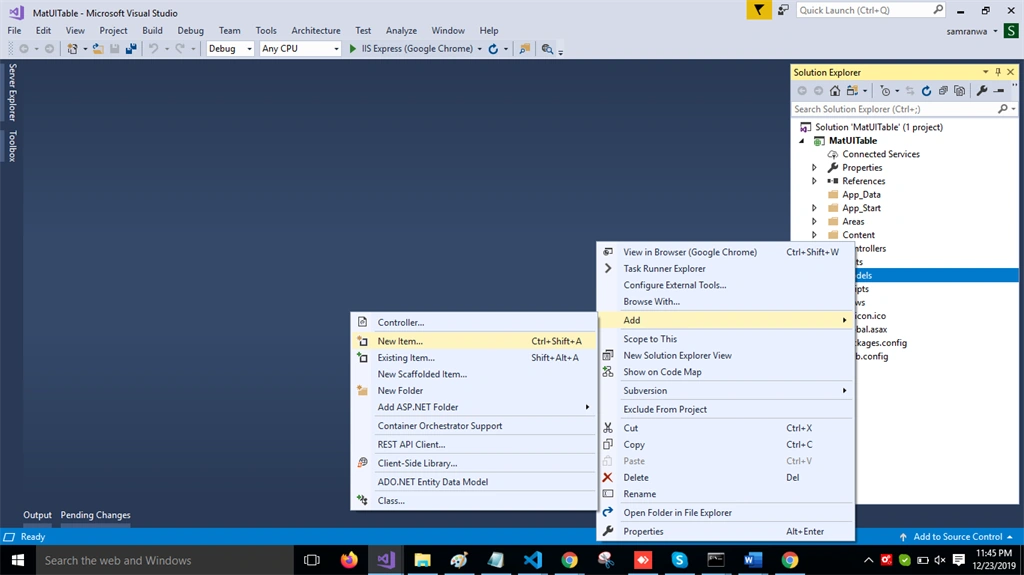
Click on the "ADO.NET Entity Data Model" option and click "Add".
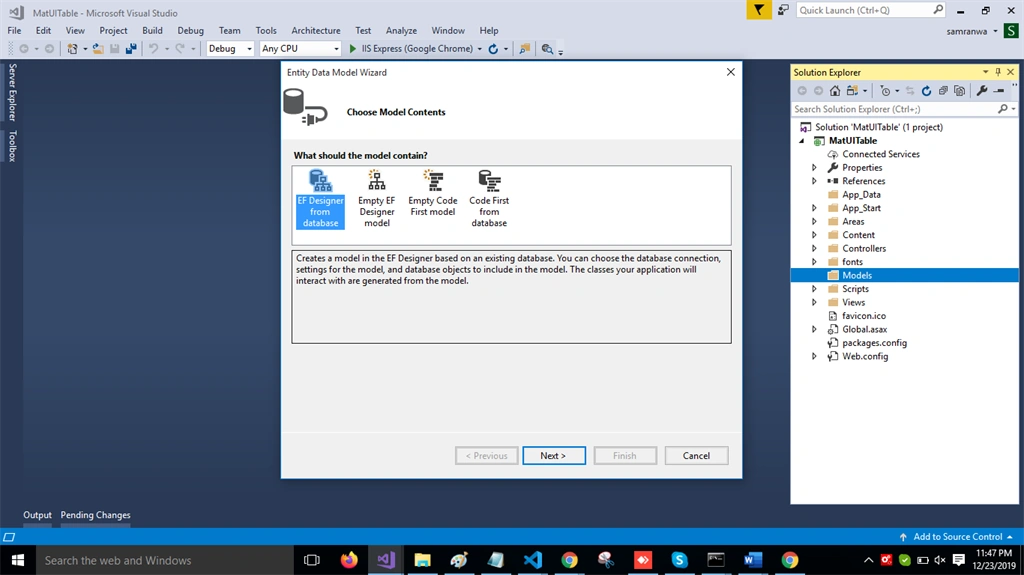
Select EF Designer from the database and click the "Next" button.
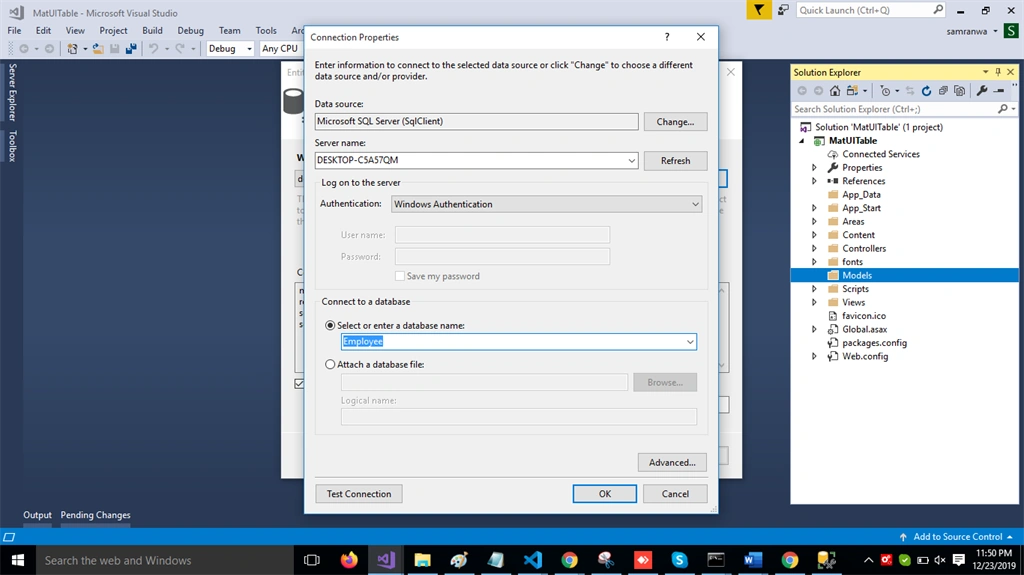
Add the connection properties and select database name on the next page and click OK.
Check the "Table" checkbox. The internal options will be selected by default. Now, click the "Finish" button.
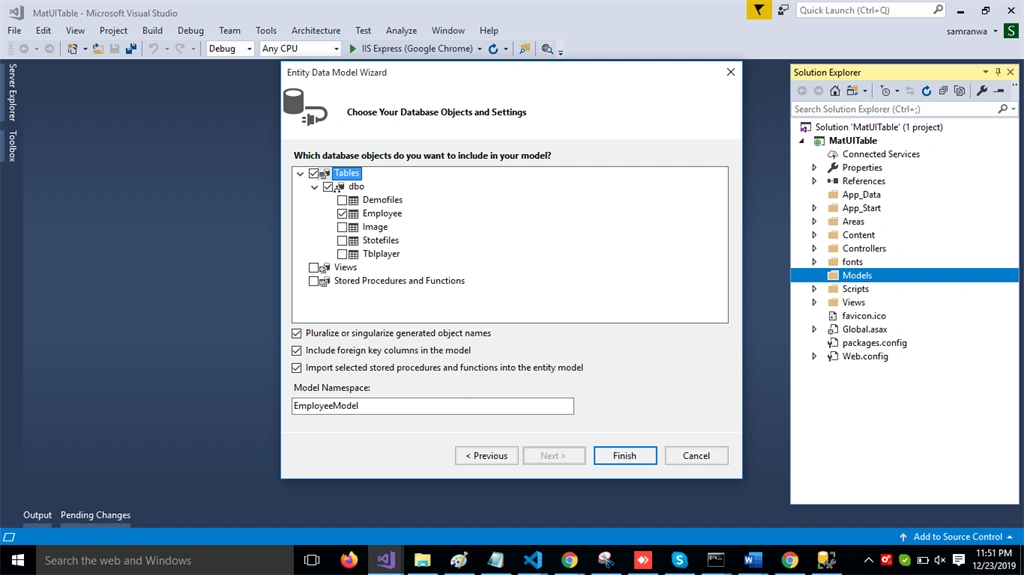
Now, our data model is successfully created.
Right-click on the Controllers folder and add a new controller. Name it as "Employee controller" and add the following namespace in the Employee controller.
using MatUITable.Models;
- [HttpGet]
- [Route("employee")]
- public object Getrecord()
- {
- var emp = DB.Employees.ToList();
- return emp;
- }
Complete Employee controller code
- using System;
- using System.Collections.Generic;
- using System.Linq;
- using System.Net;
- using System.Net.Http;
- using System.Web.Http;
- using MatUITable.Models;
- namespace MatUITable.Controllers
- {
- [RoutePrefix("Api/Emp")]
- public class EmployeeController : ApiController
- {
- EmployeeEntities DB = new EmployeeEntities();
- [HttpGet]
- [Route("employee")]
- public object Getrecord()
- {
- var emp = DB.Employees.ToList();
- return emp;
- }
- }
- }
Now, let's enable CORS. Go to Tools, open NuGet Package Manager, search for CORS, and install the "Microsoft.Asp.Net.WebApi.Cors" package. Open Webapiconfig.cs and add the following lines.
- EnableCorsAttribute cors = new EnableCorsAttribute("*", "*", "*");
- config.EnableCors(cors);
Create ReactJS project
Now let's first create a React application with the following command.
- npx create-react-app matform
Install bootstrap by using following command
- npm install --save bootstrap
Now, open the index.js file and add Bootstrap reference.
- import 'bootstrap/dist/css/bootstrap.min.css';
Now Install the Axios library by using the following command. Learn more about Axios
- npm install --save axios
Install react-bootstrap-table2.
Install react bootstrap table by using following command,
- npm install react-bootstrap-table-next --save
Now, right click on "src" folder and add a new component named 'Bootstraptab.js'.
Now open Bootstraptab.js component and import required reference. Add the following code in this component.
- import React, { Component } from 'react'
- import BootstrapTable from 'react-bootstrap-table-next';
- import axios from 'axios';
- export class Bootstraptab extends Component {
- state = {
- employee: [],
- columns: [{
- dataField: 'Id',
- text: 'Id'
- },
- {
- dataField: 'Name',
- text: 'Name',
- sort:true
- }, {
- dataField: 'Age',
- text: 'Age',
- sort: true
- },
- {
- dataField: 'Address',
- text: 'Address',
- sort: true
- },
- {
- dataField: 'City',
- text: 'City',
- sort: true
- },
- {
- dataField: 'ContactNum',
- text: 'ContactNum',
- sort: true
- },
- {
- dataField: 'Salary',
- text: 'Salary',
- sort: true
- },
- {
- dataField: 'Department',
- text: 'Department',
- sort: true
- }]
- }
- componentDidMount() {
- axios.get('http://localhost:51760/Api/Emp/employee').then(response => {
- console.log(response.data);
- this.setState({
- employee: response.data
- });
- });
- }
- render() {
- return (
- <div className="container">
- <div class="row" className="hdr">
- <div class="col-sm-12 btn btn-info">
- React Bootstrap Table with Searching and Custom Pagination
- </div>
- </div>
- <div style={{ marginTop: 20 }}>
- <BootstrapTable
- striped
- hover
- keyField='id'
- data={ this.state.employee }
- columns={ this.state.columns } />
- </div>
- </div>
- )
- }
- }
- export default Bootstraptab
Run the project by using 'npm start' and check the result,
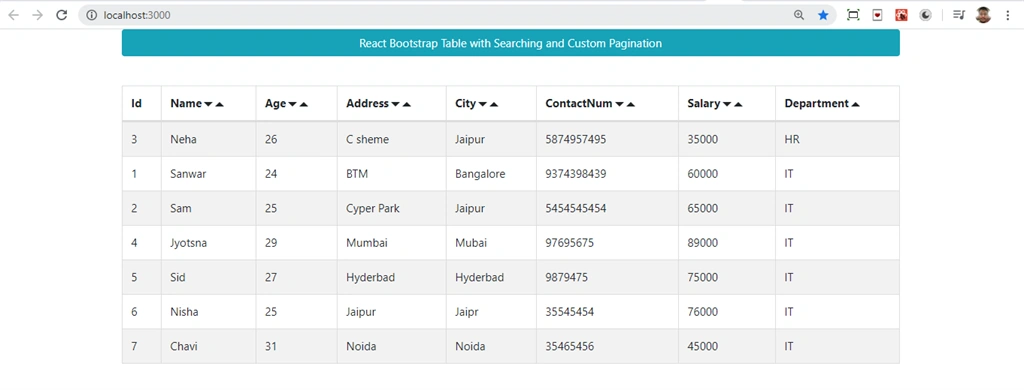
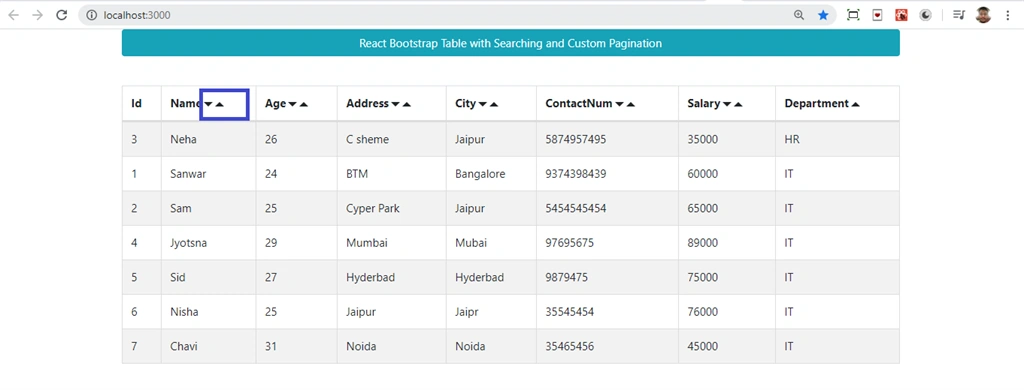
Click on the button to check sorting in table
Implement Searching
Install the following library to add searching in this table.
- npm install react-bootstrap-table2-filter --save
Now add the following code in this component.
- import React, { Component } from 'react'
- import BootstrapTable from 'react-bootstrap-table-next';
- import axios from 'axios';
- import filterFactory, { textFilter } from 'react-bootstrap-table2-filter';
- export class Bootstraptab extends Component {
- state = {
- employee: [],
- columns: [{
- dataField: 'Id',
- text: 'Id'
- },
- {
- dataField: 'Name',
- text: 'Name',
- filter: textFilter()
- }, {
- dataField: 'Age',
- text: 'Age',
- sort: true
- },
- {
- dataField: 'Address',
- text: 'Address',
- sort: true
- },
- {
- dataField: 'City',
- text: 'City',
- sort: true
- },
- {
- dataField: 'ContactNum',
- text: 'ContactNum',
- sort: true
- },
- {
- dataField: 'Salary',
- text: 'Salary',
- sort: true
- },
- {
- dataField: 'Department',
- text: 'Department',
- sort: true
- }]
- }
- componentDidMount() {
- axios.get('http://localhost:51760/Api/Emp/employee').then(response => {
- console.log(response.data);
- this.setState({
- employee: response.data
- });
- });
- }
- render() {
- return (
- <div className="container">
- <div class="row" className="hdr">
- <div class="col-sm-12 btn btn-info">
- React Bootstrap Table with Searching and Custom Pagination
- </div>
- </div>
- <div style={{ marginTop: 20 }}>
- <BootstrapTable
- striped
- hover
- keyField='id'
- data={ this.state.employee }
- columns={ this.state.columns }
- filter={ filterFactory() } />
- </div>
- </div>
- )
- }
- }
- export default Bootstraptab
Run the project by using 'npm start' and check the result,
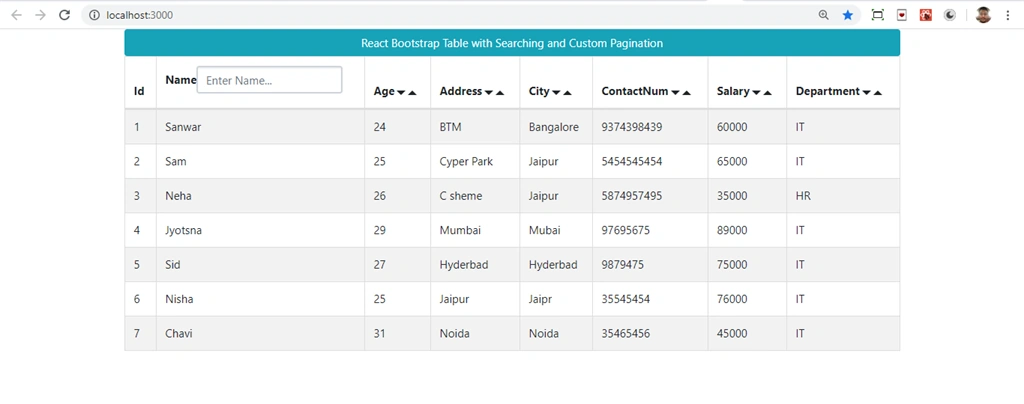
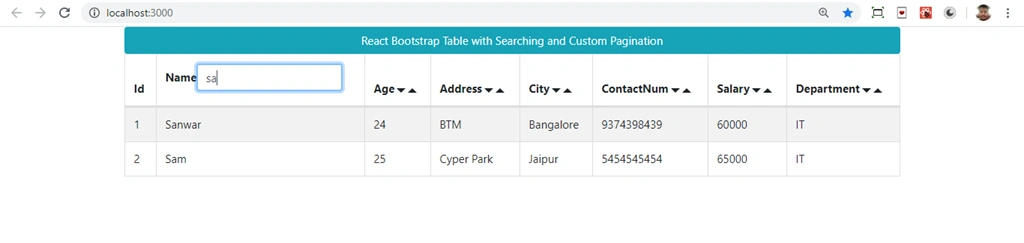
Implement Pagination
Install the following library to add pagination in this table.
- npm install react-bootstrap-table2-paginator --save
Now add the following code in this component.
- import React, { Component } from 'react'
- import BootstrapTable from 'react-bootstrap-table-next';
- import axios from 'axios';
- import paginationFactory from 'react-bootstrap-table2-paginator';
- export class Bootstraptab extends Component {
- state = {
- employee: [],
- columns: [{
- dataField: 'Id',
- text: 'Id'
- },
- {
- dataField: 'Name',
- text: 'Name',
- }, {
- dataField: 'Age',
- text: 'Age',
- sort: true
- },
- {
- dataField: 'Address',
- text: 'Address',
- sort: true
- },
- {
- dataField: 'City',
- text: 'City',
- sort: true
- },
- {
- dataField: 'ContactNum',
- text: 'ContactNum',
- sort: true
- },
- {
- dataField: 'Salary',
- text: 'Salary',
- sort: true
- },
- {
- dataField: 'Department',
- text: 'Department',
- sort: true
- }]
- }
- componentDidMount() {
- axios.get('http://localhost:51760/Api/Emp/employee').then(response => {
- console.log(response.data);
- this.setState({
- employee: response.data
- });
- });
- }
- render() {
- return (
- <div className="container">
- <div class="row" className="hdr">
- <div class="col-sm-12 btn btn-info">
- React Bootstrap Table with Searching and Custom Pagination
- </div>
- </div>
- <div style={{ marginTop: 20 }}>
- <BootstrapTable
- striped
- hover
- keyField='id'
- data={ this.state.employee }
- columns={ this.state.columns }
- pagination={ paginationFactory() } />
- </div>
- </div>
- )
- }
- }
- export default Bootstraptab
Run the project by using 'npm start' and check the result
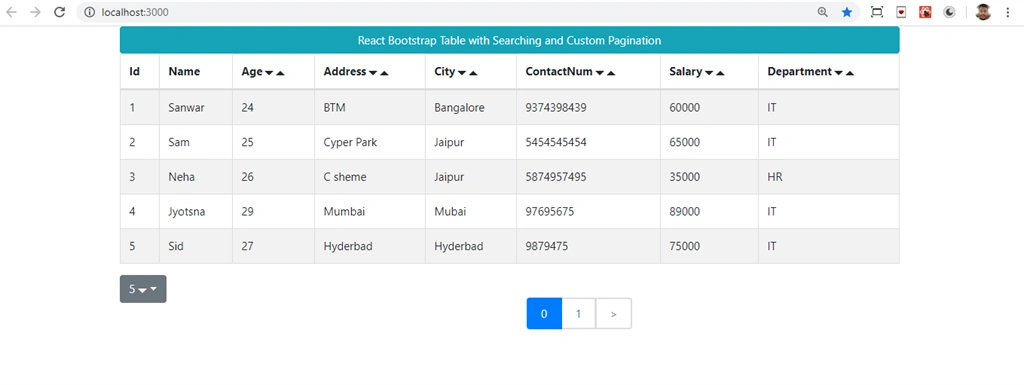
By default it shows 10 records per page, so let's create a function to add custom page size. Add the following code in this component and check.
- import React, { Component } from 'react'
- import BootstrapTable from 'react-bootstrap-table-next';
- import axios from 'axios';
- import paginationFactory from 'react-bootstrap-table2-paginator';
- export class Bootstraptab extends Component {
- state = {
- employee: [],
- columns: [{
- dataField: 'Id',
- text: 'Id'
- },
- {
- dataField: 'Name',
- text: 'Name',
- }, {
- dataField: 'Age',
- text: 'Age',
- sort: true
- },
- {
- dataField: 'Address',
- text: 'Address',
- sort: true
- },
- {
- dataField: 'City',
- text: 'City',
- sort: true
- },
- {
- dataField: 'ContactNum',
- text: 'ContactNum',
- sort: true
- },
- {
- dataField: 'Salary',
- text: 'Salary',
- sort: true
- },
- {
- dataField: 'Department',
- text: 'Department',
- sort: true
- }]
- }
- componentDidMount() {
- axios.get('http://localhost:51760/Api/Emp/employee').then(response => {
- console.log(response.data);
- this.setState({
- employee: response.data
- });
- });
- }
- render() {
- const options = {
- page: 2,
- sizePerPageList: [ {
- text: '5', value: 5
- }, {
- text: '10', value: 10
- }, {
- text: 'All', value: this.state.employee.length
- } ],
- sizePerPage: 5,
- pageStartIndex: 0,
- paginationSize: 3,
- prePage: 'Prev',
- nextPage: 'Next',
- firstPage: 'First',
- lastPage: 'Last',
- };
- return (
- <div className="container">
- <div class="row" className="hdr">
- <div class="col-sm-12 btn btn-info">
- React Bootstrap Table with Searching and Custom Pagination
- </div>
- </div>
- <div style={{ marginTop: 20 }}>
- <BootstrapTable
- striped
- hover
- keyField='id'
- data={ this.state.employee }
- columns={ this.state.columns }
- pagination={ paginationFactory(options) } />
- </div>
- </div>
- )
- }
- }
- export default Bootstraptab
Run the project by using 'npm start' and check the result,
Now create a new component Bootstraptab1.js and add the following code in this component
- import React, { Component } from 'react'
- import BootstrapTable from 'react-bootstrap-table-next';
- import axios from 'axios';
- import filterFactory, { textFilter } from 'react-bootstrap-table2-filter';
- import paginationFactory from 'react-bootstrap-table2-paginator';
- export class Bootstraptab1 extends Component {
- state = {
- products: [],
- columns: [{
- dataField: 'Id',
- text: 'Id'
- },
- {
- dataField: 'Name',
- text: 'Name',
- filter: textFilter()
- }, {
- dataField: 'Age',
- text: 'Age',
- sort: true
- },
- {
- dataField: 'Address',
- text: 'Address',
- sort: true
- },
- {
- dataField: 'City',
- text: 'City',
- sort: true
- },
- {
- dataField: 'ContactNum',
- text: 'ContactNum',
- sort: true
- },
- {
- dataField: 'Salary',
- text: 'Salary',
- sort: true
- },
- {
- dataField: 'Department',
- text: 'Department',
- sort: true
- }]
- }
- componentDidMount() {
- axios.get('http://localhost:51760/Api/Emp/employee').then(response => {
- console.log(response.data);
- this.setState({
- products: response.data
- });
- });
- }
- render() {
- const options = {
- page: 2,
- sizePerPageList: [ {
- text: '5', value: 5
- }, {
- text: '10', value: 10
- }, {
- text: 'All', value: this.state.products.length
- } ],
- sizePerPage: 5,
- pageStartIndex: 0,
- paginationSize: 3,
- prePage: 'Prev',
- nextPage: 'Next',
- firstPage: 'First',
- lastPage: 'Last',
- paginationPosition: 'top'
- };
- return (
- <div className="container">
- <div class="row" className="hdr">
- <div class="col-sm-12 btn btn-info">
- React Bootstrap Table with Searching and Custom Pagination
- </div>
- </div>
- <div className="container" style={{ marginTop: 50 }}>
- <BootstrapTable
- striped
- hover
- keyField='id'
- data={ this.state.products }
- columns={ this.state.columns }
- filter={ filterFactory() }
- pagination={ paginationFactory(options) }/>
- </div>
- </div>
- )
- }
- }
- export default Bootstraptab1
Now open app.js file and add the following code,
- import React from 'react';
- import logo from './logo.svg';
- import './App.css';
- import Bootstraptab1 from './Bootstraptab1';
- function App() {
- return (
- <div className="App">
- <Bootstraptab1/>
- </div>
- );
- }
- export default App;
Run the project by using 'npm start' and check the result,
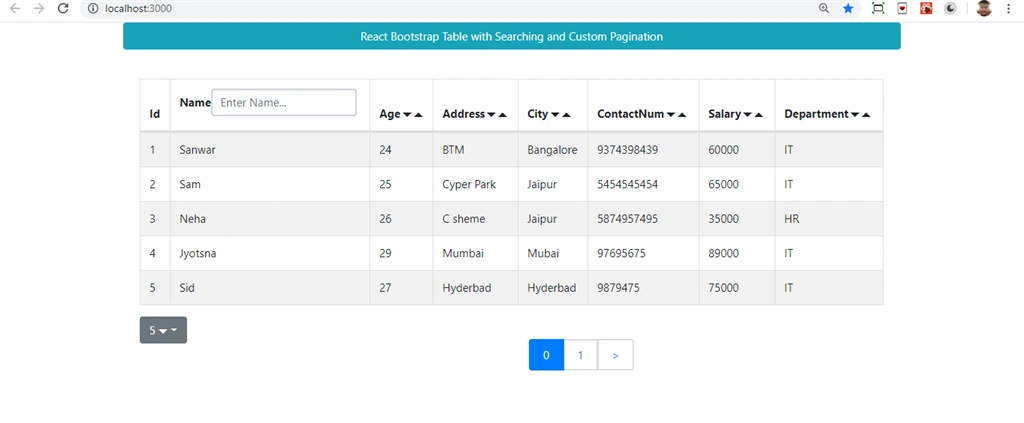
Summary
In this article, we learned how we add React Bootstrap Table and show data in that table using Web API in ReactJS applications. We also Llarned how to implement sorting, searching and pagination in the table
Amit KPosted Aug 28, 2020, 3:56 AM
Thank you Sanwar for a excellent tutorial. Just want to know if there are more than 15 columns how we can set the width and implement a horizontal scroll?
annu sPosted Apr 1, 2020, 2:33 PM
Thanks for a wonderful tutorial. I'm trying above code with spring boot. axios is not returning all the columns from api data. What could be the reason?