

Introduction
In the second day of my React article series, we are going to learn how to setup a React development environment. Before moving to environment setup, please read my previous article:
Prerequisites
Let's get started with React, before starting with React you need the following knowledge:
- HTML
- JavaScript
- CSS
- Basic knowledge of NPM (Node Package Manager)
Environment Setup
There are multiple ways you can start developing React applications:
- Using Visual Studio 2017
- Using Node.js (NPM) etc.
In this article, we are going to setup a development environment using NPM.
Code Editor
Nowadays there's a variety of free tools available that enable us to do rapid client-side development. Following are some code editors you can choose to start:
- Visual Studio Code
- Sublime Text
- Atom
- Deco IDE
- WebStorm etc.
We will be using VS code (https://code.visualstudio.com/) which is a good, light-weight and cross-platform editor from Microsoft.
Setting Up
Following are the steps to configure or setup React environment using NPM,
- Installing Node
First, we need to install NodeJS. NodeJS is a server-side language and we don’t need it because we are not writing any server-side code. We mostly need it because of its npm or Node Package Manager. npm is very popular for managing dependencies of your applications. We will use npm to install other later tools that we need.
Get the latest version of NodeJS from nodejs.org and install it on your machine. Installing NodeJS should be pretty easy and straightforward. (Download - https://nodejs.org/en/)
- Open Node.js command prompt
You can choose which node version is installed using the following command:
‘node -v’ and press enter you can see the latest version like below screenshot.
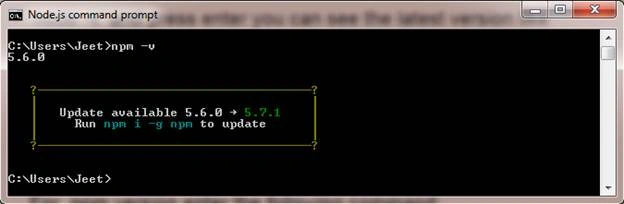
For npm version enter the following command:
‘npm -v’ and press enter you can see the latest version like below screenshot.

- Installing Create-React-App
‘create-react-app’ is the best way to start building a new React single page application. It sets up our development environment so that we can use the latest Javascript features and optimization for our app. It is a Command Line Interface tool that makes creating a new React project, adding files and other on-going development tasks like testing, bundling and deployment easier. It uses build tools like Babel and Webpack under the hood and provides a nice developer experience for us that we don’t have to do any manual configurations for it.
To install‘create-react-app’ from the command line, run the following:
‘npm install -g create-react-app’ and press it will installed this package globally on your machine.
- Creating a new project using ‘create-react-app’
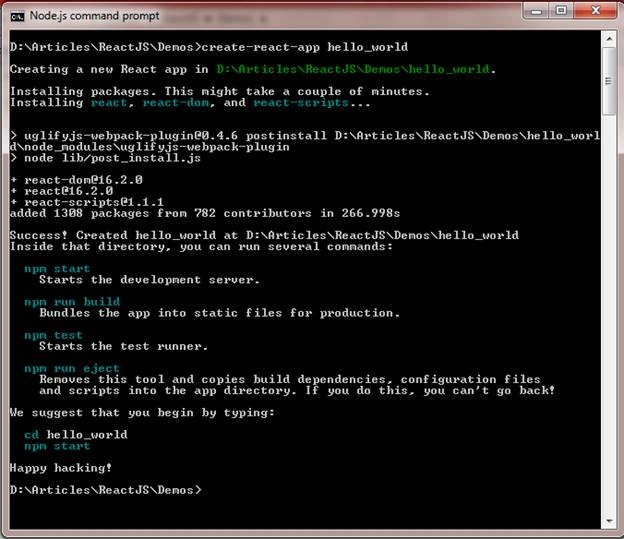
First, navigate to the folder where you want to create your React project. Next, create a new React project and skeleton application with the following command:
‘create-react-app PROJECT_NAME’ and press enter you can see as above screenshot.
- After creating the project, navigate to the created project folder by typing following command,
‘cd PROJECT_NAME’ and press enter.
- After navigation to that project folder, now run the created application, and for that you need to run the following command:
‘npm start’
The above command launches the server, watches your files and rebuilds the app as you make changes to those files. You can also run the ‘npm run build’ command which creates a production-ready bundle that has been transpiled and minified. You can see the output of the above command in the terminal like in the below screenshot:
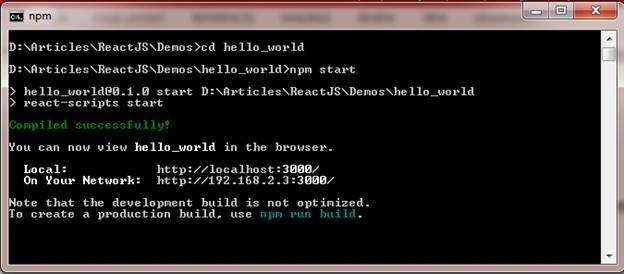
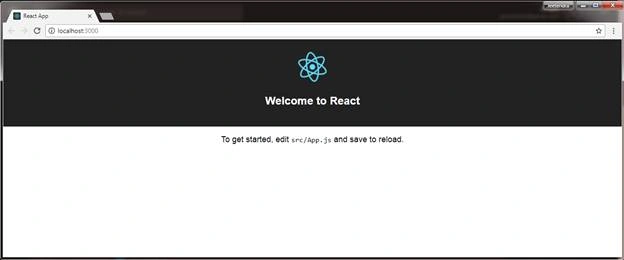
If it doesn't open in the browser you can manually hit the localhost as shown in the above screen shot and you can see the output as follows,
Project Files
Now let’s look at the project files that have been created for us. When you open the project folder in VScode editor, you will find a couple of files like the below screenshots.
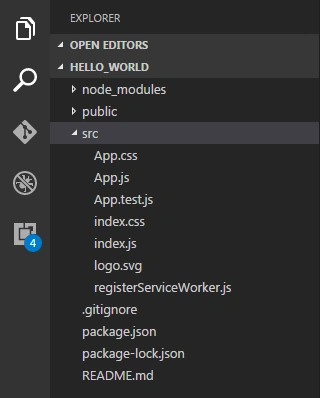
We are not going through all the files, but our focus is to get started with our first React app, but we will go through some of the more important files and folders.
All React components, css styles, images and anything else our app needs go to the ‘src’ folder.
In the src folder, we have index.js which is the main entry point for our app. In index.js, we render the App React element into the root DOM node. Applications built with just React usually have a single root DOM node.
File : index.js
- ---------code start---------
- import React from 'react';
- import ReactDOM from 'react-dom';
- import './index.css';
- import App from './App';
- import registerServiceWorker from './registerServiceWorker';
- ReactDOM.render(<App />, document.getElementById('root'));
- registerServiceWorker();
- ---------code end---------
In index.js, we import both React and ReactDOM which we need in order to work with React in the browser. React is the library for creating views. ReactDOM is the library used to actually render the UI in the browser.
index.js imports index.css, App component and registerServiceWorker with the following lines:
- ---------code start---------
- import './index.css';
- import App from './App';
- import registerServiceWorker from './registerServiceWorker';
- ---------code end---------
- It then resnders app with:
- ---------code start---------
- ReactDOM.render(<App />, document.getElementById('root'));
- ---------code end---------
The last line registerServiceWorker() is meant to create progressive web apps (PWA) which are necessary for mobile React Native apps to work offline.
File: App.js
- ---------code start---------
- import React, { Component } from 'react';
- import logo from './logo.svg';
- import './App.css';
- class App extends Component {
- render() {
- return (
- <div className="App">
- <header className="App-header">
- <img src={logo} className="App-logo" alt="logo" />
- <h1 className="App-title">Welcome to React</h1>
- </header>
- <p className="App-intro">
- To get started, edit <code>src/App.js</code> and save to reload.
- </p>
- </div>
- );
- }
- }
- export default App;
- ---------code end---------
Every React application has at least one component: the root component, named App in App.js which extends the Component class provided by React library.
The package.json is the node package configuration which lists the third party packages our project uses.
Node_modules folder is created by Node.js and puts all third-party modules listed in package.json in it.
First React Component
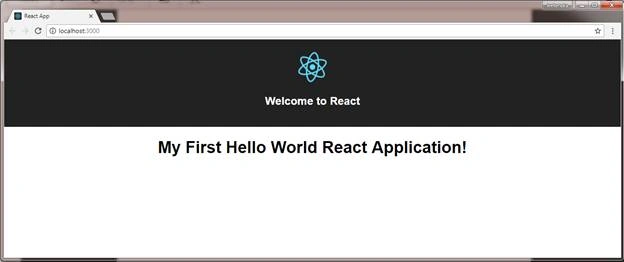
So far we have just created the new React application name ‘hello_world’ time print the message on default component created by the ‘create-react-app’ command. Open the ‘App.js’ file and replace the line no.14 with the below line:
---------code start---------
<h1> My First Hello World React Application! </h1>
---------code end---------
After replacing the above line, save the changes. Notice that the browser reloads automatically with the revised title. Because React compiler is running in the ‘watch’ mode, it detects that there is a file change and re-compiles the file. In the Chrome browser, the app gets refreshed automatically so you don’t have to refresh the page every time your code changes. Please see the final output in the below screenshot:
Summary
I hope that beginners, as well as students, understood how to set up the development environment for React. If you have any suggestions regarding this article, please contact me.
Stay tuned for other concepts of React coming soon!
“Learn It, Share it.”
| <= Previous Article | Next Article => |
Rizwan ButtPosted Aug 10, 2018, 1:53 AM
Very nice ... keep sharing!
Amit Kumar SinghPosted Jun 28, 2018, 5:27 AM
Nice one .... Thanks for sharing
Jasminder SinghPosted Jun 9, 2018, 4:35 AM
Excellent for beginners. Very easy and clear steps. Thanks Jeetendra Gund...!!!
Jis JoPosted May 27, 2018, 7:52 AM
Fantastic .. thanks a lot.. expecting more articles on reactjs
Đình PhúcPosted May 7, 2018, 4:39 AM
Thank for share. It good
Rupali ShindePosted Mar 14, 2018, 12:45 AM
Thanks for simple and helpful article jeet sir.
Hiten PandyaPosted Mar 12, 2018, 8:43 AM
Good article Thanks for sharing sir..
Sagar Pandurang KapPosted Mar 12, 2018, 12:25 AM
Yo bro.Well Explained.......
Aruljothy SundaramoorthyPosted Mar 10, 2018, 11:46 AM
Great...It's working Good....Waiting for the next lesson... ;)
Naresh SinghalPosted Mar 10, 2018, 12:44 AM
Nice Beginning Jeetendra....keep on
Ravi Polara PatidarPosted Mar 9, 2018, 10:04 PM
Very Good Learning article.