

This article shows how to use XML in a project and also use the basic Class Library helper.
Prerequisites
- Visual Studio 2013 (download Express edition to: Visual Studio Express )
- Bootstrap 3.0 (Download using Nuget Package inside the Visual Studio)
- jQuery 2.1.1 (Download using Nuget Package inside the Visual Studio)
- Entity Framework 6.1.1 (Download using Nuget Package inside the Visual Studio)
Let's get started
Assuming you have already installed the Visual Studio 2013, follow the following images and instructions showing how I use XML and build this sample program/demo. I created a project named DemoUsingXML and add XML file to App_Data.
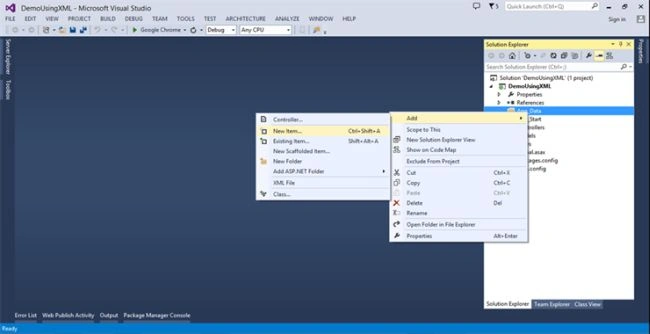
Right-click the App_Data folder then select Add then New Item.
Right-click the App_Data folder then select Add then New Item.
On the left panel of Add new item. Select Data then select XML. Name the XML file depending on your naming convention or object name.
In this demo I named it ProductsData.xml.
In this demo I named it ProductsData.xml.
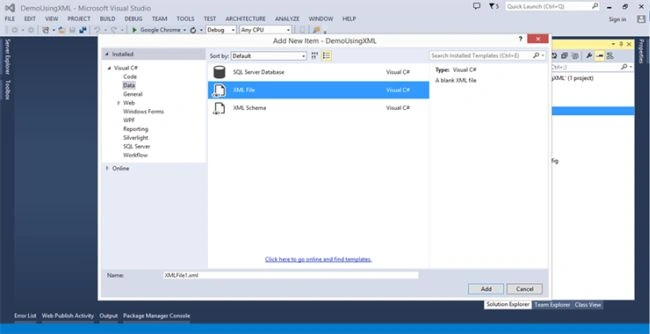
After naming the XML file click add. Then you will see the default XML file.
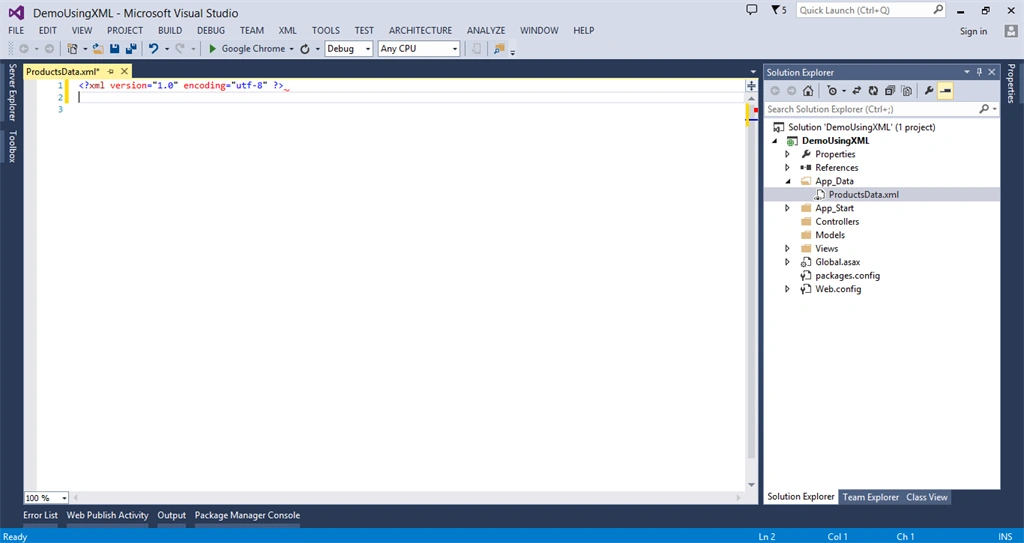
Now create the product object to the XML file. See the image below.
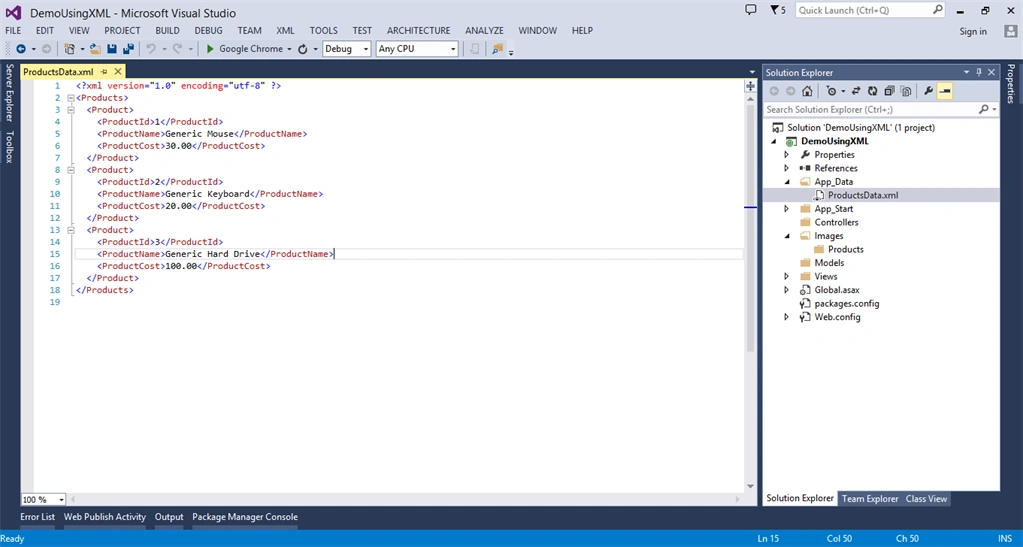
Script inside the ProductsData.xml
- <?xml version="1.0" encoding="utf-8" ?>
- <Products>
- <Product>
- <ProductId>1</ProductId>
- <ProductName>Generic Mouse</ProductName>
- <ProductCost>30.00</ProductCost>
- </Product>
- <Product>
- <ProductId>2</ProductId>
- <ProductName>Generic Keyboard</ProductName>
- <ProductCost>20.00</ProductCost>
- </Product>
- <Product>
- <ProductId>3</ProductId>
- <ProductName>Generic Hard Drive</ProductName>
- <ProductCost>100.00</ProductCost>
- </Product>
- </Products>
Now let's add our Class Library helper. See the instructions below.
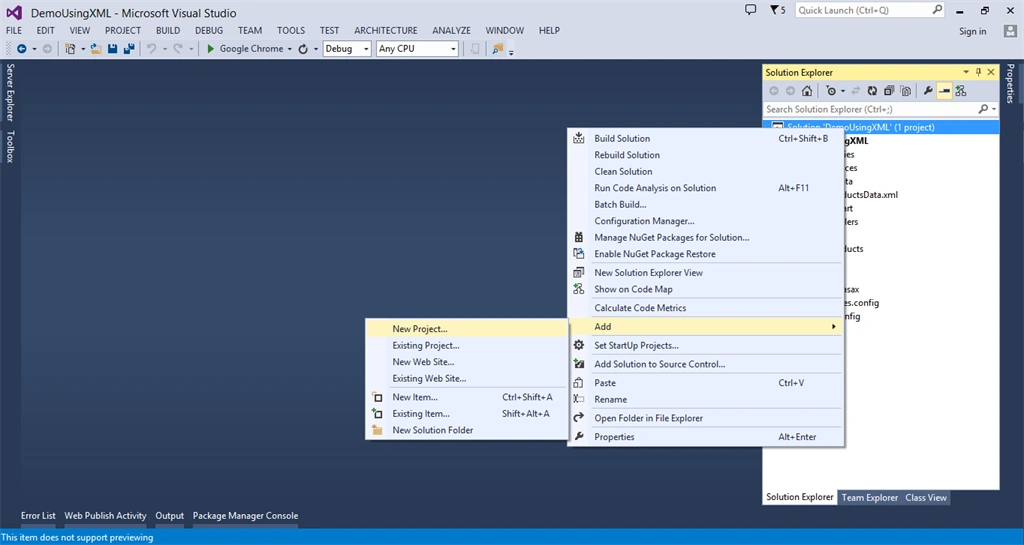
Right-click the Solution in the project then click Add then choose New Project.
Right-click the Solution in the project then click Add then choose New Project.
The Add New Project window will pop up. On the left panel of Add New Project Click C# then choose Windows Desktop. In the center of the Add New Project window choose Class Library.
See image below.
See image below.
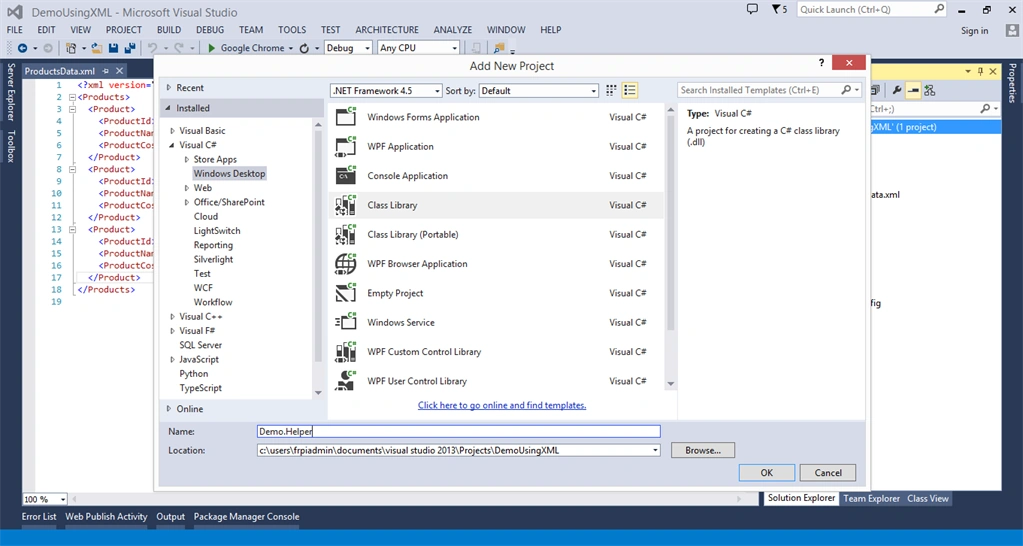
Rename the Class Library depending on your helper and so on. In this demo I named the library Demo.Helper. Now click Ok.
After clicking OK this will show in your project.
After clicking OK this will show in your project.
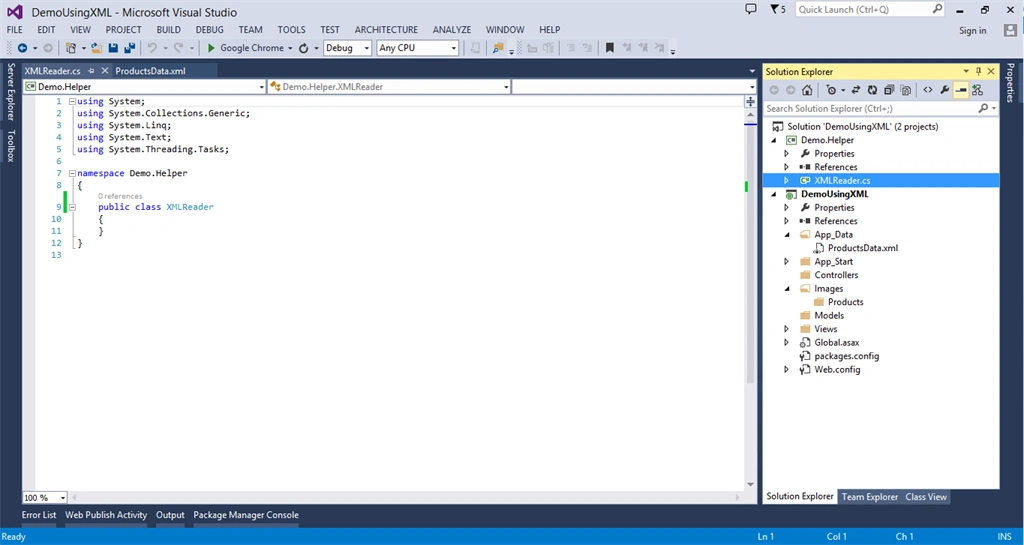
Now let's do the coding part to read the data inside our ProductsData.xml or XML File.
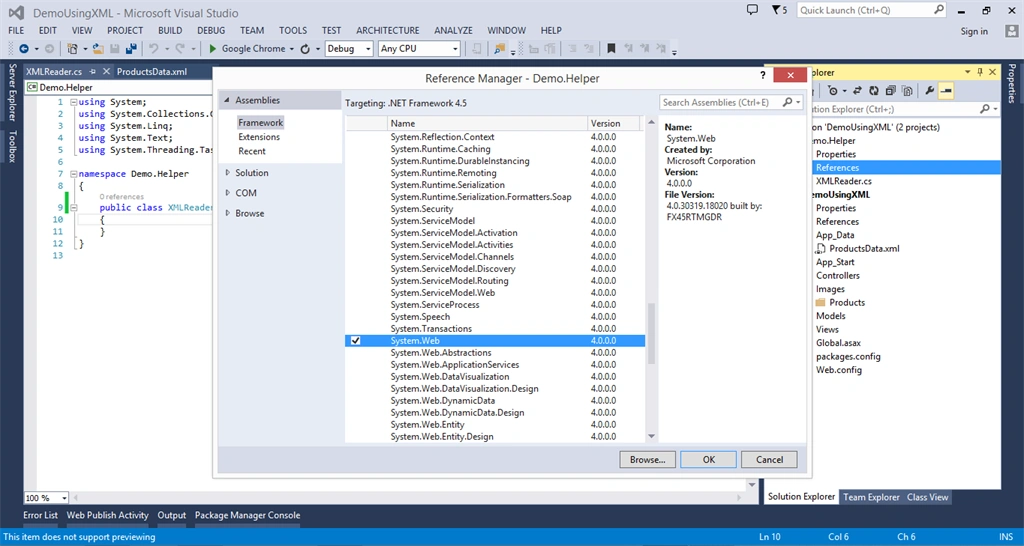
Right-click the Reference on Demo.Helper Class Library.
Choose Assemblies then framework look for System.Web then click OK.
Right-click the Reference on Demo.Helper Class Library.
Choose Assemblies then framework look for System.Web then click OK.
I created an external model or properties; see image below.
Also add using System.Xml.Serialization;
Also add using System.Xml.Serialization;
To serialize the class to XML.
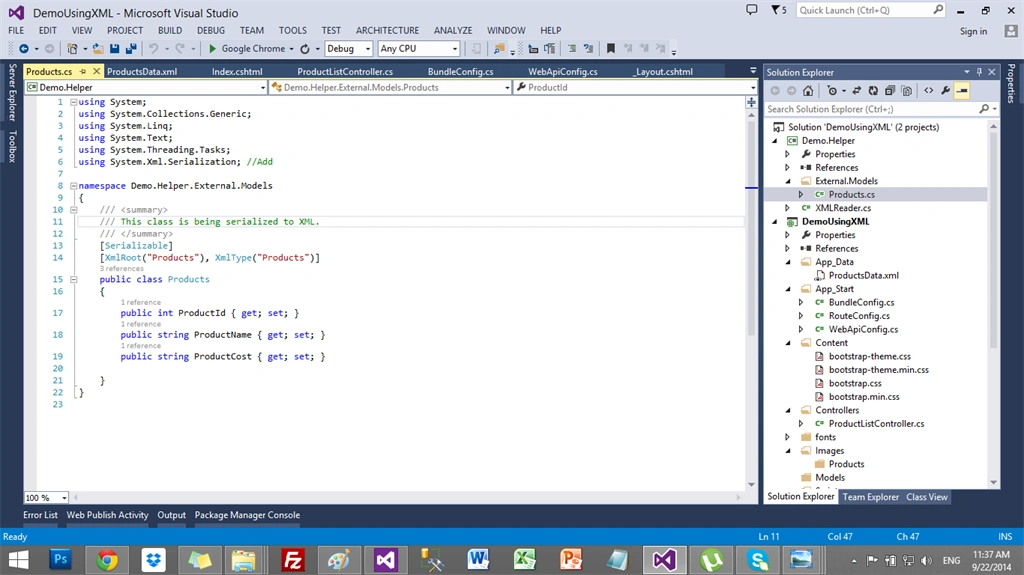
Code inside the product class
- using System;
- using System.Collections.Generic;
- using System.Linq;
- using System.Text;
- using System.Threading.Tasks;
- using System.Xml.Serialization; //Add
- namespace Demo.Helper.External.Models
- {
- /// <summary>
- /// This class is being serialized to XML.
- /// </summary>
- [Serializable]
- [XmlRoot("Products"), XmlType("Products")]
- public class Products
- {
- public int ProductId { get; set; }
- public string ProductName { get; set; }
- public string ProductCost { get; set; }
- }
- }
Add this on top of the code, see code below.
using System.Web;//Add References -> Choose assemblies
using System.Data;//Add
using Demo.Helper.External.Models; // This is the External Model that I created.
- using System;
- using System.Collections.Generic;
- using System.Linq;
- using System.Text;
- using System.Threading.Tasks;
- using System.Web;//Add References -> Choose assemblies
- using System.Data;//Add
- using Demo.Helper.External.Models; // Add
- namespace Demo.Helper
- {
- public class XMLReader
- {
- /// <summary>
- /// Return list of products from XML.
- /// </summary>
- /// <returns>List of products</returns>
- public List<Products> RetrunListOfProducts()
- {
- string xmlData = HttpContext.Current.Server.MapPath("~/App_Data/ProductsData.xml");//Path of the xml script
- DataSet ds = new DataSet();//Using dataset to read xml file
- ds.ReadXml(xmlData);
- var products = new List<Products>();
- products = (from rows in ds.Tables[0].AsEnumerable()
- select new Products
- {
- ProductId = Convert.ToInt32(rows[0].ToString()), //Convert row to int
- ProductName = rows[1].ToString(),
- ProductCost = rows[2].ToString(),
- }).ToList();
- return products;
- }
- }
- }
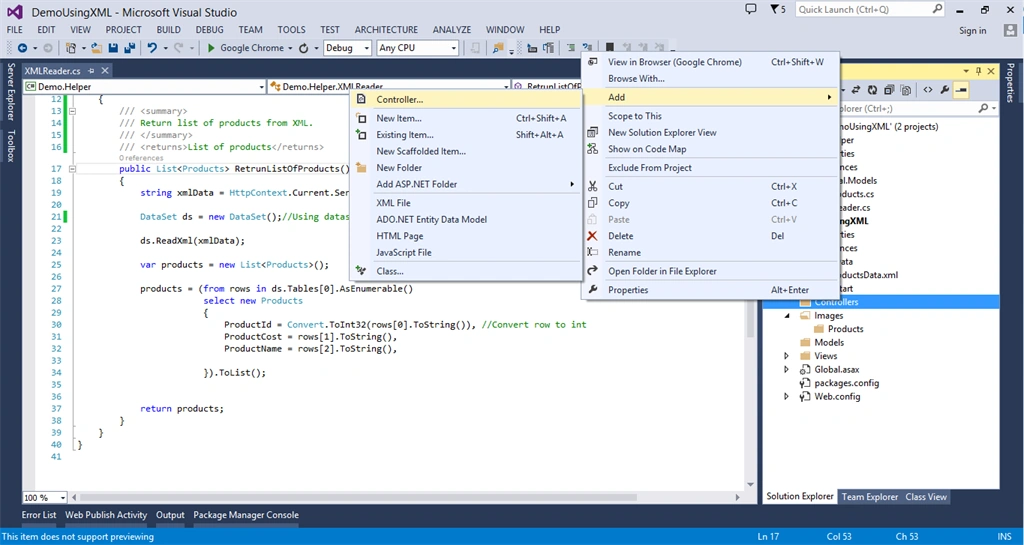
First create a controller. Right-click Controller folder inside the project.
Click Add then Controller.
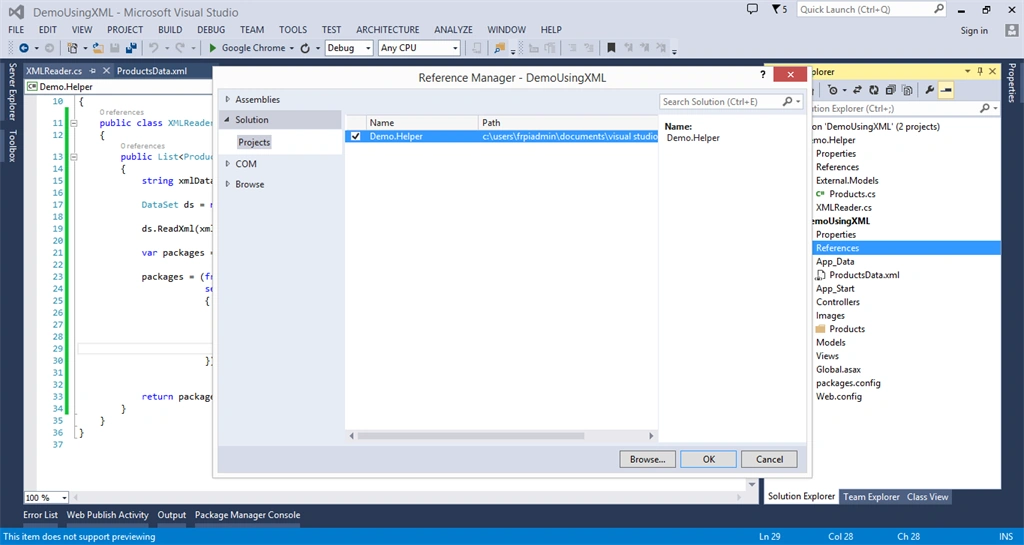
To use the Library that we created, Right-click References then choose Solution then check Demo.Helper then click Ok.
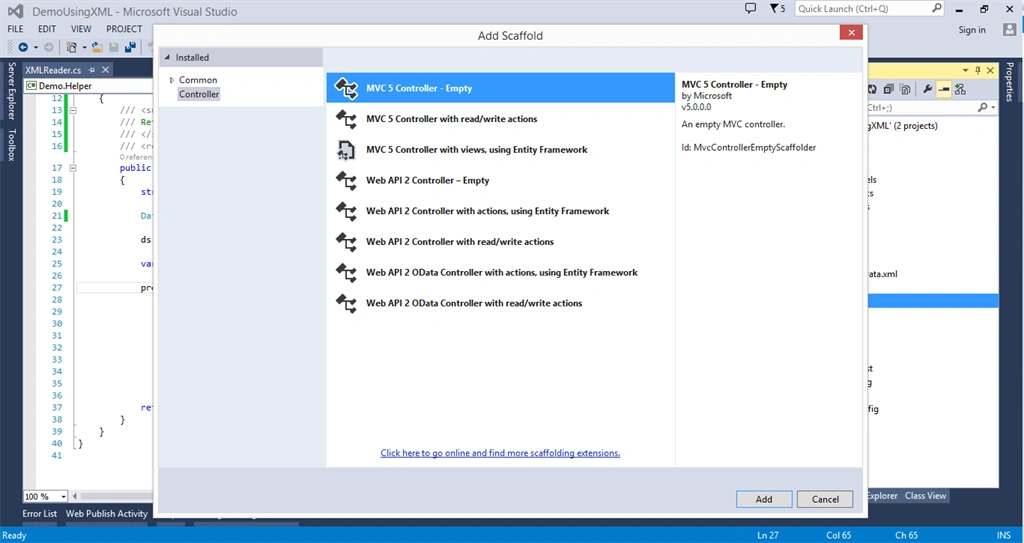
After right-clicking the Controller folder choose Add then choose Controller then choose one of the controllers in this demo; I chose MVC 5 Controller Empty.
Click Add.
I named the controller ProductListController.cs, then Right-click the Index Code inline with the ActionResult then choose Add View; see the image below:
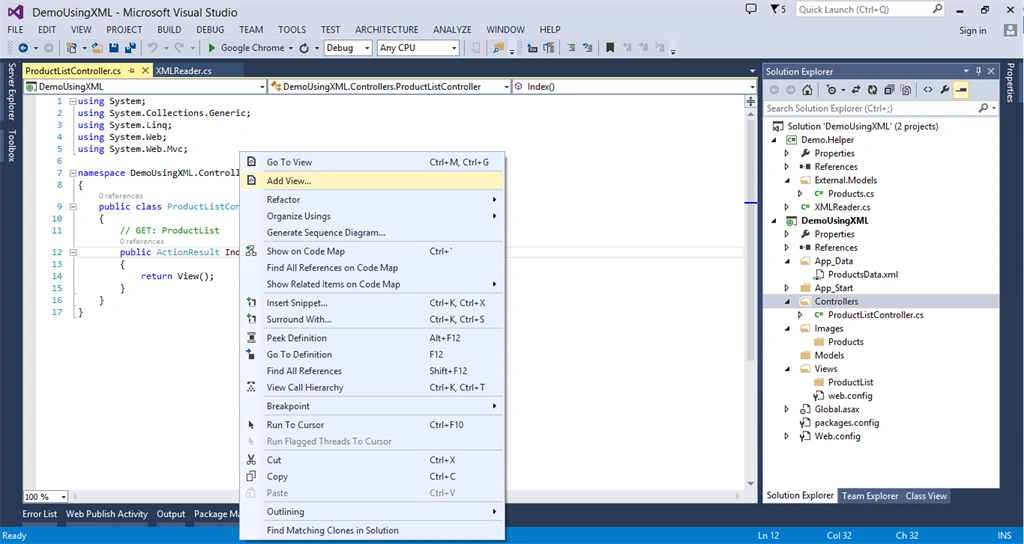
If you want to learn more about view, you may check this out. This link might help you: Adding a View.
Inside the view script add the ff. scripts and code.
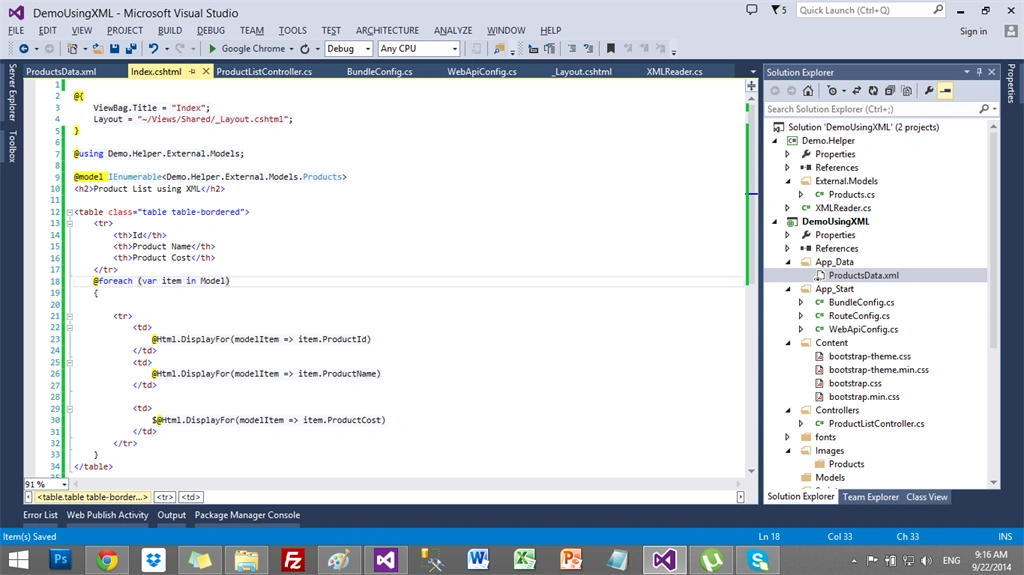
Code inside the index.cshtml.
- @{
- ViewBag.Title = "Index";
- Layout = "~/Views/Shared/_Layout.cshtml";
- }
- @using Demo.Helper.External.Models;
- @model IEnumerable<Demo.Helper.External.Models.Products>
- <h2>Product List using XML</h2>
- <table class="table table-bordered">
- <tr>
- <th>Id</th>
- <th>Product Name</th>
- <th>Product Cost</th>
- </tr>
- @foreach (var item in Model)
- {
- <tr>
- <td>
- @Html.DisplayFor(modelItem => item.ProductId)
- </td>
- <td>
- @Html.DisplayFor(modelItem => item.ProductName)
- </td>
- <td>
- [email protected](modelItem => item.ProductCost)
- </td>
- </tr>
- }
- </table>
Add this code inside the controller. In this project ProductListController.
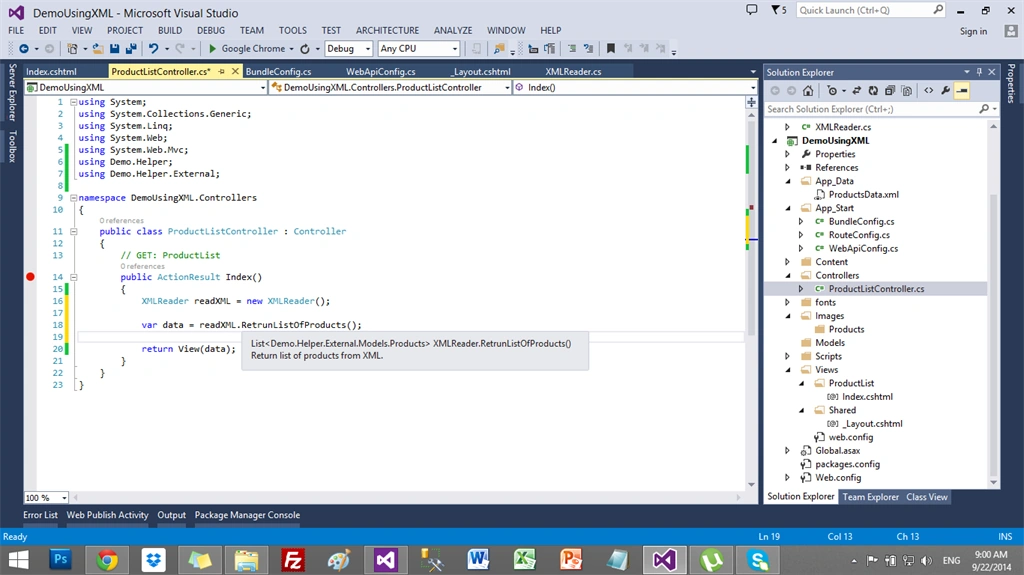
Add the code inside the Index():
- public class ProductListController : Controller
- {
- // GET: ProductList
- public ActionResult Index()
- {
- XMLReader readXML = new XMLReader();
- var data = readXML.RetrunListOfProducts();
- return View(data.ToList());
- }
- }
This will be shown after running the project.
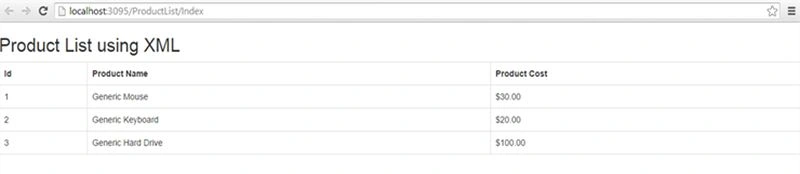
The data from XML is finally displayed. I hope you have learned something.
More blogs to come.
Enjoy! Cheers.
Thank you God Bless...
More blogs to come.
Enjoy! Cheers.
Thank you God Bless...
Riti TiwariPosted Jan 13, 2017, 4:10 AM
Why have you used class library?
FHI NB93Posted Dec 12, 2015, 4:38 PM
Hi, I would like to ask, how I can arrange data in the table. For example when someone on view ProductList/Index enters to the text field or chooses from data list "Generic mouse" and then table will contain only products with this product?s name. Thank you.
Trevor GeorgePosted Nov 10, 2015, 3:35 PM
<%@ Control Language="C#" Inherits="System.Web.Mvc.ViewUserControl<ProductList>" %><h2>VoIP Subform 1</h2> <fieldset id="voipdetails" class="section2"> <table class="table table-bordered"> <tr> <th>Id</th> <th>Product Name</th> <th>Product Cost</th> </tr> <% foreach (var product in Model.Products) { %> <tr> <td> <%: product.ProductID%> </td> <td> <%= product.ProductName%> </td> <td> <%= product.ProductCost%> </td> </tr> <% } %> </table>
Trevor GeorgePosted Nov 10, 2015, 3:34 PM
Hi I tried to copy the necessary code from this project into my project. The problkems is that my project is in aspx and not in razor. Everything is fine but when I put code in the view (I have a partial view), it does not work.
M DPosted Jul 30, 2015, 3:08 PM
Thanks for this. For all users - please note misspelling in RetrunListOfProducts()
James RyanPosted Jul 23, 2015, 7:58 AM
I can't seem to open the download as there is not a project file to open it with, could you please advise Cheers
Michael GRANDIEREPosted Jun 26, 2015, 4:08 AM
thanks bro
Gowtham RajamanickamPosted Mar 27, 2015, 9:38 AM
amazing
Victor GarciaPosted Mar 13, 2015, 4:47 PM
Thanks a lot Christian !!... I was trying to solve this problem for three days... your article was very helpfull.
Sanket ShahPosted Jan 30, 2015, 5:20 AM
Thanks. It helped me a lot.
Biswajeet MoharanaPosted Jan 12, 2015, 8:03 AM
thanks man very help full
Ramesh MaruthiPosted Sep 25, 2014, 10:32 AM
Good one Christian !!
Mahesh ChandPosted Sep 23, 2014, 7:07 AM
Well done Christian Felix
Nimit JoshiPosted Sep 23, 2014, 3:59 AM
Thanks for this wonderful article. This is the same what i want..
Prasham SabadraPosted Sep 23, 2014, 2:14 AM
Nice article ! Thanks!
Dinesh BeniwalPosted Sep 23, 2014, 1:59 AM
Thats great
Dinesh BeniwalPosted Sep 23, 2014, 1:48 AM
Waiting for your more articles Christian Felix...Excited
Arvind PradhanPosted Sep 23, 2014, 1:47 AM
Good & knowledgeable article ...............
Manish TewatiaPosted Sep 23, 2014, 1:44 AM
Nicely explained Christian...!
Praveen KumarPosted Sep 23, 2014, 1:39 AM
Rock Star Christian Felix. Rock it with your contributions.
Dinesh BeniwalPosted Sep 22, 2014, 5:46 AM
Great start Christian, Welcome to the C# Corner.