

Introduction
Generally, in development projects, there is most common requirement is reading/ editing/ generating an Excel file. There are lots of paid/free software components available nowadays to fulfill this requirement.
In recants projects, I also worked with the same kind of requirement. I have used the Microsoft Interop Excel component to read Excel files, but the main problem appears when it is hosted in a shared hosting platform.
When the developer hosts that project in shared hosting (in the case of low-budget projects where a dedicated server is not necessary), then the developer will have limited access to server settings, and he/she can’t install Excel components (that are required for Microsoft Interop excel) on the server, here you need a component that will solve your problem.
After some research, I found a software component IronXL which solved my problem. We don’t need to install MS Office or any Excel component on the hosting server (even on shared hosting) to make the code work. This is the biggest advantage of IronXL. I decided to share this component via this article with others. But this component is not free. It has dedicated pricing.
Code Playground
Let’s start with code. We will make a new Windows application using C#.
Step 1. Open Visual Studio. Select New Project, then Windows Form Application. I am using the Visual Studio 2022 community version.
Step 2. Name it as you want. My application name is ReadExcelFileApp.
Step 3. First of all, add a Reference to the Excel library - IronXL. Right-click on the Solution in the solution explorer and click the “Manage NuGet packages” option.
Step 4. Browse the tab and type the “IronXL.Excel” keyword. The following screen will appear. Click the install button. Visual Studio will prompt you that VS is installing the following components and it related libraries (dependencies) in this project. Click on OK. NuGet package will be installed.


Step 5. Now add two buttons, Choose and Read File and Close, on the form by dragging the button control from the Toolbox window.
Step 6. Also, add a DataGridView to see the result (excel data).

Step 7. Right-click on Windows Form and click the “View code” option. This will open the code behind the file of the form.
Step 8. You can also open the code behind the file by double-clicking on the buttons. It will create the click event method of the button.
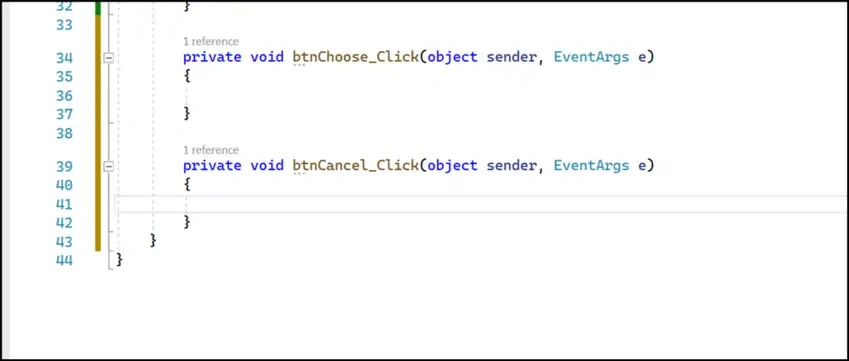
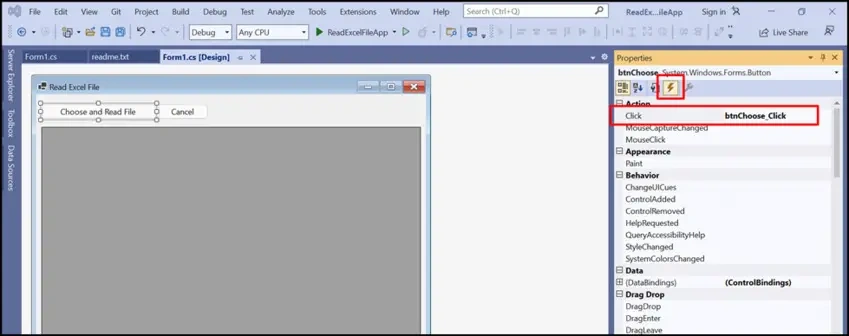
Step 9. You can also manage the click event of the button in its Properties.
Step 10. Now create a method ReadExcel, which returns a data table using the following logic.
/// <summary>
/// this method will read the excel file and copy its data into a datatable
/// </summary>
/// <param name="fileName">name of the file</param>
/// <returns>DataTable</returns>
private DataTable ReadExcel(string fileName) {
    WorkBook workbook = WorkBook.Load(fileName);
    //// Work with a single WorkSheet.
    ////you can pass static sheet name like Sheet1 to get that sheet
    ////WorkSheet sheet = workbook.GetWorkSheet("Sheet1");
    //You can also use workbook.DefaultWorkSheet to get default in case you want to get first sheet only
    WorkSheet sheet = workbook.DefaultWorkSheet;
    //Convert the worksheet to System.Data.DataTable
    //Boolean parameter sets the first row as column names of your table.
    return sheet.ToDataTable(true);
}
Let's discuss something about the ReadExcel() method.
This method will read the file data in the Workbook class object. Here you can perform a lot of operations on Workbook class objects.
You can get the Workbook data in a data set or data table directly by using 1 line of code.
Similarly, you can do a lot of operations with this component.
Step 11. Add the following logic in button click events.
 /// <summary>
 /// this method will choose and read the excel file
 /// </summary>
 /// <param name="sender"></param>
 /// <param name="e"></param>
 private void btnChoose_Click(object sender, EventArgs e) {
     OpenFileDialog file = new OpenFileDialog(); //open dialog to choose file
     if (file.ShowDialog() == DialogResult.OK) //if there is a file chosen by the user
     {
         string fileExt = Path.GetExtension(file.FileName); //get the file extension
         if (fileExt.CompareTo(".xls") == 0 || fileExt.CompareTo(".xlsx") == 0) {
             try {
                 DataTable dtExcel = ReadExcel(file.FileName); //read excel file
                 dataGrdView.Visible = true;
                 dataGrdView.DataSource = dtExcel;
             } catch (Exception ex) {
                 MessageBox.Show(ex.Message.ToString());
             }
         } else {
             MessageBox.Show("Please choose .xls or .xlsx file only.", "Warning", MessageBoxButtons.OK, MessageBoxIcon.Error); //custom messageBox to show error
         }
     }
 }
 /// <summary>
 /// this method will close the windows form
 /// </summary>
 /// <param name="sender"></param>
 /// <param name="e"></param>
 private void btnCancel_Click(object sender, EventArgs e) {
     this.Close(); //to close the window(Form1)
 }
After choosing the file Result will be like the following whether you upload a .xls or .xlsx file.

Conclusion
The IronXL is also helpful in other Excel operations like editing/styling/generating Excel files. The code of this tutorial is attached. You can download the code, play with the code, and modify it according to your requirements. I tried to make this tutorial as development-friendly friendly as simple as I could. Thank you, and enjoy coding!!!
Joseph SaadePosted Feb 15, 2023, 10:07 AM
Forgot to mention this is a paid solution!
Mudassar PraniaPosted Oct 31, 2022, 7:30 AM
Giving message of IronXL Licence Exception. I think it is not opensource or free package.
sweety kumariPosted Jul 1, 2022, 8:56 PM
Pls check code download link is not working
devmath devmathPosted Dec 27, 2021, 3:24 PM
Great work man!!
alex voPosted Jun 6, 2021, 2:32 PM
I using this code but when i want choose a table Name in sheet1 cannot run can someone help me about it
Anthony MullinsPosted Jun 4, 2021, 7:01 PM
I am getting errors on DataTable, OleDbConnection, and OleDbDataAdapter. I am using 2019 VS, I do not have assemblies for adding a reference. I did get it from COM and added Microsoft Excel 16.0 Object Library and since there was a Ole error I added Microsoft Ole DB Service Component 1.0 type library and Ole Simple Provider 1.5 library. I get a CS0104 error that states "datatable is ambiguous reference between "system.data.DataTable & Microsoft.Office.Interop.Excel.Data Table"
Vadim VinogradPosted Feb 8, 2021, 7:27 AM
Code working properly. It's great !!! Thank you very match.
Srinivas VaithianathanPosted Apr 30, 2020, 12:07 PM
How to write dataset to excel file. Thanks for read part.
Sagar JaybhayPosted Mar 2, 2020, 11:23 PM
Nice post. Thanks for sharing
Kaushal ParekhPosted Oct 4, 2019, 10:32 AM
How to read just the Column Names of Excel file using this way?
Rajanikant HawaldarPosted Jan 2, 2019, 12:14 AM
Hi Harminder Singh : How to read excel data when excel file is open state and excel file is not saved.
dhanu shreePosted Aug 1, 2018, 11:21 PM
Hi, How to read excel file without using OleDb?
Ankit GuptaPosted Apr 12, 2018, 6:18 AM
Hi,how to export data in multiple tables
Jacob GearPosted Mar 26, 2018, 3:29 PM
Hi, what if I want to Select * from Sheet 1 where firstname= x? Thanks :)
jitesh chauhanPosted Dec 17, 2017, 4:52 AM
What codes need to implement in this if we want to store the excel data into our database?
Bhaskar SharmaPosted Nov 15, 2017, 6:24 AM
Hi , but why there is a character limit on sheet name if my sheet name is long then it is giving exception .
rhicha kawatkarPosted Nov 11, 2017, 8:53 PM
Hi, i aaded reference of 2016 Microsoft.Office.Interop.Excel dll. When opening excel 2013 file my exe crashes.
vy vuongPosted Sep 24, 2017, 9:33 AM
May you help me that I want to read file Excel have 10000 line above. How do I do? Thank you,sir!
MinaPosted Aug 31, 2017, 11:42 PM
This is perfect! Thanks!
ShivajiPosted Aug 13, 2017, 3:07 PM
It is a great App, saved my lot of time, was looking for some thing like this. Thanks
GulZaib AmjedPosted Aug 12, 2017, 7:02 PM
It's great, you save my lot of work. thanks
Sydnee NodvinPosted Aug 3, 2017, 10:11 AM
I keep getting an error on " fileExt = Path.GetExtension(filePath); " but only on the Path. Why is that?
Rahul PanchalPosted Aug 2, 2017, 11:46 PM
The 'Microsoft.ACE.OLEDB.12.0' provider is not registered on the local machine.
Svetlana AleksandrovaPosted Apr 7, 2017, 6:39 AM
Hi Can I read singe cells in a worksheet, update them in the data grid(manually) and return them back to my worksheet? My file is xlsm. Thank you!
Igor MelnicPosted Mar 30, 2017, 7:40 PM
But , what happen if first column S#No has rows view like 1, 2, 3, 4, 5+6, 7 in excel, so in table will be show 1, 2, 3, 4, ,7. Adapter trying convert like numeric but it's text, and cell '5+6' in excel, will be empty in datatable.. ?
Ashok RPosted Feb 12, 2017, 3:12 AM
You said read File, but what if? file was open in excel, still i want to read the file
SubashPosted Sep 5, 2016, 9:57 PM
Goodshare
Harminder SinghPosted Apr 26, 2016, 1:54 PM
thank you Sir
Nushrat TyagiPosted Apr 20, 2016, 6:56 AM
Good Job Buddy
prakash GPosted Nov 25, 2015, 8:18 AM
Good thing..
Harminder SinghPosted Oct 19, 2015, 10:26 AM
thank u Sir #supportMe
Santhakumar MunuswamyPosted Oct 18, 2015, 4:38 AM
Good one
Harminder SinghPosted Oct 9, 2015, 2:54 PM
thank u all :) #supportMe
Abhishek KumarPosted Oct 9, 2015, 8:19 AM
Nice Article ..
Mukesh KumarPosted Oct 9, 2015, 3:32 AM
Nice article
Nilesh JadavPosted Oct 9, 2015, 2:32 AM
Nice one sir
Rajeesh MenothPosted Oct 9, 2015, 1:19 AM
Good Article..Good Start !!!
Sujeet SumanPosted Oct 9, 2015, 1:17 AM
Nice Article..............
Sibeesh VenuPosted Oct 9, 2015, 1:11 AM
Nice Share
Ujjval ShuklaPosted Oct 9, 2015, 1:04 AM
Nice Article sir