

Introduction
Building AI agents is exciting, but running them in production is where the real challenge begins. How do you know if your agent is performing well? Are function calls succeeding? What happens when something goes wrong? How long do responses take?
In our previous articles, we built a Task Management AI Agent and secured it with Azure AI Content Safety . Now, we're adding the observability layer that every production AI system needs.
What you'll learn:
How to use .NET Aspire for local observability with a real-time dashboard
Configuring OpenTelemetry for traces, metrics, and logs
Tracking AI agent-specific metrics (function calls, response times)
Deploying the same observability configuration to Azure Application Insights
Best practices for monitoring AI agents in production
Why this matters: Without observability, you're flying blind. With proper monitoring, you can:
Detect issues before users complain
Track agent performance and accuracy
Debug complex multi-step agent interactions
Meet compliance and audit requirements
Source code : GitHub - TaskAgent
What is .NET Aspire?
.NET Aspire is Microsoft's opinionated cloud-native stack for building observable, production-ready distributed applications. It includes:
Aspire Dashboard : Real-time observability UI for local development
Service Defaults : Pre-configured OpenTelemetry setup
Azure Integration : Seamless deployment to Azure with the same telemetry
OTLP Protocol : Standard OpenTelemetry export (works with any backend)
Key benefit : Configure observability once, use it everywhere—from local development to Azure production.
Understanding the Three Pillars of Observability
1. Traces (Distributed Tracing)
What : Shows the complete journey of a request through your system.
For AI Agents
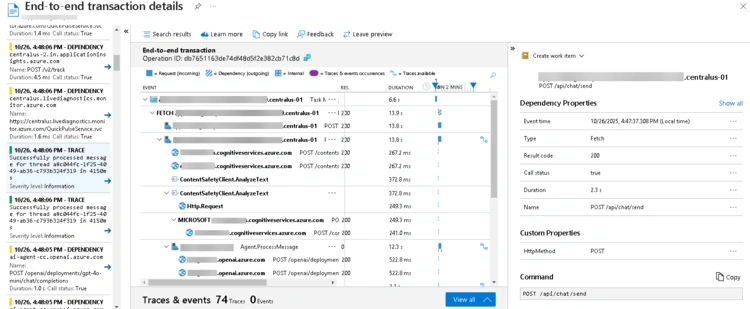
User sends message → Agent receives → LLM call → Function tool execution → Response
Example trace
    ChatController.SendMessage [200ms]
  ├─ TaskAgentService.SendMessageAsync [180ms]
  │   ├─ Azure OpenAI Call [120ms]
  │   ├─ TaskFunctions.CreateTask [40ms]
  │   │   └─ Database Insert [15ms]
  │   └─ Thread Serialization [10ms]
Why it matters : See exactly where time is spent and where failures occur.
2. Metrics (Time-Series Data)
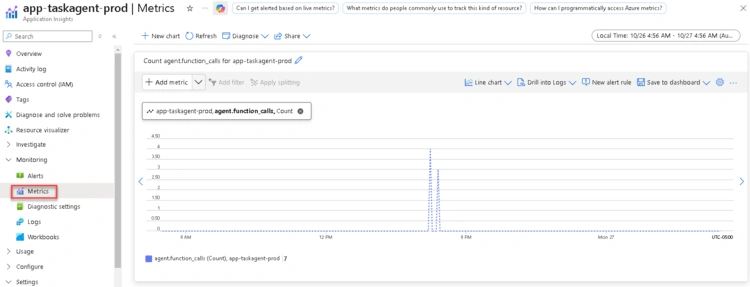
What : Numerical measurements over time (counters, gauges, histograms).
For AI Agents
Requests per second
Function call success rate
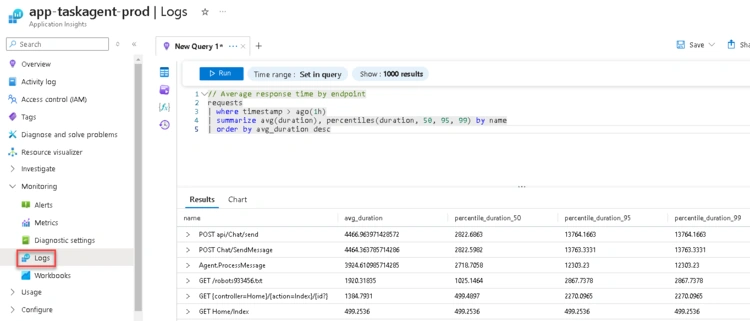
Response latency percentiles (p50, p95, p99)
Active threads/conversations
Error rates and types
Example metrics
    agent.requests = 1,234
agent.function_calls = 456
agent.errors = 3
agent.response.duration.p95 = 850ms
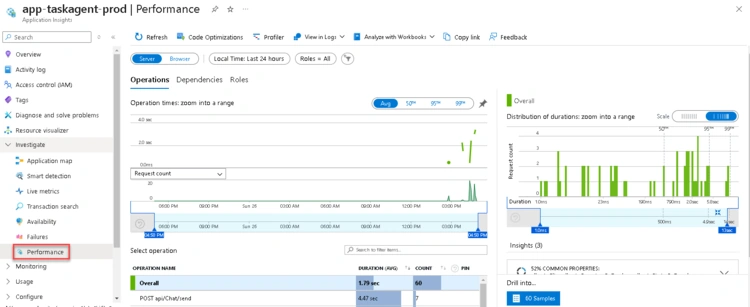
Why it matters : Understand system health and performance trends at a glance.
3. Logs (Structured Events)
What : Timestamped records of discrete events.
For AI Agents :
Agent started/stopped
Function tool called with parameters
Errors and exceptions
User intent extracted
Content safety violations
Why it matters : Provides detailed context for debugging and audit trails.
Architecture: Local Development vs Production
The project is configured with .NET Aspire to provide seamless observability from development to production. Here's how telemetry flows in different environments:
Local Development with .NET Aspire
When you run the TaskAgent.AppHost project, .NET Aspire automatically:
Launches the Aspire Dashboard at
https://localhost:17198Configures the OTLP exporter to send telemetry to the dashboard
Displays real-time logs, traces, and metrics as you interact with the application
No Docker required : .NET Aspire Dashboard runs as a standalone process—you don't need Docker installed.
Production Deployment to Azure
In production, the same OpenTelemetry instrumentation automatically switches to Azure Monitor (Application Insights) based on configuration:
Key Insight : Same OpenTelemetry instrumentation, different exporters. The ServiceDefaults project detects which exporter to use based on environment variables:
OTEL_EXPORTER_OTLP_ENDPOINT → Aspire Dashboard (local)
APPLICATIONINSIGHTS_CONNECTION_STRING → Application Insights (production)
How the Project is Configured
The project includes .NET Aspire support out of the box. Here's what's already set up:
1. ServiceDefaults Project
The TaskAgent.ServiceDefaults project contains shared OpenTelemetry configuration that works in all environments. Key configuration includes:
ServiceDefaultsExtensions.cs
    public static TBuilder AddServiceDefaults<TBuilder>(this TBuilder builder)
{
    builder.ConfigureOpenTelemetry();  // Sets up traces, metrics, logs
    builder.AddDefaultHealthChecks();   // Adds /health endpoint
    builder.Services.AddServiceDiscovery();
    // ... HTTP client configuration
    return builder;
}
The OpenTelemetry configuration automatically instruments:
ASP.NET Core (HTTP requests, responses)
HttpClient (outbound HTTP calls)
Entity Framework Core (database queries)
Custom meters:
TaskAgent.Agent,TaskAgent.FunctionsCustom activity sources:
TaskAgent.Agent,TaskAgent.Functions
2. AppHost Project
The TaskAgent.AppHost project is the orchestrator for local development:
AppHost.cs
    IDistributedApplicationBuilder builder = DistributedApplication.CreateBuilder(args);
builder.AddProject<Projects.TaskAgent_WebApp>("taskagent-webapp");
await builder.Build().RunAsync();
When you run this project (F5 in Visual Studio or dotnet run ), it:
Launches the Aspire Dashboard
Starts the WebApp project
Streams all telemetry to the dashboard in real-time
3. WebApp Integration
The TaskAgent.WebApp project is configured to use Service Defaults:
Program.cs
    // Add Service Defaults (OpenTelemetry + Health Checks)
builder.AddServiceDefaults();

// ... other configuration

// Map health check endpoints
app.MapDefaultEndpoints();
This single line builder.AddServiceDefaults() enables all observability features.
Custom Agent Telemetry
Beyond the built-in instrumentation, the project includes custom telemetry specifically designed for AI agent operations.
Agent Metrics
The AgentMetrics class tracks AI-specific metrics using OpenTelemetry's Metrics API:
Key metrics tracked
    // Counter: Total requests to the agent
_requestsCounter = _meter.CreateCounter<long>("agent.requests");

// Counter: Function calls made by the agent
_functionCallsCounter = _meter.CreateCounter<long>("agent.function_calls");

// Counter: Errors encountered
_errorsCounter = _meter.CreateCounter<long>("agent.errors");

// Histogram: Response duration (captures p50, p95, p99)
_responseDurationHistogram = _meter.CreateHistogram<double>("agent.response.duration");
How it's used in TaskAgentService :
    _metrics.RecordRequest(threadId ?? "new", "processing");
// ... process message
_metrics.RecordResponseDuration(stopwatch.ElapsedMilliseconds, threadId, success);
Tags provide context
thread_id: Which conversation threadstatus: success/error/processingfunction_name: Which function tool was called
Agent Traces
The AgentActivitySource class creates custom spans for distributed tracing:
Creating spans
    // Start a span for message processing
using var activity = AgentActivitySource.StartMessageActivity(threadId, message);

// Start a span for function calls
using var activity = AgentActivitySource.StartFunctionActivity("CreateTask", tags);
Tags on activities
    activity.SetTag("thread.id", threadId);
activity.SetTag("function.name", functionName);
activity.SetTag("agent.operation", "process_message");
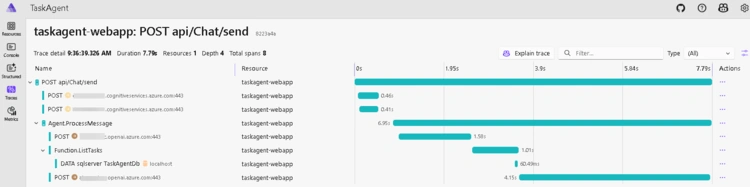
These spans appear in the trace waterfall, showing exactly how long each operation takes and how they relate to each other.
Running Locally with Aspire Dashboard
To see the observability features in action:
Option 1: Visual Studio
Set
TaskAgent.AppHostas the startup projectPress F5
Option 2: Command Line
    cd TaskAgent.AppHost
dotnet run
The Aspire Dashboard launches automatically at https://localhost:17198 (check console for the exact URL and authentication token).
Dashboard Features
The Aspire Dashboard provides real-time observability with several key views:
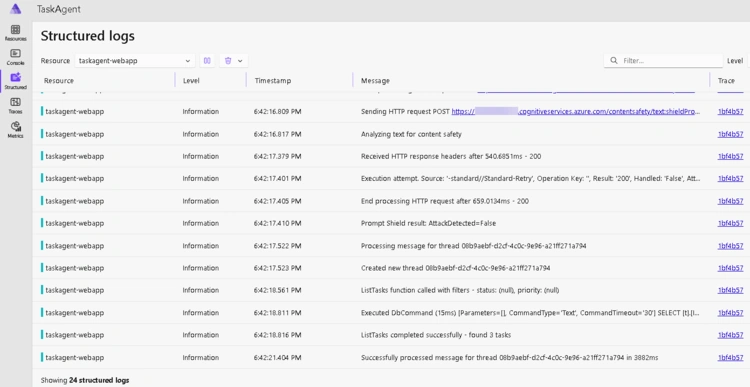
1. Structured Logs
Real-time log streaming from all services
Filter by severity, source, message content
View full context (request ID, trace ID, custom properties)
Search capabilities for quick troubleshooting
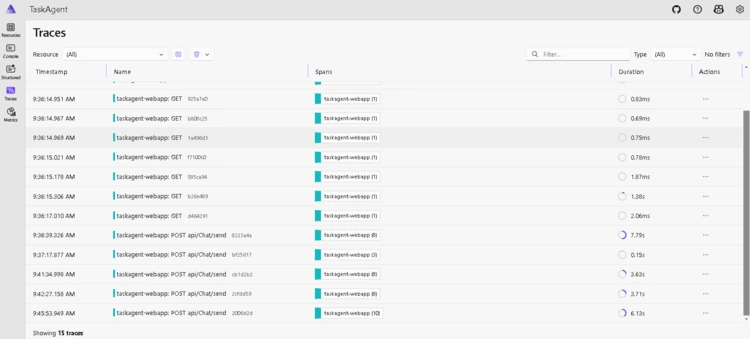
2. Traces (Distributed Tracing)
See complete request flow through your system
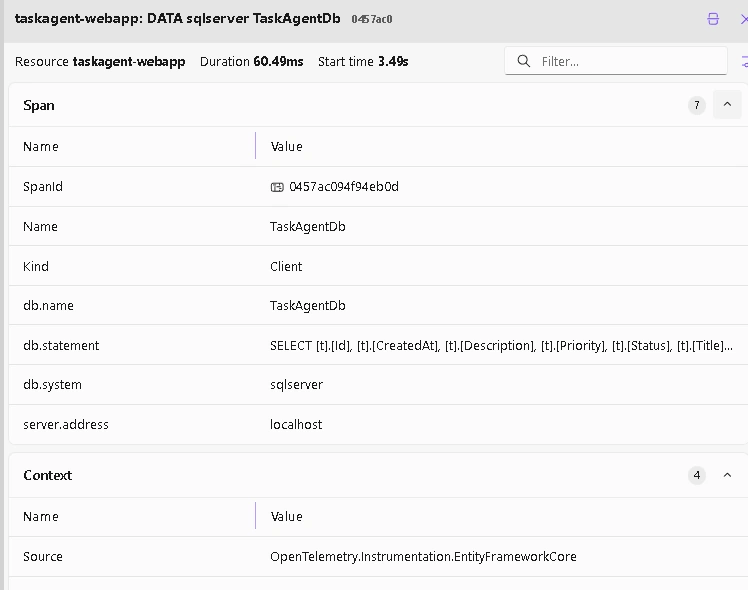
Click on a trace to see span details and timing
Identify slow operations and bottlenecks
View function call parameters and results
Waterfall view showing parent-child relationships
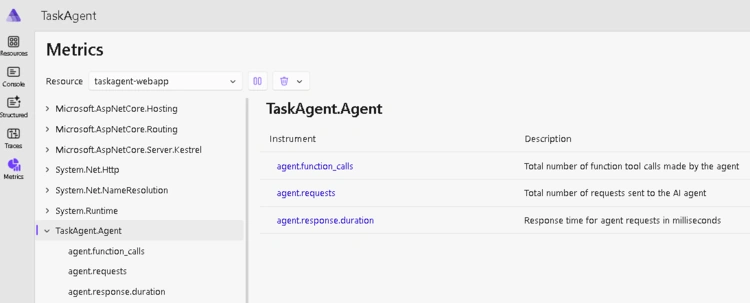
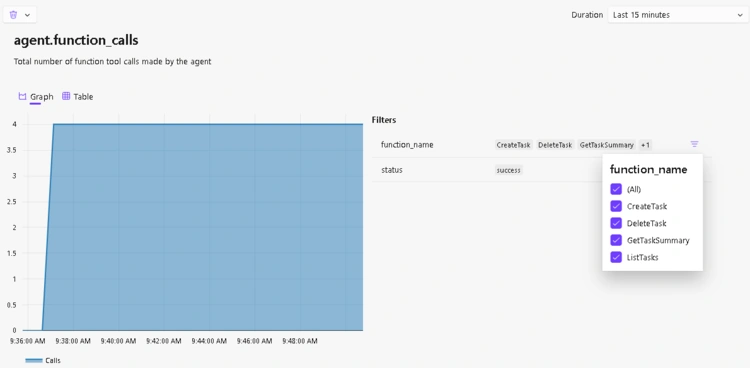
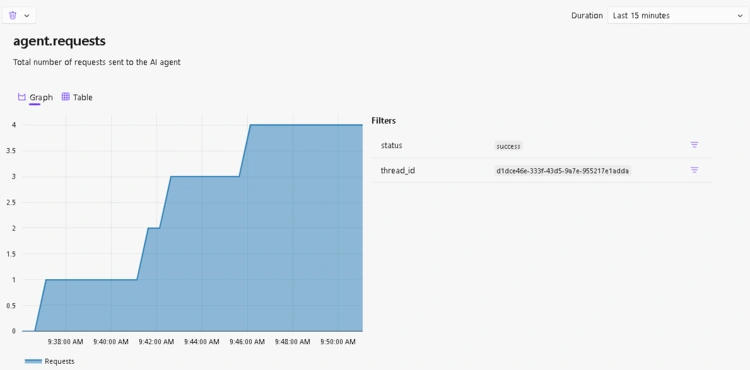
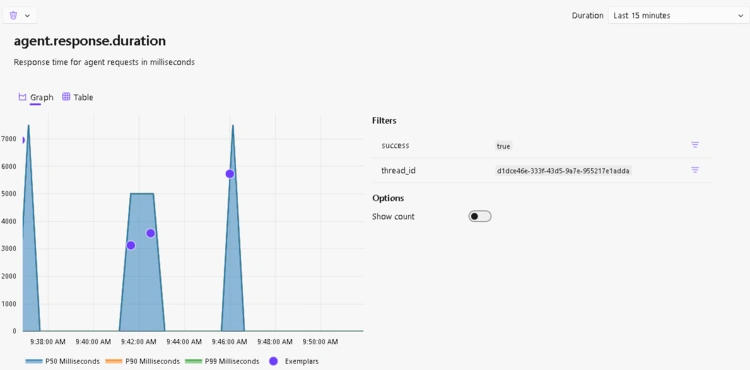
3. Metrics
Real-time charts for custom agent metrics
Track agent requests, function calls, errors
Response duration histograms showing p50, p95, p99
ASP.NET Core metrics (request rate, duration)
Runtime metrics (GC, memory, thread pool)
4. Resources
View all running services and their status
Health check status for each service
Environment variables and configuration
Container/process information
Pro Tip : The dashboard auto-refreshes, making it perfect for development and debugging. You can pause streaming, adjust time windows, and export data for analysis.
Deploying to Azure with Application Insights
Now that you understand how observability works locally, let's deploy to Azure for production monitoring.
Prerequisites for Azure Deployment
Before deploying, ensure you have:
An active Azure subscription
Azure CLI installed and configured
Visual Studio 2022 or VS Code with Azure extensions
The compiled application ready to deploy
⚠️ Important Note on Azure Regions : Due to App Service quota limitations with certain subscriptions, this deployment targets multiple regions. While the ideal setup would have all resources in West US 2 , the App Service in this example was successfully created in Central US due to quota availability. With a Pay-As-You-Go subscription, all resources can typically be deployed in any US region without quota issues.
💡 Security Note : For simplicity, this guide stores secrets in App Service configuration. In a real production environment, Azure Key Vault is highly recommended for secure credential management. This allows you to centralize secrets, enable automatic rotation, and integrate with managed identities for passwordless authentication.
Part A: Create Azure Resources via Azure Portal
1. Create Resource Group
Sign in to the Azure Portal
Click Resource groups from the left menu
Click + Create
Configure:
Subscription : Select your subscription
Resource group :
rg-taskagent-prodRegion : Choose a region with available quota (e.g.,
East US,West Europe,Central US)
Click Review + create → Create
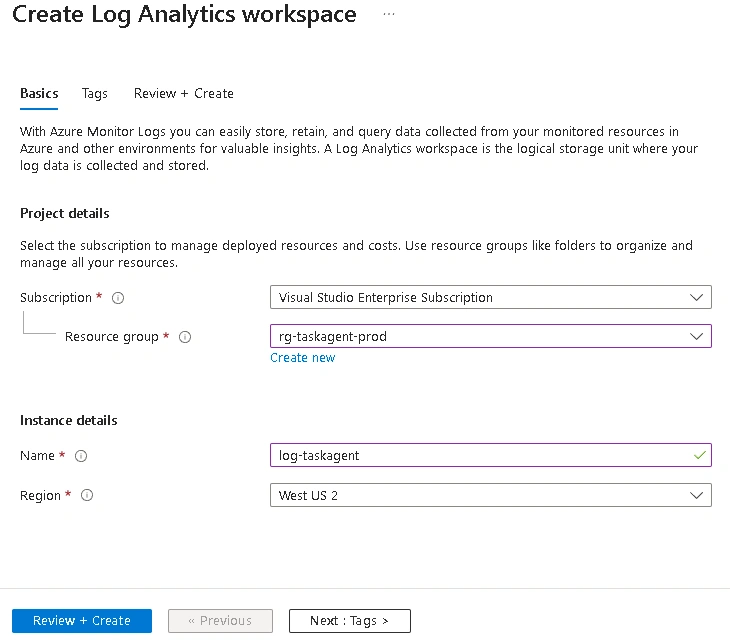
2. Create Log Analytics Workspace
Application Insights requires a Log Analytics workspace for data storage.
In the Azure Portal, search for Log Analytics workspaces
Click + Create
Configure:
Subscription : Your subscription
Resource group :
rg-taskagent-prodName :
log-taskagent-prodRegion : Same as resource group
Click Review + create → Create
3. Create Application Insights
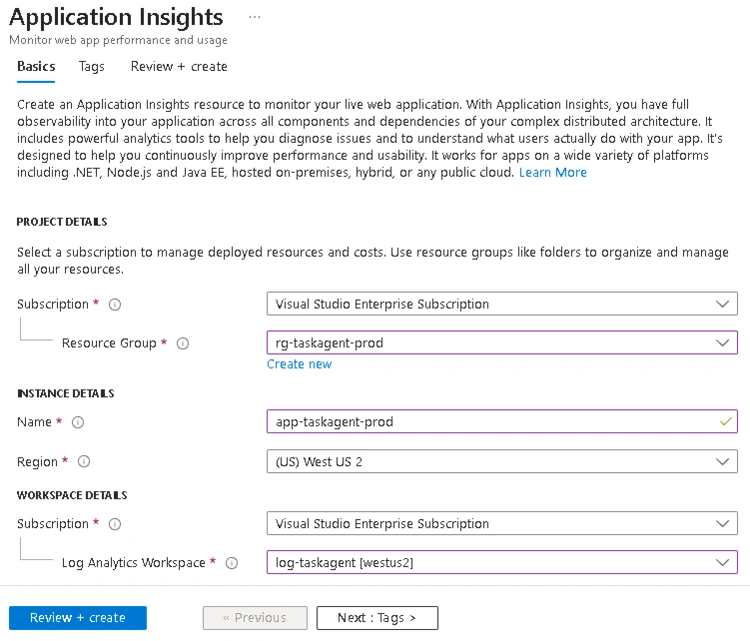
Search for Application Insights in the Azure Portal
Click + Create
Configure:
Subscription : Your subscription
Resource group :
rg-taskagent-prodName :
appi-taskagent-prodRegion : Same as resource group
Log Analytics Workspace : Select
log-taskagent-prod(created in step 2)
Click Review + create → Create
After deployment completes, navigate to the resource
Copy the Connection String :
Go to Overview blade
Click on the Connection String value to copy it
Save this for later (format:
InstrumentationKey=...;IngestionEndpoint=...)
4. Create SQL Server
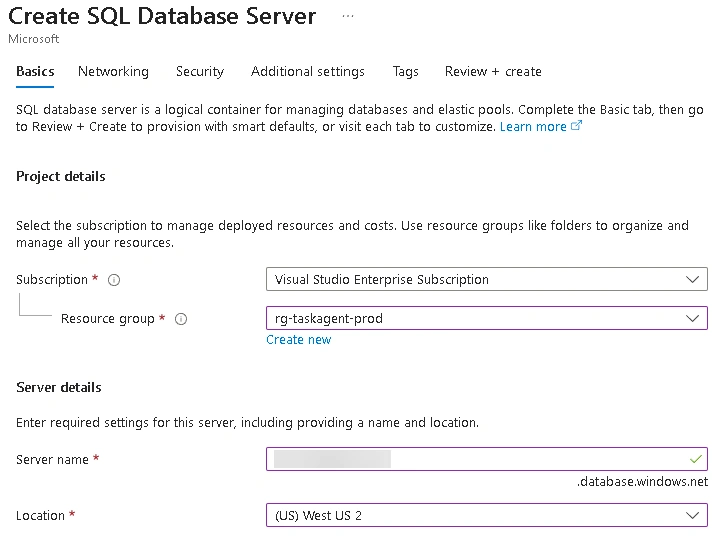
Search for SQL servers in the Azure Portal
Click + Create
Configure:
Subscription : Your subscription
Resource group :
rg-taskagent-prodServer name : (must be globally unique)
Location : Same as resource group
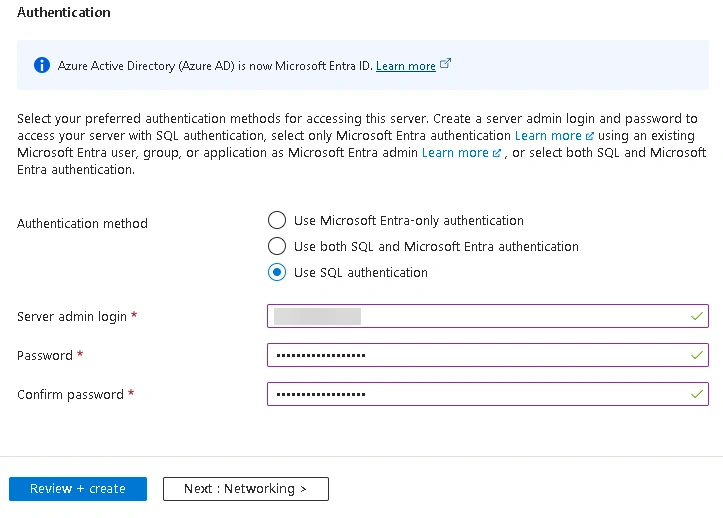
Authentication method :
Use SQL authenticationServer admin login : Create a strong username
Password : Create a strong password (min 8 characters, mix of upper/lower/numbers/symbols)
Confirm password : Re-enter password
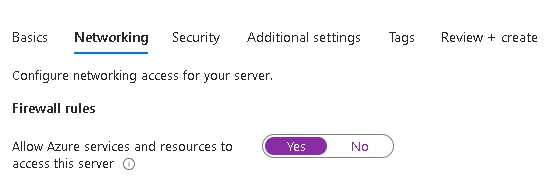
Click Next: Networking
Configure networking:
Connectivity method :
Public endpointAllow Azure services and resources to access this server :
Yes(required for App Service)
Click Review + create → Create
Save credentials securely : Username and Password
5. Create SQL Database
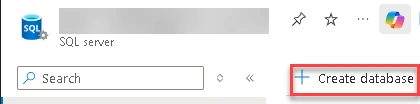
After SQL Server deployment completes, go to the SQL server resource
Click + Create database in the toolbar
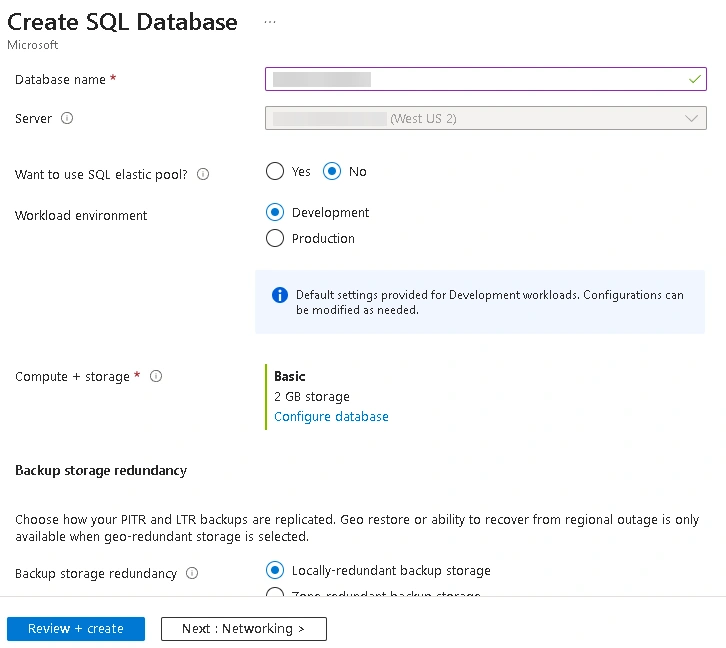
Configure:
Database name :
sqldb-taskagentWant to use SQL elastic pool? :
NoWorkload environment :
DevelopmentCompute + storage : Click Configure database
Service tier :
Basic(for minimal workload, 1 table)DTUs : 5 (default)
Max data size : 2 GB (sufficient for task data)
Cost : ~$5/month
Click Apply
Click Review + create → Create
Database Configuration Notes :
Basic tier is suitable for development/testing with low transaction volume
Standard (S0) recommended for production with moderate traffic
You can scale up/down the SKU anytime based on performance needs
6. Configure SQL Database Connection String
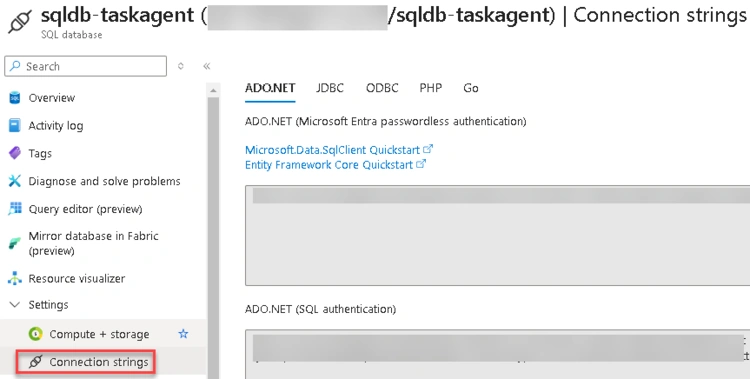
Navigate to the SQL Database (
sqldb-taskagent)Go to Settings → Connection strings
Copy the ADO.NET connection string
Replace
{your_password}with your SQL admin passwordSave this connection string for deployment configuration
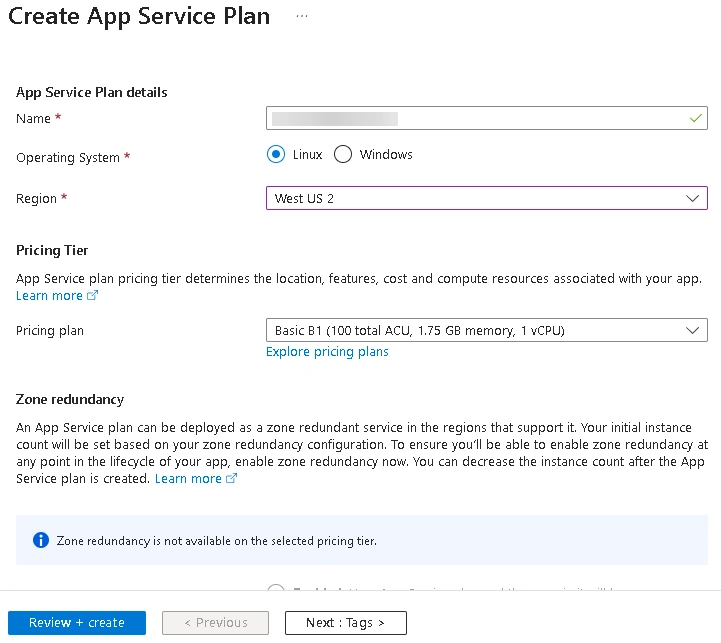
7. Create App Service Plan
Search for App Service plans in the Azure Portal
Click + Create
Configure:
Subscription : Your subscription
Resource group :
rg-taskagent-prodName :
asp-taskagent-prodOperating System :
LinuxRegion : Same as Resource Group
Pricing tier : Click Explore pricing plans
Choose B1 (Basic)
Features : 1.75 GB RAM, 1 vCore, 10 GB storage
Cost : ~$12.50/month
Always On : Included (prevents cold starts)
Custom domains/SSL : Supported
Click Select
Click Review + create → Create
8. Create App Service (Web App)
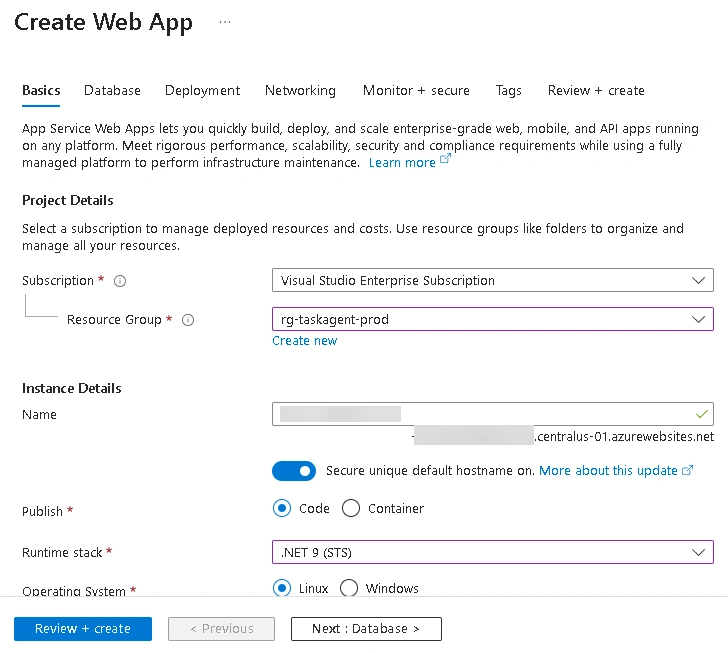
Search for App Services in the Azure Portal
Click + Create → Web App
Configure:
Subscription : Your subscription
Resource group :
rg-taskagent-prodName : (must be globally unique)
Publish :
CodeRuntime stack :
.NET 9 (LTS)Operating System :
LinuxRegion : Same as Service Plan
App Service Plan : Select the created in step 7
Go to Monitoring
Configure monitoring:
Enable Application Insights :
YesApplication Insights : Select
app-taskagent-prodApplication Insights Region : Auto-selected
Click Review + create → Create
9. Configure App Service Settings
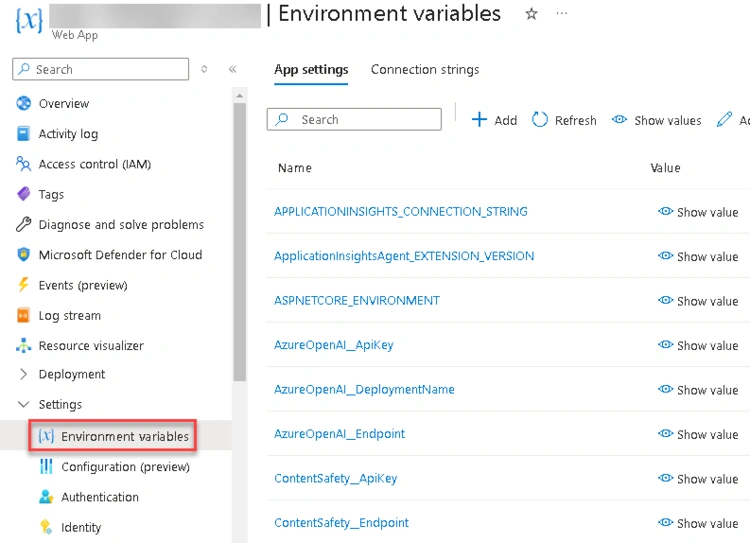
After the App Service is created, configure the application settings:
Navigate to your App Service
Go to Settings → Environment variables
In Connection strings tab, add:
Name :
DefaultConnectionValue :
[Connection string from step 6]Type :
SQLAzureClick Apply
Join the conversation! Your thoughts help the community grow.