Introduction
AngularJS is an MVC based framework. Google has developed Angular but it is an open source project that can be used freely and can be modified and shared by others.
Top features Of AngularJS
- Two Way Data-Binding
This means that any changes to the Model updates the View and any changes to the View updates the Model.
- Dependency Injection
AngularJS has a built-in Dependency Injection which makes applications easier to develop, maintain, and debug in addition to the test.
- Testing
Angular tests any of its code through both unit testing and end-to-end testing.
- Model View Controller
Split your application into MVC components. Maintaining these components and connecting them together means setting up Angular.
Prerequisites
- Visual Studio 2017 Version 15.7.3
- Microsoft .NET Framework Version 4.7
- Microsoft SQL Server 2016
- SQL Server Management Studio v17.7
Description
In this project, I will show you the steps where reordering the item lists dynamically means when we drag and drop the item lists for changing the position at that time the order of items in the list will be reflected in the backend using AngularJS. I have used AngularJS directive that allows us to build sortable lists with the native HTML5 drag & drop API.
Implement Concept In Real Time
By using this concept we can implement it in our project for giving and modifying the priority of client requirements and itncan be assigned to developers as we are working in a ticket assigning tool by IBM or any other method
Steps To Be Followed
Step 1
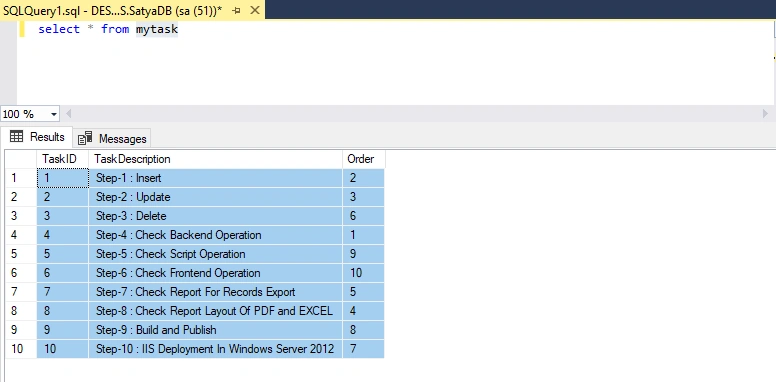
Create a table named "MyTask" . You can find this table structure and insert records in this table from project folder.
Here I manually set the Order column value during page load by using the Items List or TaskDescription
Step 2
Create an MVC application named "AngularDragDrop". Go to the file menu > New > projet > here select "asp.net web application (.Net Framework)" under web > enter application name "AngularDragDrop" > select your project location > and then click on OK button ... >
It will bring up a new dialog window for selecting template > here I will select MVC template > and the checked MVC checkbox from Add folder and core references > and then click on ok button.
Step 3
Then I have added Entity Data Model named "MyModel.edmx".
Go to Solution Explorer > Right Click on Project name from Solution Explorer > Add > New item > Select ADO.net Entity Data Model under data > Enter model name > Add. A popup window will come up (Entity Data Model Wizard) > Select Generate from database > Next >
Chose your data connection > select your database > next > Select tables "MyTask" > enter Model Namespace > Finish.
Step 4
Inside HomeController I've added the following code.
- using System;
- using System.Collections.Generic;
- using System.Linq;
- using System.Web;
- using System.Web.Mvc;
-
- namespace AngularDragDrop.Controllers
- {
- public class HomeController : Controller
- {
- public ActionResult Index()
- {
- return View();
- }
-
- public JsonResult GetTasks()
- {
- var tasks = new List<MyTask>();
- using (SatyaDBEntities dc = new SatyaDBEntities())
- {
- tasks = dc.MyTasks.OrderBy(a => a.Order).ToList();
- }
- return new JsonResult { Data = tasks, JsonRequestBehavior = JsonRequestBehavior.AllowGet };
- }
-
- public JsonResult SaveTaskOrder(List<MyTask> tasks)
- {
- bool status = false;
- using (SatyaDBEntities dc = new SatyaDBEntities())
- {
- try
- {
- foreach (var i in tasks)
- {
- dc.MyTasks.Attach(i);
- dc.Entry(i).State = System.Data.Entity.EntityState.Modified;
- }
- dc.SaveChanges();
- status = true;
- }
- catch (Exception)
- {
-
- }
- }
- return new JsonResult { Data = new { status = status } };
- }
-
- public ActionResult About()
- {
- ViewBag.Message = "Your application description page.";
-
- return View();
- }
-
- public ActionResult Contact()
- {
- ViewBag.Message = "Your contact page.";
-
- return View();
- }
- }
- }
Code Description
Here I have added code for fetching data from the database and returning as a JSON result.
- public JsonResult GetTasks()
- {
- var tasks = new List<MyTask>();
- using (SatyaDBEntities dc = new SatyaDBEntities())
- {
- tasks = dc.MyTasks.OrderBy(a => a.Order).ToList();
- }
- return new JsonResult { Data = tasks, JsonRequestBehavior = JsonRequestBehavior.AllowGet };
- }
In this MVC action "GetTasks()" is for fetching MyTask table data from the database and returning as a JSON result for showing my tasks list priority wise.
I have added another MVC action into HomeController for updating my tasks lists data with a new order to the database.
- public JsonResult SaveTaskOrder(List<MyTask> tasks)
- {
- bool status = false;
- using (SatyaDBEntities dc = new SatyaDBEntities())
- {
- try
- {
- foreach (var i in tasks)
- {
- dc.MyTasks.Attach(i);
- dc.Entry(i).State = System.Data.Entity.EntityState.Modified;
- }
- dc.SaveChanges();
- status = true;
- }
- catch (Exception)
- {
-
- }
- }
- return new JsonResult { Data = new { status = status } };
- }
Here I use foreach loop to reorder the items list and update lists data with a new order to the database. The entity is being tracked by the context and exists in the database, and some or all of its property values have been modified and gets or sets the state of the entity. Then after foreach loop saves all changes made in this context to the underlying database.
- foreach (var i in tasks)
- {
- dc.MyTasks.Attach(i);
- dc.Entry(i).State = System.Data.Entity.EntityState.Modified;
- }
- dc.SaveChanges();
- status = true;
Step 5
I have added necessary resource files into our project for "angular-drag-and-drop-lists" directive. We will use angular-drag-and-drop-lists directive for adding drag & drop sorting features
Here I have added the following files into our project
- "angular-drag-and-drop-lists.js" file
- "simple.css" file
angular-drag-and-drop-lists.js file will be available in Scripts folder and simple.css file will be available in Content folder of the project folder.
angular-drag-and-drop-lists.js
Angular directives allow you to build sortable lists with the native HTML5 drag & drop API. The directives can also be nested to bring drag & drop. The details about this script file and related attributes and css classes are described inside the script file with a green mark.
simple.css
Drag & drop the list items to move them around, or just click to select them. The details about this CSS file and related attributes and css classes are described inside the script file with a green mark.
- Nested Lists
- Simple Lists
- Typed Lists
- Advanced Features
- Multiselection Demo
Step 6
I have added a Javascript file, where we will write AngularJS code for creating an Angular module and an Angular controller. Go to solution explorer > Right click on "Scripts" folder > Add > new Item > Select Javascrip file under Scripts > Enter file name (here in my application it is "myApp.js") > and then click on Add button.
Code Ref:
- var app = angular.module('myApp', ['dndLists']);
- app.controller('myController', ['$http', function ($http) {
- var vm = this;
- vm.Tasks = [];
- vm.IsProcessing = false;
-
- vm.LoadTask = function () {
- vm.IsProcessing = true;
- $http.get('/home/GetTasks').then(function (response) {
- vm.Tasks = response.data;
- }).finally(function () {
- vm.IsProcessing = false;
- })
- }
- vm.LoadTask();
-
- vm.Sorting = function (index) {
- vm.IsProcessing = true;
- vm.Tasks.splice(index, 1);
- var newData = [];
- angular.forEach(vm.Tasks, function (val, index) {
- val.Order = index + 1;
- newData.push(val);
- })
-
-
- $http.post('/home/SaveTaskOrder', newData).then(function (response) {
-
- }).finally(function () {
- vm.IsProcessing = false;
- })
- }
-
- }])
Code Description:
Add a dependency to your application module.
- var app = angular.module('myApp', ['dndLists']);
Here I created a module named myApp and registered a controller named myController and then added GetTasks controller action method of HomeController for fetching data from the database.
- vm.LoadTask = function () {
- vm.IsProcessing = true;
- $http.get('/home/GetTasks').then(function (response) {
- vm.Tasks = response.data;
- }).finally(function () {
- vm.IsProcessing = false;
- })
- }
Update Tasks order after dragging and dropping the tasks list.
- vm.Sorting = function (index) {
- vm.IsProcessing = true;
- vm.Tasks.splice(index, 1);
- var newData = [];
- angular.forEach(vm.Tasks, function (val, index) {
- val.Order = index + 1;
- newData.push(val);
- })
Another MVC action into HomeController for updating my tasks data with a new order to the database.
- $http.post('/home/SaveTaskOrder', newData).then(function (response) {
- }
Step 7
Now i have added a view for that Index action called "Index.cshtml". Right Click on Action Method (here right click on Index action) > Add View... > Enter View Name > Select "Empty" under Template dropdown > > Add.
Code Ref
- @{
- ViewBag.Title = "Satyaprakash-DragndDrop Using Angular";
- }
-
- <div ng-app="myApp">
- <div ng-controller="myController as vm" class="simpleDemo">
- <h2 style="background-color: Yellow;color: Blue; text-align: center; font-style: oblique">Reordering list via drag & drop in AngularJS</h2>
- <div class="loader" ng-show="vm.IsProcessing">
- Please Wait...
- </div>
- <ul dnd-list="vm.Tasks">
- <li ng-repeat="item in vm.Tasks"
- dnd-list-id="{{item.TaskID}}"
- dnd-draggable="item"
- dnd-moved="vm.Sorting($index)"
- dnd-effect-allowed="move"
- dnd-selected="models.selected = item"
- ng-class="{'selected': models.selected === item}">
- {{item.TaskDescription}}
- </li>
- </ul>
- </div>
- </div>
-
- <script src="https://cdnjs.cloudflare.com/ajax/libs/angular.js/1.5.8/angular.js"></script>
- <script src="~/Scripts/angular-drag-and-drop-lists.js"></script>
- <script src="~/Scripts/myApp.js"></script>
- <link href="~/Content/simple.css" rel="stylesheet" />
- <style>
- .loader {
- position: absolute;
- z-index: 9;
- background: yellow;
- border: 1px solid red;
- padding: 10px;
- top: 50%;
- left: 20%;
- }
-
- .simpleDemo {
- position: relative;
- }
-
- .simpleDemo ul[dnd-list] li {
- cursor: move;
- }
- </style>
Code Description
Here module is named myApp and I registered a controller named myController.
- <div ng-app="myApp">
- <div ng-controller="myController as vm" class="simpleDemo">
Here simpleDemo is the name of the css class inside a simple.css file. Here vm is an object of controller named myController and by using this object we can access all properties and behavior of myController.
- <div class="loader" ng-show="vm.IsProcessing">
- Please Wait...
- </div>
- <ul dnd-list="vm.Tasks">
- <li ng-repeat="item in vm.Tasks"
- dnd-list-id="{{item.TaskID}}"
- dnd-draggable="item"
- dnd-moved="vm.Sorting($index)"
- dnd-effect-allowed="move"
- dnd-selected="models.selected = item"
- ng-class="{'selected': models.selected === item}">
- {{item.TaskDescription}}
- </li>
- </ul>
Here I mentioned the loader which will get the data from the database and update the task order.
- <div class="loader" ng-show="vm.IsProcessing">
- Please Wait...
- </div>
The dnd-list directive allows us to drop elements into it. The dropped data will be added to the referenced list.
The dnd-draggable directive makes an element draggable and will transfer the object that was assigned to it. If an element was dragged away, you have to remove it from the original list yourself using the dnd-moved attribute.
- <ul dnd-list="vm.Tasks">
- <li ng-repeat="item in vm.Tasks"
- dnd-list-id="{{item.TaskID}}"
- dnd-draggable="item"
- dnd-moved="vm.Sorting($index)"
- dnd-effect-allowed="move"
- dnd-selected="models.selected = item"
- ng-class="{'selected': models.selected === item}">
- {{item.TaskDescription}}
- </li>
- </ul>
Here I have added CDN and local path reference of script file as well as css file for drag & drop sorting features. So we use these resources into our application for the directive.
- <script src="https://cdnjs.cloudflare.com/ajax/libs/angular.js/1.5.8/angular.js"></script>
- <script src="~/Scripts/angular-drag-and-drop-lists.js"></script>
- <script src="~/Scripts/myApp.js"></script>
- <link href="~/Content/simple.css" rel="stylesheet" />
Here I manually added some css code for loader and task list format for UI purposes.
- <style>
- .loader {
- position: absolute;
- z-index: 9;
- background: yellow;
- border: 1px solid red;
- padding: 10px;
- top: 50%;
- left: 20%;
- }
-
- .simpleDemo {
- position: relative;
- }
-
- .simpleDemo ul[dnd-list] li {
- cursor: move;
- }
- </style>
Download Source Code
OUTPUT
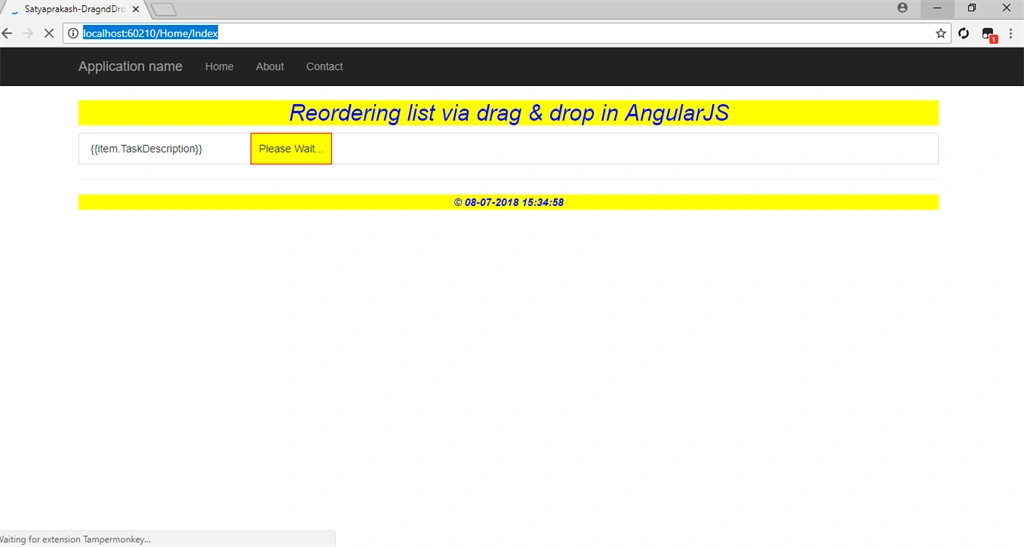
During initial load or fetching data from database and updating the tasks order the loader will be shown like below.
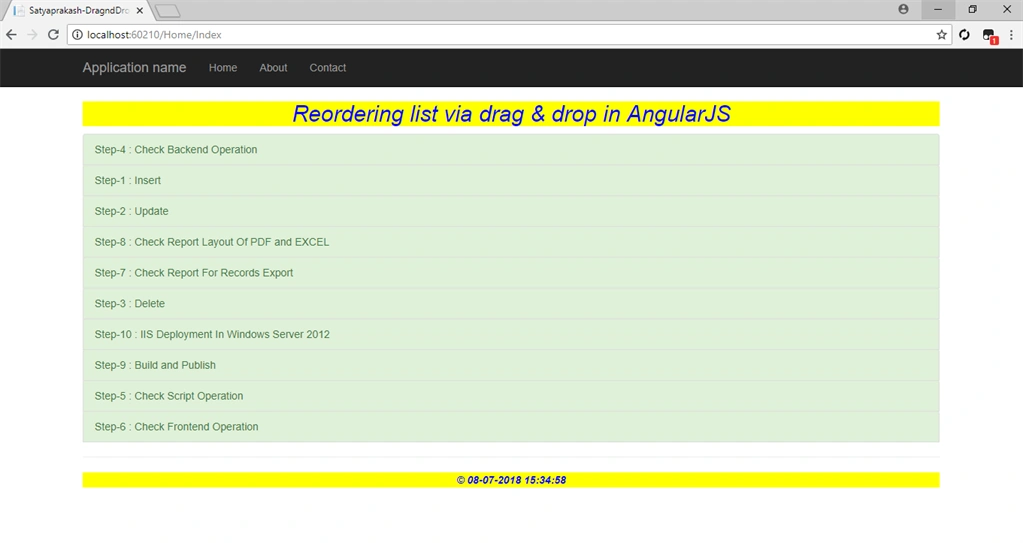
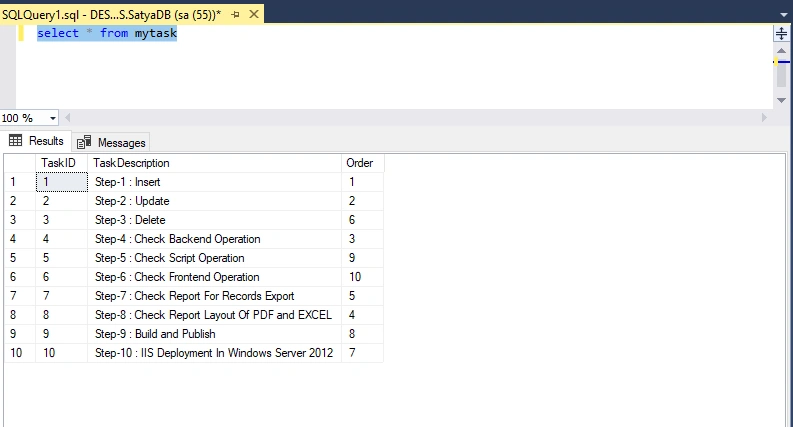
According to the order value in the backend the tasks will be arranged accordingly.
Now the order of the tasks in Step 1 and Step 2 in the backend is 2 and 3 as shown below..
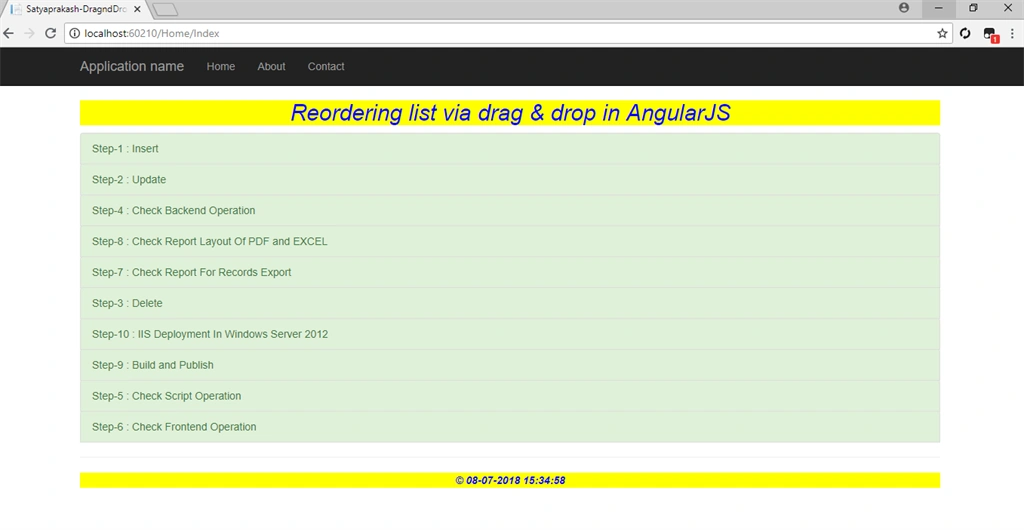
Now I changed the position of Step 1 and Step 2 to Order 1 and 2.
Now the Order of the tasks of Step 1 and Step 2 in the backend is 1 and 2 as shown below.
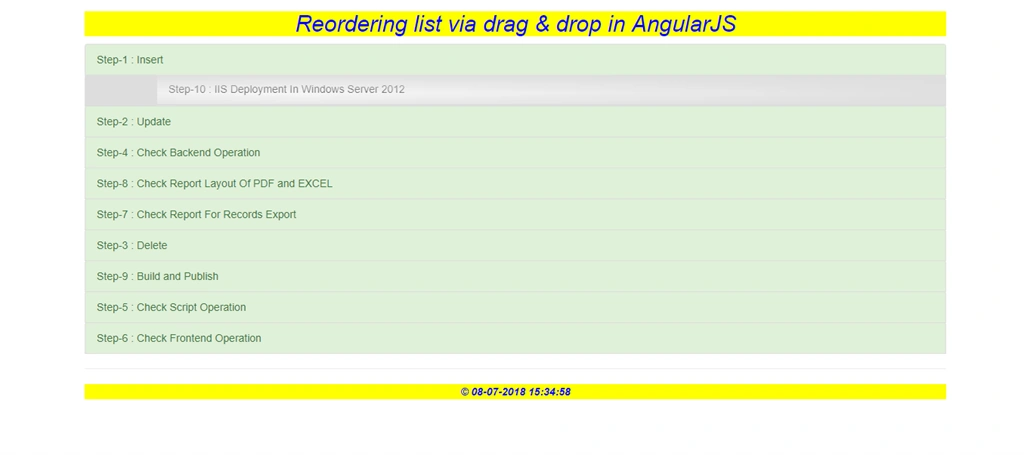
During drag and drop the tasks list in the UI will be shown as below..
SUMMARY
- Angular-drag-and-drop-lists directive for adding drag & drop sorting features.
- Reorder the tasks list dynamically.
- AngularJS directive that allows us to build sortable lists with the native HTML5 drag & drop API.
- Bootstrap UI support.


Viknaraj ManogararajahPosted Jul 14, 2018, 10:53 PM
Nice Article, Thank you for sharing.........
Hadshana KamalanathanPosted Jul 14, 2018, 7:18 PM
Thanks for sharing
Farhan AhmedPosted Jul 11, 2018, 12:14 PM
Great......................
Bhairab DuttPosted Jul 11, 2018, 10:17 AM
Nice Article .....