When working with Microsoft Fabric, workspaces are an important part of organising and managing analytics content. A workspace can contain items such as Lakehouses, Warehouses, Notebooks, Data Pipelines, semantic models, and Power BI reports.
Depending on how a workspace is configured, it can be assigned to different types of capacity. There may be situations where a workspace that was originally running on a Power BI Pro shared environment needs to be moved to a Microsoft Fabric Capacity.
In this article, I'll show how to reassign a workspace to a Fabric Capacity using the Microsoft Fabric Admin Portal.
For this demonstration, I have a workspace named task wk, which is currently assigned to the Power BI Pro workspace type.
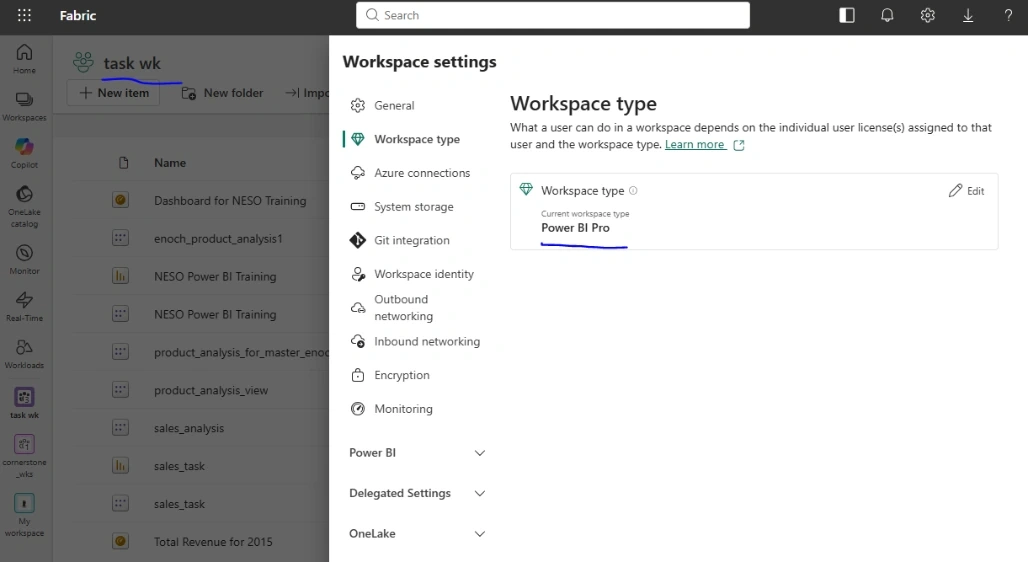
Current Workspace Configuration
I have already created the following workspace:
Workspace Name: task wk
Workspace Type: Power BI Pro
At the moment, task wk is not assigned to my Fabric Capacity.
The objective is to move this same workspace from its current Power BI Pro setup and assign it to a Fabric Capacity.
Rather than creating a new workspace, I can simply reassign the existing workspace.
Open the Fabric Admin Portal
The first step is to open the Microsoft Fabric Admin Portal.
From the Fabric interface, open the settings menu and select Admin portal.
The Admin Portal provides administrators with tenant-level management capabilities, including the ability to manage workspaces and their capacity assignments.
For this task, I need to work with the Workspaces section.
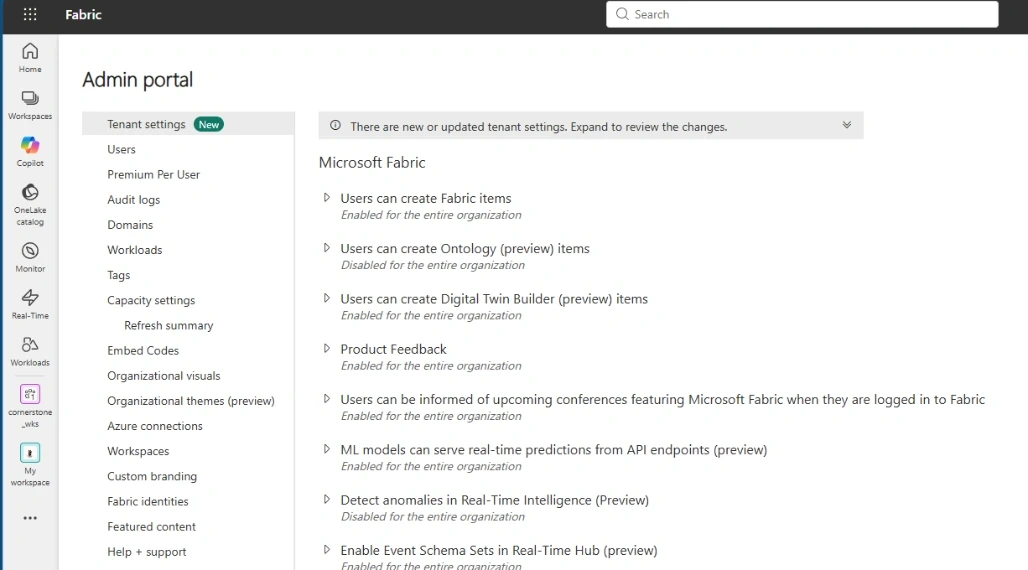
Go to the Workspaces Tab
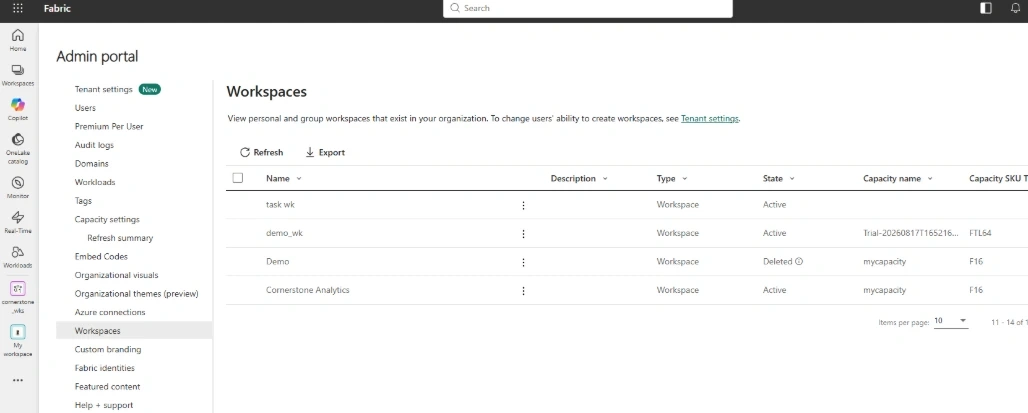
Inside the Fabric Admin Portal, select Workspaces.
This section provides a view of the workspaces available within the Fabric tenant.
I can search for my workspace by name rather than scrolling through the entire list.
In my case, I'm looking for:
task wk
Once I locate the workspace, I can see its current configuration.
The workspace is currently associated with the Power BI Pro workspace type.
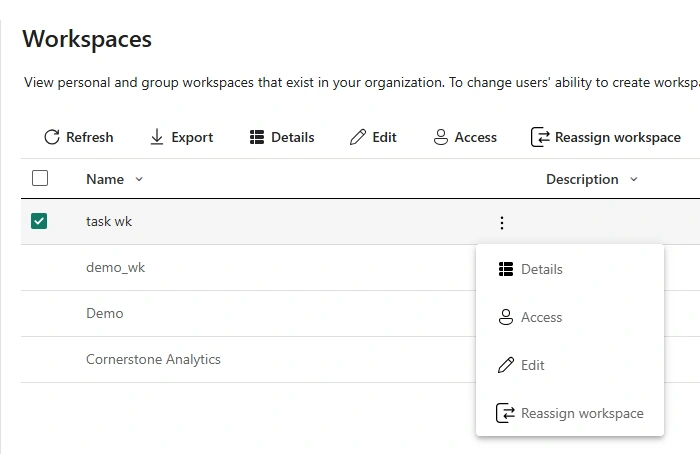
Select Reassign Workspace
To change the capacity assignment, I select the ellipsis (...) next to task wk.
This opens a menu containing actions that can be performed on the workspace.
From the menu, I select:
Reassign workspace
This is the option I need to change the workspace's capacity assignment.
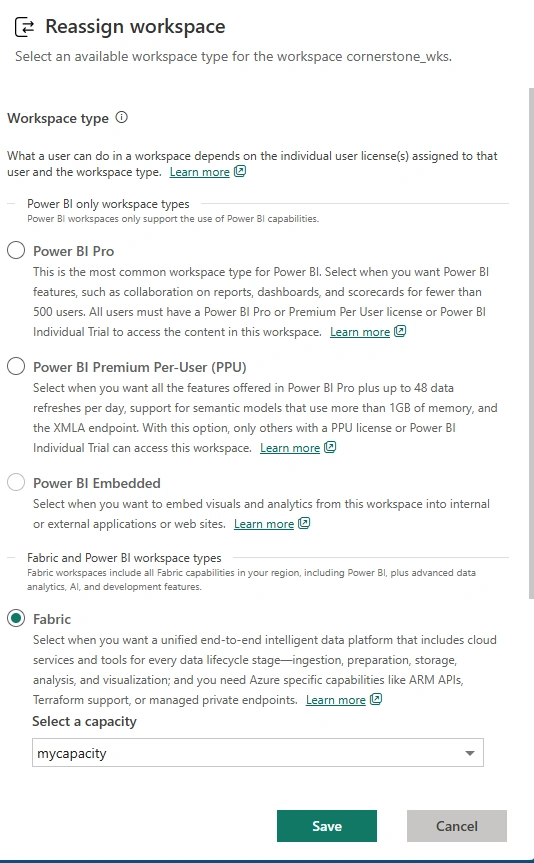
Select the Fabric Capacity
After selecting Reassign workspace, Fabric presents the available capacity options.
From here, I select the Fabric Capacity named mycapacity that I want to assign to the workspace.
The important thing is to make sure I select the correct capacity, particularly if the organisation has multiple Fabric capacities.
Once the appropriate Fabric Capacity has been selected, I confirm the reassignment.
Fabric then updates the workspace's capacity assignment.
Verifying the Workspace
After completing the reassignment, I can return to the Workspaces section in the Admin Portal and check task wk again.
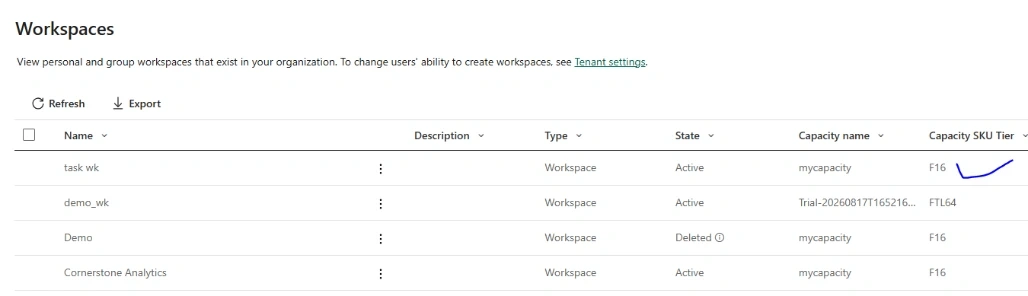
The workspace should now show that it is assigned to the selected Fabric Capacity rather than its previous Power BI Pro setup.
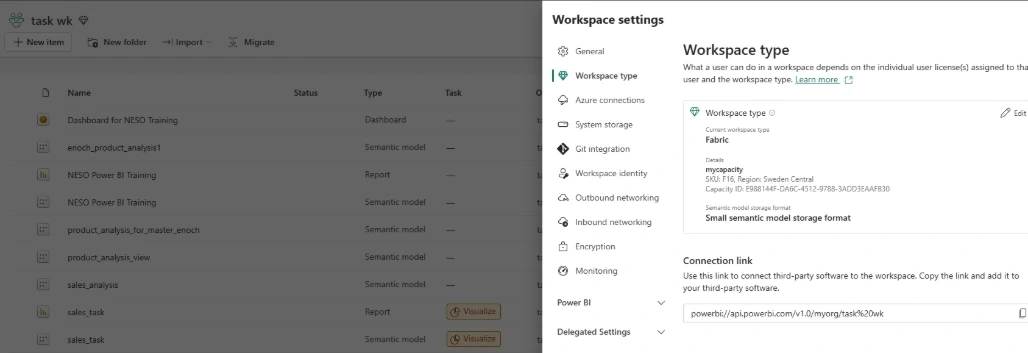
The workspace itself has not been recreated. The existing workspace and its contents remain in place; what has changed is the capacity to which the workspace is assigned.
This is useful because I don't need to migrate all the workspace items into a new workspace simply because I want to change the capacity.
Why Reassign a Workspace?
There are several reasons why an organisation might want to reassign a workspace to Fabric Capacity.
One common reason is to make Fabric capabilities available to the workspace.
For example, an organisation may start with a traditional Power BI workspace and later adopt Microsoft Fabric. Moving the workspace to an appropriate Fabric Capacity can be part of that transition.
Capacity assignment can also be useful when an organisation wants to manage workloads using dedicated capacity rather than relying on shared capacity.
A Simple Before and After
In this example, the change can be summarised as:
Before

task wk
       ↓
Power BI Pro
After the reassignment:
After

task wk
       ↓
Fabric Capacity
The workspace name remains the same, and I don't have to create another workspace just to make the change.
Things to Consider
Before reassigning a workspace, it is worth checking that you have the appropriate administrative permissions and that the target Fabric Capacity is available.
It is also important to understand the implications of moving a workspace between capacity types, especially in an organisation where capacity usage, governance, and licensing are carefully managed.
The exact options available in the Admin Portal can also depend on the tenant configuration and the permissions of the administrator.


Join the conversation! Your thoughts help the community grow.