

In most Websites, you can see some pages open without logging in but
some pages require the user to login to open it.
The pages which require a user to login will not open -- the system flow is that it first sends you to the Login page, followed by the page of your choice and then it will open. To achieve this
requires extra coding and the logic to achieve it.
Example
In my Website, I have four pages:
| Page Name | Login Required Yes / No |
Description |
| • About MySelf | No | Display My information and this page does not require login. |
| • My Friends | Yes | This page will display my friend list and friend contact details This page requires login before opening. |
| • Coaching | No | Display my subject and topic which I teach and this page does not require login. |
| • Login | No | Login page to logged in. |
Question/ Requirement / Task
In this scenario, when the user directly clicks on MyFriends, the system will redirect you to the login page, because the system requires a logged in user. After successful login, the system should open MyFriends page automatically.
Logical Answer
To achieve this,
- Check if the user is logged in or not in FriendList.aspx page.
Server.UrlEncode(Request.Url.AbsoluteUri)- if (string.IsNullOrEmpty(Convert.ToString(Session["userid"])))
- {
- Response.Redirect("login.aspx?url=" + Server.UrlEncode(Request.Url.AbsoluteUri));
- }
(This is the line of code having information for which the page is requested.)
Note: In the code, given above, we are redirecting the user to login.aspx page with the URL query string with the value of the clicked page.
- In Login.aspx, when the user successfully logs in, we have to check the URL and redirect to the clicked page.
- string ReturnUrl = Convert.ToString(Request.QueryString["url"]);
- if (!string.IsNullOrEmpty(ReturnUrl))
- {
- Response.Redirect(ReturnUrl);
- }
- else
- {
- Response.Redirect("aboutmyself.aspx?msgs=" + "SuccessLogin");
- }
Note In the code, given above, we are checking for URL query string value, if there is a value, followed by redirecting to the specific page; otherwise, aboutmyself.aspx.
Now, we will implement the above step by step.
Output
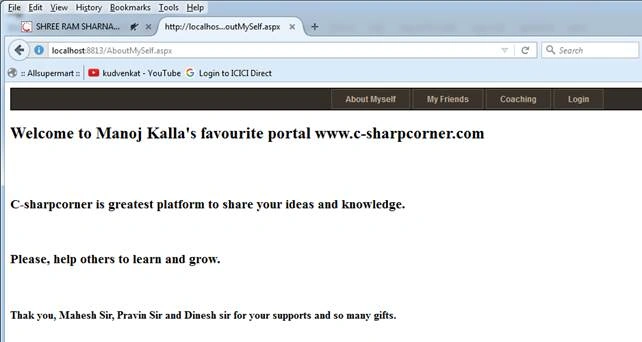
By default AboutMySelf.aspx opens, as shown below:
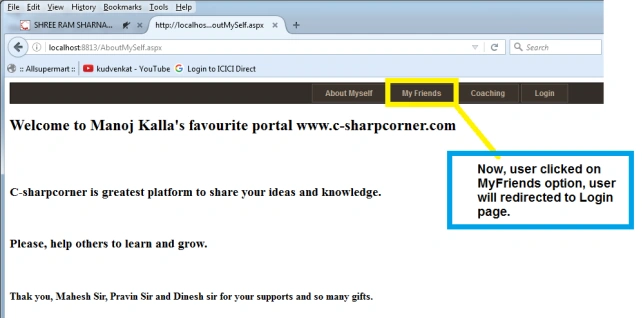
Now, the user clicks My Friend menu option, shown below:
Now, the user is redirected to Login.aspx page.
You can see the image, given below:
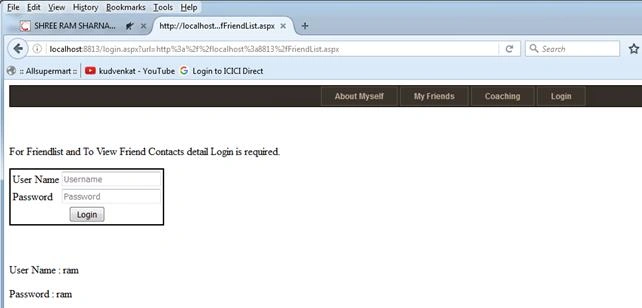
You will see the address bar or URL of the page, http://localhost:8813/login.aspx?url=http%3a%2f%2flocalhost%3a8813%2fFriendList.aspx
The URL embedded above with the query string named URL is having the path of FriendList.aspx.
Afterwards, enter the User Name and Password. I checked the values in the backend code.
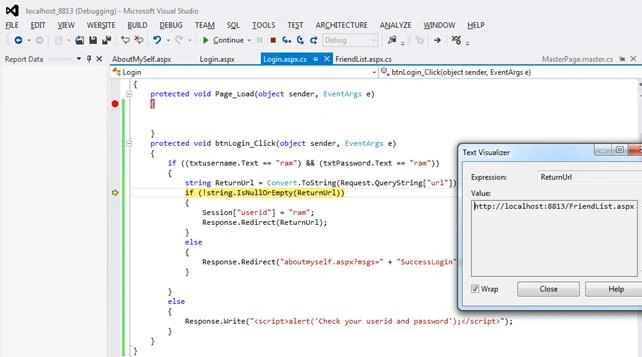
You will see in the image, given above, where ReturnUrl value is : http://localhost:8813/FriendList.aspx.
Display FriendList.aspx
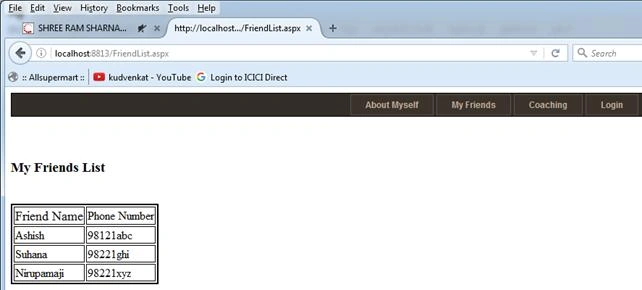
Step by Step to achieve our task:
- Create Project
Create a new ASP.NET Empty Web Site project named RedirectToPage.
- Add four Web Form named as following
Web Form File Name Descripton FriendList.aspx To display all my friends' contacts details in the grid view. AboutMySelf.aspx To display my complete resume. Login.aspx To check the user and password. Coaching.aspx To display the subject and topic which I teach.
- Update your webconfig file with your sql server settings
- <connectionStrings>
- <add name="fileuploadConnectionString" connectionString="Data Source=192.168.1.50\sa;Initial Catalog=mbktest;Persist Security Info=True;User ID=sa;Password=clserver" providerName="System.Data.SqlClient"/>
- </connectionStrings>
- Code FriendList.aspx
- <%@ Page Title="" Language="C#" MasterPageFile="~/MasterPage.master" AutoEventWireup="true" CodeFile="FriendList.aspx.cs" Inherits="FriendList" %>
- <asp:Content ID="Content1" ContentPlaceHolderID="head" Runat="Server">
- <style>
- table, th, td {
- border: 1px solid black;
- }
- </style>
- </asp:Content>
- <asp:Content ID="Content2" ContentPlaceHolderID="ContentPlaceHolder1" Runat="Server">
- <br />
- <br />
- <h3>
- My Friends List
- </h3>
- <br />
- <table style="border:double 2px; text-align:left;" >
- <tr>
- <td style="font-size:larger">
- Friend Name
- </td>
- <td>
- Phone Number
- </td>
- </tr>
- <tr>
- <td>
- Ashish
- </td>
- <td>
- 98121abc
- </td>
- </tr>
- <tr>
- <td>
- Suhana
- </td>
- <td>
- 98221ghi
- </td>
- </tr>
- <tr>
- <td>
- Nirupamaji
- </td>
- <td>
- 98221xyz
- </td>
- </tr>
- </table>
- </asp:Content>
- Code FriendList.aspx.cs
- using System;
- using System.Collections.Generic;
- using System.Linq;
- using System.Web;
- using System.Web.UI;
- using System.Web.UI.WebControls;
- public partial class FriendList : System.Web.UI.Page
- {
- protected void Page_Load(object sender, EventArgs e)
- {
- if (string.IsNullOrEmpty(Convert.ToString(Session["userid"])))
- {
- Response.Redirect("login.aspx?url=" + Server.UrlEncode(Request.Url.AbsoluteUri));
- }
- }
- }
- Code Login.aspx
- <%@ Page Title="" Language="C#" MasterPageFile="~/MasterPage.master" AutoEventWireup="true" CodeFile="Login.aspx.cs" Inherits="Login" %>
- <asp:Content ID="Content1" ContentPlaceHolderID="head" Runat="Server">
- </asp:Content>
- <asp:Content ID="Content2" ContentPlaceHolderID="ContentPlaceHolder1" Runat="Server">
- <br />
- <br />
- <p>
- For Friendlist and To View Friend Contacts detail Login is required.
- </p>
- <table style="border:double 2px; text-align:left;" >
- <tr>
- <td>
- User Name
- </td>
- <td>
- <asp:TextBox ID="txtusername" runat="server" placeholder="Username" /><br />
- </td>
- </tr>
- <tr>
- <td>
- Password
- </td>
- <td>
- <asp:TextBox ID="txtPassword" runat="server" placeholder="Password" /><br />
- </td>
- </tr>
- <tr>
- <td colspan="2" style="text-align:center">
- <asp:Button ID="btnLogin" runat="server" Text="Login" OnClick="btnLogin_Click"/>
- </td>
- </tr>
- </table>
- <br />
- <br />
- <p>User Name : ram</p>
- <p>Password : ram</p>
- <br />
- <br />
- </asp:Content>
- Code Login.aspx.cs
- using System;
- using System.Collections.Generic;
- using System.Linq;
- using System.Web;
- using System.Web.UI;
- using System.Web.UI.WebControls;
- public partial class Login : System.Web.UI.Page
- {
- protected void Page_Load(object sender, EventArgs e)
- {
- }
- protected void btnLogin_Click(object sender, EventArgs e)
- {
- if ((txtusername.Text == "ram") && (txtPassword.Text == "ram"))
- {
- string ReturnUrl = Convert.ToString(Request.QueryString["url"]);
- if (!string.IsNullOrEmpty(ReturnUrl))
- {
- Session["userid"] = "ram";
- Response.Redirect(ReturnUrl);
- }
- else
- {
- Response.Redirect("aboutmyself.aspx?msgs=" + "SuccessLogin");
- }
- }
- else
- {
- Response.Write("<script>alert('Check your userid and password');</script>");
- }
- }
- }
- Code MasterPage.master
- <%@ Master Language="C#" AutoEventWireup="true" CodeFile="MasterPage.master.cs" Inherits="MasterPage" %>
- <!DOCTYPE html>
- <html xmlns="http://www.w3.org/1999/xhtml">
- <head id="Head1" runat="server">
- <title></title>
- <asp:ContentPlaceHolder ID="head" runat="server">
- </asp:ContentPlaceHolder>
- <style>
- div.menu5
- {
- /*width:500px;margin:0 auto;*//*Uncomment this line to make the menu center-aligned.*/
- text-align:center;
- background:#332E28;
- border:1px solid black;
- font-size:12px;
- padding:1px;
- }
- div.menu5 a
- {
- display: inline-block;
- padding: 0 20px;
- background:#3A332C;
- border:1px solid #5E544A;
- color:#C4B09C;
- text-decoration:none;
- font: bold 12px Arial;
- line-height: 27px;
- margin-right:1px;
- }
- div.menu5 a:hover, div.menu5 a.current
- {
- background:#484037;
- color:#E6D4C3;
- }
- </style>
- </head>
- <body>
- <form id="form1" runat="server">
- <div class="menu5">
- <a href="AboutMySelf.aspx">About Myself </a>
- <a href="FriendList.aspx">My Friends</a>
- <a href="Coaching.aspx">Coaching</a>
- <a href="Login.aspx">Login</a>
- </div>
- <asp:ContentPlaceHolder ID="ContentPlaceHolder1" runat="server">
- </asp:ContentPlaceHolder>
- </form>
- </body>
- </html>
- Code AboutMySelf.aspx
- <%@ Page Title="" Language="C#" MasterPageFile="~/MasterPage.master" AutoEventWireup="true" CodeFile="AboutMySelf.aspx.cs" Inherits="AboutMySelf" %>
- <asp:Content ID="Content1" ContentPlaceHolderID="head" Runat="Server">
- </asp:Content>
- <asp:Content ID="Content2" ContentPlaceHolderID="ContentPlaceHolder1" Runat="Server">
- <h2>Welcome to Manoj Kalla's favourite portal www.c-sharpcorner.com</h2>
- <br />
- <br />
- <h3>C-sharpcorner is greatest platform to share your ideas and knowledge. </h3>
- <br />
- <h3>Please, help others to learn and grow. </h3>
- <br />
- <h4>Thak you, Mahesh Sir, Pravin Sir and Dinesh sir for your supports and so many gifts.</h4>
- </asp:Content>
- Code Coaching.aspx
- <%@ Page Title="" Language="C#" MasterPageFile="~/MasterPage.master" AutoEventWireup="true" CodeFile="Coaching.aspx.cs" Inherits="Coaching" %>
- <asp:Content ID="Content1" ContentPlaceHolderID="head" Runat="Server">
- </asp:Content>
- <asp:Content ID="Content2" ContentPlaceHolderID="ContentPlaceHolder1" Runat="Server">
- <br />
- <br />
- <h4>C-sharpcorner teach us lot of things and values.</h4>
- <br />
- <h4>Now, I am spreading those value to world.</h4>
- </asp:Content>
Mark TaborPosted Dec 17, 2020, 4:33 AM
How to Write this same code for MVC Response.Redirect("login.aspx?url=" + Server.UrlEncode(Request.Url.AbsoluteUri)); if my controller is login and action method is also login
Rashmi RansinghPosted Aug 10, 2020, 7:39 AM
This worked very nicely
Ravishankar VelladuraiPosted Mar 25, 2020, 3:50 AM
Nice article sir, thanks
Sandeep SiddhaparaPosted Dec 10, 2019, 5:02 AM
Good Job. Really Helpful for me
SubashPosted Aug 1, 2016, 12:30 PM
Nice Share
RakeshPosted Jul 9, 2016, 11:01 AM
Good demo
Vignesh ManiPosted Jul 8, 2016, 8:32 AM
Nice
Roshan MulePosted Jul 8, 2016, 5:59 AM
Very Helpful! Thank you sir.
RajaPosted Jul 8, 2016, 12:05 AM
Good One...
kalu singh raoPosted Jul 7, 2016, 10:01 AM
Nice...