

Introduction
In this article, we are going to explain how to remove the password request when Windows resumes from Sleep mode. When you are using a laptop computer and properly experience your computer going to Sleep mode and when you want to return to normal mode from Sleep mode then your computer will display a login screen and ask for your password. This can occur because your computer requires your password.
The computer Sleep mode timing depends on your computer's setting and it may be a problem when the Sleep mode time is very short.
How to remove the password request when Windows resumes from Sleep mode?
Step 1
Go to the right-button corner and select "Search".

Step 2
In the Search Box type "Control panel". Click on the control panel icon.

Step 3
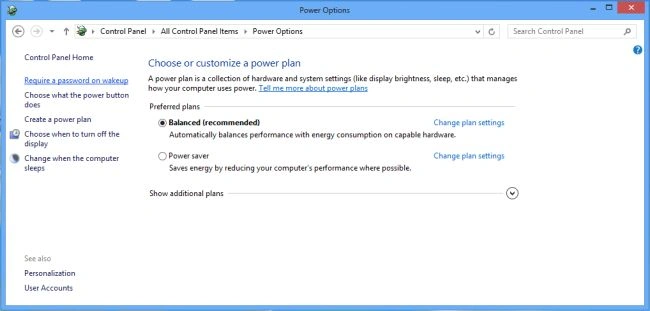
In the Control Panel window click on "Power options".

Step 4
In the power options window click on "Require a password on wakeup".
Step 5
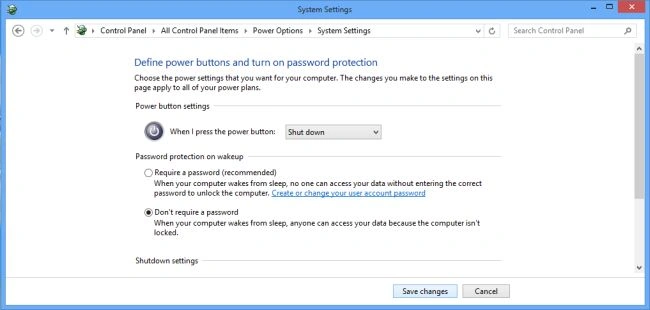
In this window click on "Change Setting that is currently unavailable".

Step 6
In this step click on "Don't require a password", Click on "Save change" to apply this setting.
Step 7
Now go in Sleep mode and try to come back in normal mode it will not ask for a password.
Summary
In this article, we learned about Remove Sleep Mode Password in Windows 8.
Jimmy WickPosted Jul 7, 2022, 10:49 AM
In the Control Panel window click on "Power options". In the power options window click on "Require a password on wakeup". In this window click on "Change Setting that is currently unavailable". In this step click on "Don't require a password", Click on "Save change" to apply this setting.