

Introduction
In this article, we will learn how to remove a folder in Sharepoint document library, using SharePoint-hosted SharePoint add-ins, using Napa Office 365 development tools. Sharepoint's basic operations are used by JavaScript Object Model here. If there are any changes, post your comments here.
Develop the project, using the method given below in Napa tool
- On your developer site, open Napa Office 365 development tools and then choose Add New Project.
- Choose the app for SharePoint template, name the project, create site and then choose Create button.
- Replace APP.js with the source code given below.
- Publish your app.
Prerequisite
- The important steps are given below, which are to be followed before creating the app.
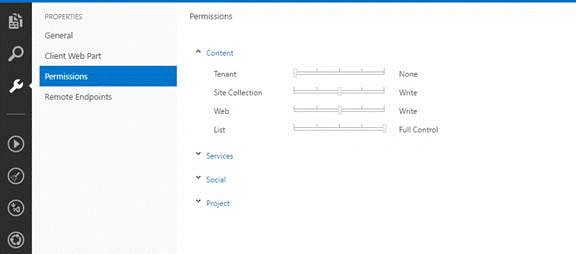
- Specify the permissions that your app needs, as shown below.
- Choose the Properties button at the bottom of the page.
- In the Properties Window, choose Permissions.
- In the Content category, set the Write permissions for the Tenant scope.
- In the Social category, set the Read permissions for the User Profiles scope.
- Close the Properties Window.
Basic and important things that we want to know are given below.
Sp.ClientContext
- Represents SharePoint Objects and Operations context.
- This is used to access SiteCollection, SubSite, List,Library etc.
- This is used to perform async calls to SharePoint to access the data.
- Load method: Retrieves the properties of a client object from the Server.
- executeQueryAsync method: Executes the current pending request asynchronously on the Server.
Reference the required libraries
Before using JSOM, you must reference the libraries in the order given below.
- ASP.NET AJAX library
- sp.runtime.js file
- sp.js file
Creating, updating and deleting the lists through Client Object Model works similarly to Server Object Model, using .NET Framework (CSOM, SSOM). .
The operations do not complete until and unless, you call the executeQueryAsync(succeededCallback, failedCallback) function.
SharePoint 2013 introduces a Napa tool Service, which is comparable to the existing SharePoint Client Object Model.
Napa tool can be used to perform Create, Read, Update and Delete (CRUD) operations from their apps for SharePoint.
By following this article, you can learn how to create a simple SharePoint-hosted SharePoint add-in by using Napa. The add-in that you’ll create includes the controls and the code to manage the lists and list items.
Choose the kind of add-in; you want to create, name the project and then choose the Create button.
Common steps for all Napa tool deployment
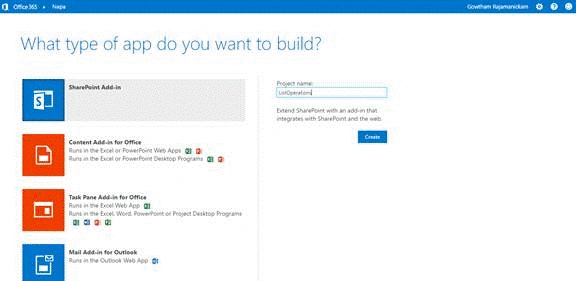
Napa is a tool, which you can use to create SharePoint-hosted SharePoint add-ins.
We can't create a PHA (Provider Hosted APP), using Napa tool.
Click Create button.
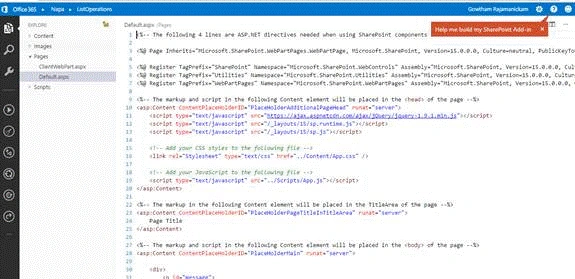
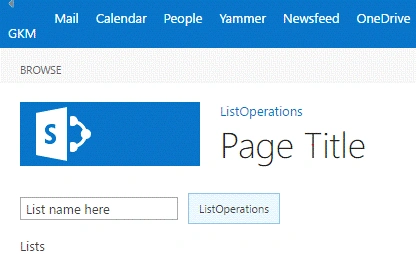
Default .aspx display is like the pic, shown above and App.Js file looks, as shown.
You can add more .js file and add the code to it instead of it to the existing file.
Now, publish your app.
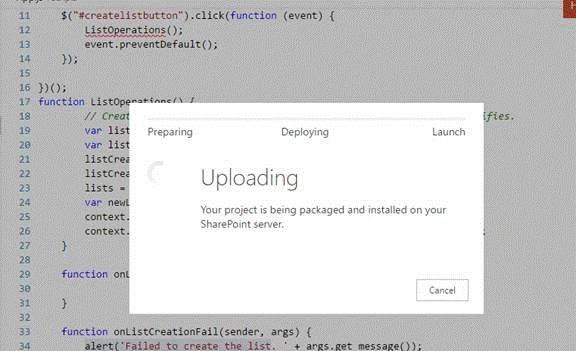
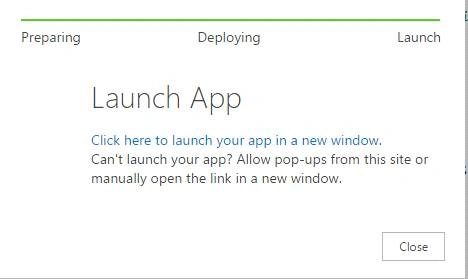
Choose the Click here to launch your add-in in a new Window link.
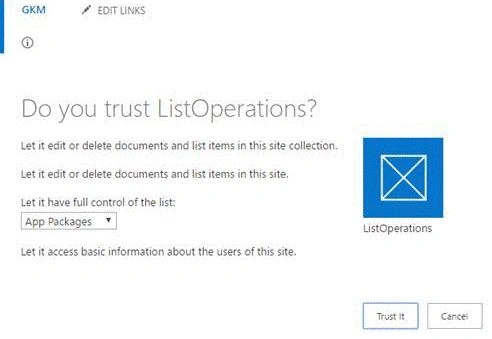
Click Trust it option to deploy your app here, followed by your login popup Window, which will come and ask your credentials.
Enter your credentials and then click OK.
In the App.js, the variables are declared to store the Host Web and App Web.
- var hostWebUrl;
- var appWebUrl;
Join the conversation! Your thoughts help the community grow.