

Recently, I came across an issue where a user reported that he lost the Quick Links stored in his MySite. The user said that he had many links added in his MySite and all of a sudden, they vanished. Since he did not have any local copy of those links, he requested for help in getting them back as those were very important links related to his projects’ sites in SharePoint. The user also said that none of his colleagues lost their quick links. So, it was evident that the issue was not a major one as it impacted only single user, and whatever happened would have been accidental.
At first, I was wondering how it could happen if not done intentionally. However, later I realized that any application can run into weird issues and SharePoint is not an exception.
I did the following troubleshooting with no success in getting at what was wrong with that user’s quick links.
- Recreated user’s MySite.
- Restored the content database containing user’s MySite, using DPM [Data Protection Manager] and then, restored the MySite using PowerShell.
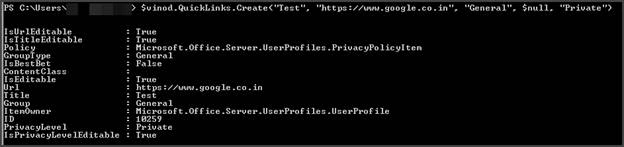
- Checked if there are any links stored in user’s profile using PowerShell [code below]. Well, it didn’t show any.
- $site = Get - SPSite https: //mysites.mydomain.com
- $serviceContext = Get - SPServiceContext $site
- $upm = new - object Microsoft.Office.Server.UserProfiles.UserProfileManager($serviceContext)
- $User = $upm.GetUserProfile("domain\userName")
- $User.QuickLinks.GetItems() | Select Title, URL | FT– auto
After a long brainstorming session, finally I decided to opt for a different approach in order to get the links back. It was risky though but since there were some signs of assurance, I went ahead with this one.
Since all the details related to user profiles are stored in the “User Profile Database”, I wanted to restore the database from an earlier backup. Usually, we need the assistance of the person who handles the SQL part. However, in my case, I had access to the SQL instance. Upon that, we were having DPM [Data Protection Manager] which regularly takes backup of all our databases. This made my task easier than it sounded.
First, I found the name of the User Profile Database used by our User Profile Service Application. I followed the following procedure.
- Go to Central Administration >> Manage Service Applications
- Select User Profile Service Application and click on the “Properties” button available in the ribbon area on top of the page.
- Get the User Profile Database Name and Server details.
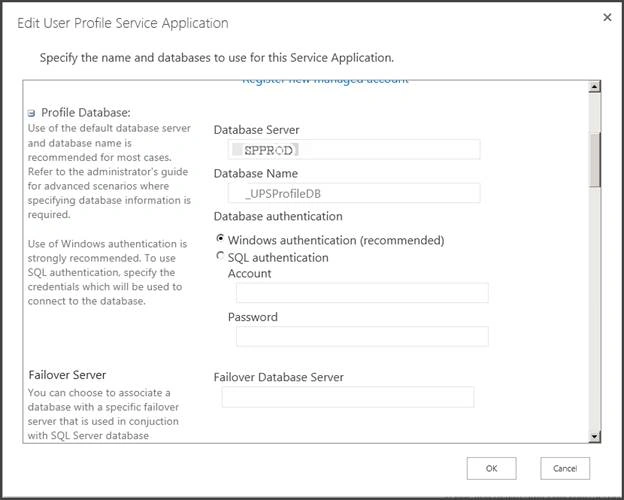
Next, I connected to DPM, retrieved the User Profile Database from earlier recovery point, and stored its .mdf and .ldf files into an SQL Server. I attached these files to SQL instance.
Navigated to “Databases” >> “UserProfileDB” >> Tables >> UserProfile_Full.


Join the conversation! Your thoughts help the community grow.