

Introduction
This article shows how to retrieve your files and folders that are accidentally or deliberately deleted from the drives or even from the recycle bin.
If you maintain your file history in the system, then it is easy to restore your deleted files back into the system from the file history.
Learn how to Setup File History in Windows 8.
Here are steps to Restore Deleted files in Windows 8 with the help of File History
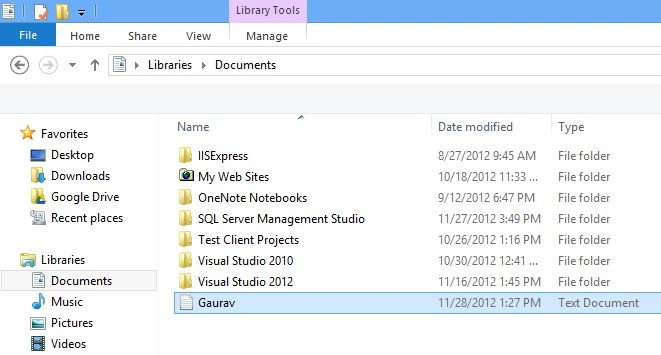
First, I create a text file named "Gaurav" that I will later delete.
 Step 2
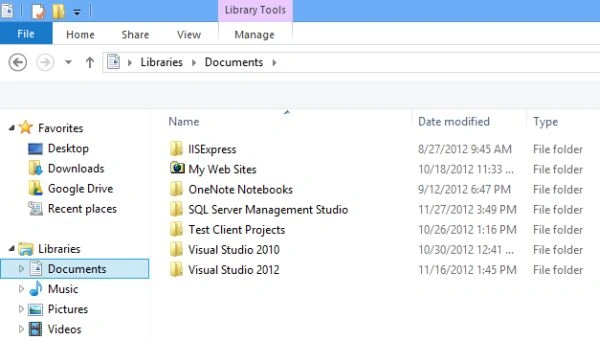
Now, I have deleted that file from the library using the Shift+Del key. This will also delete it from the recycle bin. Now, there is no such file residing in our system.
Step 2
Now, I have deleted that file from the library using the Shift+Del key. This will also delete it from the recycle bin. Now, there is no such file residing in our system.
 Step 3
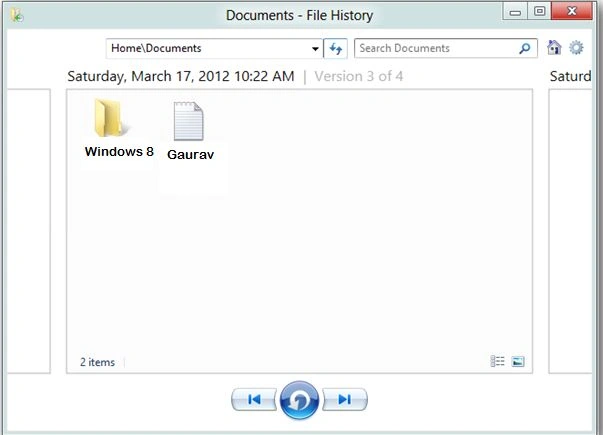
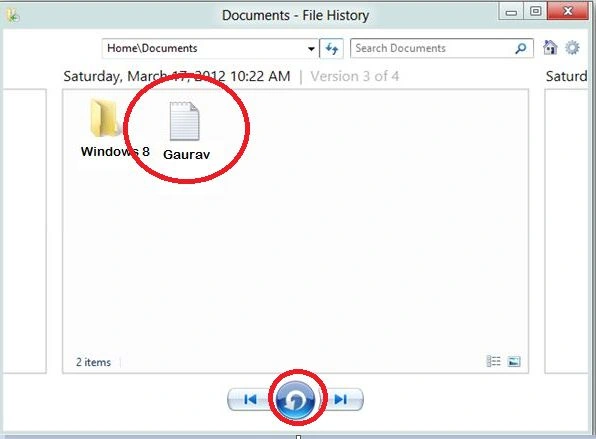
It's time to recover the file that was accidentally (intentionally) deleted.
Step 3
It's time to recover the file that was accidentally (intentionally) deleted.
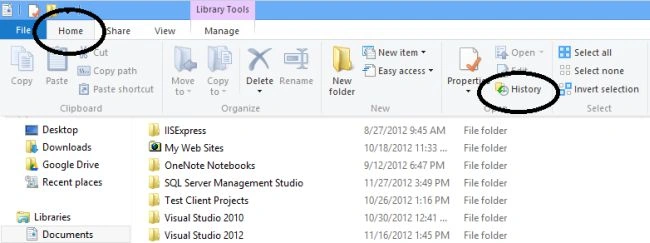
- Go to the location where the file resided earlier.
- Now, go to the Home menu and select History.
Summary
In this article, we learned about Retrieve Accidently Deleted Files and Folders in Windows 8.
Join the conversation! Your thoughts help the community grow.