
Introduction
This article demonstrates how to Retrieve Real-Time Data in Firebase using Android Studio. Also, you will see how to get the data from a Firebase real-time database. In this part, I will complete the remaining process of retrieving real-time data using Firebase.
Refer to part one from the following link.
Real-Time Database
Firebase provides a real-time database and back-end as a service. The service provides application developers an API that allows application data to be synchronized across clients and stored on Firebase's cloud. The company provides client libraries that enable integration with Android, iOS, JavaScript, Java, Objective-C, swift and Node.js applications. The database is also accessible through a REST API and bindings for several JavaScript frameworks such as AngularJS, React, Ember.js and Backbone.js. The REST API uses the Server-Sent Events protocol, which is an API for creating HTTP connections for receiving push notifications from a server.
Prerequisites
- Android Studio
- Before using Firebase Real-time Database, make sure that you have connected your Android app to Firebase.
- Android Emulator
The steps given below are required to be followed in order to create a retrieve data in Android, using Android Studio.
Step 1
Next, go to Gradle Scripts >> build.gradle (Module: app). Select build.gradle. The app gradle compiles the code, and then the build types will appear. Just replace that with the following code and add the Firebase Core and Firebase Database Gradle to your project, or you can also use Gradle.
- dependencies {
- classpath 'com.android.tools.build:gradle:3.1.1'
- classpath 'com.google.gms:google-services:3.2.0' }
Gradle for app
- dependencies {
- implementation fileTree(dir: 'libs', include: ['*.jar'])
- implementation 'com.android.support:appcompat-v7:26.1.0'
- implementation 'com.android.support.constraint:constraint-layout:1.0.2'
- testImplementation 'junit:junit:4.12'
- androidTestImplementation 'com.android.support.test:runner:1.0.1'
- androidTestImplementation 'com.android.support.test.espresso:espresso-core:3.0.1'
- implementation 'com.google.firebase:firebase-core:15.0.0'
- implementation 'com.google.firebase:firebase-database:15.0.0'
- implementation 'com.firebase:firebase-client-android:2.4.0'
- }
- apply plugin: 'com.google.gms.google-services'
Step 2
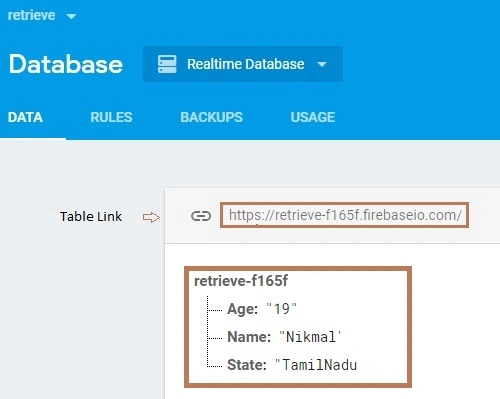
Go to Console Firebase > Click OverView > Database > Real-Time DB. Select the Real-Time DB to create three new Name and Value, just copy the Database table link for Firebase DB.
Step 3
Next, go to app >> res >> layout >> activity_main.xml. Select the files to follow the code as given below.
- <?xmlversionxmlversion="1.0"encoding="utf-8"?>
- <RelativeLayoutxmlns:androidRelativeLayoutxmlns:android="http://schemas.android.com/apk/res/android"
- xmlns:app="http://schemas.android.com/apk/res-auto"
- xmlns:tools="http://schemas.android.com/tools"
- android:layout_width="match_parent"
- android:layout_height="match_parent"
- tools:context=".MainActivity">
- <Buttonandroid:idButtonandroid:id="@+id/button"
- android:layout_width="wrap_content"
- android:layout_height="wrap_content"
- android:layout_alignParentTop="true"
- android:layout_centerHorizontal="true"
- android:layout_marginTop="155dp"
- android:text="Button"/>
- </RelativeLayout>
Step 4
Next, go to app >> src >> java >> Domain Name >> MainActivity.java . Select MainActivity file to follow the code as given below.
- package io.github.saravanan_selvaraju.myapplication;
- import android.support.annotation.MenuRes;
- import android.support.v7.app.AppCompatActivity;
- import android.os.Bundle;
- import android.util.Log;
- import android.widget.Button;
- import android.widget.TextView;
- import com.firebase.client.DataSnapshot;
- import com.firebase.client.Firebase;
- import com.firebase.client.FirebaseError;
- import com.firebase.client.ValueEventListener;
- import java.util.Map;
- publicclass MainActivity extends AppCompatActivity
- {
- private Firebase mRef;
- private Button mbutton;
- @Overrideprotectedvoid
- onCreate(Bundle savedInstanceState)
- {
- super.onCreate(savedInstanceState);
- setContentView(R.layout.activity_main);
- mRef = new Firebase("https://retrieve-f165f.firebaseio.com"); // DataBase Profile Link
- mbutton = (Button) findViewById(R.id.button);
- mbutton.setOnClickListener(new android.view.View.OnClickListener()
- {
- @Overridepublicvoid onClick(android.view.View view)
- { mRef.addValueEventListener(new ValueEventListener()
- {
- @Overridepublicvoid onDataChange(DataSnapshot dataSnapshot)
- { Map<String, String>map = dataSnapshot.getValue(Map.class);
- String name = map.get("Name");
- String age = map.get("Age");
- String state = map.get("State");
- Log.v("E_VALUE","Name:" + name);
- Log.v("E_VALUE","Age:" + age);
- Log.v("E_VALUE","State:" + state);
- } @Overridepublicvoid onCancelled(FirebaseError firebaseError)
- { }
- });}}); } }
"mRef = new Firebase("....LINK.... ");".
This is your firebase DB link, It is used to help the database table connect to your app
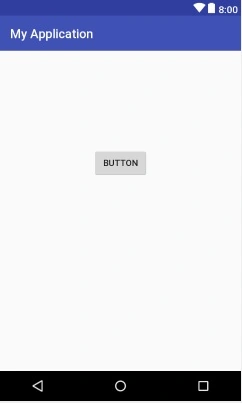
Next, go to Android Studio and deploy the application. Select Emulator or your Android Device with USB debugging enabled. Give it a few seconds to make installations and set permissions.
FIRST OUTPUT
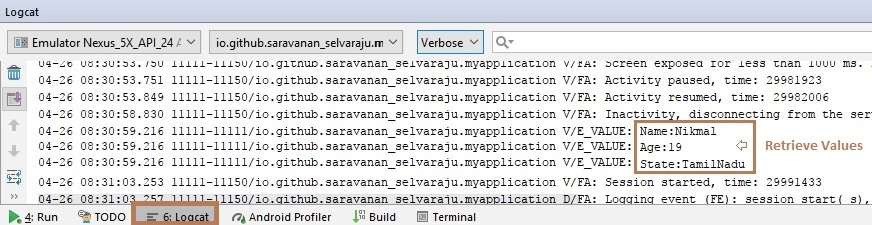
When you click on a button, that data will be displayed in the given Logcat.
Step 5
Next, go to app >> res >> layout >> activity_main.xml. Select the files to follow the code as given below.
- <?xml version="1.0" encoding="utf-8"?>
- <RelativeLayout xmlns:android="http://schemas.android.com/apk/res/android"
- xmlns:app="http://schemas.android.com/apk/res-auto"
- xmlns:tools="http://schemas.android.com/tools"
- android:layout_width="match_parent"
- android:layout_height="match_parent"
- tools:context=".MainActivity">
- <ListView
- android:id="@+id/ListView"
- android:layout_width="match_parent"
- android:layout_height="match_parent"
- android:layout_alignParentTop="true" />
- </RelativeLayout>
Preview
Step 6
Again, go to app >> src >> java >> Domain Name >> MainActivity.java . Select MainActivity file to follow the code as given below.
- package io.github.saravanan_selvaraju.myapplication;
- import android.support.v7.app.AppCompatActivity;
- import android.os.Bundle;
- import android.widget.ArrayAdapter;
- import android.widget.ListView;
- import com.firebase.client.ChildEventListener;
- import com.firebase.client.DataSnapshot;
- import com.firebase.client.Firebase;
- import com.firebase.client.FirebaseError;
- import java.util.ArrayList;
- public class MainActivity extends AppCompatActivity {
- private Firebase mRef;
- private ArrayList<String> mUsername = new ArrayList<>();
- private ListView mListView;
- @Override
- protected void onCreate(Bundle savedInstanceState) {
- super.onCreate(savedInstanceState);
- setContentView(R.layout.activity_main);
- mRef = new Firebase("https://retrieve-f165f.firebaseio.com"); // DataBase Profile Link
- mListView = (ListView) findViewById(R.id.ListView);
- final ArrayAdapter<String> arrayAdapter = new ArrayAdapter<String>(this,android.R.layout.simple_list_item_1, mUsername);
- mListView.setAdapter(arrayAdapter);
- mRef.addChildEventListener(new ChildEventListener() {
- @Override
- public void onChildAdded(DataSnapshot dataSnapshot, String s) {
- String value = dataSnapshot.getValue(String.class);
- mUsername.add(value);
- arrayAdapter.notifyDataSetChanged();
- }
- @Override
- public void onChildChanged(DataSnapshot dataSnapshot, String s) {
- }
- @Override
- public void onChildRemoved(DataSnapshot dataSnapshot) {
- }
- @Override
- public void onChildMoved(DataSnapshot dataSnapshot, String s) {
- }
- @Override
- public void onCancelled(FirebaseError firebaseError) {
- }
- });
- }
- }
Step 7
Next, go to Android Studio and deploy the application. Select Emulator or your Android Device with USB debugging enabled. Give it a few seconds to make installations and set permissions.
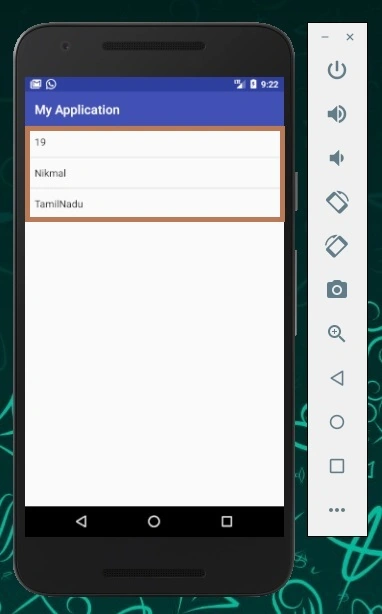
OUTPUT
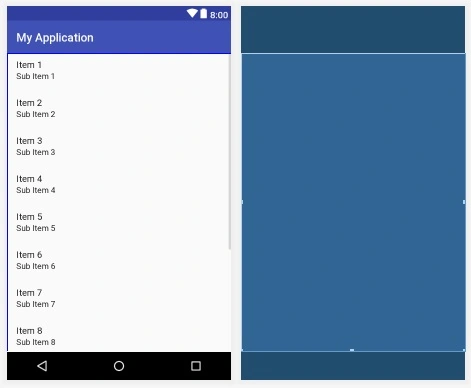
Real-Time data will be displayed in the given ListView.
Summary
Now, you have successfully retrieved Real-Time Data in an Android application using Andriod Studio and Java.
Fiona HosfordPosted Mar 10, 2020, 12:16 PM
When I try this I get the error "unable to start activity ComponentInfo{com.example.shakeit/com.example.shakeit.MainActivity}: java.lang.RuntimeException: You need to set the Android context using Firebase.setAndroidContext() before using Firebase."
Rovers MindPosted Jul 7, 2019, 7:34 AM
How to retrieve data by comparing current time and the database (firebase real time) user input time to listview
Ray JohnsonPosted Apr 30, 2018, 4:23 PM
Very nice article. Thoroughly explained..