

Introduction:
This article discusses the construction of a
simple application that may used to view RSS feeds from the desktop. The
application allows the user to select a canned RSS feed or to key one. The RSS
feed is opened and the article title and link nodes from the feed are placed
into a tree view control; each title becomes the parent of the related link.
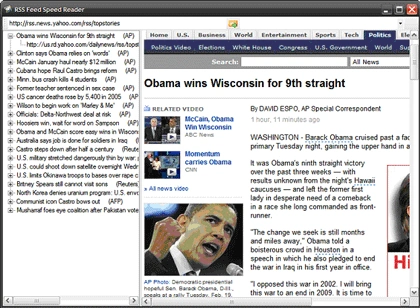
Figure 1: Application in Use
The title of the article occupies the parent node with the link node
placed as the child of each title node. If the user clicks on any of the link
nodes, the article associated with the title will be opened into a web browser
control.
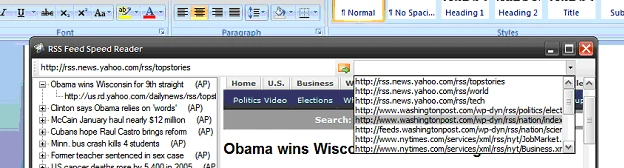
Figure 2: Canned RSS Feeds in drop down, current RSS feed on left side
The intent of the application was to provide a simple tool that may be
used to organize and read RSS postings. The titles and links are recovered from
the XML returned from the RSS service.
Getting Started:
In order to get started, unzip the included project and open the solution in the
Visual Studio 2008 environment. In the solution explorer, you should see this:
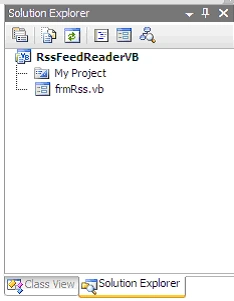
Figure 3: Solution Explorer
As you can see, the project is a win forms application containing only
a single form. The form itself contains a tool strip control docked to the top
with a text box used for entering RSS feed locations, a button control to open
the RSS feed, and a combo box containing a collection of RSS feed which may be
directly opened. The left hand side of the form contains a tree view control
used to display the RSS feed titles and links; the right hand side contains a
web browser control which is used to display the linked page.
The Main Form (frmRss.vb).
The main form is used to open the selected RSS feed as an XML document
and to display them in TreeView format; form also places the story link as a
child node to each title node.
If you'd care to open the code view up in the IDE you will see that the code
file begins as follows:
Imports System.Xml
Imports System.Xml.XPath
Note that the additions of the System.Xml and System.Xml.XPath libraries are the only actual departure from the default. Following the imports, class is defined and a constructor added. A local string variable it declared and used to hold the RSS feed URL. Within the constructor, the string variable used to point to the location of the RSS feed is zeroized as an empty string.
Public Class frmRss
' Current Path to RSS Feed
Private mRssUrl As String
''' <summary>
''' Set the RSS URL to an empty
''' string on form load
''' </summary>
''' <param name="sender"></param>
''' <param name="e"></param>
''' <remarks></remarks>
Private Sub Form1_Load(ByVal sender As System.Object, _ByVal e As System.EventArgs)Handles MyBase.Load
' Clear path to RSS Feed
mRssUrl = String.Empty
End Sub
Next up is the click event handler for the RSS Go button located on the form's tool strip control.Within this click event handler, the code is placed to query for only the RSS feed item title and link.These two values are loaded into the tree view and make it possible for the user to read the article title and then open the link into the web browser control to read it if they are interested in getting more information on the topic. This section of code in annotated and should be easy enough to follow using the comments:
''' <summary>
''' Pull up an RSS feed and load its headlines
''' and links into a treeview control
''' </summary>
''' <param name="sender"></param>
''' <param name="e"></param>
''' <remarks></remarks>
Private Sub tsRssGo_Click(ByVal sender As System.Object, _ByVal e As System.EventArgs)Handles tsRssGo.Click
Try
' set the file path member var
mRssUrl = Me.tsRssLocation.Text
' Clear the treeview.
tvwRss.Nodes.Clear()
' set the wait cursor
Me.Cursor = Cursors.WaitCursor
' create a new xml doc
Dim doc As New XmlDocument()
Try
' load the xml doc
doc.Load(mRssUrl)
' return the cursor
Me.Cursor = Cursors.Default
Catch ex1 As Exception
' return the cursor
Me.Cursor = Cursors.Default
' tell a story
MessageBox.Show(ex1.Message)
Return
End Try
' get an xpath navigator
Dim navigator As XPathNavigator = doc.CreateNavigator()
Try
' look for the path to the rss item titles navigate
' through the nodes to get all titles
Dim nodes As XPathNodeIterator =
navigator.Select("/rss/channel/item/title")
While nodes.MoveNext
' clean up the text for display
Dim node As XPathNavigator = nodes.Current
Dim tmp As String = node.Value.Trim()
tmp = tmp.Replace(ControlChars.CrLf, "")
tmp = tmp.Replace(ControlChars.Lf, "")
tmp = tmp.Replace(ControlChars.Cr, "")
tmp = tmp.Replace(ControlChars.FormFeed, "")
tmp = tmp.Replace(ControlChars.NewLine, "")
' add a new treeview node for this
' news item title
tvwRss.Nodes.Add(tmp)
End While
' set a position counter
Dim position As Integer = 0
' Get the links from the RSS feed
Dim nodesLink As XPathNodeIterator =
navigator.Select("/rss/channel/item/link")
While nodesLink.MoveNext
' clean up the link
Dim node As XPathNavigator = nodesLink.Current
Dim tmp As String = node.Value.Trim()
tmp = tmp.Replace(ControlChars.CrLf, "")
tmp = tmp.Replace(ControlChars.Lf, "")
tmp = tmp.Replace(ControlChars.Cr, "")
tmp = tmp.Replace(ControlChars.FormFeed, "")
tmp = tmp.Replace(ControlChars.NewLine, "")
' use the position counter
' to add a link child node
' to each news item title
tvwRss.Nodes(position).Nodes.Add(tmp)
' increment the position counter
position += 1
End While
Catch ex As Exception
MessageBox.Show(ex.Message, "RSS Feed Load Error")
End Try
' restore the cursor
Me.Cursor = Cursors.Default
Catch ex2 As Exception
' snitch
MessageBox.Show(ex2.ToString(), "RSS Feed Initialization
Failure")
End Try
End Sub
The next section of the code is used to load the link content into the web browser control. This is accomplished using the After Select event from the tree view control. When this event fires, the code merely examines the link text and, if it starts with 'http'; the function makes an attempt to load the link into the web browser control occupying the right hand panel in the main form.
''' <summary>
''' Upon selection of a node, open the link
''' </summary>
''' <param name="sender"></param>
''' <param name="e"></param>
''' <remarks></remarks>
Private Sub tvwRss_AfterSelect(ByVal sender As System.Object,
_ ByVal eAs System.Windows.Forms.TreeViewEventArgs)
_ Handles tvwRss.AfterSelect
Try
' get the first four characters from the link for a
' quick test
Dim tmp As String = tvwRss.SelectedNode.Text.Substring(0, 4)
' test the link text and then
' navigate the browser to that link
If tmp = "http" Then
webBrowser1.Navigate(tvwRss.SelectedNode.Text)
End If
Catch
' skip it if it isn't a link
End Try
End Sub
The last method in the class is the handler for the canned feeds combo box selected index changed event; in this code, when the user selects a canned feed from the drop down list, that link is loaded into the tool strip's RSS Location text box control and the tool strip control's Rss Go button's click event is fired. That button click event handler will clear the tree view control and reload it with the information captured from the replacement RSS feed.
''' <summary>
''' Load the selected canned RSS feed into the
''' treeview using the existing methods
''' </summary>
''' <param name="sender"></param>
''' <param name="e"></param>
''' <remarks></remarks>
Private Sub tsCboFeeds_SelectedIndexChanged(ByVal sender _As System.Object, ByVal e AsSystem.EventArgs) _ Handles tsCboFeeds.SelectedIndexChanged
' load the text for the selected feed into
' the RSS location text box and then use
' the existing button click event to launch
' the RSS feed into the treeview
tsRssLocation.Text = tsCboFeeds.SelectedItem.ToString()
tsRssGo_Click(Me, New EventArgs())
End Sub
End Class
Summary
This application demonstrates a simple way of building an RSS Feed reader through the manipulation of the RSS Feed's XML. This is a little different than most of the RSS Feeder reader's I have encountered in that it does not attempt to provide the standard set of information returned from the feed in a listbox or similar control; rather this approach only displays the headlines and provides the links to the main story using the tree view control and a web browser control; in that the user can scan the headlines and then pop open the link directly to display the main story in a web browser control. Of course you can pull addition information from the feed and display it using other added controls; the approach is certainly something that can be expanded upon; however this does provide a clean and simple interface to the RSS Feeds main points of information.
Join the conversation! Your thoughts help the community grow.