

In this article, you will learn how to run your ASP.NET Core 2.0 project via Mono.
Most of the time, we use .NET Core CLI to run our ASP.NET Core web application, such as dotnet run and dotnet xxx.dll .
But, Mono can run ASP.NET Core web application as well! I will show you how step by step.
Let's begin!
Step 1Create a new ASP.NET Core Web application named MonoDemo.
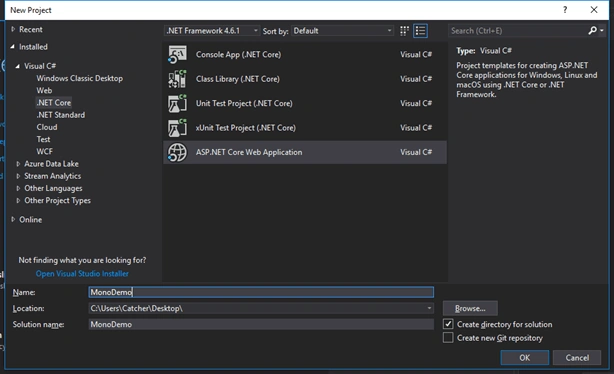

Change the default target from .NET Core to .NET Framework.
Note
If you feel puzzled why we can choose .NET Framework here, you need to learn some more concepts, such as .NET Core, ASP.NET Core, and .NET Framework etc.
Step 3In order to make this application able to run on OSX anLinux, we need to edit the MonoDemo.csproj.
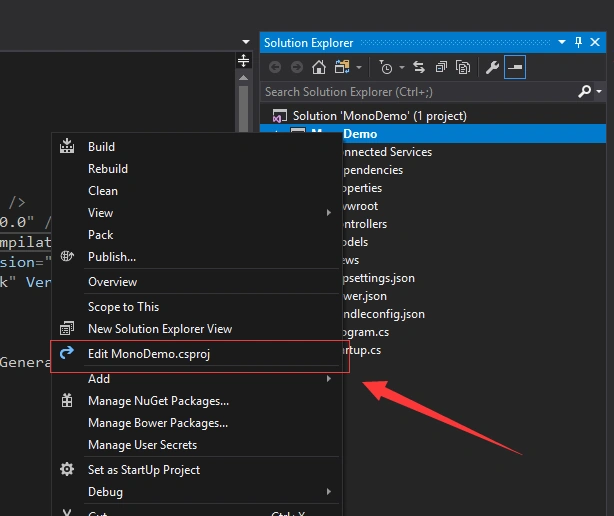
Here is the MonoDemo.csproj after editing.
- <Project Sdk="Microsoft.NET.Sdk.Web">
- <PropertyGroup>
- <TargetFramework>net461</TargetFramework>
- <RuntimeIdentifiers>osx-x64;linux-x64</RuntimeIdentifiers>
- </PropertyGroup>
- <ItemGroup>
- <PackageReference Include="Microsoft.AspNetCore" Version="2.0.0" />
- <PackageReference Include="Microsoft.AspNetCore.Mvc" Version="2.0.0" />
- <PackageReference Include="Microsoft.AspNetCore.Mvc.Razor.ViewCompilation" Version="2.0.0" PrivateAssets="All" />
- <PackageReference Include="Microsoft.AspNetCore.StaticFiles" Version="2.0.0" />
- <PackageReference Include="Microsoft.VisualStudio.Web.BrowserLink" Version="2.0.0" />
- </ItemGroup>
- <ItemGroup>
- <DotNetCliToolReference Include="Microsoft.VisualStudio.Web.CodeGeneration.Tools" Version="2.0.0" />
- </ItemGroup>
- </Project>
Publish this web application using .NET Core CLI command. If your target is OSX, you can use the following command.
- dotnet publish -r osx-x64 -c Release -f net461
If your target is Linux, you can use the following command.
- dotnet publish -r linux-x64 -c Release -f net461

Here, I use OSX for an example. And, it's the same as Linux. The only difference between them is of libuv files. Each OS has its own type.
| OS | Libuv file after publishing |
| Windows | libuv.dll |
| Linux | libuv.so |
| OSX | libuv.dylib |
Step 5
Copy all the files in the Publish folder on your MAC or Linux computer. Before the following steps, you need to install Mono first. Please follow the below link to install if you have not installed yet .
http://www.mono-project.com/download/
Step 6Let's run it via Mono.
- mono MonoDemo.exe
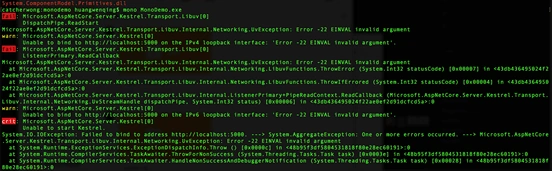
Unlucky, we find some errors from the terminal after we run the above command. We need to remove a DLL named System.Runtime.InteropServices.RuntimeInformation.dll from the Publish folder.
After removing, it runs well.

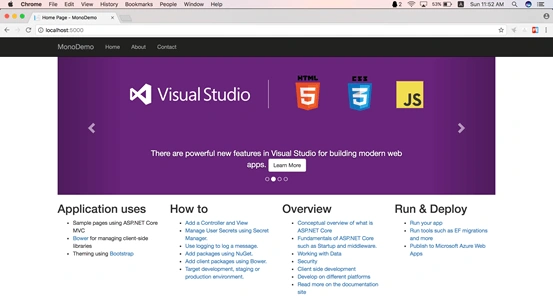
Open your browser and enter the listening URL http://localhost:5000. You will find that everything is good.
We can use the lsof command to find out who is listening to the port 5000.
lsof -i :5000

For comparison, I run a new ASP.NET Core web application via .NET Core CLI.

At last, turn to Linux and run this application as well. Here, I use CentOS for example.
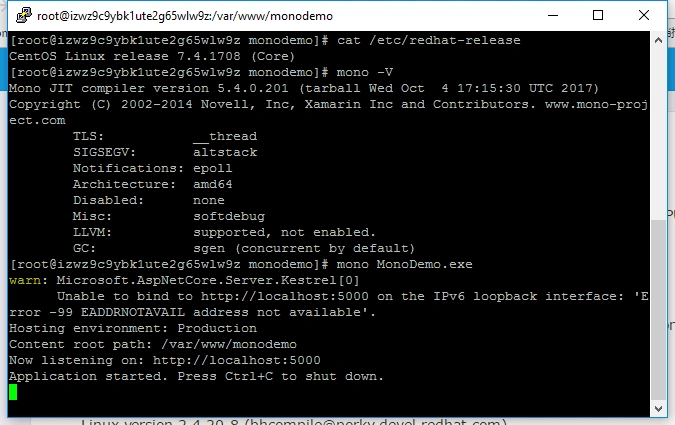
As you can see, both OSX and Linux are the same and easy to run via Mono.
If you want to host your web application this way in Linux , follow the official document Set up a hosting environment for ASP.NET Core on Linux with Nginx, and deploy to it and edit the ExecStart in your service file.
The following is an example service file for our application:
- # Code removed for brevity.
- [Service]
- WorkingDirectory=/var/www/monodemo
- ExecStart=/usr/bin/mono /var/www/momodemo/MonoDemo.exe
- # Code removed for brevity.
This article has introduced another way to run our ASP.NET Core web application via Mono. I hope this will help you.
Kartiki MemanePosted Jul 14, 2020, 3:17 AM
Hi Sir,very nice article, thanks....If i want to create docker image for this application then can you please share docker command sir?
Scott FosterPosted Jul 21, 2019, 1:46 AM
Thanks for the article - Is this compiling your code against .net core or .net framework?
Nilesh PatilPosted Oct 31, 2017, 8:52 AM
Nice One Sir...........