

Introduction
Integration is the constraining need of today’s IT landscape. More and more systems, platforms, and technologies are coming closer through different integration techniques. Integration is where Source System may expose their data employing a data layer and the target system access that data layer to request data.
Technological progressions testified many amazing tools & technologies to ease the integration process. Web Service End Points are the most popular amongst them. Like most popular software platforms, Salesforce also offers data access via Web Service Endpoints (APIs in common).
Salesforce offers both SOAP and REST-based service endpoints to enable data access by a large variety of thin clients (Windows Applications, Sync Jobs, Web Applications, Mobile Applications, and much more).
Prerequisites
This article is more focused on the Authentication mechanism for Salesforce SOAP-based services. If you have not already gone through my earlier articles on this, I would strongly recommend referring to the article 'How to Prepare Environment for Salesforce SOAP API Development', as this article is acting as a prerequisite for API Development scenarios. If you feel disengaged from any piece of content in this article, that means you need to refer to the earlier article first.
In this article, we will discuss the detailed steps on how to authenticate SOAP-based requests against Salesforce Org. We will explore the SOAP payloads for the request & response cycle for the request.
Launch the Postman and run through the following steps:
Preparing a Request Object
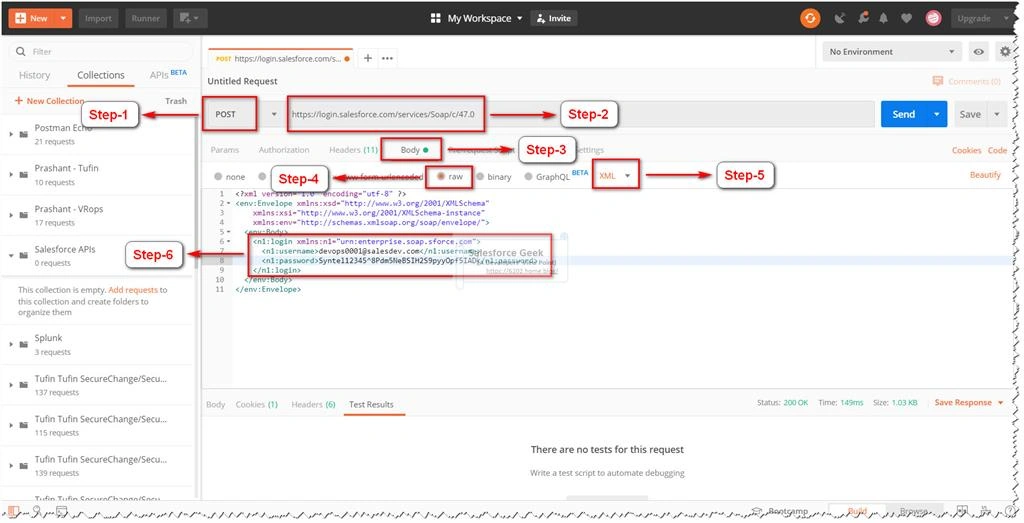
Step 1
Select the request type as “POST”, since this going to be a request with user credentials submitted to the Salesforce Org
Step 2
Specify the Login Url as https://login.salesforce.com/services/Soap/c/<API Version>, in this case, I have the API Version as “47.0”
Step 3
Select the Request “Body” section
Step 4
Select “raw” as the data input mean for the request data payloads
Step 5
Select “XML” as the content type for the data payloads
Step 6
Include the “SOAP envelope” as the request body. You can copy the XML Envelope from Salesforce documentation reference SOAP Envelope: Login Request and all you need is to change values for UserName & Password.
- Username: It is the user name for the Salesforce Org
- Password: It is the combination of a password for the Salesforce Org and User Security Token. (Refer to the Prerequisites section)
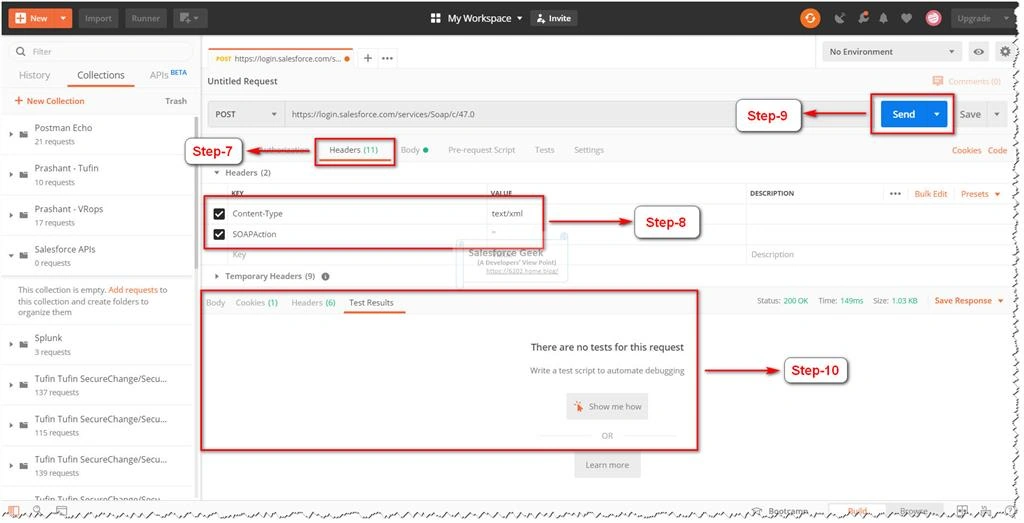
Step 7
Click on Request “Header” section
Step 8
Add the following headers,
- “Content-Type” as “text/xml”
- “SOAPAction” as ‘ ’ (blank quotes). This is a mandatory header that detects the intents of the SOAP Request. So it is important to include this Header with blank quotes in the SOAP Request
Step 9
Once all information is in place as required, click “Send” to the submit SOAP Request to Salesforce Org
Step 10
We can see the Response Section where response payloads will be displayed with all the data returned as part of the response, even if it is an error processing the request.
Analyzing the Response Object
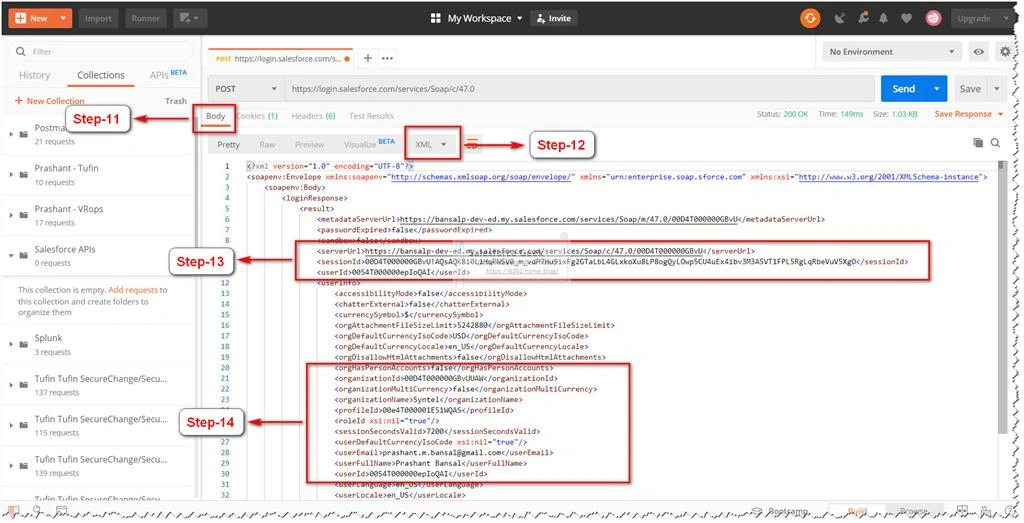
Step 11
Once the request is completed and response is received, we can click on the Response “Body” section
Step 12
We can notice that the response is received as “XML” as specified by the Request Header “Content-Type”
If we inspect the response object carefully, we can see “Status Code: 200” which means the request has executed successfully and we have received the data we are looking for.
Step 13
The response object provides us with vital information on User & Request Authentication. Below are the values that we need to focus on:
- “serverUrl”
This is the instance Url that can we used to build any subsequent SOAP Request to the Salesforce Org - “sessionId”
This is a short-lived authentication token that we need to use to authenticate the SOAP Request to the Salesforce Org - ”userId”
It shows the User Id, under whose security context this response object received, which means if this user doesn’t have access to any specific Salesforce resource, the subsequent SOAP request will still get exceptions if try to query the restricted resource.
Step 14
Shows the User contextual values which could be helpful in many cases, so it is always a good idea to keep it handy.
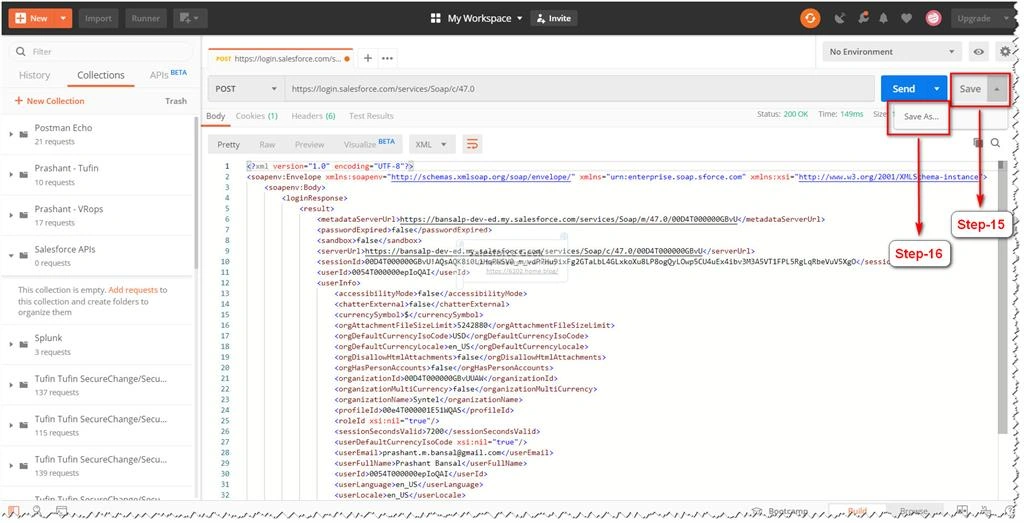
Step 15
It is advisable to keep this request saved with Postman as we need to execute it one or more times to get the refreshed session-id (remember it is short-lived). Click on “Save”
Step 16
Click on “Save As…”
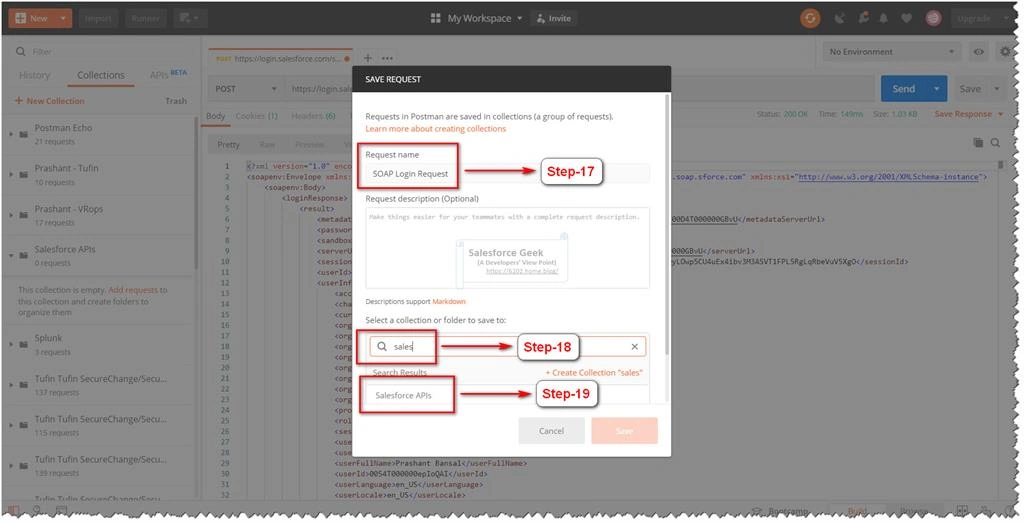
Step 17
Enter the suitable name for this request to reuse later.
Step 18
Search for the collection you want to add it to. (Refer to the Prerequisites section)
Step 19
Select “Salesforce APIs” as the collection you want the request to add to.
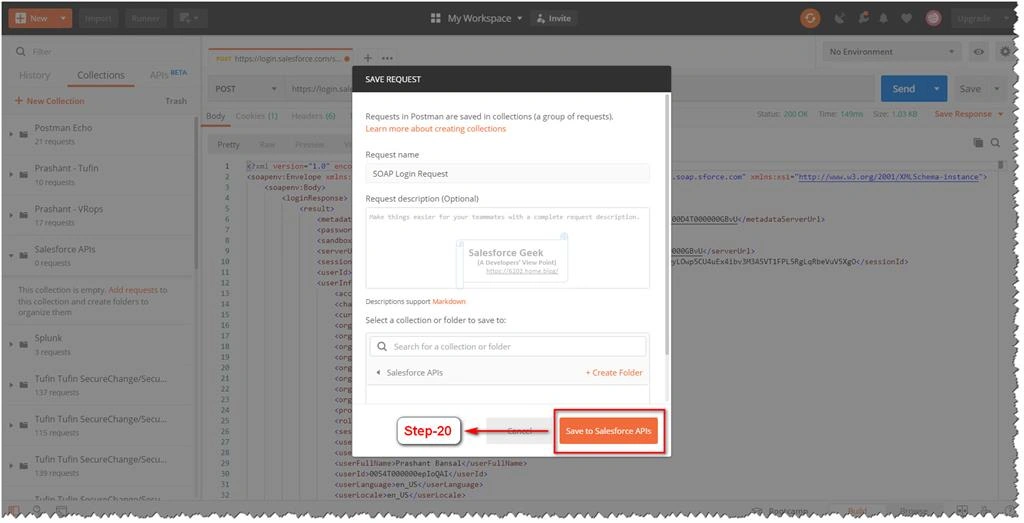
Step 20
Click the “Save to Salesforce APIs” button.
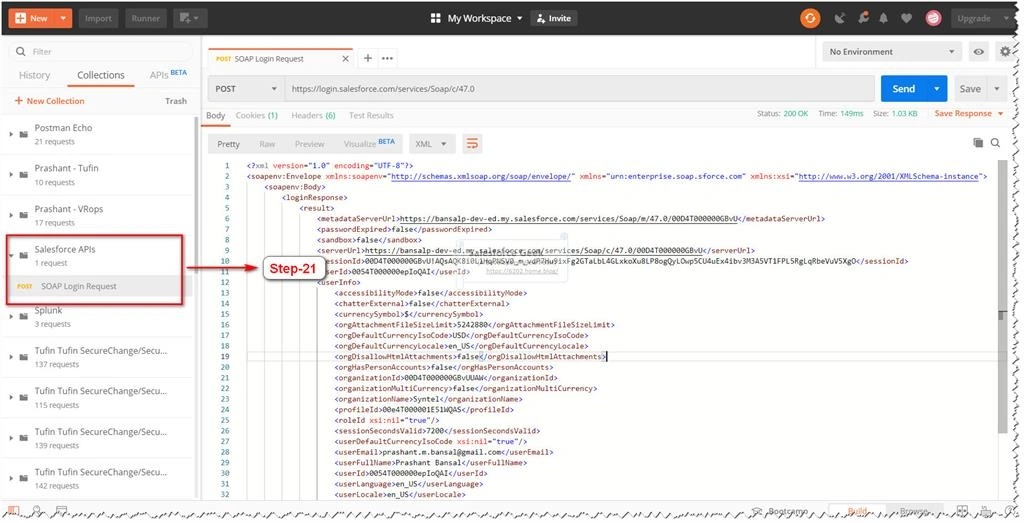
Step 21
We can see that the new request has been added to the collection.
This is a reusable request that we have to execute every time we need an updated Session-Id, so saving this query would save a lot of repetitive effort. This is true even if we executing the SOAP Requests using Visual Force Pages and Lightning Web Components.
Conclusion
Authentication would always be the first step in the development and execution of APIs. In this article, we discussed how to build a login request for Salesforce SOAP APIs and the response object includes the "Session Id" which is required to Authenticate and for subsequent SOAP API requests to Salesforce.
I hope you enjoyed this article. Please leave your comments to let me know how you enjoyed the content and how you found it helpful.
Join the conversation! Your thoughts help the community grow.