

Introduction
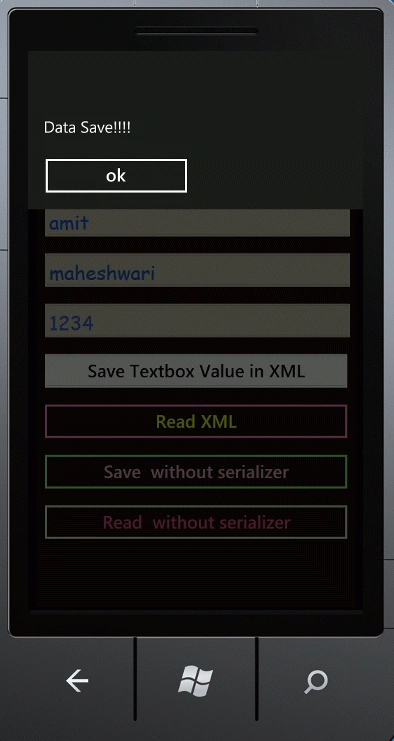
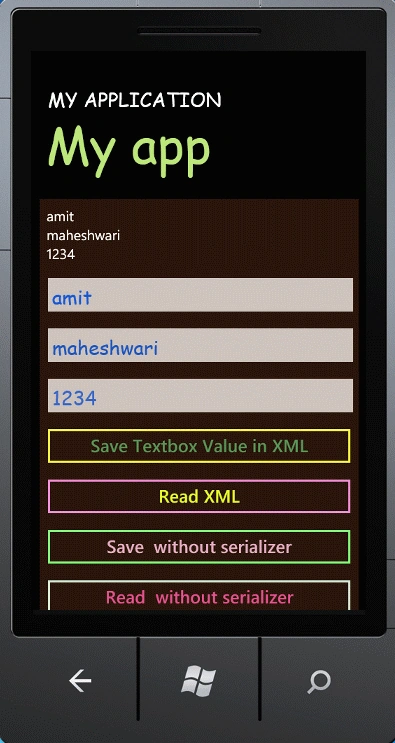
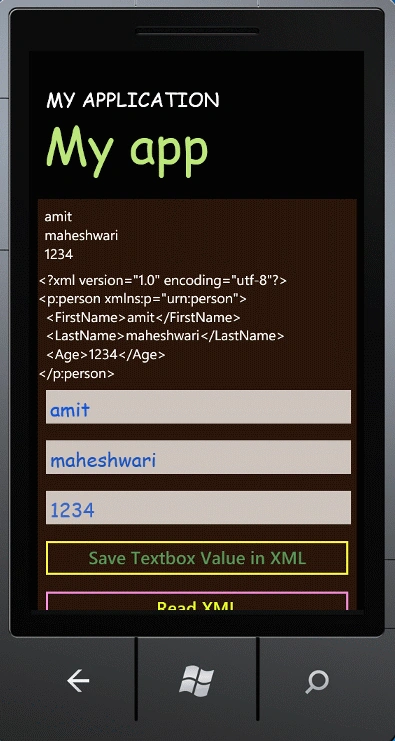
In this article we are going to discuss how to store a value in a XML file which will be saved as isolated storage in Windows Phone 7 and if we want to read the XML then we can read it easily. Further we need to create a XML file; for it we are using three textboxes whose value will be saved in the XML file and will be retrieved from the XML file whenever we will click on the button. It's all inside the isolated storage of the Windows Phone 7. Further The System.IO.IsolatedStorage namespace contains types that allow the creation and use of isolated stores. Further with these stores, you can read and write data that less trusted code cannot access and prevent the exposure of sensitive information that can be saved elsewhere on the file system. In such type of storage, data is stored in compartments that are isolated by the current user and by the assembly in which the code exists. Additionally, data can be isolated by domain. Roaming profiles can be used in conjunction with isolated storage so isolated stores will travel with the user's profile. Further you have to follow the steps given below to implement such functionality.
Step 1: In this step we have to take a new Windows Phone application
- Go to New-->Project
- Select template Silverlight for Windows Phone
- Choose a Windows Phone application
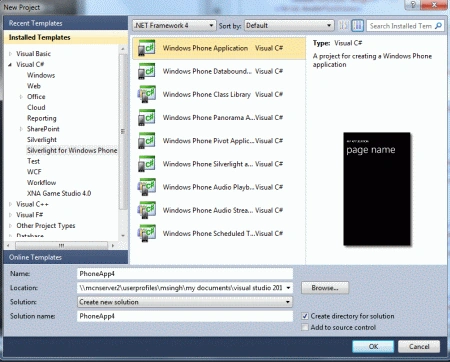
Step 2: In this step we have to see the code one by one first of all we will make some properties which is inside a class named person given below:
Code
public
class Person
{
string f_name;
string l_name;
int age;
public
string F_Name
{
get {
return f_name; }
set { f_name =
value; }
}
public
string LastName
{
get {
return l_name; }
set { l_name =
value; }
}
public int
Age
{
get {
return age; }
set { age =
value; }
}
}
Step 3: In this step we will write the code for List<person>; let us see how we will write that.
Code
private
List<Person>
G_P_Data()
{
List<Person>
l1 = new List<Person>();
Person p = new
Person();
p.F_Name = textBox1.Text;
p.L_Name = textBox2.Text;
p.Age = Convert.ToInt32(textBox3.Text);
l1.Add(p);
return l1;
}
Step 4: In this step we will write the code for the button click to save the record.
Code
private
void btnSave_Click(object
sender, RoutedEventArgs e)
{
// Write to the Isolated Storage
XmlWriterSettings
x_W_Settings = new
XmlWriterSettings();
x_W_Settings.Indent = true;
using (IsolatedStorageFile
ISF = IsolatedStorageFile.GetUserStoreForApplication())
{
using (IsolatedStorageFileStream
stream = ISF.OpenFile("People.xml",
FileMode.Create))
{
XmlSerializer
serializer = new XmlSerializer(typeof(List<Person>));
using (XmlWriter
xmlWriter = XmlWriter.Create(stream,
x_W_Settings))
{
serializer.Serialize(xmlWriter,
GeneratePersonData());
MessageBox.Show("Data
Save!!!!");
}
}
}
}
Step 5: In this step we will write code for reading from the isolated storage which is given below:
Code
private
void btnRead_Click(object
sender, RoutedEventArgs e)
{
try
{
using (IsolatedStorageFile
ISF = IsolatedStorageFile.GetUserStoreForApplication())
{
using(IsolatedStorageFileStream
str = ISF.OpenFile("People.xml",
FileMode.Open))
{
XmlSerializer
serializer = new XmlSerializer(typeof(List<Person>));
List<Person>
l1 = (List<Person>)serializer.Deserialize(str);
this.listBox.ItemsSource
= l1;
}
}
}
catch
{
//add some code here
}
}
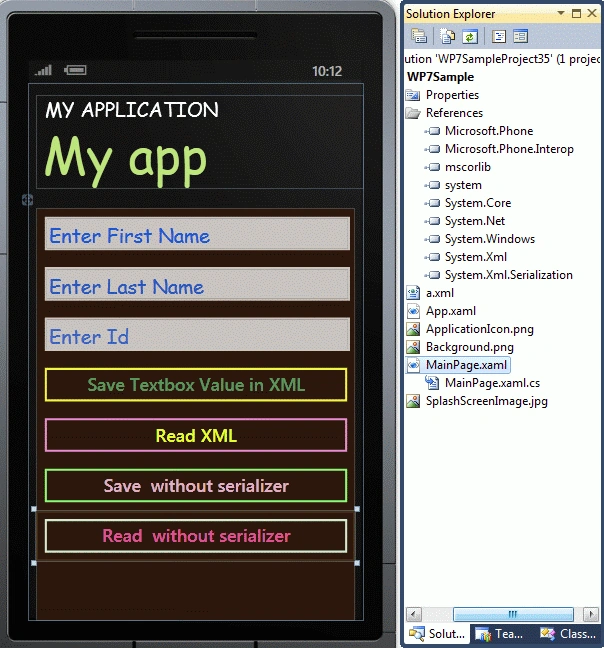
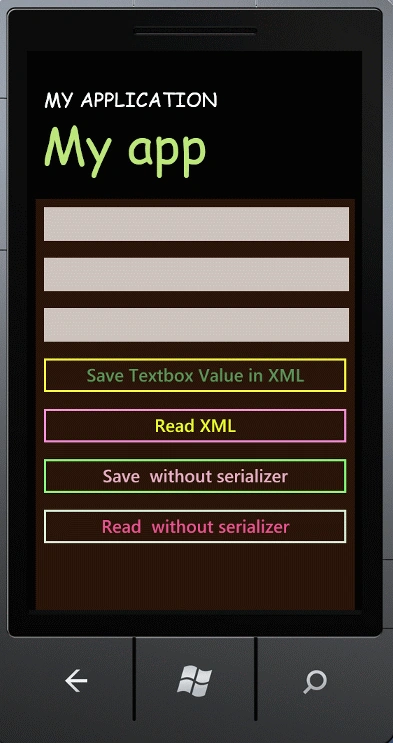
Step 6: In this step we will write the XAML code for the application MainPage.xaml:
Code
<phone:PhoneApplicationPage
x:Class="WP7Sample.MainPage"
xmlns="http://schemas.microsoft.com/winfx/2006/xaml/presentation"
xmlns:x="http://schemas.microsoft.com/winfx/2006/xaml"
xmlns:phone="clr-namespace:Microsoft.Phone.Controls;assembly=Microsoft.Phone"
xmlns:shell="clr-namespace:Microsoft.Phone.Shell;assembly=Microsoft.Phone"
xmlns:d="http://schemas.microsoft.com/expression/blend/2008"
xmlns:mc="http://schemas.openxmlformats.org/markup-compatibility/2006"
mc:Ignorable="d"
d:DesignWidth="480"
d:DesignHeight="768"
FontFamily="{StaticResource
PhoneFontFamilyNormal}"
FontSize="{StaticResource
PhoneFontSizeNormal}"
Foreground="{StaticResource
PhoneForegroundBrush}"
SupportedOrientations="Portrait"
Orientation="Portrait"
shell:SystemTray.IsVisible="True">
<!--LayoutRoot
is the root grid where all page content is placed-->
<Grid
x:Name="LayoutRoot"
Background="Transparent">
<Grid.RowDefinitions>
<RowDefinition
Height="Auto"/>
<RowDefinition
Height="*"/>
</Grid.RowDefinitions>
<!--TitlePanel contains the name of the application and page
title-->
<StackPanel
x:Name="TitlePanel"
Grid.Row="0"
Margin="12,17,0,28">
<TextBlock
x:Name="ApplicationTitle"
Text="MY
APPLICATION"
Style="{StaticResource
PhoneTextNormalStyle}"
FontFamily="Comic
Sans MS"
FontSize="28"
/>
<TextBlock
x:Name="PageTitle"
Text="My
app"
Margin="9,-7,0,0"
Style="{StaticResource
PhoneTextTitle1Style}"
FontFamily="Comic
Sans MS"
FontSize="72"
Foreground="#FFBFE57E"
/>
</StackPanel>
<!--ContentPanel - place additional content here-->
<StackPanel
x:Name="ContentPanel"
Grid.Row="1"
Margin="12,0,12,0"
Background="#FF2B1608">
<ListBox
x:Name="listBox">
<ListBox.ItemTemplate>
<DataTemplate>
<StackPanel
Margin="10"
>
<TextBlock
Text="{Binding
F_Name}"/>
<TextBlock
Text="{Binding
L_Name}"/>
<TextBlock
Text="{Binding
Age}"/>
</StackPanel>
</DataTemplate>
</ListBox.ItemTemplate>
</ListBox>
<TextBlock
x:Name="tbx"/>
<TextBox
Height="72"
Name="textBox1"
Text="Enter
First Name"
Width="460"
FontFamily="Comic
Sans MS"
FontSize="28"
Foreground="#FF1E55D1"
/>
<TextBox
Height="72"
Name="textBox2"
Text="Enter
Last Name"
Width="460"
FontFamily="Comic
Sans MS"
FontSize="28"
Foreground="#FF2756BE"
/>
<TextBox
Height="72"
Name="textBox3"
Text="Enter
Id"
Width="460"
FontFamily="Comic
Sans MS"
FontSize="28"
Foreground="#FF3B65C1"
/>
<Button
Content="Save
Textbox Value in XML"
x:Name="btnSave"
Click="btnSave_Click"
Background="#00C12D9E"
Foreground="#FF59965E"
BorderBrush="#FFF5F542"
/>
<Button
Content="Read
XML"
x:Name="btnRead"
Click="btnRead_Click"
BorderBrush="#FFEB8ED3"
Foreground="#FFE0FF2E"
/>
<Button
Content="Save
XML without serializer"
x:Name="btnSaveWithoutSerielizer"
Click="btnSaveWithoutSerielizer_Click"
Background="#00969D71"
BorderBrush="#FF82FF79"
Foreground="#FFE2AEC5"
/>
<Button
Content="Read
XML without serializer"
x:Name="btnReadWithoutSerielizer"
Click="btnReadWithoutSerielizer_Click"
Foreground="#FFE55292"
BorderBrush="#FFD3EBD6"
/>
</StackPanel>
</Grid>
</phone:PhoneApplicationPage>
DomiPosted Nov 25, 2013, 10:28 AM
Can you please, re-post the sources ? the link seems to be broken - tkx - Domi.
nejc lPosted Dec 8, 2012, 2:52 PM
how about, if I want to add new persons to this xml file, without overwriting old ones, like I would have a list of persons and I could add new persons without deleting old?
pham hoangPosted Sep 6, 2012, 12:27 AM
have a way that?backup add newline without deleted lines before not . help me
Arjun PanwarPosted Jan 6, 2012, 11:07 PM
Really very nice work
Akash AhlawatPosted Jan 6, 2012, 11:02 PM
MY vote of five for this superbly written article
Sonakshi SinghPosted Jan 6, 2012, 3:13 AM
Very large content.... well explained