

Background
I have read many forum posts regarding how to save a DataTable in Viewstate and display those records in a GridView without saving in the database. In consideration of those requirements I decided to write an article on it. So let us start creating a web application as:
- "Start" - "All Programs" - "Microsoft Visual Studio 2010".
- "File" - "New WebSite" - "C#" - "Empty WebSite" (to avoid adding a master page).
- Provide the web site a name such as "SaveDataTableInViewsate" or another as you wish and specify the location.
- Then right-click on Solution Explorer - "Add New Item" - Add Web Form.
- Drag and drop one button and three textBoxes onto the <form> section of the Default.aspx page.
- Now the default.aspx page source code will look such as follows.
- <%@ Page Language="C#" AutoEventWireup="true" CodeFile="Default.aspx.cs" Inherits="_Default" %>
- <!DOCTYPE html PUBLIC "-//W3C//DTD XHTML 1.0 Transitional//EN" "http://www.w3.org/TR/xhtml1/DTD/xhtml1-transitional.dtd">
- <html xmlns="http://www.w3.org/1999/xhtml">
- <head runat="server">
- <title></title>
- </head>
- <body style="background-color: #0000FF">
- <form id="form1" runat="server">
- <table style="color: White;margin-top:30px;margin-left:10px">
- <tr>
- <td>
- Author Name
- </td>
- <td>
- Book Name
- </td>
- <td>
- Book Type
- </td>
- <td>
- Publisher
- </td>
- </tr>
- <tr>
- <td>
- <asp:TextBox ID="TextBox1" runat="server"></asp:TextBox>
- </td>
- <td>
- <asp:TextBox ID="TextBox2" runat="server"></asp:TextBox>
- </td>
- <td>
- <asp:TextBox ID="TextBox3" runat="server"></asp:TextBox>
- </td>
- <td>
- <asp:TextBox ID="TextBox4" runat="server"></asp:TextBox>
- </td>
- </tr>
- <tr>
- <td>
- </td>
- <td>
- </td>
- <td>
- </td>
- <td>
- <asp:Button ID="AddProduct" runat="server" Style="color: White" Text="Add Product"
- OnClick="AddProduct_Click" BackColor="#999966" />
- </td>
- </tr>
- </table>
- <div style="margin-left:10px;margin-top:10px">
- <asp:GridView ID="GridView1" AutoGenerateColumns="false" runat="server" CellPadding="4"
- ForeColor="#333333" GridLines="None">
- <AlternatingRowStyle BackColor="White" />
- <Columns>
- <asp:BoundField HeaderStyle-Width="120px" HeaderText="Author Name" DataField="AuthorName" />
- <asp:BoundField HeaderStyle-Width="120px" HeaderText=" Book Name" DataField="BookName" />
- <asp:BoundField HeaderStyle-Width="120px" HeaderText=" Book Type" DataField="BookType" />
- <asp:BoundField HeaderStyle-Width="120px" HeaderText="Publisher" DataField="Publisher" />
- </Columns>
- <EditRowStyle BackColor="#2461BF" />
- <FooterStyle BackColor="#507CD1" Font-Bold="True" ForeColor="White" />
- <HeaderStyle BackColor="#507CD1" Font-Bold="True" ForeColor="White" />
- <PagerStyle BackColor="#2461BF" ForeColor="White" HorizontalAlign="Center" />
- <RowStyle BackColor="#EFF3FB" />
- <SelectedRowStyle BackColor="#D1DDF1" Font-Bold="True" ForeColor="#333333" />
- <SortedAscendingCellStyle BackColor="#F5F7FB" />
- <SortedAscendingHeaderStyle BackColor="#6D95E1" />
- <SortedDescendingCellStyle BackColor="#E9EBEF" />
- <SortedDescendingHeaderStyle BackColor="#4870BE" />
- </asp:GridView>
- </div>
- </form>
- </body>
- </html>
Now switch to design mode, it will be like this.
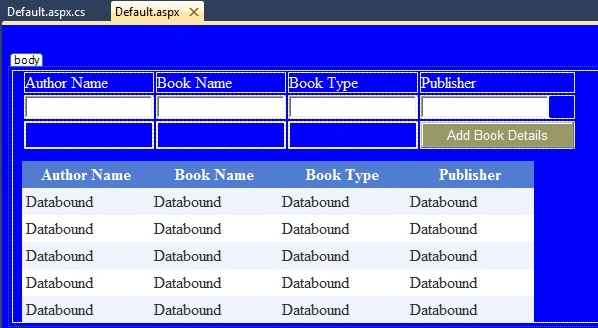
Now switch to the default.aspx.cs code behind file and write the following code to create and save the datatable into viewstate and bind the GridView as:
- private void AddDefaultFirstRecord()
- {
- //creating dataTable
- DataTable dt = new DataTable();
- DataRow dr;
- dt.TableName = "AuthorBooks";
- dt.Columns.Add(new DataColumn("AuthorName", typeof(string)));
- dt.Columns.Add(new DataColumn("BookName", typeof(string)));
- dt.Columns.Add(new DataColumn("BookType", typeof(string)));
- dt.Columns.Add(new DataColumn("Publisher", typeof(string)));
- dr = dt.NewRow();
- dt.Rows.Add(dr);
- //saving databale into viewstate
- ViewState["AuthorBooks"] = dt;
- //bind Gridview
- GridView1.DataSource = dt;
- GridView1.DataBind();
- }
- protected void Page_Load(object sender, EventArgs e)
- {
- if (!IsPostBack)
- {
- AddDefaultFirstRecord();
- }
- }
- private void AddNewRecordRowToGrid()
- {
- // check view state is not null
- if (ViewState["AuthorBooks"] != null)
- {
- //get datatable from view state
- DataTable dtCurrentTable = (DataTable)ViewState["AuthorBooks"];
- DataRow drCurrentRow = null;
- if (dtCurrentTable.Rows.Count > 0)
- {
- for (int i = 1; i <= dtCurrentTable.Rows.Count; i++)
- {
- //add each row into data table
- drCurrentRow = dtCurrentTable.NewRow();
- drCurrentRow["AuthorName"] = TextBox1.Text;
- drCurrentRow["BrandName"] = TextBox2.Text;
- drCurrentRow["Warrenty"] =TextBox3.Text;
- drCurrentRow["Price"] =TextBox4.Text;
- }
- //Remove initial blank row
- if (dtCurrentTable.Rows[0][0].ToString() == "")
- {
- dtCurrentTable.Rows[0].Delete();
- dtCurrentTable.AcceptChanges();
- }
- //add created Rows into dataTable
- dtCurrentTable.Rows.Add(drCurrentRow);
- //Save Data table into view state after creating each row
- ViewState["AuthorBooks"] = dtCurrentTable;
- //Bind Gridview with latest Row
- GridView1.DataSource = dtCurrentTable;
- GridView1.DataBind();
- }
- }
- }
- protected void AddProduct_Click(object sender, EventArgs e)
- {
- AddNewRecordRowToGrid();
- }
- using System;
- using System.Data;
- public partial class _Default : System.Web.UI.Page
- {
- protected void Page_Load(object sender, EventArgs e)
- {
- if (!IsPostBack)
- {
- AddDefaultFirstRecord();
- }
- }
- protected void AddProduct_Click(object sender, EventArgs e)
- {
- AddNewRecordRowToGrid();
- }
- private void AddDefaultFirstRecord()
- {
- //creating dataTable
- DataTable dt = new DataTable();
- DataRow dr;
- dt.TableName = "AuthorBooks";
- dt.Columns.Add(new DataColumn("AuthorName", typeof(string)));
- dt.Columns.Add(new DataColumn("BookName", typeof(string)));
- dt.Columns.Add(new DataColumn("BookType", typeof(string)));
- dt.Columns.Add(new DataColumn("Publisher", typeof(string)));
- dr = dt.NewRow();
- dt.Rows.Add(dr);
- //saving databale into viewstate
- ViewState["AuthorBooks"] = dt;
- //bind Gridview
- GridView1.DataSource = dt;
- GridView1.DataBind();
- }
- private void AddNewRecordRowToGrid()
- {
- // check view state is not null
- if (ViewState["AuthorBooks"] != null)
- {
- //get datatable from view state
- DataTable dtCurrentTable = (DataTable)ViewState["AuthorBooks"];
- DataRow drCurrentRow = null;
- if (dtCurrentTable.Rows.Count > 0)
- {
- for (int i = 1; i <= dtCurrentTable.Rows.Count; i++)
- {
- //add each row into data table
- drCurrentRow = dtCurrentTable.NewRow();
- drCurrentRow["AuthorName"] = TextBox1.Text;
- drCurrentRow["BookName"] = TextBox2.Text;
- drCurrentRow["BookType"] =TextBox3.Text;
- drCurrentRow["Publisher"] =TextBox4.Text;
- }
- //Remove initial blank row
- if (dtCurrentTable.Rows[0][0].ToString() == "")
- {
- dtCurrentTable.Rows[0].Delete();
- dtCurrentTable.AcceptChanges();
- }
- //add created Rows into dataTable
- dtCurrentTable.Rows.Add(drCurrentRow);
- //Save Data table into view state after creating each row
- ViewState["AuthorBooks"] = dtCurrentTable;
- //Bind Gridview with latest Row
- GridView1.DataSource = dtCurrentTable;
- GridView1.DataBind();
- }
- }
- }
- }
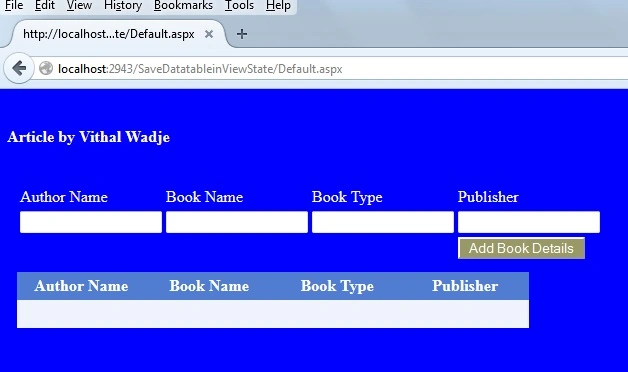
Now add some details into the textboxes above and click on the Add Book Details button. Then the records that were saved in the DataTable will displayed in the GridView as:
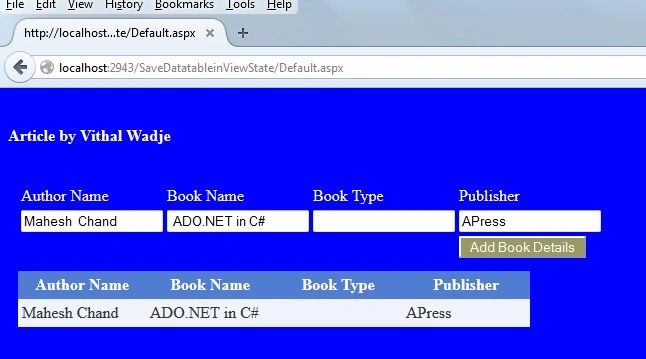
Now add another book details. It will be added in the existing one as:
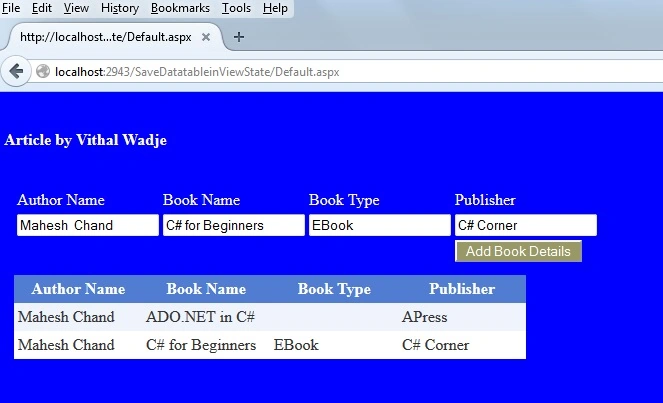
Similar to the above you can add n number of records up to the datatable capacity.
Note
- For the detailed code please download the sample Zip file.
- Do proper validation such as date input values when implementing.
Summary
From all the examples above we have learned how to save a DataTable into viewstate and display those records into GridView without saving records into the database. I hope this article is useful for all readers. If you have a suggestion then please contact me.
arkorn somayoungPosted Mar 15, 2021, 9:11 AM
Hello, How can clear or delet in gridview
Sanjay MalavPosted Sep 11, 2018, 6:54 AM
How can work same as in Asp.net MVC 5.
kusha aliPosted Mar 10, 2017, 10:48 AM
How to add image in datatable before final submit
Vithal WadjePosted Jul 15, 2016, 8:16 AM
Thanks
kalu singh raoPosted Jul 15, 2016, 6:38 AM
Nice...
Vithal WadjePosted Oct 8, 2015, 11:26 PM
Thanks
Raja TPosted Oct 8, 2015, 9:34 PM
Nice one, Thanks for sharing
Vithal WadjePosted Jun 23, 2015, 10:44 AM
Thank sir
Khargesh RajputPosted Jun 23, 2015, 12:33 AM
nice sir
Vithal WadjePosted Jun 11, 2015, 2:43 PM
thanks sir
Upendra Pratap ShahiPosted Jun 10, 2015, 5:47 AM
Nice sir..
Vithal WadjePosted Apr 14, 2015, 3:18 PM
hi Azaad Abbas sir i won't got your question can u repeat it
Azaad AbbasPosted Apr 14, 2015, 5:07 AM
please mention me that article.
Vithal WadjePosted Apr 13, 2015, 12:42 PM
Azaad Abbas sir you need dataview for datatable to filter records ,wait for my next article
Vithal WadjePosted Apr 13, 2015, 12:41 PM
Thanks Rizwan Ali sir
Azaad AbbasPosted Apr 13, 2015, 7:03 AM
how do I filter data from gridview which is binded by dataset?
Rizwan AliPosted Feb 10, 2015, 6:39 PM
Thanks