

Hello friends. In this article I will tell you how you can retrieve database column value in the combo box of C# Windows desktop applications. So let's start .
Step 1
Step 1
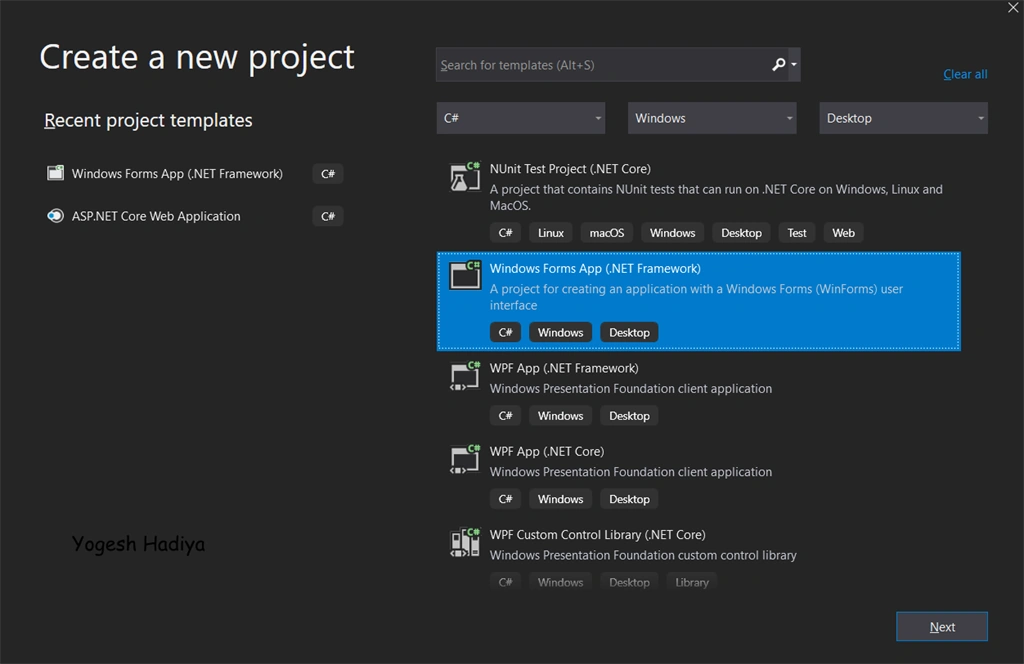
Open your Visual Studio and create a new project from File Menu > New > Project

Step 2
Select Windows desktop app from menu:
Step 3
Enter your project name and path of your location where you want to save your project.

Step 4
Create design as you want. As you see in the below image here I only added label and a combo box which is empty.

Step 5
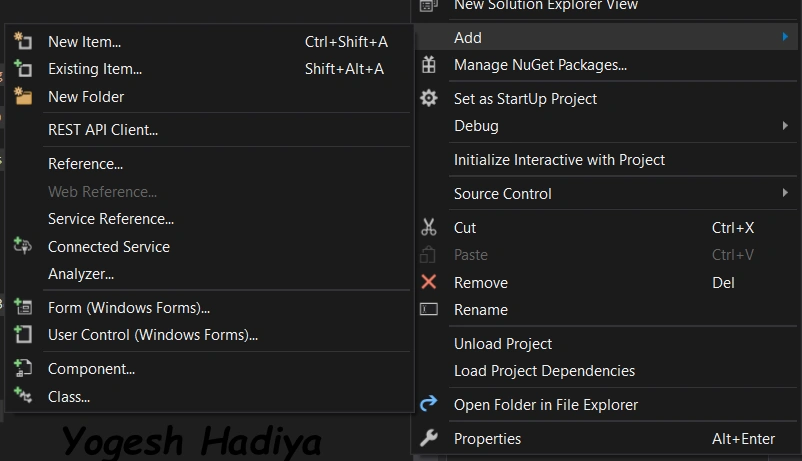
Now add database file. Click on your project name from Solution Explorer Add > New file or you can simply use short cut key Ctrl+Shift+A
Step 6
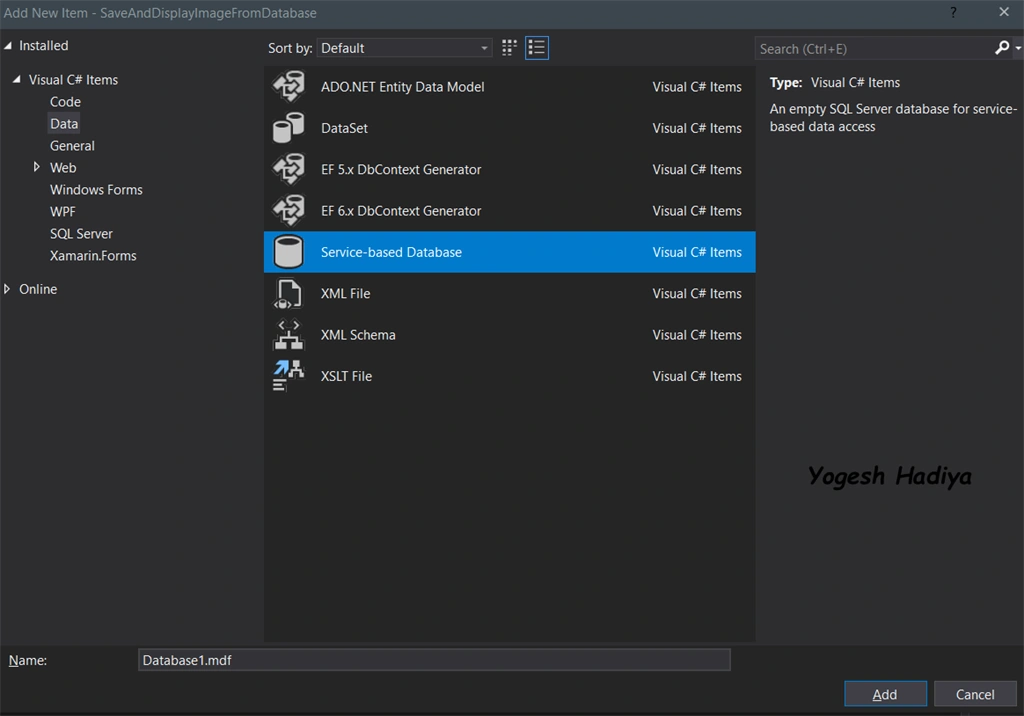
Select service based database. Give name as you want and click on add.
Step 7
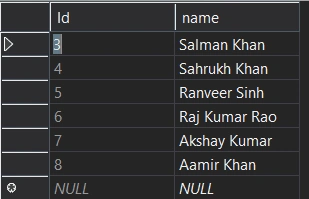
Now create a new table. Double click on your database file; it will open Server Explorer. Then right click on Table > Add New Table . As you see in the below image our table has only two columns, Id And Name .
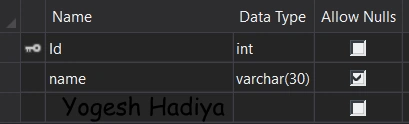
Here is the data of our table,
Step 8
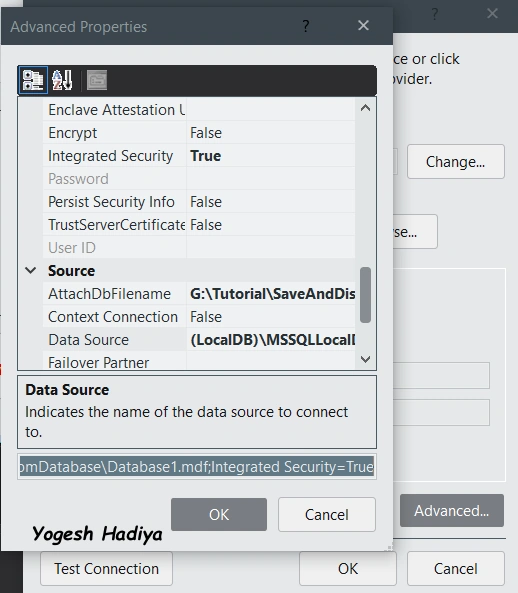
Now copy your connection string by right clicking on Database Name > Modify Connection > Advance .
Step 9
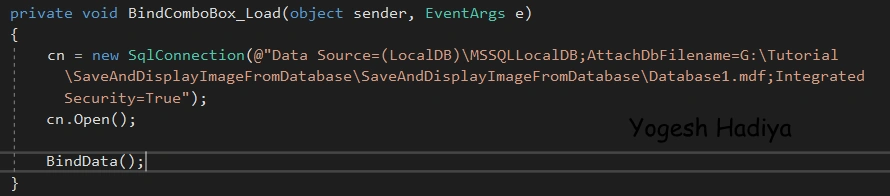
Now add new SQL Connection on your form load event as shown in the below image .
Step 10
Here I created a separate function for getting data from database and bound it in combo box and I called that function in form load event. You can also write that code directly on form load event.
Step 11
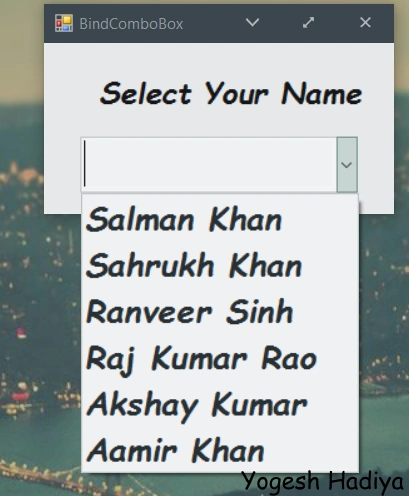
Now run your application. As you can see that combo box gets all the names from the database.
Below is the full source code of this project,
- using System;
- using System.Collections.Generic;
- using System.ComponentModel;
- using System.Data;
- using System.Drawing;
- using System.Linq;
- using System.Text;
- using System.Threading.Tasks;
- using System.Windows.Forms;
- using System.Data.SqlClient;
- namespace SaveAndDisplayImageFromDatabase
- {
- public partial class BindComboBox : Form
- {
- public BindComboBox()
- {
- InitializeComponent();
- }
- SqlConnection cn;
- SqlCommand cmd;
- SqlDataReader dr;
- private void BindComboBox_Load(object sender, EventArgs e)
- {
- cn = new SqlConnection(@"Data Source=(LocalDB)\MSSQLLocalDB;AttachDbFilename=G:\Tutorial\SaveAndDisplayImageFromDatabase\SaveAndDisplayImageFromDatabase\Database1.mdf;Integrated Security=True");
- cn.Open();
- BindData();
- }
- public void BindData()
- {
- cmd = new SqlCommand("select name from Table1", cn);
- dr = cmd.ExecuteReader();
- while(dr.Read())
- {
- comboBox1.Items.Add(dr[0].ToString());
- }
- dr.Close();
- }
- }
- }
I hope you find this article helpful. If you learned anything from this article kindly share with your friends. Thank you.
Join the conversation! Your thoughts help the community grow.