

This article explains how to save a custom list as a template in SharePoint.
Procedure to save the list as template
Use the following procedure to save the list as a template in SharePoint.
Step 1
Go to your list in your SharePoint site that you want to save the list as a template.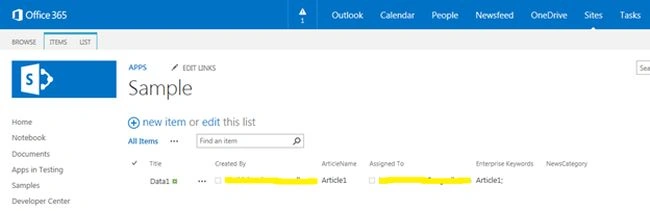
Step 2
Then click on the list settings from your list on the top ribbon bar as shown below: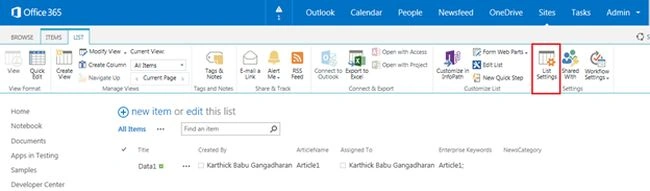
Step 3
In list settings page, select the “Save list as template” under the Permission Management system section.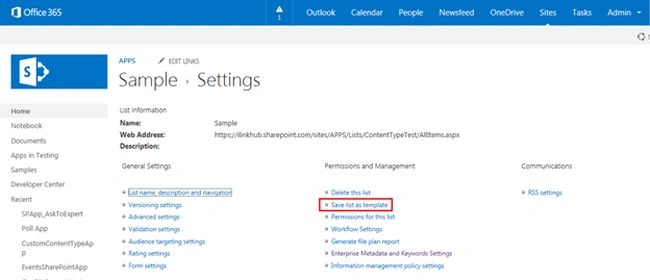
Step 4
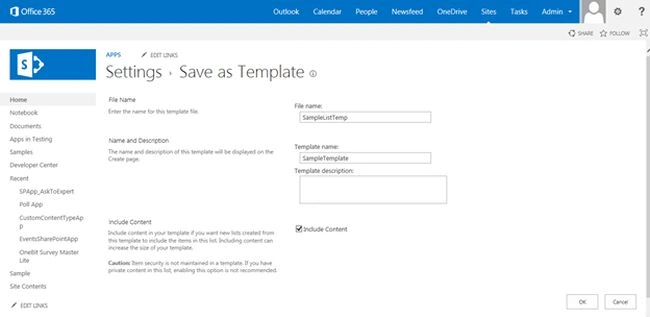
Then provide the following details to save the list as a template as shown in the following image:
- File name
- Template Name
- Template Description
- Include Content –Yes/No (if you want the list with contents then check on the check box)
Step 5
Click “Ok” to save the template in your SharePoint site.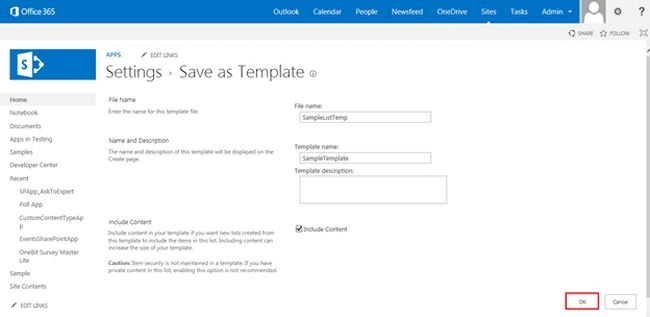
Finally your list template will be saved to the list template gallery.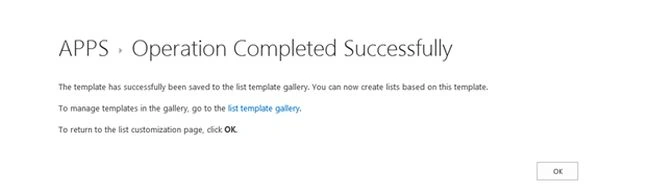
Summary
This article explained how to save the custom list as a template in SharePoint.
Join the conversation! Your thoughts help the community grow.