

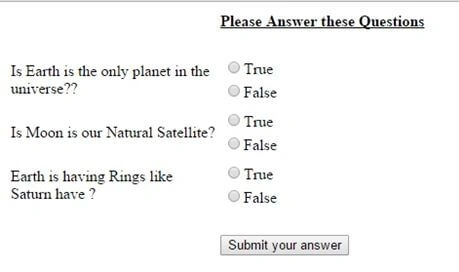
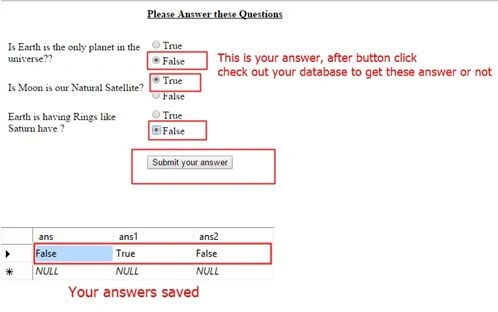
We make some true or false questions so the user will provide their answer and on a button click the answer will be saved to a database.
Initial Chamber
Step 1
Open your Visual Studio 2010 and create an empty website, provide a suitable name (RadioButtonList_demo).
Step 2
In Solution Explorer you get your empty website, add a web form and SQL Database as in the following.
For Web Form:
RadioButtonList_demo (your empty website) then right-click then select Add New Item -> Web Form. Name it RadioButtonList_demo.aspx.
For SQL Server database:
RadioButtonList_demo (your empty website) then right-click then select Add New Item -> SQL Server Database. (Add the database inside the App_Data_folder.)
Database Chamber
Step 3
In Server Explorer, click on your database (Database.mdf) then select Tables -> Add New Table. Make the table like this: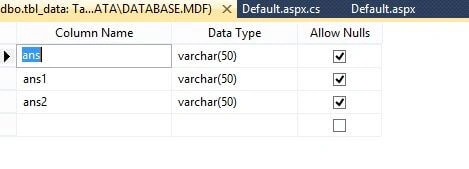
This table is fore saving the data of the radio button list, I mean in this table we will get the user's answer of true and false questions.
Design Chamber
Step 4
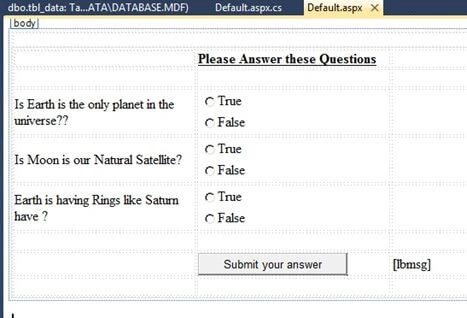
Open your RadioButtonList_demo.aspx file from Solution Explorer and start the design of you're application.
Here is the code:
- <%@ Page Language="C#" AutoEventWireup="true" CodeFile="Default.aspx.cs" Inherits="_Default" %>
- <!DOCTYPE html PUBLIC "-//W3C//DTD XHTML 1.0 Transitional//EN" "http://www.w3.org/TR/xhtml1/DTD/xhtml1-transitional.dtd">
- <html xmlns="http://www.w3.org/1999/xhtml">
- <head runat="server">
- <title></title>
- <style type="text/css">
- .style1
- {
- width: 211px;
- }
- .style2
- {
- width: 224px;
- }
- .style3
- {
- width: 224px;
- font-weight: bold;
- text-decoration: underline;
- }
- .style4
- {
- width: 211px;
- font-weight: bold;
- text-decoration: underline;
- }
- </style>
- </head>
- <body>
- <form id="form1" runat="server">
- <div>
- </div>
- <table style="width:100%;">
- <tr>
- <td class="style4">
- </td>
- <td class="style3">
- Please Answer these Questions</td>
- <td>
- </td>
- </tr>
- <tr>
- <td class="style1">
- </td>
- <td class="style2">
- </td>
- <td>
- </td>
- </tr>
- <tr>
- <td class="style1">
- <asp:Label ID="Label7" runat="server"
- Text="Is Earth is the only planet in the universe??"></asp:Label>
- </td>
- <td class="style2">
- <asp:RadioButtonList ID="RadioButtonList1" runat="server" DataTextField="ans"
- DataValueField="ans">
- <asp:ListItem>True</asp:ListItem>
- <asp:ListItem>False</asp:ListItem>
- </asp:RadioButtonList>
- </td>
- <td>
- </td>
- </tr>
- <tr>
- <td class="style1">
- <asp:Label ID="Label5" runat="server" Text="Is Moon is our Natural Satellite?"></asp:Label>
- </td>
- <td class="style2">
- <asp:RadioButtonList ID="RadioButtonList2" runat="server" DataTextField="ans1"
- DataValueField="ans1">
- <asp:ListItem>True</asp:ListItem>
- <asp:ListItem>False</asp:ListItem>
- </asp:RadioButtonList>
- </td>
- <td>
- </td>
- </tr>
- <tr>
- <td class="style1">
- <asp:Label ID="Label6" runat="server"
- Text="Earth is having Rings like Saturn have ?"></asp:Label>
- </td>
- <td class="style2">
- <asp:RadioButtonList ID="RadioButtonList3" runat="server" DataTextField="ans2"
- DataValueField="ans2">
- <asp:ListItem>True</asp:ListItem>
- <asp:ListItem>False</asp:ListItem>
- </asp:RadioButtonList>
- </td>
- <td>
- </td>
- </tr>
- <tr>
- <td class="style1">
- </td>
- <td class="style2">
- </td>
- <td>
- </td>
- </tr>
- <tr>
- <td class="style1">
- </td>
- <td class="style2">
- <asp:Button ID="Button1" runat="server" onclick="Button1_Click" Text="Submit your answer" />
- </td>
- <td>
- <asp:Label ID="lbmsg" runat="server"></asp:Label>
- </td>
- </tr>
- <tr>
- <td class="style1">
- </td>
- <td class="style2">
- </td>
- <td>
- </td>
- </tr>
- </table>
- </form>
- </body>
- </html>
Code Chamber
Finally open your RadioButtonList_demo.aspx.cs file to write the code, for making the list box like we assume.
Here is the code:
- using System;
- using System.Collections.Generic;
- using System.Linq;
- using System.Web;
- using System.Web.UI;
- using System.Web.UI.WebControls;
- using System.Data;
- using System.Data.SqlClient;
- public partial class _Default : System.Web.UI.Page
- {
- protected void Page_Load(object sender, EventArgs e)
- {
- }
- protected void Button1_Click(object sender, EventArgs e)
- {
- SqlConnection con = new SqlConnection(@"Data Source=.\SQLEXPRESS;AttachDbFilename=|DataDirectory|\Database.mdf;Integrated Security=True;User Instance=True");
- SqlCommand cmd = new SqlCommand("insert into tbl_data (ans,ans1,ans2) values (@ans,@ans1,@ans2)", con);
- cmd.Parameters.AddWithValue("ans", RadioButtonList1.SelectedItem.Text);
- cmd.Parameters.AddWithValue("ans1", RadioButtonList2.SelectedItem.Text);
- cmd.Parameters.AddWithValue("ans2", RadioButtonList3.SelectedItem.Text);
- con.Open();
- int i = cmd.ExecuteNonQuery();
- con.Close();
- if (i != 0)
- {
- lbmsg.Text = "Your Answer Submitted Succesfully";
- lbmsg.ForeColor = System.Drawing.Color.ForestGreen;
- }
- else
- {
- lbmsg.Text = "Some Problem Occured";
- lbmsg.ForeColor = System.Drawing.Color.Red;
- }
- }
- }
I hope you like this. Thank you for Reading. Have a good day.
raj kesharwaniPosted Oct 28, 2017, 12:43 AM
Nilesh sir, i am very interested to learn .net and want job in .net tech. so plz give some instruction to learn the .net so that i worked in it and get the job also ........
raj kesharwaniPosted Oct 28, 2017, 12:37 AM
Thanku you sir plz give some advice to make the project bcz i am beginner plz help me .....
Arul RPosted Oct 28, 2015, 5:40 AM
Good one !!!
Vipul MalhotraPosted Jun 30, 2015, 7:57 AM
Nice article..Thanks for sharing
Rahul Kumar SaxenaPosted Jun 30, 2015, 3:50 AM
good show
Debendra DashPosted Jun 30, 2015, 2:53 AM
Good one.
Debasis SahaPosted Jun 30, 2015, 12:45 AM
Nice Article..
RakeshPosted Jun 29, 2015, 11:59 PM
Good one
Rajeesh MenothPosted Jun 29, 2015, 11:56 PM
Good One NIlesh
Pankaj Kumar ChoudharyPosted Jun 29, 2015, 8:33 PM
Nice Explain Sir...........