

Look at the following points:
- Create new team site in SharePoint 2013.
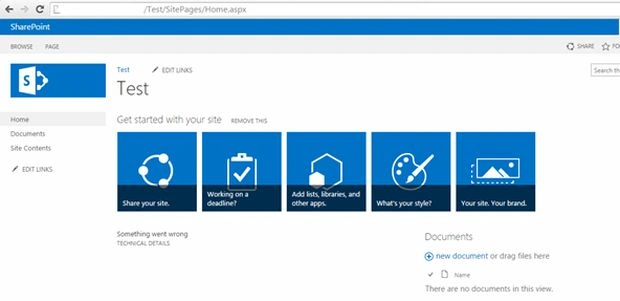
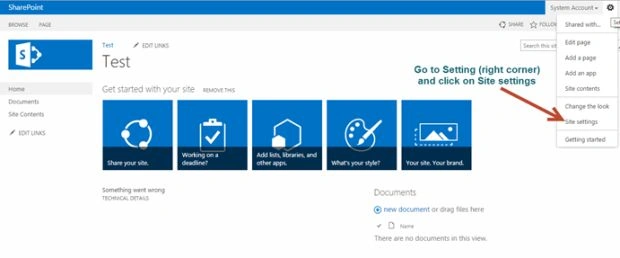
- Click on Setting (tio-right corner of the site) to go to the site settings page.
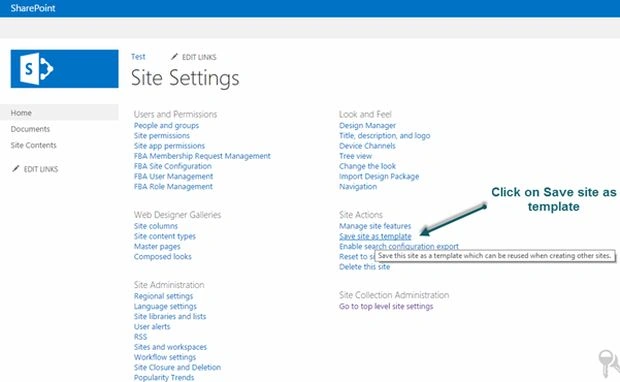
- In the Site Settings page click on Save site as template to enter the template information and get the contents from an existing site (you can directly enter _layouts/15/savetmpl.aspx to get the save site as a template page).
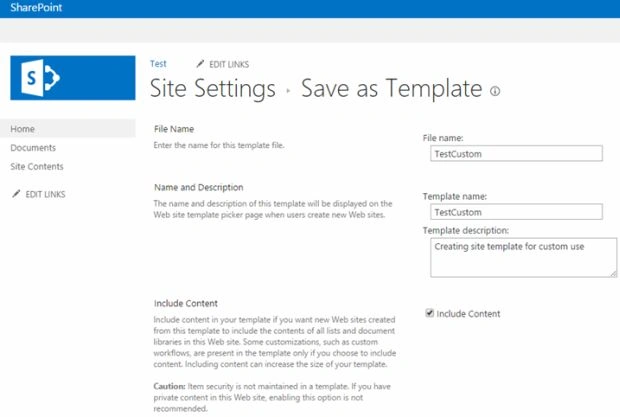
- Enter the file name, template name and description and if you want to include the contents check it in the box.
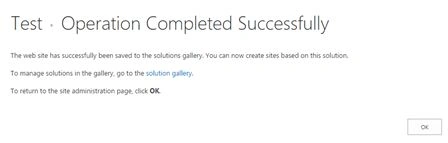
- Once clicking on the OK button the process is completed and the following page will display.
Now to use the saved template as a custom template in SharePoint to create a new site.
The following is the procedure to create a new site using the custom template.
- Click on Settings (top-right corner).
- Click on Site Contents to create a new subsite and select the option new Subsite.
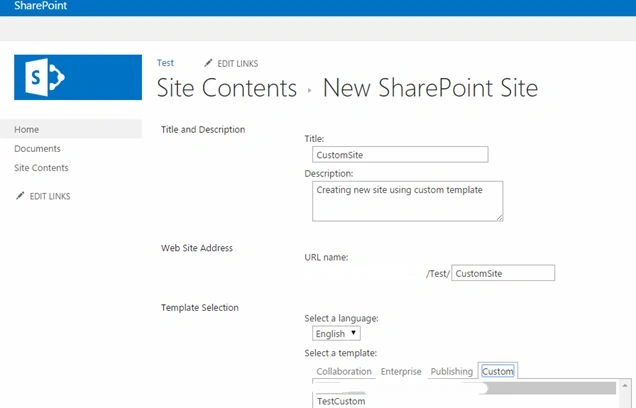
- Enter the required details and to select a template choose custom template (Temcustom) that is currently saved.
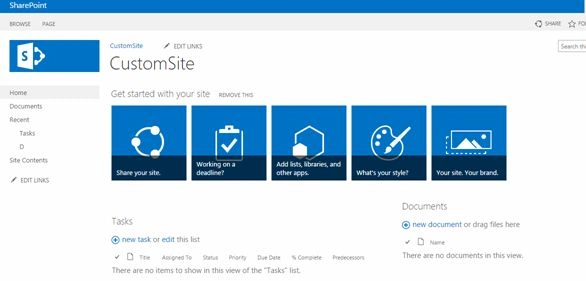
- The new custom site is created successfully.
I hope this will help SharePoint beginners to create a new site using a new custom site template.
Gowtham RajamanickamPosted Apr 11, 2016, 1:47 AM
thanks for your information
Sibeesh VenuPosted Jul 17, 2015, 5:56 AM
Thanks for the information
Gopi ChandPosted Jul 17, 2015, 5:43 AM
Well done
Sumit DeshmukhPosted Jul 17, 2015, 4:27 AM
Thanks you Sharad
SharadPosted Jul 17, 2015, 3:34 AM
good one...
Nilesh JadavPosted Jul 17, 2015, 12:06 AM
Nice one sir
Pankaj Kumar ChoudharyPosted Jul 16, 2015, 6:40 PM
Nice Start Sir,,,,,,,,,,,