

Introduction
It is very important to save the application settings established by the user in the current session, in order to avoid the application pattern establishment for each time a new session is opened.
First of all the question is posed. What does Application settings means?
The application settings are simply the several properties' settings recording to the application controls, in other words, if we assume for e.g. that there is a text box in the form and the user change its back color property from white to red, we can say that the user sets the text box back color property to red, and this is one of the application settings. You tell me, Ok understood, but where is the exception here? I answer you, if the user change the text box back color property to red or any other color, after that, he close and reopen the application, the result is that: the given property will be changed to white as if the user doesn't make any change. To catch this exception, I mean, to resolve this problem I invite you to follow those steps.
Create a new windows application:
- Add a new project by clicking File ->New project
- The form showed below appears
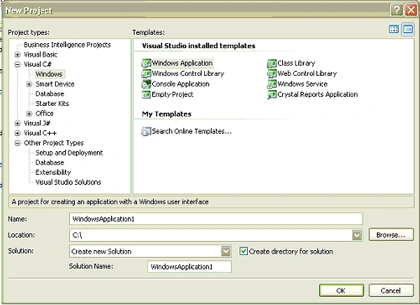
Figure 1
- You can select Windows application after expanding the tree view at left and selecting Windows as shown in the figure 1 above
- After clicking Ok the Form 1 appears in the editor
- Add two text boxes to the form and name them respectively FirstTextBox and SecondTextBox
- Drag and drop two labels and set their text properties, respectively, First text box and second text box
- Put each of the labels above its corresponding text box
The Form 1 will appear as follow:
Figure 2
- Add a new Item by clicking Project -> Add new Item and the following form will appear
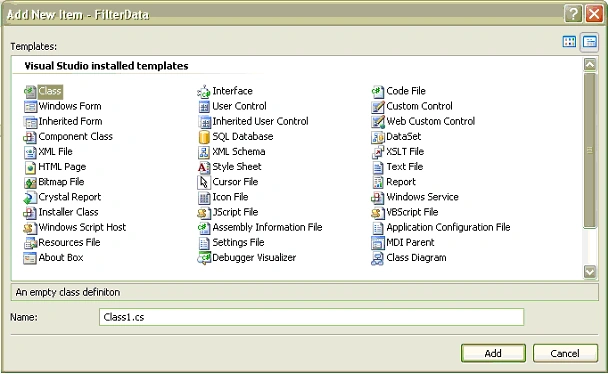
Figure 3
- Select Class and rename it cApplicationSettings, then, click OK.
Remark: Assuming that properties these will be used for the current demonstration are ForeColor, BackColor and Font corresponding to the first text box.
- If System.Configuration and System.Drawing are not listed among the other System name space, please add them, otherwise, ApplicationSettingsBase and Color will not be included in the project.
- Inherit cApplicationSettings from ApplicationSettingsBase and implement it as follow
class cApplicationSettings : ApplicationSettingsBase<?xml:namespace prefix = o ns = "urn:schemas-microsoft-com:office:office" />
{
[UserScopedSetting]
public Color TextBox1FontColor
{
get { return (Color)this["TextBox1FontColor"]; }
set { this["TextBox1FontColor"] = value; }
}
[UserScopedSetting]
public Color TextBox1BackColor
{
get { return (Color)this["TextBox1BackColor"]; }
set { this["TextBox1BackColor"] = value; }
}
[UserScopedSetting]
public Font TextBox1Font
{
get { return (Font)this["TextBox1Font"]; }
set { this["TextBox1Font"] = value; }
}
}
-
Turn back to the Form 1 and implement this following code:
/* Define a new cApplicationSettings object */
cApplicationSettings mySettings;
// Implement the Form1_Load handler
private void Form1_Load(object sender, EventArgs e)
{
// Create a new instance of mySettings object
mySettings = new cApplicationSettings();
// Add a new font Binding corresponding to the first text box
Binding FontTextBox = new Binding("Font", mySettings, "TextBox1FontColor",true,DataSourceUpdateMode. OnPropertyChanged);
// Add it to the FirstTextBox DataBindings
FirstTextBox.DataBindings.Add(FontTextBox);
// Add a new font color Binding corresponding to the first text box
Binding FontColorTextBox = new Binding("ForeColor", mySettings, "TextBox1FontColor", true,DataSourceUpdateMode. OnPropertyChanged);
// Add it to the FirstTextBox DataBindings
FirstTextBox.DataBindings.Add(FontColorTextBox);
// Add a new back color Binding corresponding to the first text box
Binding BackColorTextBox = new Binding("BackColor", mySettings, "TextBox1BackColor", true,DataSourceUpdateMode. OnPropertyChanged);
// Add it to the FirstTextBox DataBindings
FirstTextBox.DataBindings.Add(BackColorTextBox);
// Create a new event handler for this.FormClosing event
this.FormClosing+=new FormClosingEventHandler(Form1_FormClosing);
}
Remark: By the way, DataBindings can be found in the properties grid as shown bellow: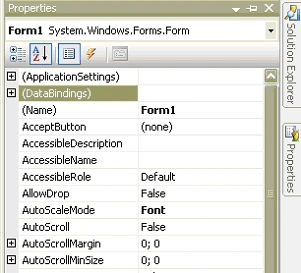
Figure 4
In other words, it is possible to configure the application settings without needs to write a single line of code but it is only done at design time and not at the run time.
- Implement the Form1_FormClosing event handler as follow:
a. Switch to the Form 1 design mode
b. Press the key F4, the properties grid will appear
c. Press the event tool box button witch is similar to this one and the event handlers list appear
d. Select the Form1_FormClosing event handler and double click on it
e. Implement it with the following code
private void Form1_FormClosing(object sender, FormClosingEventArgs e)
{
/* Witch is the object instance of cApplicationSettings inherited from the ApplicationSettingsBase class, the save method keep the application settings in the application settings shown in the figure 5*/
mySettings.Save();
}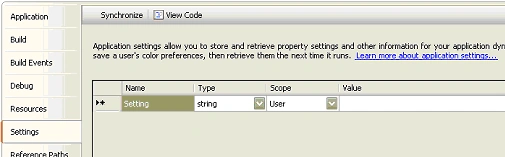
Figure 5
Remark: To open this window Select Project -> Project properties the last one.
Now, In order to allow the user change the given properties corresponding to the both text boxes.
- 14. In toolbox, select Context Menu strip, drag and drop it on the Form1
Remark: If Context menu item doesn't appear in the toolbox , then, select Tools -> Choose Toolbox Items and select .Net Framework Components, try to find it in the list below:
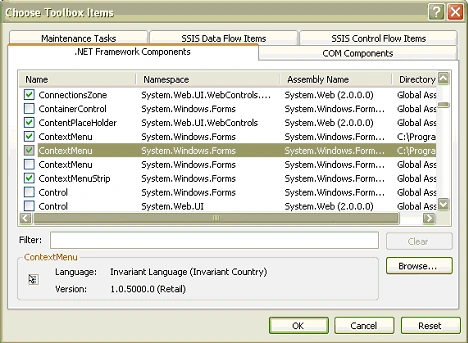
Figure 6
- Add Font, Font color and Back color to the context menu items
- Clone the Context menu by coping and pasting it, contextMenuStrip2 is created
- Set the ContextMenuStrip property according to the both text boxes the first and the second, respectively, as contextMenuStrip1 and contextMenuStrip2 as follow:
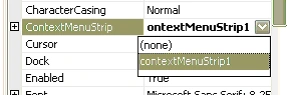
Figure 7
- Implement the both context menus items with the following codes:
private void fontToolStripMenuItem_Click(object sender, EventArgs e)
{
FontDialog oFontDialog = new FontDialog();
oFontDialog.ShowDialog();
FirstTextBox.Font = oFontDialog.Font;
}
private void fontColorToolStripMenuItem_Click(object sender, EventArgs e)
{
ColorDialog oColorDialog = new ColorDialog();
oColorDialog.ShowDialog();
FirstTextBox.ForeColor = oColorDialog.Color;
}
private void backColorToolStripMenuItem_Click(object sender, EventArgs e)
{
ColorDialog oColorDialog = new ColorDialog();
oColorDialog.ShowDialog();
FirstTextBox.BackColor = oColorDialog.Color;
}
private void toolStripMenuItem1_Click(object sender, EventArgs e)
{
FontDialog oFontDialog = new FontDialog();
oFontDialog.ShowDialog();
SecondTextBox.Font = oFontDialog.Font;
}
private void toolStripMenuItem2_Click(object sender, EventArgs e)
{
ColorDialog oColorDialog = new ColorDialog();
oColorDialog.ShowDialog();
SecondTextBox.ForeColor = oColorDialog.Color;
}
private void toolStripMenuItem3_Click(object sender, EventArgs e)
{
ColorDialog oColorDialog = new ColorDialog();
oColorDialog.ShowDialog();
SecondTextBox.BackColor = oColorDialog.Color;
}
Now, run the application and write something in the both text boxes, the Form 1 appears as follow:
Figure 8
Change the settings of both text boxes as bellow:
Figure 9
Close and reopen the application, the result will be:
Figure10
Join the conversation! Your thoughts help the community grow.