

Introduction
When building IoT solutions at scale, managing device onboarding manually is simply not practical. As the number of devices grows, you need a more efficient and automated way to handle provisioning. This is where Enrollment Groups in Azure Device Provisioning Service become essential. They allow you to onboard multiple devices using a shared configuration, making the process consistent, secure, and scalable. In this article, we'll learn how to set up enrollment groups, provision devices, and understand how this approach simplifies large-scale IoT deployments with Azure IoT Hub.
Prerequisites
Before you begin, make sure you have the following:
An active Microsoft Azure account
A configured Azure Device Provisioning Service instance
An Azure IoT Hub linked to DPS
Azure CLI installed and authenticated (
az login).NET SDK installed for running sample code
Basic understanding of symmetric key authentication
Enrollment Groups
Enrollment groups are designed for scale. They allow multiple devices to authenticate using a shared attestation mechanism.
They are ideal when:
You are provisioning bulk devices (manufacturing scenarios)
Devices share a common certificate or key
You want minimal manual intervention
Instead of managing devices individually, you define the configuration once and let DPS handle the rest.
Step 1: Create DPS
Using Azure CLI:
az iot dps create \
  --name MyDPSDemo \
  --resource-group MyIoTRG \
  --location centralindia
Link it to IoT Hub:
az iot dps linked-hub create \
  --dps-name MyDPSDemo \
  --resource-group MyIoTRG \
  --connection-string "<IOTHUB_CONNECTION_STRING>"
Step 2: Create Enrollment Group
Create an enrollment group using a symmetric key:
az iot dps enrollment-group create \
  --dps-name MyDPSDemo \
  --resource-group MyIoTRG \
  --enrollment-id mygroup001 \
  --attestation-type symmetricKey
Output :
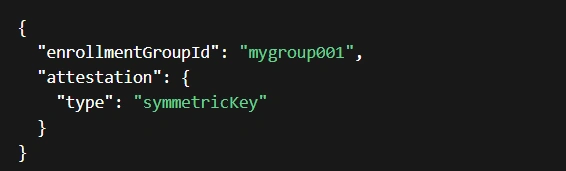
Retrieve the group keys:
az iot dps enrollment-group show \
  --dps-name MyDPSDemo \
  --enrollment-id mygroup001
primary key from the output—we'll use it to generate device-specific keys.
Step 3: Derive Device Key from Group Key :
Devices in an enrollment group don't directly use the group key. Instead, a unique key is derived using the device's registration ID.
using System;
using System.Security.Cryptography;
using System.Text;

public static string ComputeDerivedKey(string groupKey, string registrationId)
{
    using var hmac = new HMACSHA256(Convert.FromBase64String(groupKey));
    return Convert.ToBase64String(hmac.ComputeHash(Encoding.UTF8.GetBytes(registrationId)));
}
Step 4: Simulate Device Provisioning using .NET
Install the provisioning SDK:
dotnet add package Microsoft.Azure.Devices.Provisioning.Client
dotnet add package Microsoft.Azure.Devices.Provisioning.Transport.Mqtt
Sample Code :
using System;
using System.Threading.Tasks;
using Microsoft.Azure.Devices.Provisioning.Client;
using Microsoft.Azure.Devices.Provisioning.Client.Transport.Mqtt;
using Microsoft.Azure.Devices.Provisioning.Security;

class Program
{
    private const string GlobalDeviceEndpoint = "global.azure-devices-provisioning.net";
    private const string IdScope = "<YOUR_ID_SCOPE>";
    private const string RegistrationId = "deviceA";
    private const string DerivedKey = "<DERIVED_DEVICE_KEY>";

    static async Task Main()
    {
        using var transport = new ProvisioningTransportHandlerMqtt();
        var security = new SecurityProviderSymmetricKey(RegistrationId, DerivedKey, null);

        var provClient = ProvisioningDeviceClient.Create(
            GlobalDeviceEndpoint,
            IdScope,
            security,
            transport);

        Console.WriteLine("Provisioning device via enrollment group...");

        var result = await provClient.RegisterAsync();

        Console.WriteLine($"Assigned Hub: {result.AssignedHub}");
        Console.WriteLine($"Device ID: {result.DeviceId}");
    }
}
Code Explanation :
Configuration setup: Defines
IdScope,RegistrationId, andDerivedKeyused for device identity and authentication with Azure Device Provisioning Service.Transport initialization:
ProvisioningTransportHandlerMqtt()sets MQTT as the communication protocol for lightweight IoT messaging.Security provider:
SecurityProviderSymmetricKey()creates authentication using the device's registration ID and derived key.Client creation:
ProvisioningDeviceClient.Create()initializes the provisioning client with endpoint, scope, security, and transport.Provisioning execution:
RegisterAsync()registers the device with DPS, which assigns it to an Azure IoT Hub and returns the assigned hub details.
Output:

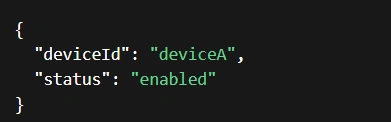
Step 5: Verify Device in IoT Hub
az iot hub device-identity show \
  --hub-name MyIoTHubDemo \
  --device-id deviceA
Output:
Conclusion
Enrollment groups simplify device onboarding when you're working with large numbers of devices. By using a shared configuration and derived keys, you can provision devices securely without managing each one individually.
This makes your IoT solution easier to scale, maintain, and deploy in real-world scenarios.
Join the conversation! Your thoughts help the community grow.