

In this article we can explore the underlying Configurations required to enable Search in SharePoint 2013.
Search Service Application
Search Service Application needs to be created for working with SharePoint Search. This service application enables all the search components and provides an interface to manage them.
The underlying infrastructure includes:
- Content Sources
- Result Sources
- Result Types
- Crawler
- Indexer
- Schema
By default, a Search Service Application is created when SharePoint is installed.
How to create a Search Service Application
Open Central Administration then select the "Manage service applications" link.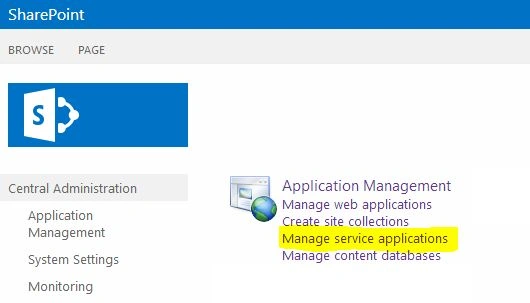
In the page that appears you can see the Search Service Application listed.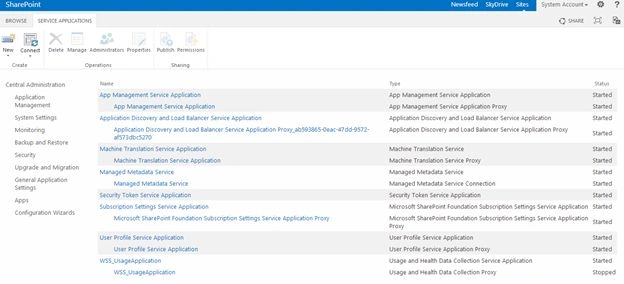
If you cannot see one, choose the New button from the ribbon, then Search Service Application item.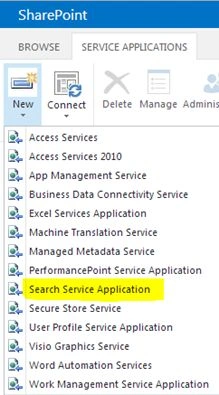
In the page that appears enter the following application information:
- Name
- Application Pool
- Account
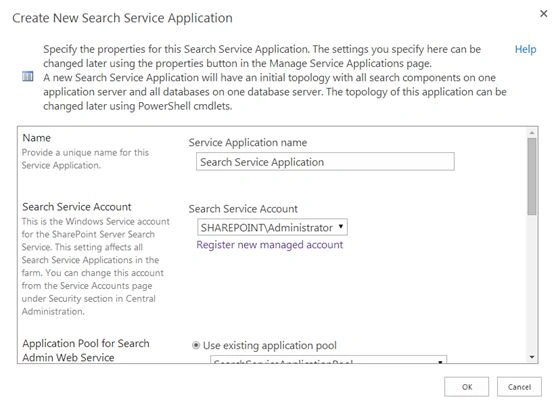
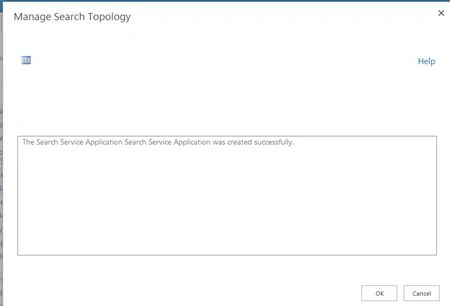
Click the "OK" button to save the changes. Wait for few minutes and your Search Service Application will be created.
You can click on the Search Service Application to view the Search Topology.
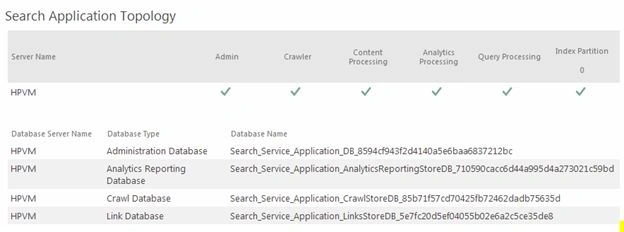

It is recommended to use a Managed Account for search.
Search Accounts
We can specify the user accounts who can manage the service application.
In the Service Applications page click on the "Search Service Application" (non-text area) then click the "Administrators" button from the ribbon.
In the page that appears enter the Administrator account then click the "Add" button and check the Permission items as shown below.
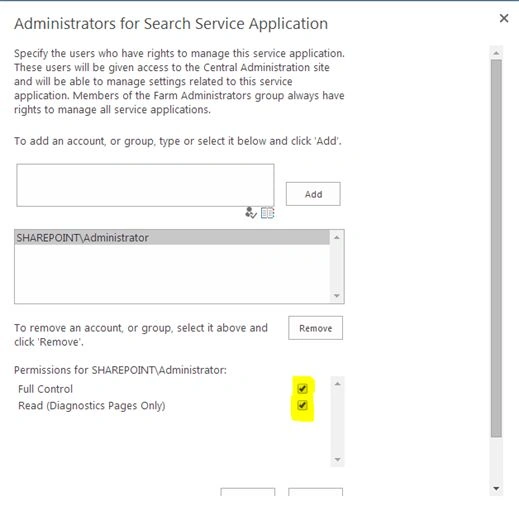
Click the "OK" button to save the changes.
Search Components
The following are the core Search Components:
- Crawler
- Indexer
- Query Processor
Crawler is responsible for reading all the contents (documents, lists, items and so on).
Indexer maintains an index to the crawled contents.
The Query Processor handles user queries. For example when the user searches for Home the query processor handles it.
Analyzer carries out search usage analysis.
Types of Crawling
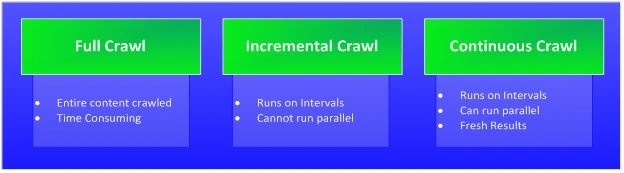
There are the following 3 types of Crawling:
- Full Crawl where the entire content will be crawled. This is time consuming and usually takes 30 minutes for a 1 GB of content (no 2 crawls can be in parallel).
- Incremental Crawl only crawls content modified since the last crawl (no 2 crawls can be in parallel).
- Continuous Crawl can be configured to start at regular intervals and multiple crawls can be done. Thus continuous crawl provides fresh results compared to the others.
Content Sources
By default there will be a content source named Local SharePoint sites. We can also configure other content sources like:
- Another SharePoint site
- External website
We need to perform a Full Crawl to do our search.
Full Crawl
To perform a Full Crawl open Central Administration then seelct "Service Applications" -> "Search Service Application" then select the "Content Sources" link.
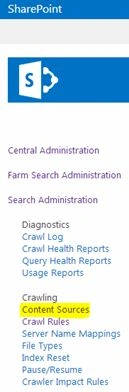
In the page that appears click the context menu over the default content source and choose the "Start Full Crawl" option.
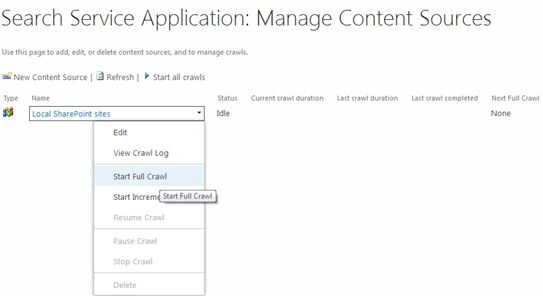
Wait a few minutes until the Crawl is completed. You can refresh the page often to see the status.
Testing Search
After the Full Crawl is completed you can return to the SharePoint Site and search for Home. If your site title matches the word, you will get results like below.
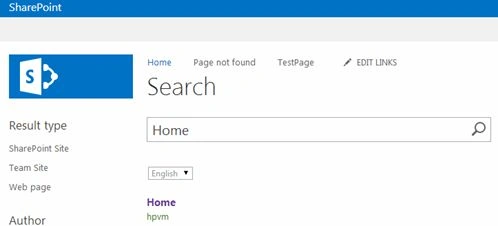
The result confirms the Search is configured correctly.
References
Create and configure a Search service application in SharePoint Server 2013
Summary
In this article we explored the Configuration required to enable a search in SharePoint 2013.
Ashok JangidPosted Jan 24, 2019, 4:44 AM
Very good explaination...!!!
Lakshmanan Sethu SankaranarayanPosted Apr 10, 2014, 8:30 AM
Cool article :)