

Introduction
This article explains how to search user records from a database by their name in the Swing GUI of Java. The NetBeans IDE is used to create the sample examples.
Searching Records using Swing GUI
For creating this app we need the following files:
- Java file (SwingSearchApp.java)
- SQL table (emp.sql)
1. SwingSearchApp.java
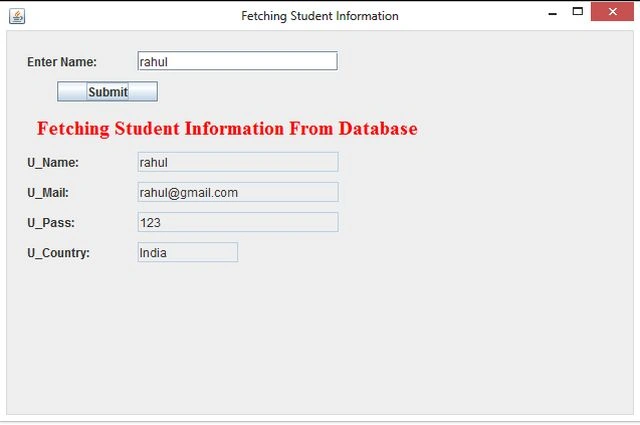
This Java file consists of the entire logic. First of all we initialize the JFrame components using a constructor then create a database connection and finally set the database value to the textfield. If the given name is not found in the database then it displays an error message and displays it by running the constructor.
2. emp.sql
For fetching records we need a database table; for that we create an "emp" table in our database.
emp.sql
- create table emp
- (
- uname varchar2(20), umail varchar2(30),
- upass varchar2(20), ucountry varchar2(20)
- );
The following SQL will insert some rows in it:
- insert into emp values ('sandeep', '[email protected]', 'welcome', 'India');
- insert into emp values ('rahul', '[email protected]' , '123', 'India');
Step 1
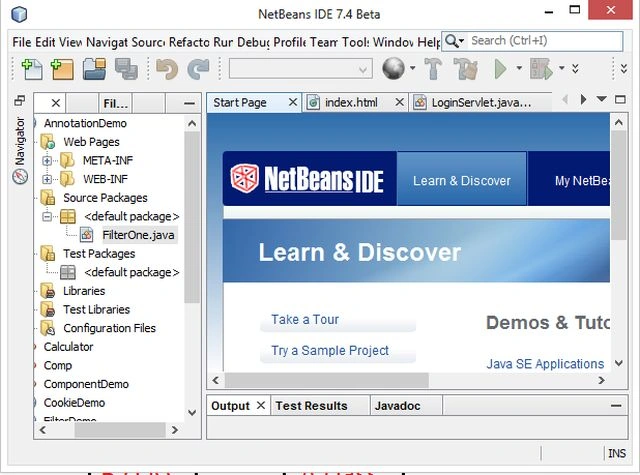
Open the NetBeans IDE.
Step 2
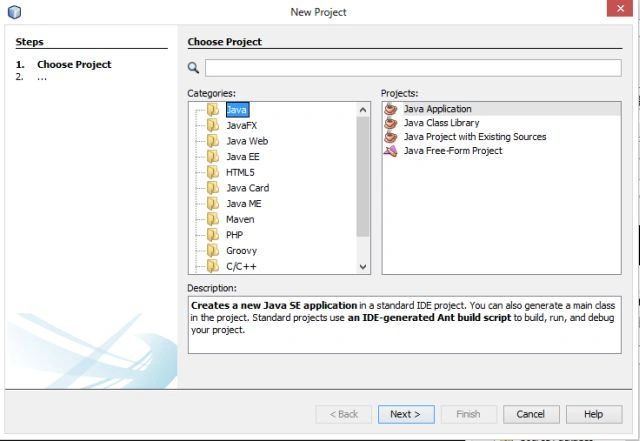
Choose "Java" -> "Java application" as shown below.
Step 3
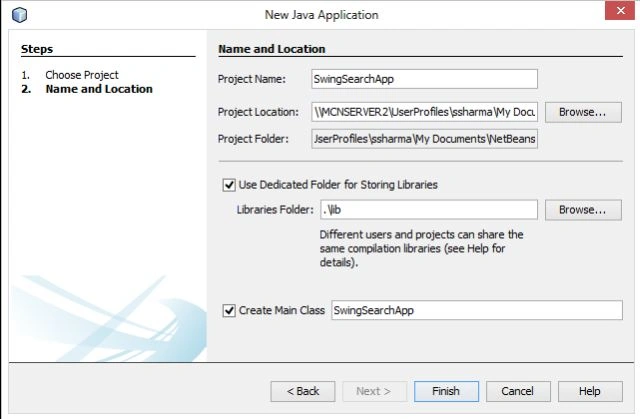
Type your project name as "SwingSearchApp" as in the following.
Step 4
Now write the following code in the "SwingSearchApp.java" file.
SwingSearchApp.java
- import javax.swing.*;
- import java.awt.event.*;
- import java.awt.*;
- import java.sql.*;
- public class SwingSearchApp extends JFrame implements ActionListener {
- //Initializing Components
- JLabel lb, lb1, lb2, lb3, lb4, lb5;
- JTextField tf1, tf2, tf3, tf4, tf5;
- JButton btn;
- //Creating Constructor for initializing JFrame components
- SwingSearchApp() {
- //Providing Title
- super("Fetching Student Information");
- lb5 = new JLabel("Enter Name:");
- lb5.setBounds(20, 20, 100, 20);
- tf5 = new JTextField(20);
- tf5.setBounds(130, 20, 200, 20);
- btn = new JButton("Submit");
- btn.setBounds(50, 50, 100, 20);
- btn.addActionListener(this);
- lb = new JLabel("Fetching Student Information From Database");
- lb.setBounds(30, 80, 450, 30);
- lb.setForeground(Color.red);
- lb.setFont(new Font("Serif", Font.BOLD, 20));
- setVisible(true);
- setDefaultCloseOperation(JFrame.EXIT_ON_CLOSE);
- setSize(500, 500);
- lb1 = new JLabel("U_Name:");
- lb1.setBounds(20, 120, 100, 20);
- tf1 = new JTextField(50);
- tf1.setBounds(130, 120, 200, 20);
- lb2 = new JLabel("U_Mail:");
- lb2.setBounds(20, 150, 100, 20);
- tf2 = new JTextField(100);
- tf2.setBounds(130, 150, 200, 20);
- lb3 = new JLabel("U_Pass:");
- lb3.setBounds(20, 180, 100, 20);
- tf3 = new JTextField(50);
- tf3.setBounds(130, 180, 200, 20);
- lb4 = new JLabel("U_Country:");
- lb4.setBounds(20, 210, 100, 20);
- tf4 = new JTextField(50);
- tf4.setBounds(130, 210, 100, 20);
- setLayout(null);
- //Add components to the JFrame
- add(lb5);
- add(tf5);
- add(btn);
- add(lb);
- add(lb1);
- add(tf1);
- add(lb2);
- add(tf2);
- add(lb3);
- add(tf3);
- add(lb4);
- add(tf4);
- //Set TextField Editable False
- tf1.setEditable(false);
- tf2.setEditable(false);
- tf3.setEditable(false);
- tf4.setEditable(false);
- }
- public void actionPerformed(ActionEvent e) {
- //Create DataBase Coonection and Fetching Records
- try {
- String str = tf5.getText();
- Class.forName("oracle.jdbc.driver.OracleDriver");
- Connection con = DriverManager.getConnection("jdbc:oracle:thin:@mcndesktop07:1521", "sandeep", "welcome");
- PreparedStatement st = con.prepareStatement("select * from emp where uname=?");
- st.setString(1, str);
- //Excuting Query
- ResultSet rs = st.executeQuery();
- if (rs.next()) {
- String s = rs.getString(1);
- String s1 = rs.getString(2);
- String s2 = rs.getString(3);
- String s3 = rs.getString(4);
- //Sets Records in TextFields.
- tf1.setText(s);
- tf2.setText(s1);
- tf3.setText(s2);
- tf4.setText(s3);
- } else {
- JOptionPane.showMessageDialog(null, "Name not Found");
- }
- //Create Exception Handler
- } catch (Exception ex) {
- System.out.println(ex);
- }
- }
- //Running Constructor
- public static void main(String args[]) {
- new SwingSearchApp();
- }
- }
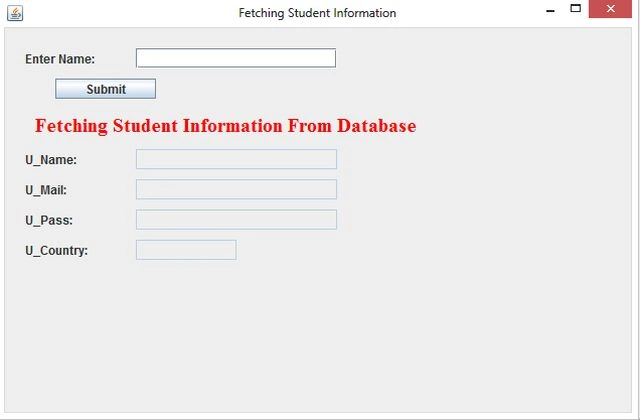
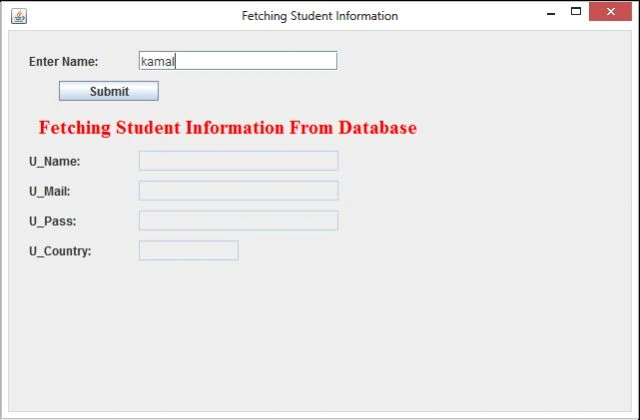
Now our project is ready to run. Right-click on the project menu then choose "Run". The following output is generated.
Step 6
Now type the names of students to search for.
Case 1
Enter an incorrect name as in the following and then click on "Submit".
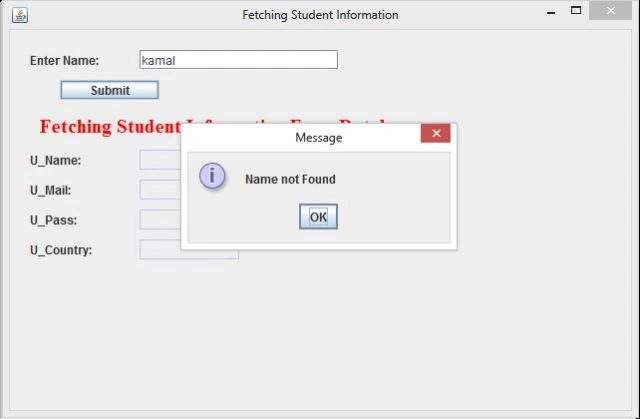
Note:
- JOptionPane.showMessageDialog(null, "Name not Found");
Case 2
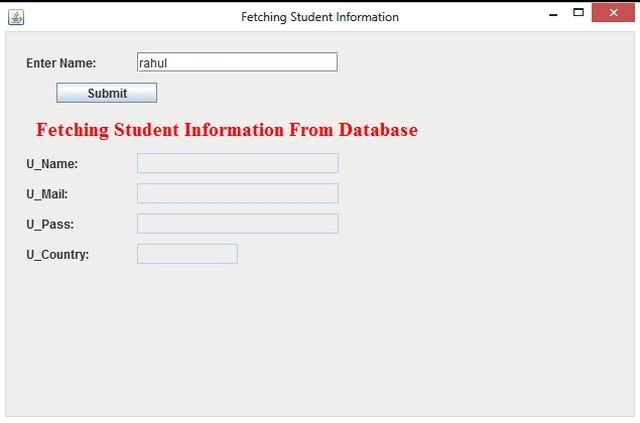
Searching records for "rahul".
Case 3
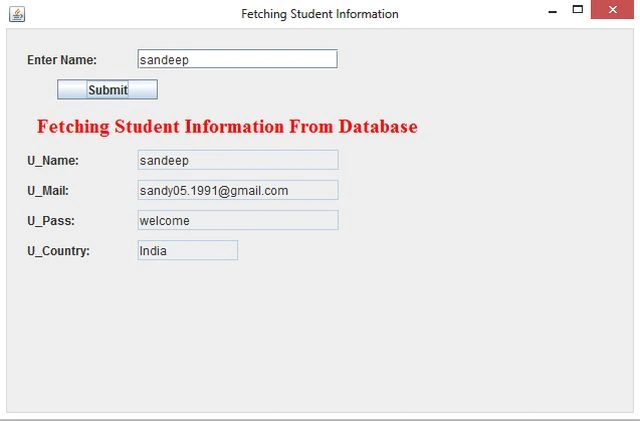
Searching records for "sandeep".
Srikanth RamananPosted Sep 1, 2018, 12:05 AM
Hello sir I am unable to get the data from the table
aVisionOf EcstacyPosted Jun 4, 2018, 10:07 AM
Thankyouu soo much... It helped me a lot in my project