

In a Web Application, a GridView controls is used to display data fetched from a database. We may also need to provide searching, sorting, and filter functionality in a GridView control's data. In this article, you will learn how to perform Searching, Sorting and Paging in a Gridview Control using simple JQuery.
Step 1: Create a Database
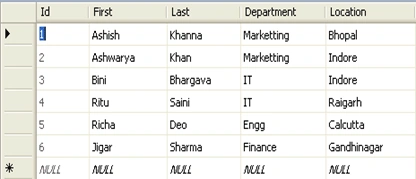
Add 1 table in it. My table looks like the following:
1. Table: tbSorting (say)
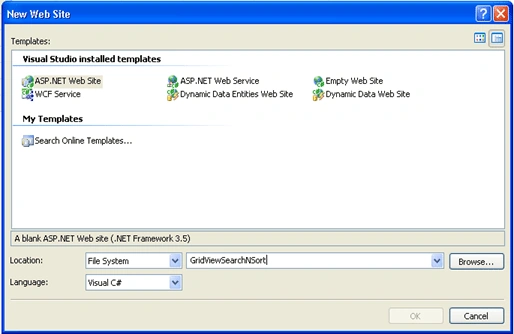
Step 2: Open Visual Studio 2005/2008->File->New Website
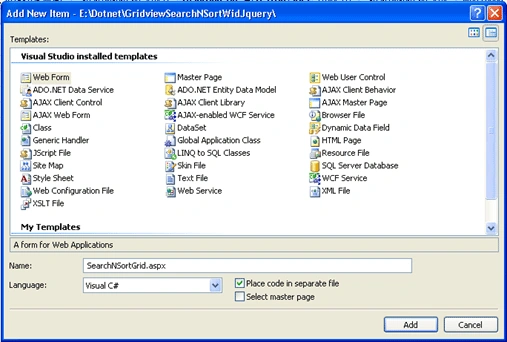
Step 3: Open Solution Explorer ->Add new item -> Add SearchNSortGrid.aspx
Step 4: Design the page and place a GridView control inside an UpdatePanel and a Textbox Control to search data in GridView. Below is the source code.
Search:
- <asp:TextBox ID="txtSearch" runat="server" OnTextChanged="txtSearch_TextChanged" Height="20px" Width="208px" />
- <asp:UpdatePanel ID="UpdatePanel1" runat="server" >
- <ContentTemplate>
- <asp:GridView ID="Gridview2" runat="server" AutoGenerateColumns="False" AllowPaging="True" AllowSorting="True" DataSourceID="dsGridview" Width="540px" CssClass="yui" PageSize="5">
- <Columns>
- <asp:BoundField DataField="Id" HeaderText="Id" SortExpression="Id" ItemStyle-Width="40px"
- ItemStyle-HorizontalAlign="Center" InsertVisible="False" ReadOnly="True" >
- <ItemStyle HorizontalAlign="Center" Width="40px" /></asp:BoundField>
- <asp:BoundField DataField="First" HeaderText="First"
- SortExpression="First" />
- <asp:BoundField DataField="Last" HeaderText="Last"SortExpression="Last"/>
- <asp:BoundField DataField="Department" HeaderText="Department"
- ItemStyle-Width="130px" SortExpression="Department" >
- <ItemStyle Width="130px" /></asp:BoundField>
- <asp:BoundField DataField="Location" HeaderText="Location"
- ItemStyle-Width="130px" SortExpression="Location" >
- <ItemStyle Width="130px" /></asp:BoundField>
- </Columns>
- </asp:GridView>
- </ContentTemplate>
- <Triggers>
- <asp:AsyncPostBackTrigger ControlID="txtSearch" EventName="TextChanged" />
- </Triggers>
- </asp:UpdatePanel>
- Step 5: Bind the GridView data with the SqlDataSource.
- <asp:SqlDataSource ID="dsGridview" runat="server"
- ConnectionString="<%$ ConnectionStrings:testDBConnectionString2 %>"
- SelectCommand="SELECT [Id], [First], [Last], [Department], [Location] FROM [tbSorting]"
- FilterExpression="First like '%{0}%' or Last like '%{1}%'"><FilterParameters>
- <asp:ControlParameter Name="First"ControlID="txtSearch" PropertyName="Text"/>
- <asp:ControlParameter Name="Last" ControlID="txtSearch" PropertyName="Text"/>
- </FilterParameters> </asp:SqlDataSource>
Step 6: Add JavaScript and CSS inside head portion of the page.
- <script type="text/javascript">
- jQuery(document).ready(function () {
- $("#Gridview2").tablesorter({ debug: false, widgets: ['zebra'], sortList: [[0, 0]] });
- });
- </script>
- Also add a reference of the two js files and 1 CSS.
- <script type="text/javascript" src=http://ajax.googleapis.com/ajax/libs/jquery/1.3.2/jquery.min.js > </script>
- <script type="text/javascript" src="Scripts/jquery.tablesorter-2.0.3.js"></script>
- <link type="text/css" rel="stylesheet" href="Scripts/style1.css" />
Step 7: Now write the following code in code behind.
- using System;
- using System.Web;
- using System.Collections.Generic;
- using System.Linq;
- using System.Web.UI;
- using System.Web.UI.WebControls;
- using System.Web.UI.Adapters;
- using System.Web.UI.WebControls.WebParts;
- using System.Web.UI.HtmlControls;
- using System.Data.SqlClient;
- using System.Text;
- using System.Text.RegularExpressions;
- using System.IO;
- public partial class SearchNSortGrid : System.Web.UI.Page
- {
- string SearchString = "";
- public string connection;
- protected void Page_Load(object sender, EventArgs e)
- {
- connection = System.Configuration.ConfigurationManager.ConnectionStrings["Connectionstring"].ToString();
- txtSearch.Attributes.Add("onkeyup", "setTimeout('__doPostBack(\'" + txtSearch.ClientID.Replace("_", "$") + "\',\'\')', 0);");
- if (!IsPostBack)
- {
- Gridview2.DataBind();
- }
- }
- protected void txtSearch_TextChanged(object sender, EventArgs e)
- {
- SearchString = txtSearch.Text;
- }
- public string HighlightText(string InputTxt)
- {
- string Search_Str = txtSearch.Text.ToString(); // Setup the regular expression and add the Or operator.
- Regex RegExp = new Regex(Search_Str.Replace(" ", "|").Trim(), RegexOptions.IgnoreCase); // Highlight keywords by calling the //delegate each time a keyword is found.
- return RegExp.Replace(InputTxt, new MatchEvaluator(ReplaceKeyWords)); // Set the RegExp to null.
- RegExp = null;
- }
- public string ReplaceKeyWords(Match m)
- {
- return "<span class=highlight>" + m.Value + "</span>";
- }
- }
Step 8: Run application (Press F5).
Summary
The final page looks like the following.
Figure: 1.1: On first time load
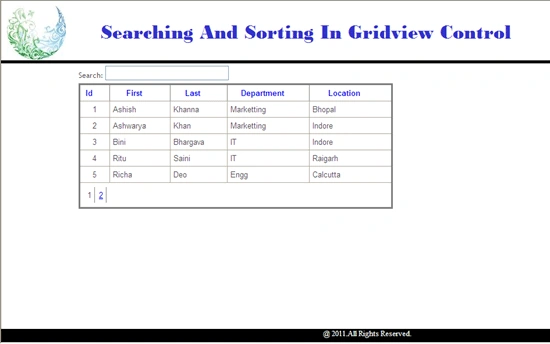
Figure 1.2: On searching with initials 'As'
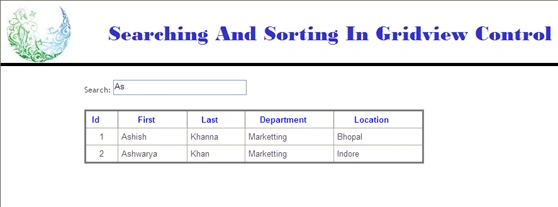
Figure 1.3: On sorting with department column field in ASC order
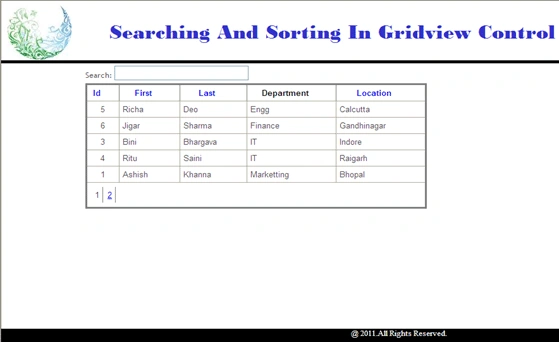
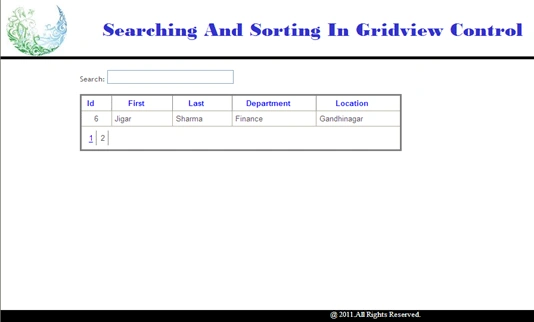
Figure 1.4: On paging in GridView.
Virender ThakurPosted Sep 20, 2021, 9:50 AM
Here is the actual code which is working and its identical. http://www.ashishblog.com/search-sort-in-gridview-using-c-net-ajax-and-jquery/
emma ojPosted Feb 9, 2021, 9:50 PM
The code is not working.the search function does not work
Dari CabreraPosted Dec 19, 2020, 4:46 PM
How do you use "HighlightText"?
kalu singh raoPosted Jul 29, 2016, 4:06 AM
Good
Rama KrishnaPosted Jun 17, 2013, 5:50 AM
I'm not able to see using on "HighlightText" method in this. Can you explain little bit more on this
sudesh chhipaPosted Oct 16, 2012, 2:18 PM
thanks you can check also at <a href="http://gharashiyana.com"> gharashiyana.com</a> and <a href="http://dotnetthreads.in"> dotnetthreads.in</a>
bharat soniPosted Dec 10, 2011, 3:27 AM
it is Good Parul...........Your Explaination Is Very Clearly.........
Aaron CronjePosted Dec 10, 2011, 12:23 AM
Good Work..........
Vijay PrativadiPosted Dec 9, 2011, 12:55 PM
Great!!! Keep Posting More!!!
Sonakshi SinghPosted Dec 9, 2011, 5:20 AM
Very well explained.