

Introduction
In this article I will create a Single view application. Here I use a label, and Segment control from outlet. Here when we click on the first button of the segment it changes the background color and prints a massage on the label like as when we click on the second button of the segment control it changes the background color and prints a message on the label same as it works for the third button of the segment.
To understand it we use the following.
Step 1
Open XCode by double-clicking on it.
Step 2
Create a New XCode Project by clicking on it.
Step 3
Now Select Single View Application and click on Next.
Step 4
Now provide your Product Name.
Step 5
Select the location where you want to save your project and click on Create.
Step 6
Now we write the code.
ViewController.h
//
// segmentViewController.h
// segment control
//
// Created by Sachin Bhardwaj on 15/12/12.
// Copyright (c) 2012 Sachin Bhardwaj. All rights reserved.
//
#import <UIKit/UIKit.h>
@interface segmentViewController : UIViewController {
UILabel *segmentLabel;
UISegmentedControl *segmentedControl;
}
@property (nonatomic,retain) IBOutlet UILabel *segmentLabel;
@property (nonatomic,retain) IBOutlet UISegmentedControl *segmentedControl;
-(IBAction) segmentedControlIndexChanged;
@end
ViewController.m
//
// segmentViewController.m
// segment control
//
// Created by Sachin Bhardwaj on 15/12/12.
// Copyright (c) 2012 Sachin Bhardwaj. All rights reserved.
//
#import "segmentViewController.h"
@interface segmentViewController ()
@end
@implementation segmentViewController
@synthesize segmentLabel;
@synthesize segmentedControl;
- (void)viewDidLoad {
self.segmentLabel.text =@"green background";
[super viewDidLoad];
}
- (void)dealloc {
[segmentLabel release];
[segmentedControl release];
[super dealloc];
}
-(IBAction) segmentedControlIndexChanged{
switch (self.segmentedControl.selectedSegmentIndex) {
case 0:
self.segmentLabel.text =@"green background";
self.view.backgroundColor = [UIColor greenColor];
break;
case 1:
self.segmentLabel.text =@"blue background";
self.view.backgroundColor = [UIColor blueColor];
break;
case 2:
self.segmentLabel.text =@"red background";
self.view.backgroundColor = [UIColor redColor];
break;
default:
break;
}
}
@end
Step 7
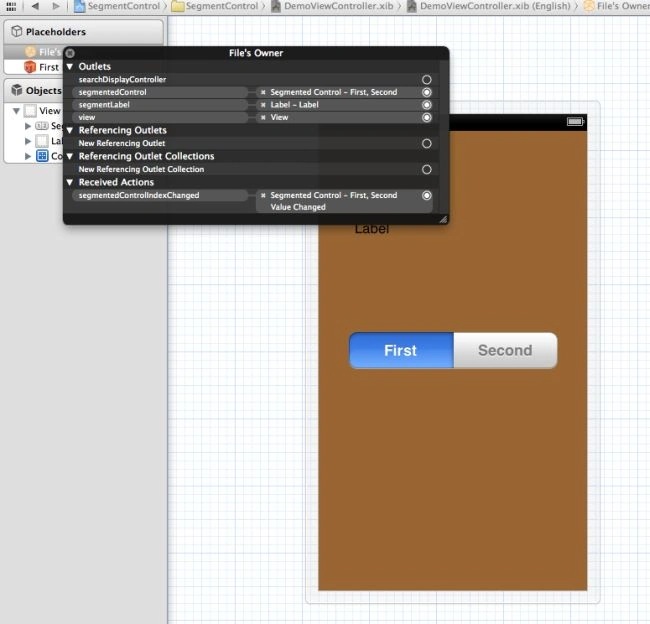
Now check the outlet connection:
Step 8
Finally we click on the Run button to show the output.
Output 1 in iPhone:

Output 2 in iPhone:

Output 3 in iPhone:

Join the conversation! Your thoughts help the community grow.