

Introduction
In this article, we will see how to send email with line breaks from SharePoint List using Power Automate from Multi-Line Text.
Implementation Steps
First you need to Create a Multi-Line Text in Share Point List
SharePoint List
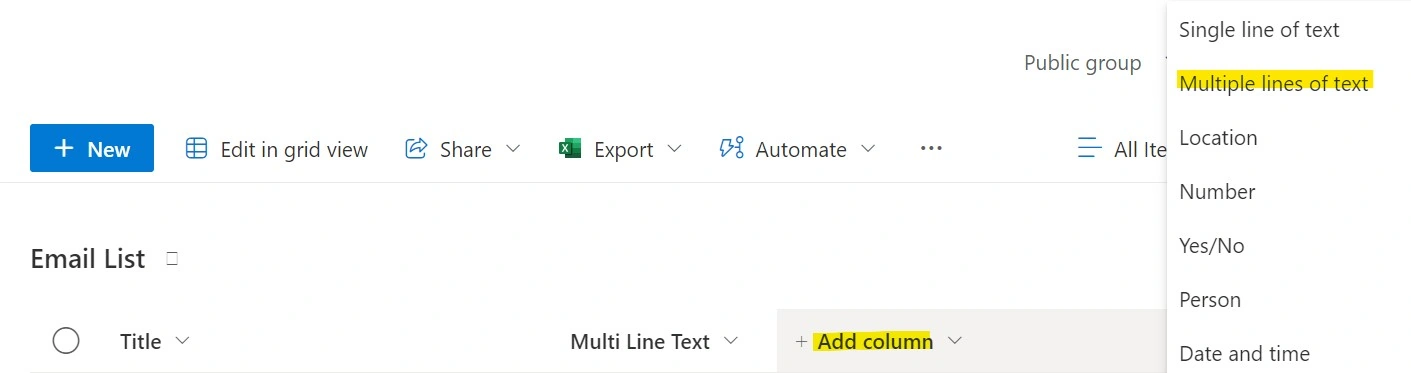
1. Open SharePoint Site
2. Click Add Column
3. Select Multiple Lines of Text
4. Click Create
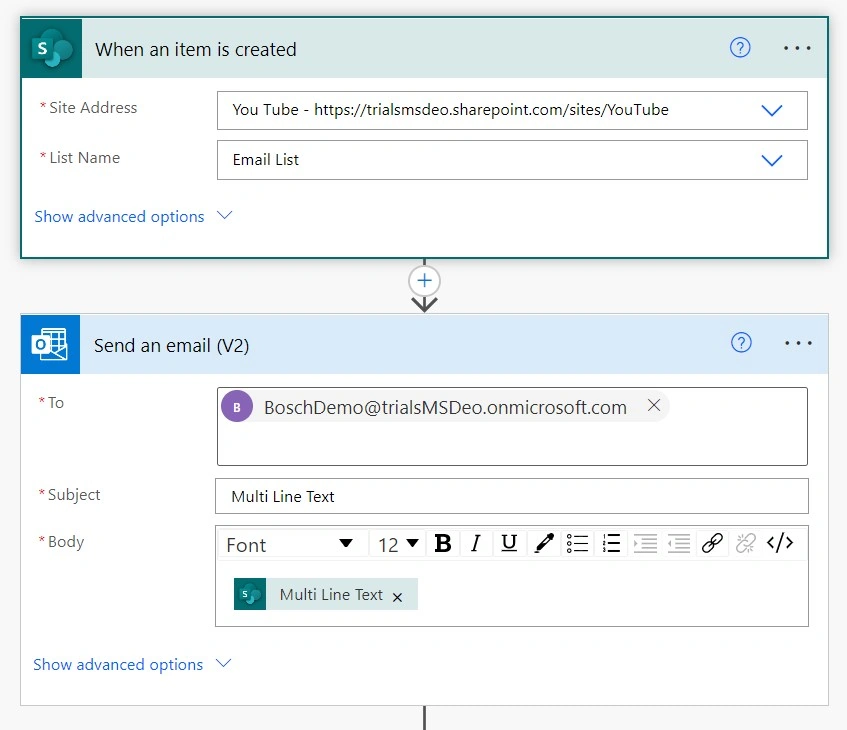
Power Automate
1. Navigate to https://make.powerautomate.com
2. Create a new Flow
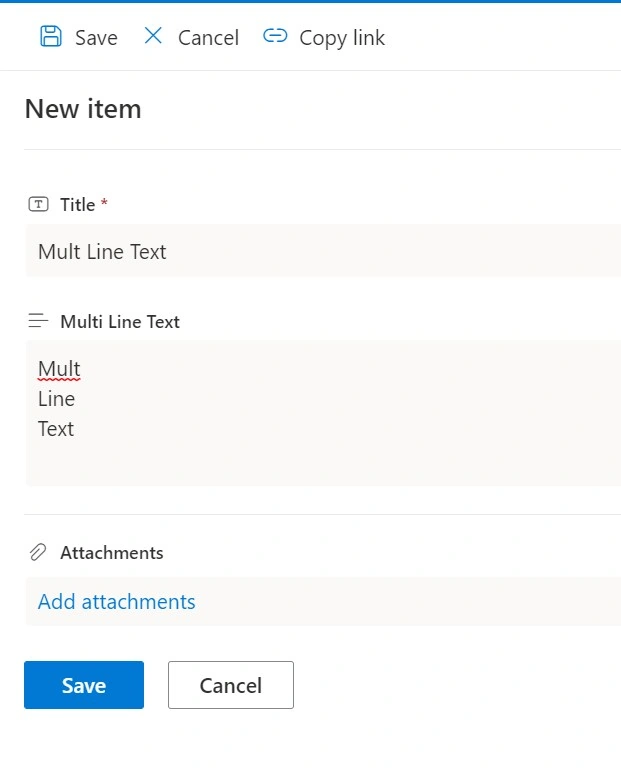
Now create a Record in SharePoint List and Save it
Once Saved the Microsoft Flow will trigger and you can see the Email in your Inbox
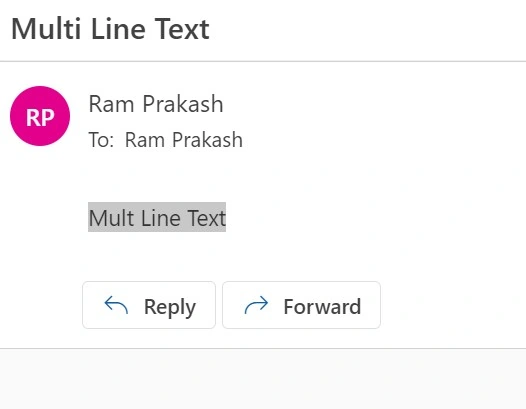
Now compared with Email and SharePoint List record creation the email did not come with line break. Let's see how we can achieve this.
Steps to Follow
Create a Power Automate flow
1. When a Record is Created
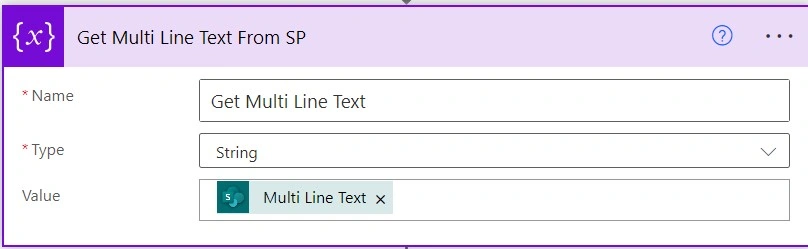
2. Initialize the Variable to get the Multiple Line Text
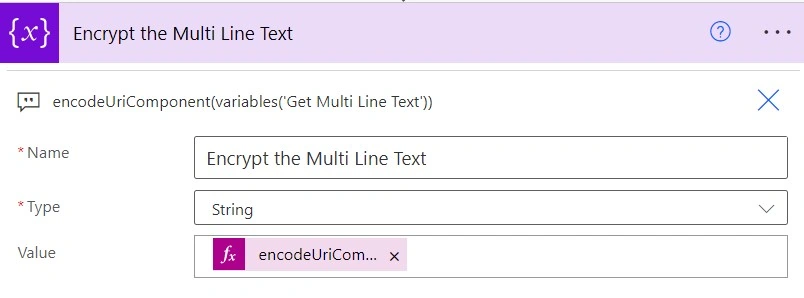
3. Encrypt
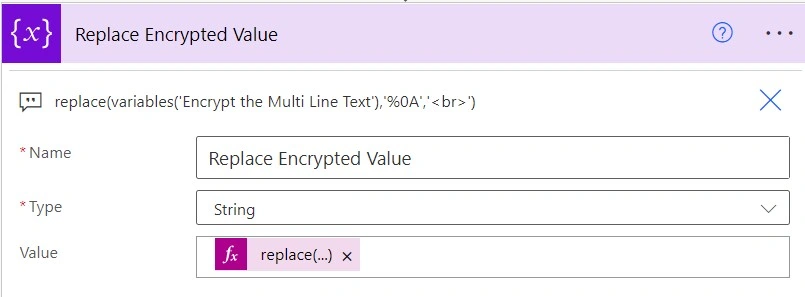
4. Now use Replace Option to replace '%0A' with '<br>'
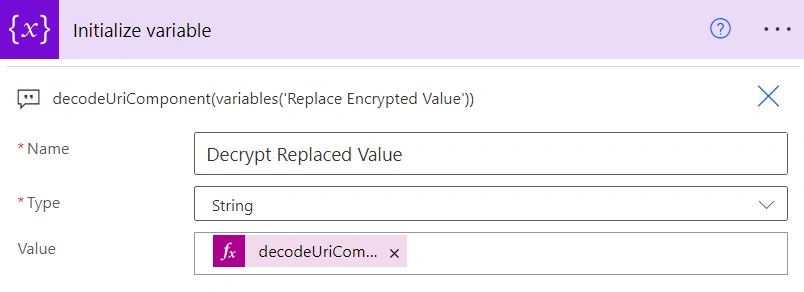
5. Now Decrypt the Variable
6. Now send an Email
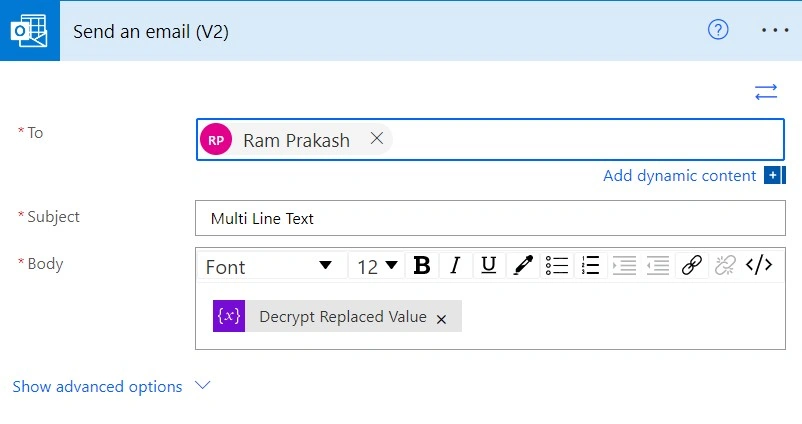
Create a new Record in SharePoint List and check the Email
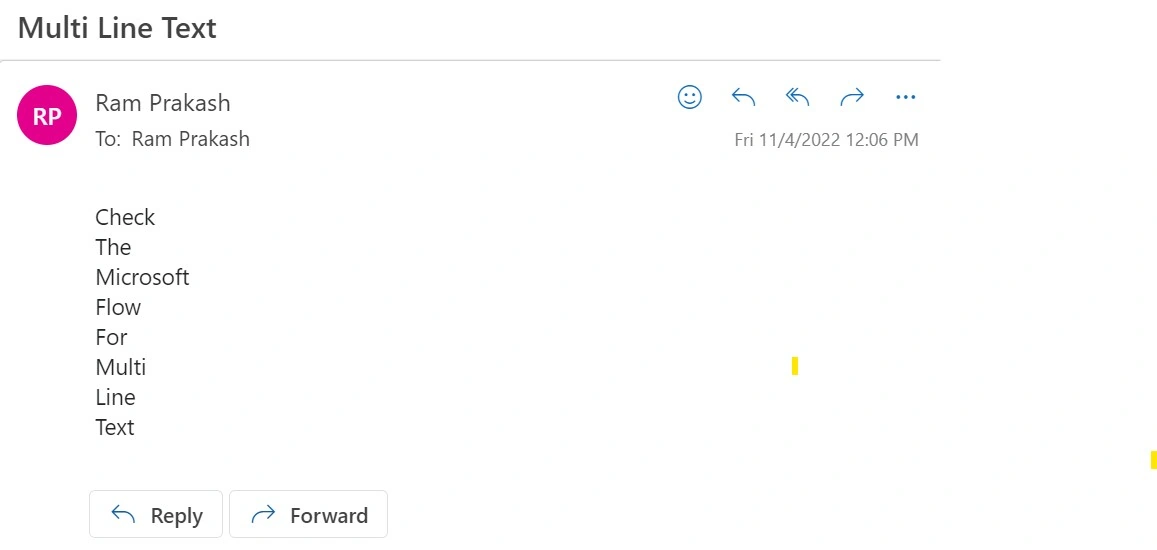
That's it :)
This is how we need to achieve the Multiple Line Text with Line Breaks using Power Automate Flows.
Join the conversation! Your thoughts help the community grow.