

Introduction
In my previous articles I explained:
There was a problem with the application created in those articles, a problem with the time taken to completely send the Emails.
This article will solve that problem since in this article I will create an application that will send Emails nearly 7 times faster than the earlier application.
First I will execute my previous application and will show you how much time it is taking to send nearly 50 Emails at a time.
Step 1
I will attach a timer to my application that will check how much time has been taken by the code to execute. For that you need to write this code in the beginning of your code:
System.Diagnostics.Stopwatch sWatch = new System.Diagnostics.Stopwatch();
sWatch.Start();
After this write your code to send mail and at the end of the code add this code:
sWatch.Stop();
lblShowTime.Text = sWatch.ElapsedMilliseconds.ToString();
Here "lblShowTime" is the ID of the label showing the time taken to execute the code.
So, now your complete code will look something like this:
protected void Sendbtn_Click(object sender, EventArgs e)
{
System.Diagnostics.Stopwatch sWatch = new System.Diagnostics.Stopwatch();
sWatch.Start();
foreach (GridViewRow grow in GridView1.Rows)
{
string Emails = grow.Cells[0].Text.Trim();
string file = Server.MapPath("~/Mail.html");
string mailbody = System.IO.File.ReadAllText(file);
string to = Emails;
string from = "[email protected]";
MailMessage msg = new MailMessage(from, to);
msg.Subject = "Auto Response Email";
msg.Body = mailbody;
msg.BodyEncoding = Encoding.UTF8;
msg.IsBodyHtml = true;
SmtpClient client = new SmtpClient("smtp.gmail.com", 25);
System.Net.NetworkCredential basicCredential =
new System.Net.NetworkCredential("[email protected]", "*******");
client.EnableSsl = true;
client.UseDefaultCredentials = true;
client.Credentials = basicCredential;
try
{
client.Send(msg);
cnfrm.Text = "Email Sended Successfully";
}
catch (Exception ex)
{
Response.Write(ex.Message);
}
}
sWatch.Stop();
lblShowTime.Text = sWatch.ElapsedMilliseconds.ToString();
}
Now I am executing my application and let's see how much time it was taking.
Output
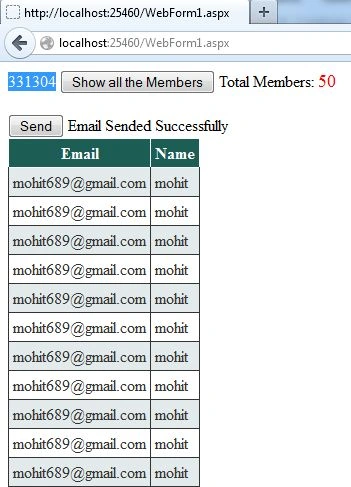
You can see that it is taking 331304 milliseconds to send 50 mails, in other words nearly 5.5 minutes, in other words really slow.
Now I will update this application and will try to reduce the time taken.
Step 2
You can see that I was using foreach() to send the Emails, this means that it was taking one Email Id at a time; that's why it was taking such a long time to run.
If we send Emails parallel to each other, in other words if we send multiple mails at a single time, then it will reduce the time taken to a great extent. For this to happen we can use "Parallel.ForEach". Parallel.ForEach executes the ForEach loop multiple times in parallel.
If we can apply Parallel.ForEach to the grid then it will solve our problem, but their is a problem applying it to the grid, it can't be applied to the grid directly because it is applied to a "nonGenericCollections" like list.
So, to apply it to the Grid you first need to use a list. Before using parallel.foreah you need to add this namespace to your application:
using System.Threading.Tasks;
Step 3
Now create a list and pass the GridViewRow as an element type.
List<GridViewRow> list = new List<GridViewRow>();
foreach (GridViewRow row in GridView1.Rows)
{
list.Add(row);
}
Here each new row will be added to the list.
Now you can update the click of the button with this code:
protected void Sendbtn_Click(object sender, EventArgs e)
{
List<GridViewRow> list = new List<GridViewRow>();
foreach (GridViewRow row in GridView1.Rows)
{
list.Add(row);
}
System.Diagnostics.Stopwatch sWatch = new System.Diagnostics.Stopwatch();
sWatch.Start();
Parallel.ForEach(list, row =>
{
string Emails = row.Cells[0].Text.Trim();
string file = Server.MapPath("~/Mail.html");
string mailbody = System.IO.File.ReadAllText(file);
string to = Emails;
string from = "[email protected]";
MailMessage msg = new MailMessage(from, to);
msg.Subject = "Auto Response Email";
msg.Body = mailbody;
msg.BodyEncoding = Encoding.UTF8;
msg.IsBodyHtml = true;
SmtpClient client = new SmtpClient("smtp.gmail.com", 25);
client.UseDefaultCredentials = false;
System.Net.NetworkCredential basicCredential =
new System.Net.NetworkCredential("[email protected]", "****");
client.EnableSsl = true;
client.UseDefaultCredentials = true;
client.Credentials = basicCredential;
try
{
client.Send(msg);
cnfrm.Text = "Email Sended Successfully";
}
catch (Exception ex)
{
Response.Write(ex.Message);
}
});
sWatch.Stop();
lblShowTime.Text = sWatch.ElapsedMilliseconds.ToString();
}
Step 4
Data Binding was provided in this way:
protected void king_Click(object sender, EventArgs e)
{
OleDbConnection con = new OleDbConnection("Connection String”);
con.Open();
OleDbCommand cmd = new OleDbCommand("Select Email,Name from [sheet1$]", con);
OleDbDataAdapter adp = new OleDbDataAdapter(cmd);
DataSet ds = new DataSet();
adp.Fill(ds);
GridView1.DataSource = ds;
GridView1.DataBind();
Label2.Text = GridView1.Rows.Count.ToString();
con.Close();
}
Now our application is created and is ready for execution.
Output
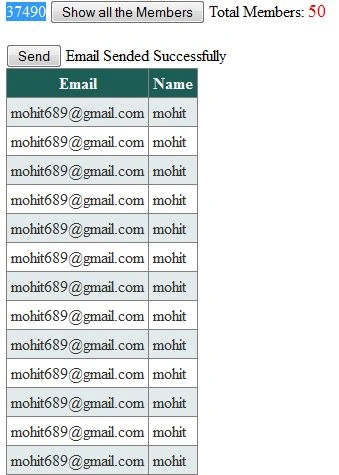
You can see that it is taking 37490 milliseconds to send 50 mails, that means 0.6 minutes to send 50 mails. It is much faster than our earlier application.
You can download the source code for this application.
Purnendu MohantyPosted May 21, 2022, 4:11 AM
Hello Anubhav, We are looking for some help for this. Can u have some time to look into this. We do not mind hiring you if things works out. We are using a .Net desktop application which injects 30 mails per minute. We would like to increase this to at least 300 mails per minute. We are not able to do this after many tries. Typically this needs multithreading and asynchronous to be executed in one go.
Sai TejaPosted Aug 18, 2017, 4:18 AM
Very good article buddy, it helped me a lot. Thanks
Testing HiddenPosted Apr 27, 2016, 4:59 PM
"Service not available, closing transmission channel. The server response was: 4.7.0 Temporary System Problem. Try again later (WS). p189sm8859679pfb.51 - gsmtp" after some mail send it shows error like above..please help
Testing HiddenPosted Apr 27, 2016, 4:59 PM
hi
Asfend YarPosted Feb 29, 2016, 2:04 PM
good
Sam HobbsPosted Apr 5, 2014, 4:06 PM
Yes, that looks much better. Have you tried using "SmtpClient.SendAsync" to send multiple messages in parallel? If you used it then it is probably not necessary to use an additional task, right? Also, it might be possible to sort the email accounts in order of the server and send all messages for a specific server using a single instance of SmtpClient. I am not sure but I think that would allow SmtpClient to be more efficient. You could use separate tasks for separate servers. Perhaps if you simply modified what you have here so that the accounts are sorted by server and used separate tasks for each of a few servers then that would be more efficient, but the difference is probably not noticeable unless there were very many messages to send. Check to see if you need to modify the SmtpClient.DeliveryMethod Property for that to be effective.