Introduction
In this article, we are going to send an email with SharePoint Lookup Column data using Power Automate. We will create a flow that’s run weekly that fetches data from a SharePoint list which contains lookup columns. We will use the “Apply each” action to get lookup records.
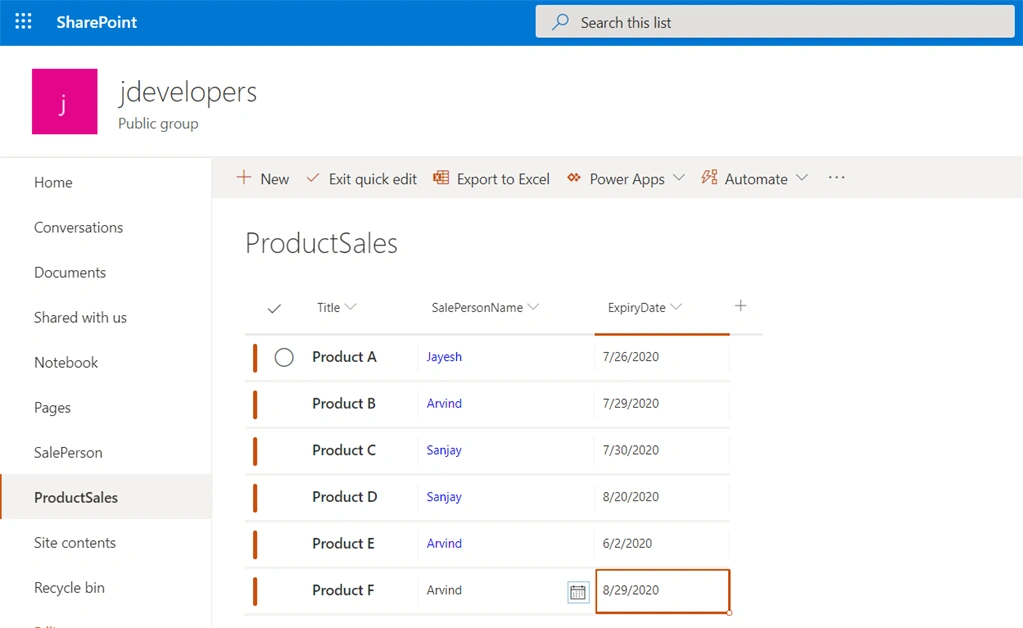
SharePoint Parent List - "ProductSales"
|
Columns
|
Type
|
|
Title
|
Text
|
|
ExpiryDate
|
DateTime
|
|
SalePersonName
|
LookUp (SalePerson List)
|
SharePoinChild List - "SalePerson"
In the above lists we have SalePersonName column which is actually the Title column from SalePerson List. When we “Parse Json” data in the above type of data we get two title fields in the dynamic column section. And sometimes workflow fails due to a null record in lookup column. Let’s see the data in the list as below,
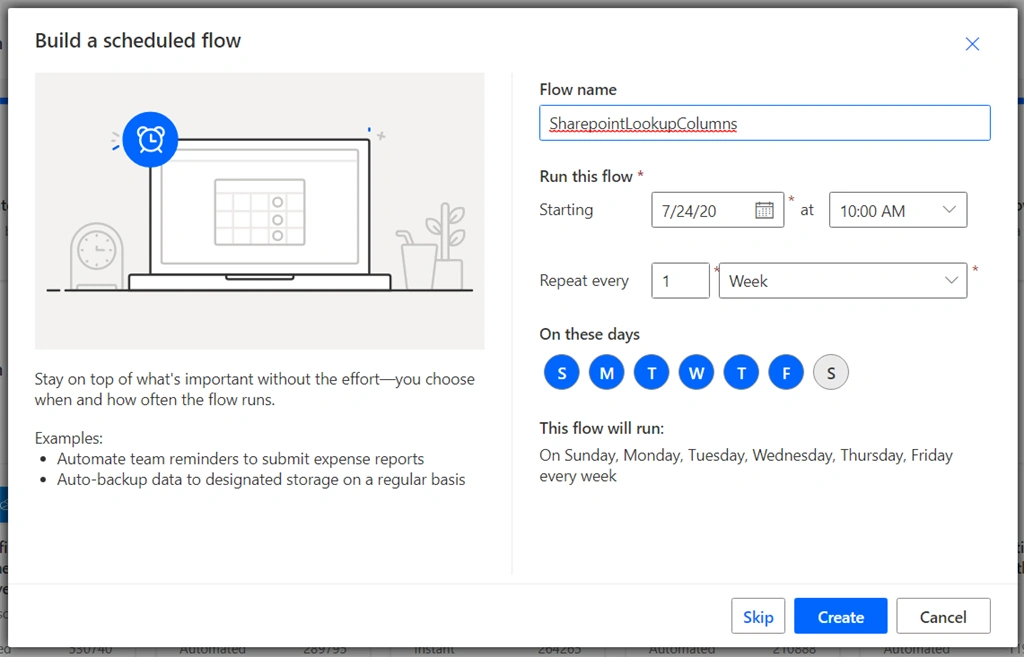
Log in to Office.com with Office 365 credentials. Go to the “Power Automate” tile and click on it. It will be redirected to the Power Automate Page. Click on the Create button from the left navigation. Click on the scheduled flow tile. It will open the popup.
Create Scheduled Flow
- Enter the flow name, “SharePointLookupColumns,”and select a specific time when we want to schedule this workflow and here, we selected 1 week, repeating it to weekly.
- Then, click on the create button.
- It will open the Edit Flow page where we can see a Recurring Action.
- Now we are fetching SharePoint List Items and filtering product data which expired in the last 7 days. We can do this using various flow actions that are available in Power Automate, such as Get Items & Get Files (SharePoint) action. Here, we are using the REST API to get data from the SharePoint List.
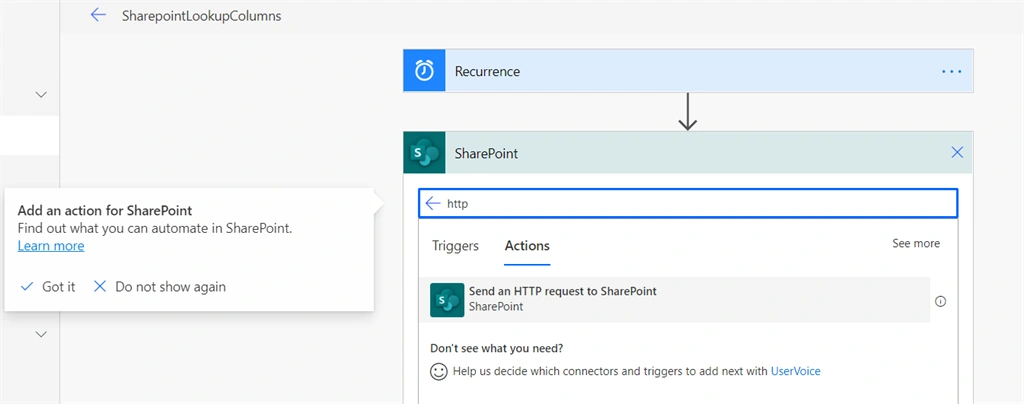
- Click on the new step button and find & add the “Send Http Request for SharePoint” action.
“Send Http Request for SharePoint”
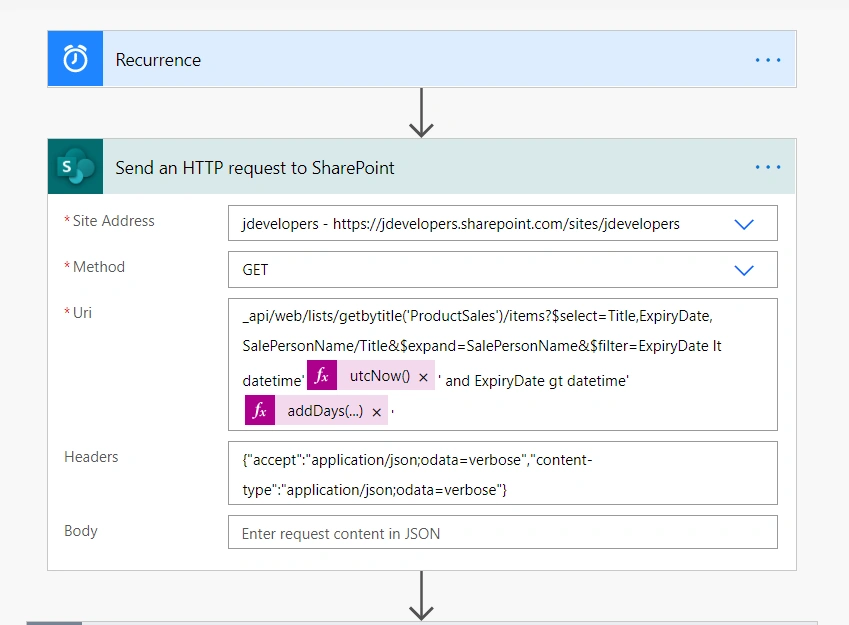
- Enter the site address and URI for the REST API parameter, which is for getting the "ProductSales" list item and Headers parameters.
- Below we have prepared the Rest API to get the Title, SalesPersonName, Expiry Date field from SharePoint List with an expiry date filter which expired in the last 7 days.
- _api/web/lists/getbytitle('ProductSales')/items?$select=Title,ExpiryDate, SalePersonName/Title&$expand=SalePersonName&$filter=ExpiryDate lt datetime'@{utcNow()}' and ExpiryDate gt datetime'@{addDays(utcNow(),-7)}'
- Now we are going to test this flow. Click on the Test button from the right side of the top menu.
- Then, select "I’ll perform action trigger" option and click on Save & Test button.
- After this, click the run flow button. Then, click the done button.
- We can see the “flow run successfully” message. Then expand the “Send Http Request SharePoint” action.
- Then, Scroll down the screen. You should see the copy body content, where we see the data of the SharePoint List. Click on the Edit button from the right side of the top menu.
“Apply to Each”
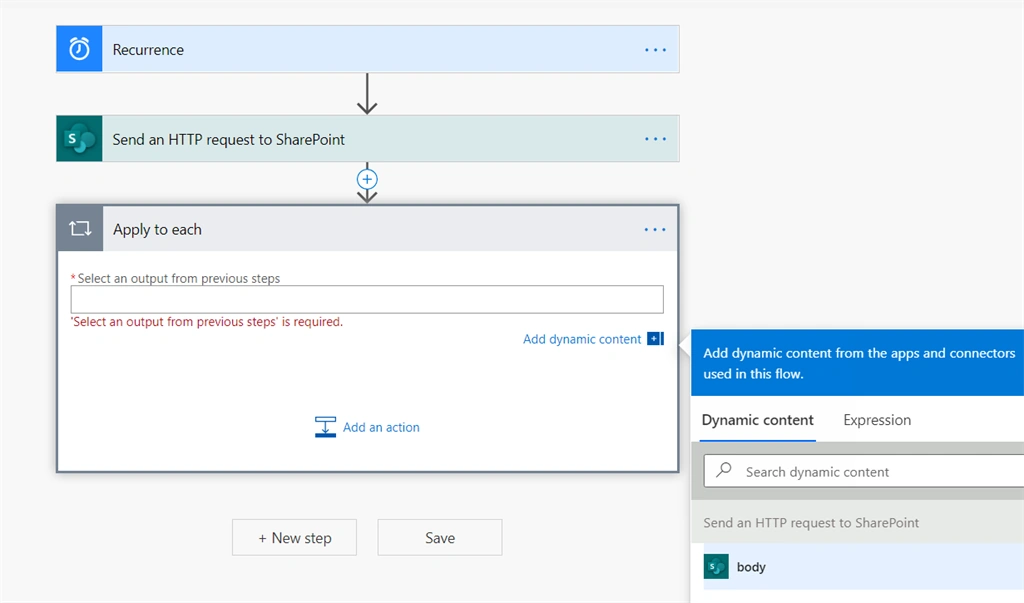
- Click on the new step button and find & add the “Apply to Each” action to iterate SharePoint list data.
- We can see the Output section; click on the text which opens the dynamic content option popup on the right side. Then, go to the “body” value from the previous “Send an http request to SharePoint” Data and add to Output section.
- To check if it worked or not, now let’s test the flow. Click on the Test button from the right side of the top menu and click the Run flow button. Then click the done button.
- We can see that flow fails and shows the following exception:
The execution of template action 'Apply_to_each' failed: the result of the evaluation of 'foreach' expression '@outputs('Send_an_HTTP_request_to_SharePoint')?['body']' is of type 'Object'. The result must be a valid array.
- So, apply to each action is expecting a valid array. We can see the above exception output is only parsed up to the body and SharePoint List Data Response is up to “results” which actually contains a list of data as below,
- @outputs('Send_an_HTTP_request_to_SharePoint')?['body']['d']['results']
- So, we updated the above expression on the output text box from Dynamic Content popup and retested flow. Flow will be executed successfully.
“Send an email notification”
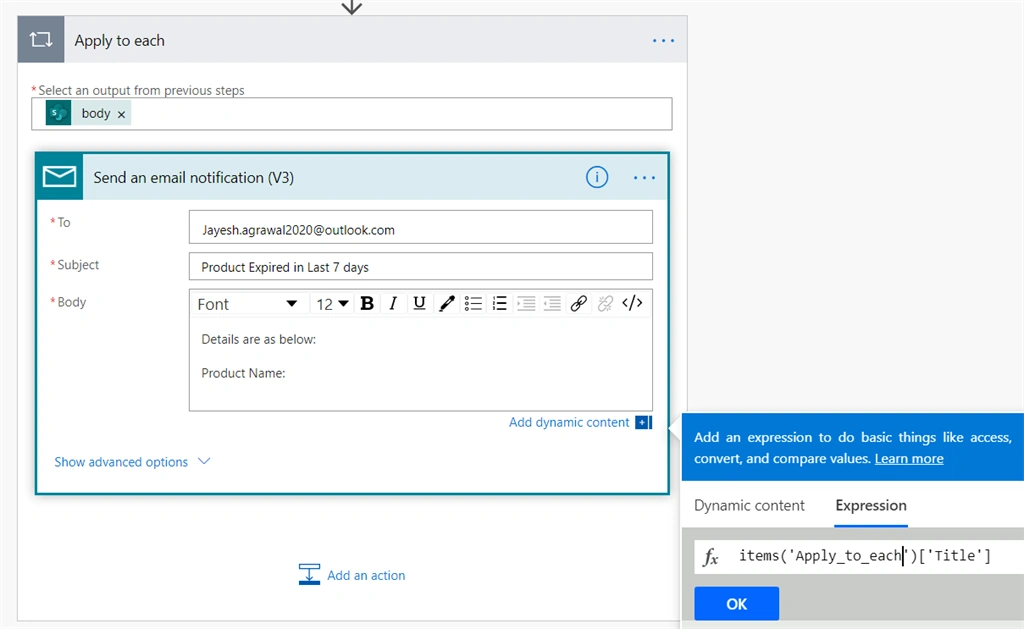
- Click on Next Step and find & add “Send an email notification” action to send email notification.
- Enter Email Address into the field and add a subject.
- Click on the body, open Dynamic Content popup. Go to Expression tab and add the following expression:
- items('Apply_to_each')['Title']
- Items is for getting the current item of each action and to get the actual field we need to pass its name.
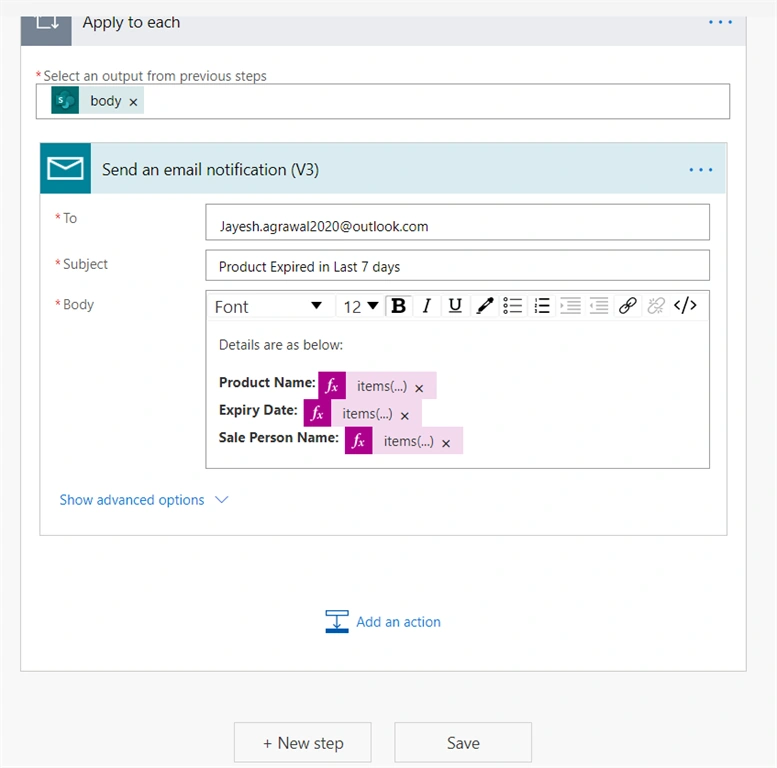
- Now in a similar way we add the following expression for Expiry Date and Sales Person Name
- items('Apply_to_each')['ExpiryDate']
- items('Apply_to_each')['SalePersonName']['Title']
- Click on Save Flow.
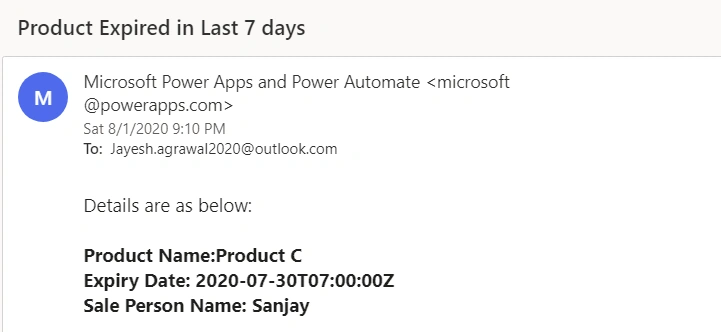
- Now let’s test the flow. Click on the Test button from the right side of the top menu and click the Run flow button. Then click the done button and verify the email as below.
Conclusion
There are so many use cases where we do data manipulation as above. I hope you get the idea about what I am trying to elaborate here.
Please provide your feedback or post your queries, if any, in the comment section.


Join the conversation! Your thoughts help the community grow.