

In this article we can explore a scenario I have encountered while working with SharePoint.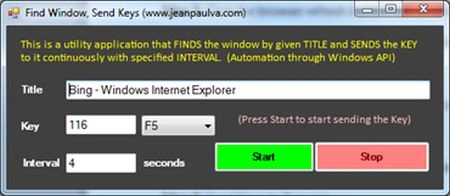
Scenario
My client had a Production issue where the Request Tracking report is too huge in size and cannot be downloaded. Although the problem is fixed, we need to test this in our UAT environment.
To test this we need 1000 requests logged in the SharePoint site. How to create the 1000 requests?
I had the following interesting ideas & solutions.
Idea 1: Create a SQL Stored Procedure that inserts 1000 records to the Content Database.
Problems: Content Database access issue, direct modification is not recommended.
Idea 2: Create a web part that inserts records into the Audit Log using the Server Object Model.
Problems: Some of the fields will remain null.
Idea 3: Click the browser refresh button 1000 times.
Problems: Too hectic for a human to perform
Idea 4: Place a lock on the F5 key.
Problems: The site requires 3 seconds to load, so skips all the key requests if continuous.
Idea 5: Create a Web Client automation.
Problems: The site is under security proxies. So the URL automation is not possible.
Idea 6: Send Keys to Browser.
Action: Feasible
I selected the Idea 6 as the site is authenticated in a browser window. Through a separate windows application we can send Refresh keys (F5) at regular intervals using the Windows API.
The Windows API invocation can be done in .Net using the Platform Invoke infrastructure.
The Steps
The following are the steps involved in the application.
- Find the Window Handle using the Title
a. For example: "Bing - Windows Internet Explorer" is the title of Internet Explorer when opening the website http://www.bing.com
- Make the Window as the Active Window
a. Use the SetForegroundWindow API method to make the window active, so that we can send keys to the active window
- Send the key to the window
a. Send Key (F5) to the active window
- Repeat the loop
a. Continue the loop with an interval specified by the user.
The Code
The following are the Windows API methods required by our application.
[DllImport("user32.dll", EntryPoint = "FindWindow", SetLastError = true)]
public static extern IntPtr FindWindow (IntPtr ZeroOnly, string lpWindowName);
[DllImport("user32.dll")]
public static extern void keybd_event(byte bVk, byte bScan, uint dwFlags, IntPtr dwExtraInfo);
[DllImport("user32.dll")]
[return: MarshalAs(UnmanagedType.Bool)]
static extern bool SetForegroundWindow(IntPtr hWnd);
If the _pointer has a value greater than 0, we have a valid Handle.
Note
A handle (HWND) is the return value from CreateWindowEx which the Windows Operating System uses to identify a window.
The UI
Create a Windows Forms application and set the following controls.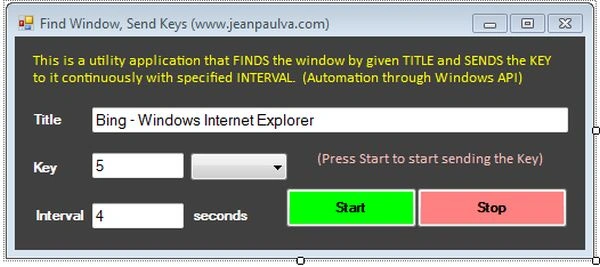
On the start button click add the following code.
private void StartButton_Click(object sender, EventArgs e)
{
Start();
}
private bool _start;
private int _count;
private void Start()
{
_start = true;
StartButton.Enabled = false;
StopButton.Enabled = true;
SetForegroundWindow(_pointer);
while (_start)
{
SendKeys();
Thread.Sleep(int.Parse(textBox3.Text) * 1000);
Application.DoEvents();
}
}
public void SendKeys()
{
int key = int.Parse(KeyText.Text);
const int KEYEVENTF_KEYUP = 0x0002;
keybd_event((byte)key, 0, 0, IntPtr.Zero);
keybd_event((byte)key, 0, KEYEVENTF_KEYUP, IntPtr.Zero);
}
// The keybd_event() method SENDS the key
The Implementation
Open a browser and browse to our SharePoint site. Ensure you have logged in correctly.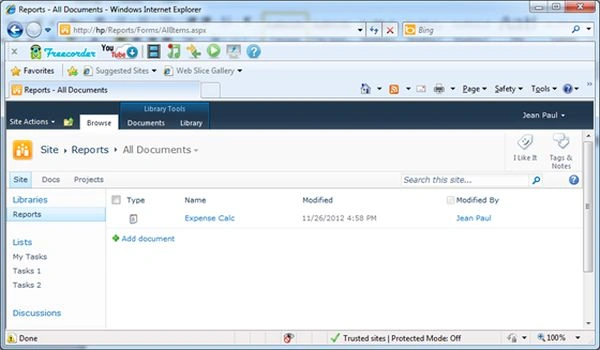
Now execute our application and enter the title of the Browser in the application. In this case it is: "Reports - All Documents - Windows Internet Explorer"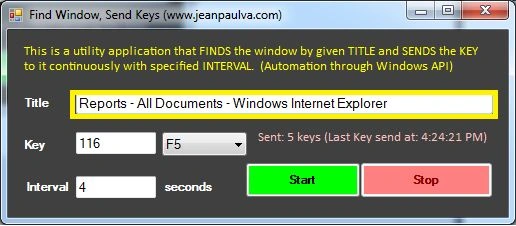
Enter the Key value. For F5 key, it is ASCII 116. Set the Interval as 4 seconds which will create around 900 requests per hour.
After setting the values click the Start button. You will see that the browser is made the foreground window and the Refresh process repeats every 4 seconds. (Observe the Refresh of browser status bar)
References
http://tinyurl.com/sp2010-winapi
Summary
In this article we have explored a Send Key scenario with the Windows API as the solution. You can comment on better ideas for the problem.
The source code for the article is attached along with.
Guest UserPosted Apr 2, 2021, 5:07 PM
Where is source code
Sr KarthigaPosted Feb 14, 2016, 12:29 AM
Good one
Upendra Pratap ShahiPosted May 31, 2015, 4:45 AM
Nice...
Sam HobbseditedPosted Dec 12, 2012, 10:12 PMEdited Dec 12, 2012, 10:12 PM
Also see my article "Clicking a Button in Another Application". I wrote it just now. It is not for web applications but it gives an idea of an alternative for Windows Desktop applications that do not use HTML.
Jean PaulPosted Dec 12, 2012, 5:32 PM
That's a good one Sam, I think i mentioned it in Web Client. But our site was having security credentials that makes it difficult to persist the authentication.
Sam HobbseditedPosted Dec 12, 2012, 5:30 PMEdited Dec 12, 2012, 5:31 PM
For web sites the best solution is to use the InternetExplorer object of the shdocvw namespace to find the web page instead of using FindWindow to find the window. Then you can use the DOM in the MSHTML namspace to manipulate the page. You can get the button in the page and then click the button. Look for articles about the WebBrowser control (such as my article) to understand about the DOM. Note that I use something like this several times every day to edit articles; I have a tool I use to edit articles that does this type of thing. For windows that are not IE windows, I still would not use FindWindow; I would enumerate top-level windows to find the window and I would send button-clicked notifications to the window.