

You have seen in many registration form you have only username and email field and the password will be send to your respective mail id, So the same we will do in the application.
Step 1
Open your Visual Studio 2010 and create an Empty Website, provide a suitable name (randompass_demo).
Step 2
In Solution Explorer you get your empty website, then add two web forms and a SQL Server Database as in the following.
For Web Form:
randompass_demo (your empty website) then right-click then select Add New Item -> Web Form. Name it randompass_demo.aspx.
For SQL Server Database
randompass_demo (your empty website) then right-click then select Add New Item -> SQL Server Database. (Add a database inside the App_Data_folder).
DATABASE CHAMBER
Step 3
In Server Explorer, click on your database (Database.mdf) then select Tables -> Add New Table. Make the table like this.
Table tbl_data (Don't Forget to make ID as IS Identity -- True)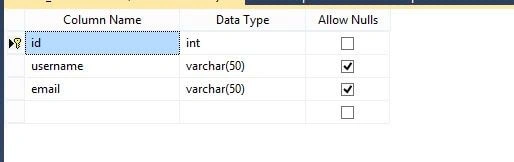
Design Chamber
Step 4
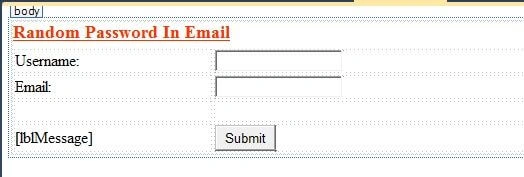
Open your randompass_demo.aspx file from Solution Explorer and start designing you're application.
Randompass_demo.aspx
- <%@ Page Language="C#" AutoEventWireup="true" CodeFile="Default.aspx.cs" Inherits="_Default" %>
- <!DOCTYPE html PUBLIC "-//W3C//DTD XHTML 1.0 Transitional//EN" "http://www.w3.org/TR/xhtml1/DTD/xhtml1-transitional.dtd">
- <html xmlns="http://www.w3.org/1999/xhtml">
- <head runat="server">
- <title></title>
- <style type="text/css">
- .style1
- {
- width: 196px;
- }
- .style2
- {
- font-size: large;
- text-decoration: underline;
- text-align: left;
- color: #FF3300;
- }
- </style>
- </head>
- <body>
- <form id="form1" runat="server">
- <div>
- <table style="width:100%;">
- <caption class="style2">
- <strong>Random Password In Email</strong></caption>
- <tr>
- <td class="style1">
- Username:</td>
- <td>
- <asp:TextBox ID="TextBox1" runat="server"></asp:TextBox>
- </td>
- <td>
- </td>
- </tr>
- <tr>
- <td class="style1">
- Email:</td>
- <td>
- <asp:TextBox ID="txtEmail" runat="server"></asp:TextBox>
- </td>
- <td>
- </td>
- </tr>
- <tr>
- <td class="style1">
- </td>
- <td>
- </td>
- <td>
- </td>
- </tr>
- <tr>
- <td class="style1">
- <asp:Label ID="lblMessage" runat="server"></asp:Label>
- </td>
- <td>
- <asp:Button ID="Button1" runat="server" onclick="Button1_Click1"
- Text="Submit" />
- </td>
- <td>
- </td>
- </tr>
- </table>
- </div>
- </form>
- </body>
- </html>
Code Chamber
Step 5
Finally open your randompass_demo.aspx.cs file to write the code to make the application as we designed it.
Randompass_demo.aspx.cs
- using System;
- using System.Collections.Generic;
- using System.Linq;
- using System.Web;
- using System.Web.UI;
- using System.Web.UI.WebControls;
- using System.Net;
- using System.Net.Mail;
- using System.Data;
- using System.Data.SqlClient;
- public partial class _Default: System.Web.UI.Page {
- protected void Page_Load(object sender, EventArgs e) {
- GeneratePassword();
- }
- public string GeneratePassword() {
- string PasswordLength = "8";
- string NewPassword = "";
- string allowedChars = "";
- allowedChars = "1,2,3,4,5,6,7,8,9,0";
- allowedChars += "A,B,C,D,E,F,G,H,I,J,K,L,M,N,O,P,Q,R,S,T,U,V,W,X,Y,Z,";
- allowedChars += "a,b,c,d,e,f,g,h,i,j,k,l,m,n,o,p,q,r,s,t,u,v,w,x,y,z,";
- char[] sep = {
- ','
- };
- string[] arr = allowedChars.Split(sep);
- string IDString = "";
- string temp = "";
- Random rand = new Random();
- for (int i = 0; i < Convert.ToInt32(PasswordLength); i++) {
- temp = arr[rand.Next(0, arr.Length)];
- IDString += temp;
- NewPassword = IDString;
- }
- return NewPassword;
- }
- protected void Button1_Click1(object sender, EventArgs e) {
- // to save the username and password in database
- SqlConnection con = new SqlConnection(@
- "Data Source=.\SQLEXPRESS;AttachDbFilename=|DataDirectory|\Database.mdf;Integrated Security=True;User Instance=True");
- SqlCommand cmd = new SqlCommand("insert into tbl_data(username,email) values (@username,@email)", con);
- cmd.Parameters.AddWithValue("username", TextBox1.Text);
- cmd.Parameters.AddWithValue("email", txtEmail.Text);
- con.Open();
- int i = cmd.ExecuteNonQuery();
- con.Close();
- // to send the random password in email
- string strNewPassword = GeneratePassword().ToString();
- MailMessage msg = new MailMessage();
- msg.From = new MailAddress("[email protected]");
- msg.To.Add(txtEmail.Text);
- msg.Subject = "Random Password for your Account";
- msg.Body = "Your Random password is:" + strNewPassword;
- msg.IsBodyHtml = true;
- SmtpClient smt = new SmtpClient();
- smt.Host = "smtp.gmail.com";
- System.Net.NetworkCredential ntwd = new NetworkCredential();
- ntwd.UserName = "[email protected]"; //Your Email ID
- ntwd.Password = ""; // Your Password
- smt.UseDefaultCredentials = true;
- smt.Credentials = ntwd;
- smt.Port = 587;
- smt.EnableSsl = true;
- smt.Send(msg);
- lblMessage.Text = "Email Sent Successfully";
- lblMessage.ForeColor = System.Drawing.Color.ForestGreen;
- }
- }
Output Chamber
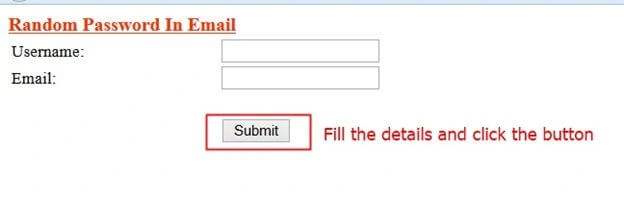
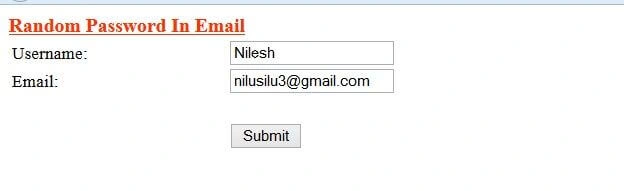
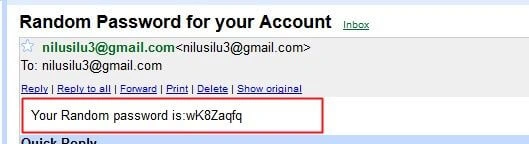
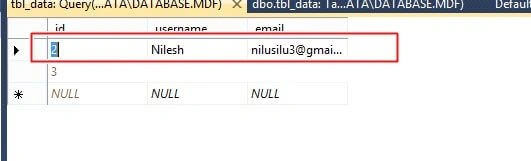
Here I gave the input as username = Nilesh and email as = [email protected], it will save that to the database and the password will be generated and sent to the mail id.
Your Random Password
Data Saved to Database:
I hope you like this. Thank you for reading, have a good day.
Jaya PrakashPosted Feb 23, 2023, 4:37 AM
So Useful sir Thank You..
Muhammad AyoubPosted Sep 30, 2019, 4:03 AM
Sir how can I use this code in Asp.net MVC?
Naga SatyaPosted Jul 7, 2017, 8:24 AM
It is coming only for gmail if we use outlook or anything it is not coming
Arul RPosted Oct 28, 2015, 5:37 AM
Good one !!!
mani muthuPosted Aug 11, 2015, 3:22 AM
how to i clear that error?(The SMTP server requires a secure connection or the client was not authenticated. The server response was: 5.5.1 Authentication Required. Learn more at)
Santhakumar MunuswamyPosted Jul 23, 2015, 3:11 PM
Thanks for nice article:)
Munesh SharmaPosted Jul 22, 2015, 4:20 AM
Nice article Nilesh
Rajeesh MenothPosted Jul 21, 2015, 6:00 AM
Good One :)
Gopi ChandPosted Jul 21, 2015, 3:41 AM
Good work
Sibeesh VenuPosted Jul 21, 2015, 2:09 AM
Nice Share
Nilesh JadavPosted Jul 21, 2015, 12:10 AM
Thank you sir
RakeshPosted Jul 20, 2015, 11:33 PM
Good one