

Introduction
In this article we will learn about automating WFH notifications to colleagues via email through Power Automate.
Step 1
Go to https://flow.microsoft.com/
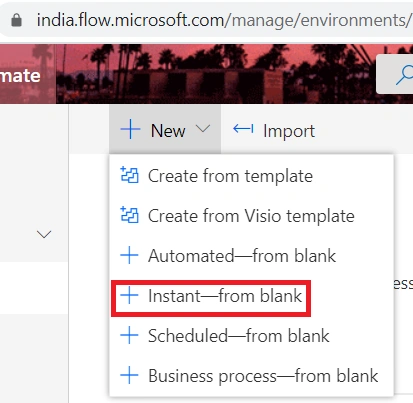
Click on Instant--from blank
Step 2
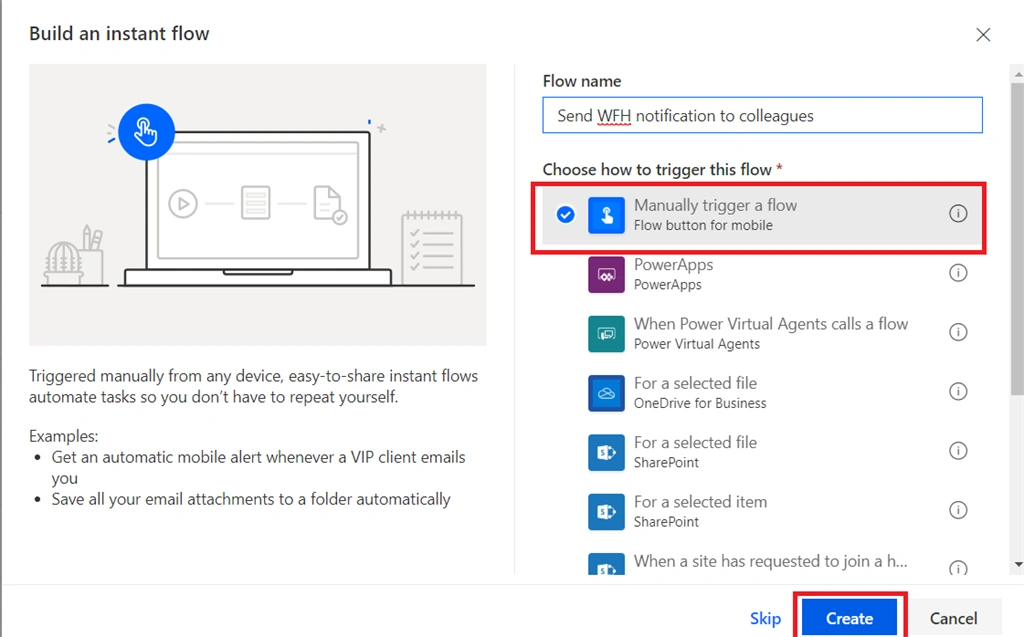
Step 3
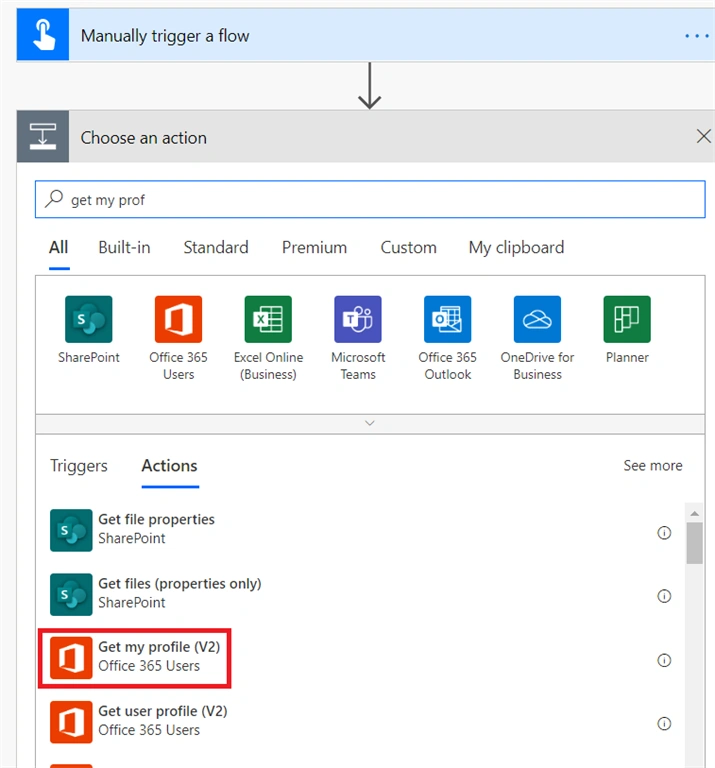
Click on next, find and select the “Get My Profile (V2)” action.
Step 4
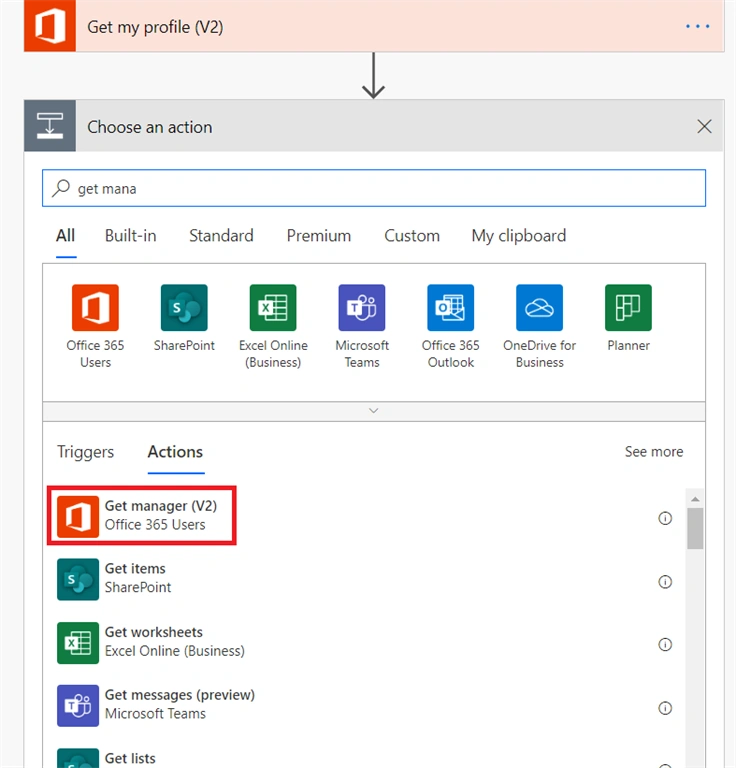
Click on next, find and select the “Get Manager (V2)” action.
Step 5
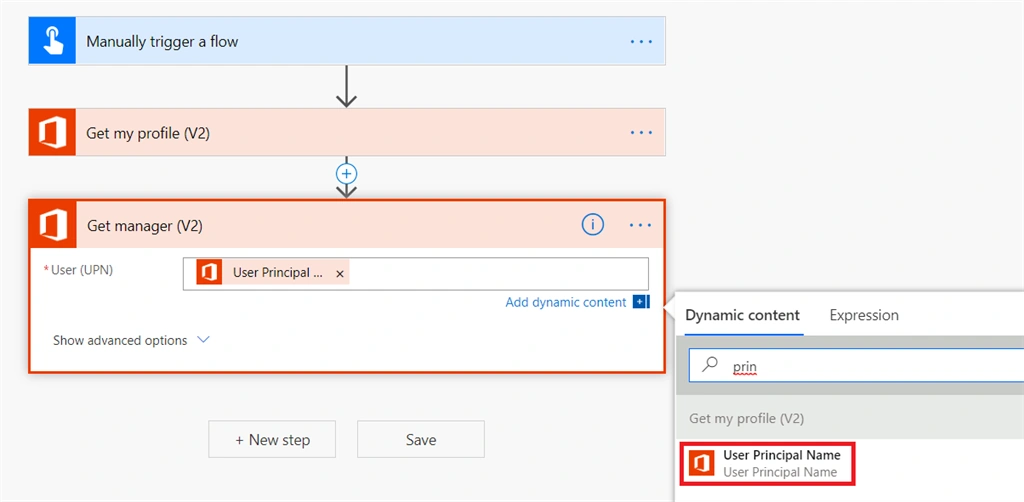
Expand Get Manager Connector box and select "UserPrincipleName" in User (UPN) Textbox or in expression
body('Get_my_profile_(V2)')?['userPrincipalName']
Step 6
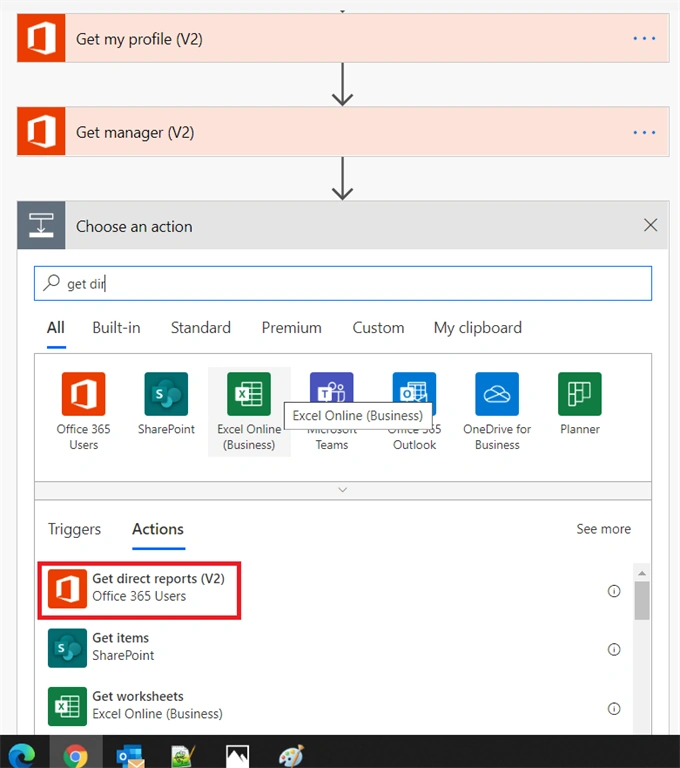
Click on next, find and select the “Get Direct Reports(V2)” action.
Step 7
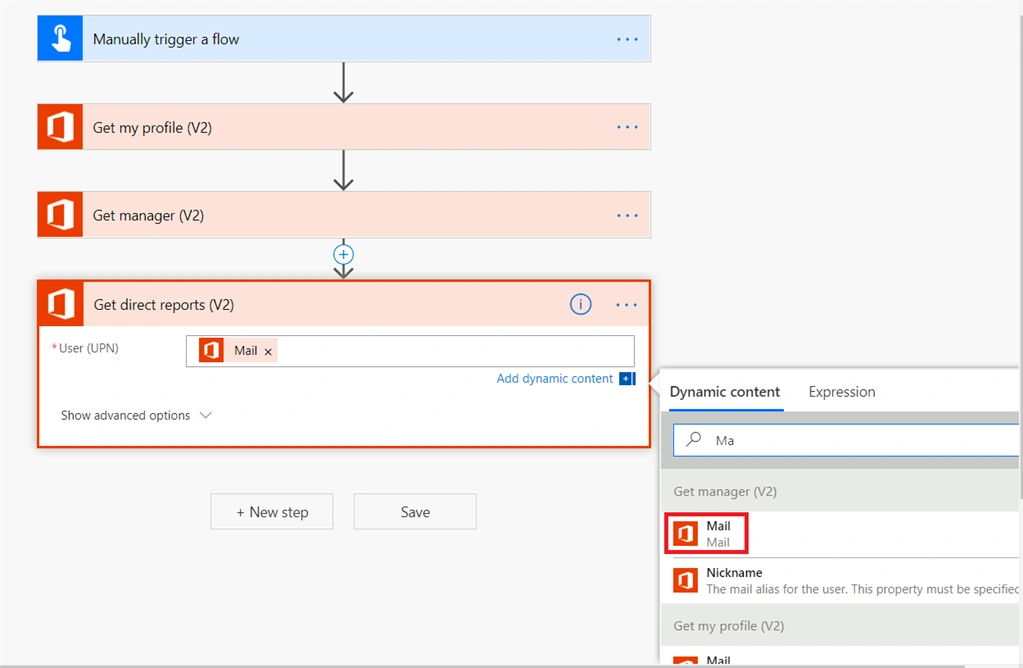
Expand Get Direct reports Connector box and select "Mail" in User (UPN) Textbox or in expression
body('Get_manager_(V2)')?['mail']
Step 8
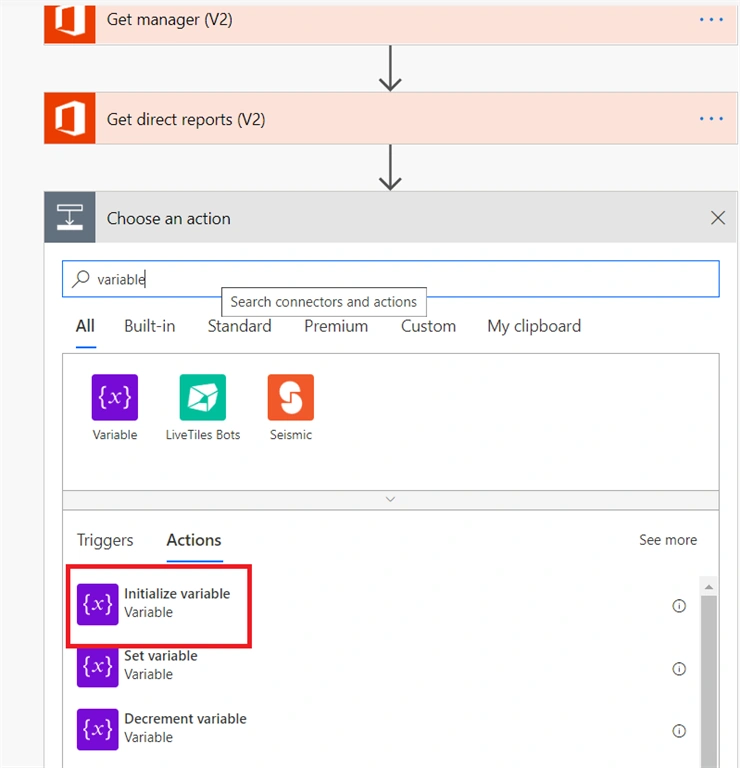
Click on next, find and select the “Intialize variable" action.
Step 9
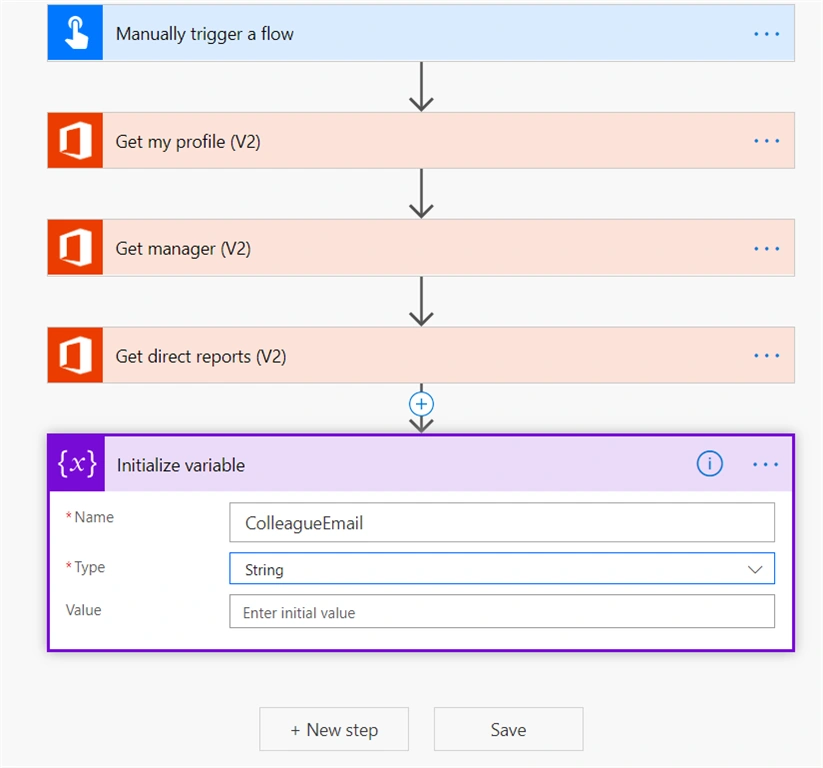
Step 10
Click on Next Step and find and select the “Apply to Each” action.
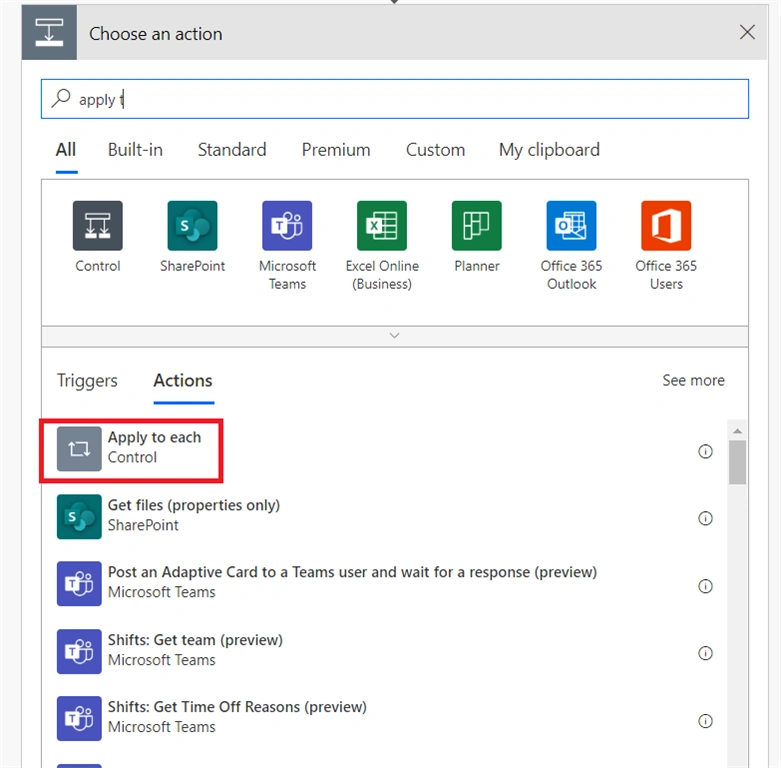
Step 11
In "Apply to Each" box set value from previous output.
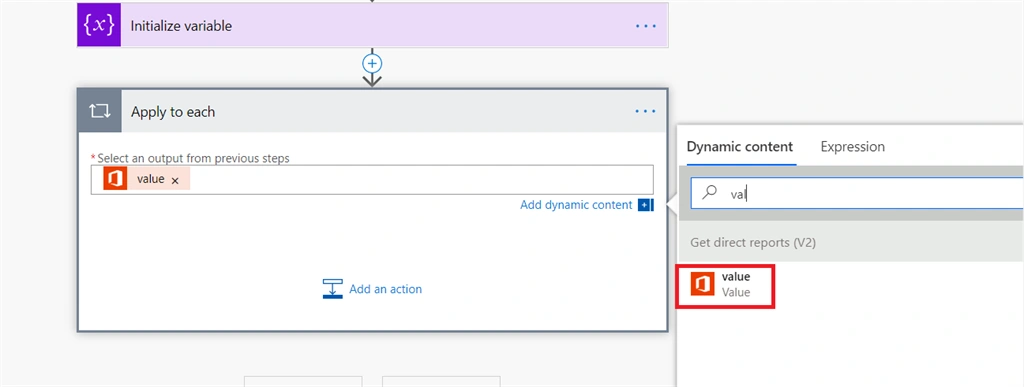
Step 12
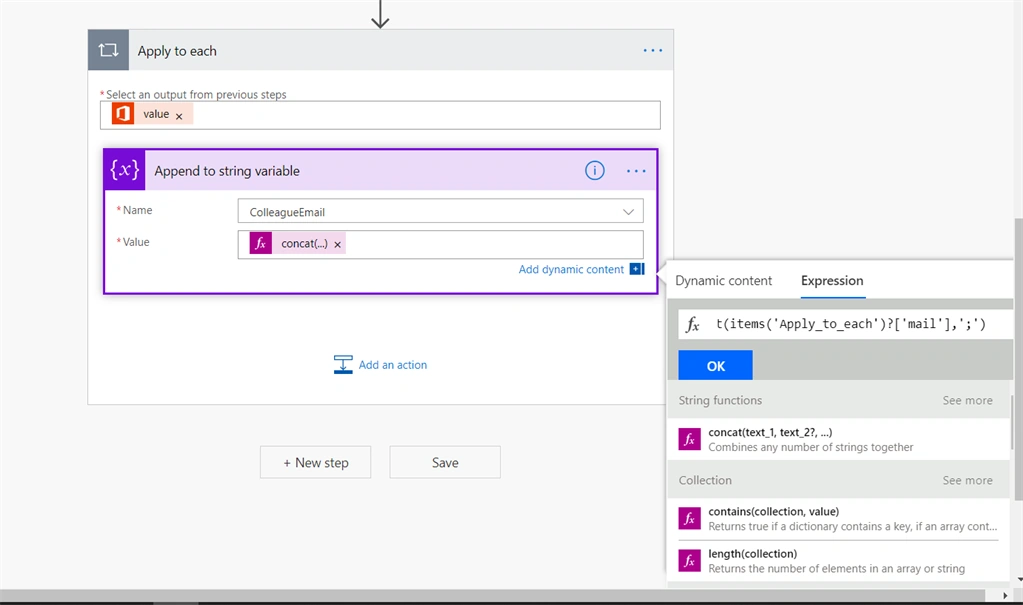
Inside "Apply to Each" box Click on Next Step and find select the “Append to string varaible” action.
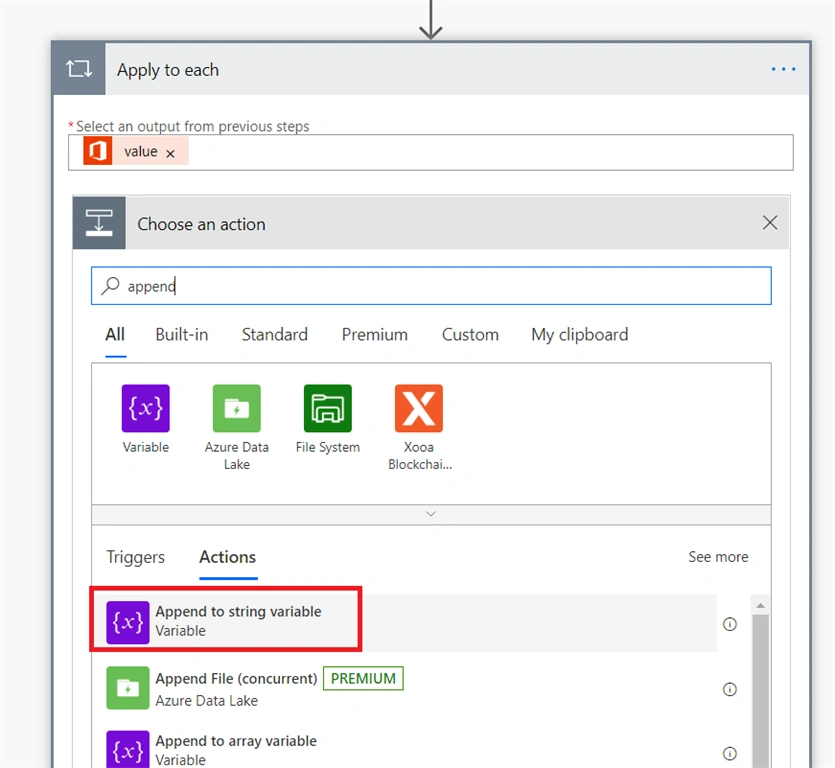
Step 13
concat(items('Apply_to_each')?['mail'],';')
Step 14
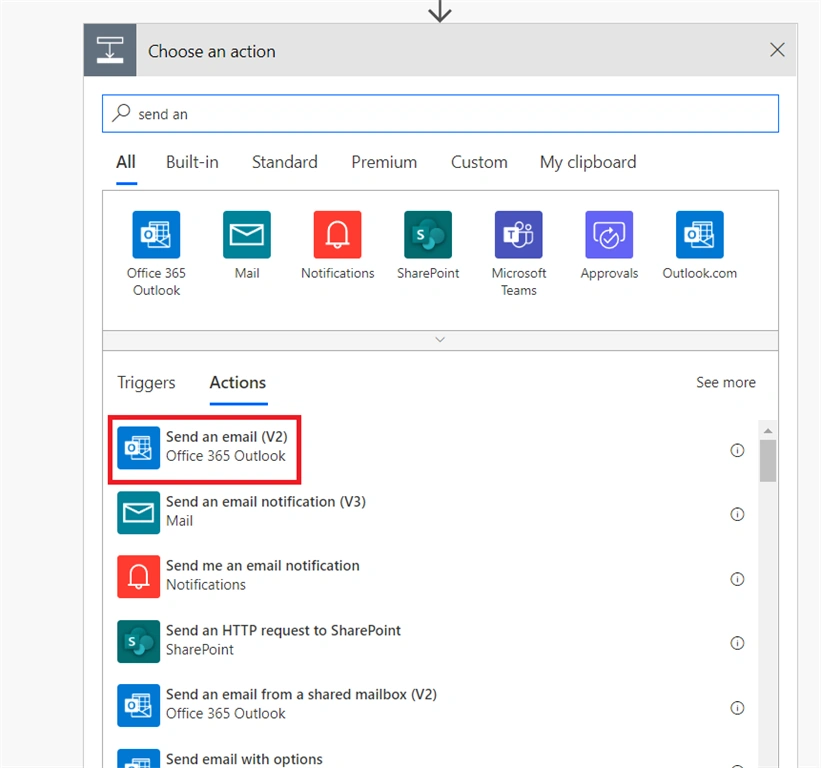
Click on Next Step and find and select the “Send an Email V2” action.
Step 15
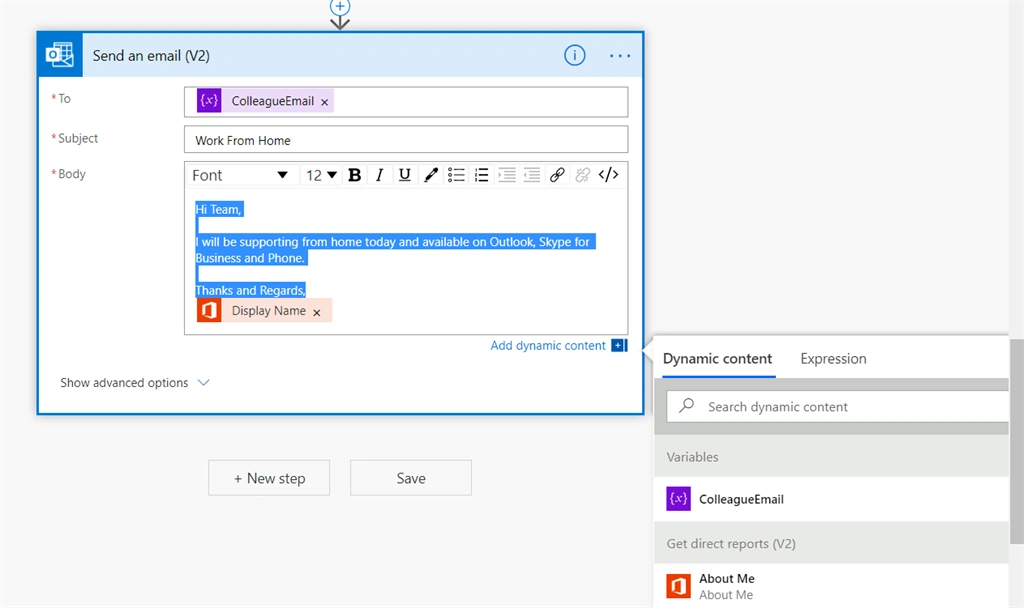
Set the email address from the output of "ColleagueEmail" and set the subject and email formatting as per your needs.
Step 16
Click on Save Flow.
Step 17
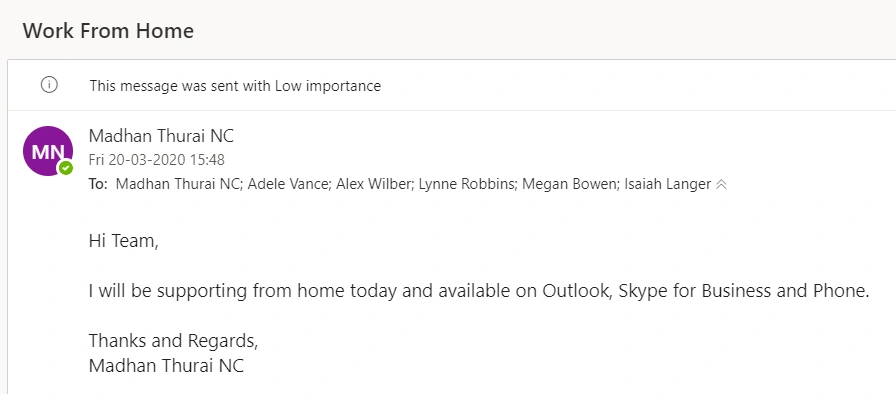
To test the flow, click on the Test button from the right side of the top menu and click the Run flow button. Then click the done button and verify the email .
Step 18
Expected output
Conclusion
Hence we learned about how to automate work from home notifications using power automate (Formerly MS Flow). I hope this helps someone, and happy coding.
Madhan ThuraiPosted Mar 25, 2020, 10:20 PM
You can use when an http request recieved trigger,this is an sample,you can use as per your needs
shyam kumarPosted Mar 25, 2020, 2:35 PM
How can we trigger this from any button on sharepoint page?