

Here in this article I have shown how to send an email using HTML template.
For this I have created one ASP.NET empty website.
Added one webform(default.aspx).
Added one HTML form(HtmlTemplate.html).
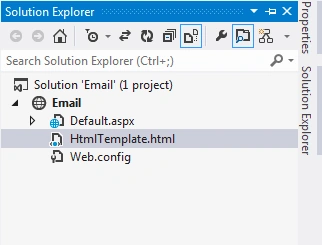
Here I have shown my solution explorer.
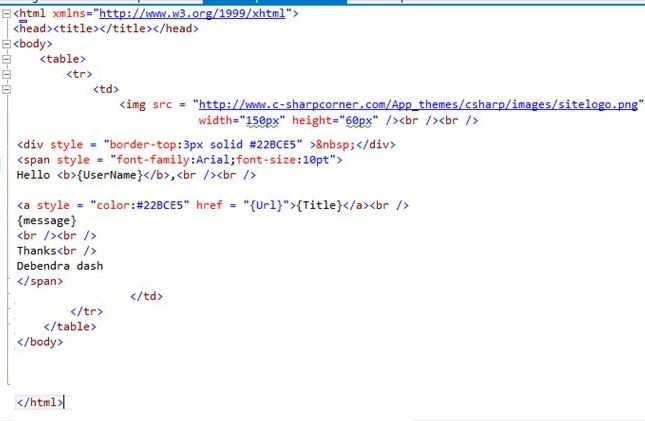
I have designed my htmlTemplate.html as follows.
I have designed my htmlTemplate.html as follows.
- <html xmlns="http://www.w3.org/1999/xhtml">
- <head>
- <title></title>
- </head>
- <body>
- <table>
- <tr>
- <td>
- <img src="http://www.c-sharpcorner.com/App_themes/csharp/images/sitelogo.png" width="150px" height="60px" />
- <br />
- <br />
- <div style="border-top:3px solid #22BCE5"> </div>
- <span style="font-family:Arial;font-size:10pt">
- Hello <b>{UserName}</b>,<br /><br />
- <a style = "color:#22BCE5" href = "{Url}">{Title}</a><br />
- {message}
- <br /><br />
- Thanks<br />
- Debendra dash
- </span>
- </td>
- </tr>
- </table>
- </body>
- </html>
The Yellow mark text should be replaced at run time.
Here I have attached the screenshot.
Here I have attached the screenshot.
Now in the "default.aspx", I have the following design view to send an email.
- <body>
- <form id="form1" runat="server">
- <div>
- <table>
- <tr>
- <td>
- Name
- </td>
- <td>
- <asp:TextBox ID="txt_name" Width="200px" runat="server"></asp:TextBox>
- </td>
- </tr>
- <tr>
- <td>
- Email Id
- </td>
- <td>
- <asp:TextBox ID="txt_email" Width="200px" runat="server"></asp:TextBox>
- </td>
- </tr>
- <tr>
- <td>
- Message
- </td>
- <td>
- <asp:TextBox ID="txt_message" Width="200px" runat="server" TextMode="MultiLine" Height="60px"></asp:TextBox>
- </td>
- </tr>
- </table>
- <asp:Button ID="btnSend" runat="server" Text="Send Email" OnClick="SendEmail" />
- </div>
- </form>
- </body>

Here is my code in default.aspx.cs.
- using System;
- using System.Collections.Generic;
- using System.Linq;
- using System.Web;
- using System.Web.UI;
- using System.Web.UI.WebControls;
- using System.Net.Mail;
- using System.Configuration;
- using System.IO;
- public partial class _Default: System.Web.UI.Page
- {
- protected void SendEmail(object sender, EventArgs e)
- {
- //calling for creating the email body with html template
- string body = this.createEmailBody(txt_name.Text, "Please check your account Information", txt_message.Text);
- this.SendHtmlFormattedEmail("New article published!", body);
- }
- private string createEmailBody(string userName, string title, string message)
- {
- string body = string.Empty;
- //using streamreader for reading my htmltemplate
- using(StreamReader reader = new StreamReader(Server.MapPath("~/HtmlTemplate.html")))
- {
- body = reader.ReadToEnd();
- }
- body = body.Replace("{UserName}", userName); //replacing the required things
- body = body.Replace("{Title}", title);
- body = body.Replace("{message}", message);
- return body;
- }
- private void SendHtmlFormattedEmail(string subject, string body)
- {
- using(MailMessage mailMessage = new MailMessage())
- {
- mailMessage.From = new MailAddress(ConfigurationManager.AppSettings["UserName"]);
- mailMessage.Subject = subject;
- mailMessage.Body = body;
- mailMessage.IsBodyHtml = true;
- mailMessage.To.Add(new MailAddress(txt_email.Text));
- SmtpClient smtp = new SmtpClient();
- smtp.Host = ConfigurationManager.AppSettings["Host"];
- smtp.EnableSsl = Convert.ToBoolean(ConfigurationManager.AppSettings["EnableSsl"]);
- System.Net.NetworkCredential NetworkCred = new System.Net.NetworkCredential();
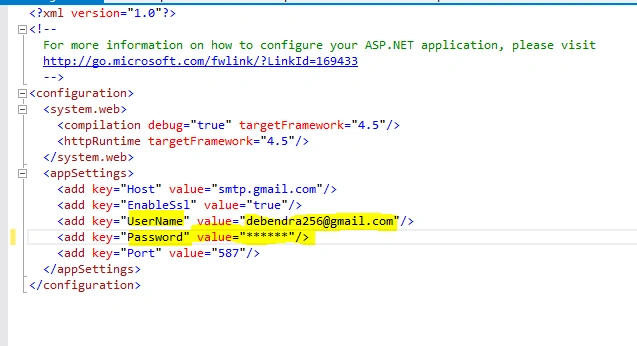
- NetworkCred.UserName = ConfigurationManager.AppSettings["UserName"]; //reading from web.config
- NetworkCred.Password = ConfigurationManager.AppSettings["Password"]; //reading from web.config
- smtp.UseDefaultCredentials = true;
- smtp.Credentials = NetworkCred;
- smtp.Port = int.Parse(ConfigurationManager.AppSettings["Port"]); //reading from web.config
- smtp.Send(mailMessage);
- }
- }
- }
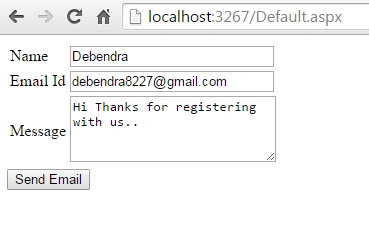
Now save and run the project by filling the form.
After clicking the Send Email button check your email. You will get the HTML designed mail. Here is the mail I received.
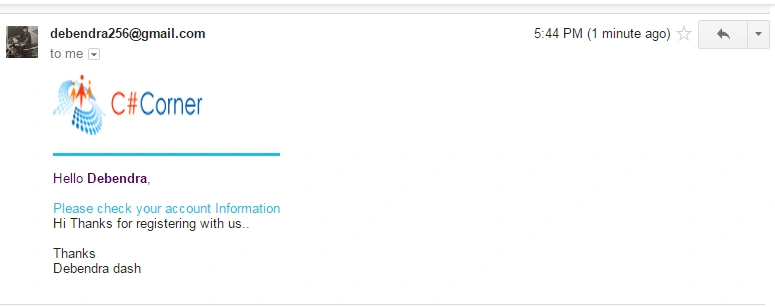
In this way we can send an email with any type of HTML design.
asif rahimanPosted Jan 10, 2023, 6:01 PM
How to populate order details to email template
Yogesh MhadgutPosted Aug 20, 2019, 4:55 AM
Template image not show in outlook
Adarsh SinghPosted Jun 28, 2019, 8:03 AM
This article's is helpful for me thanks for share..............
ritavrat DwivediPosted Mar 6, 2019, 6:29 AM
Hi, When I send mail through SMTP of Gmail as same as you did above instead of the body HTML page is rendered in the mail.Please help why this is happening
vishal fondekarPosted Sep 22, 2018, 2:26 AM
Add redirect page along with google captcha
Bala PrasathPosted Apr 24, 2018, 12:34 AM
Nice codding.. Good work...................
Anthony GriggsPosted Feb 16, 2018, 11:19 AM
Very nice thank you! The only thing I would have added was an attachment example... but it wasn't hard to find this as you had already supplied the MailMessage class
munish pandiPosted Dec 5, 2017, 1:54 AM
Thank u so much but i want send javascript too in email body.. Can u help me
Sreejith kcPosted Jul 10, 2017, 1:30 AM
Good work....................
Harvey BirdmanPosted Jun 3, 2017, 10:33 PM
Great Work!! thanks!
Jindam SAIKIRANPosted Feb 1, 2016, 7:18 AM
thanx so much buddy/Sir......nice tutorial................
DanielPosted Oct 19, 2015, 3:09 PM
Great, good job!!
Santhakumar MunuswamyPosted Oct 18, 2015, 3:28 AM
Good one
Gowtham KPosted Oct 13, 2015, 11:50 AM
Good One
Gopi ChandPosted Oct 13, 2015, 11:11 AM
Nice read
RakeshPosted Oct 13, 2015, 10:32 AM
Good share
Vinodh NarayananPosted Oct 13, 2015, 6:00 AM
nice share
Nilesh JadavPosted Oct 13, 2015, 3:07 AM
Nice one sir
Ravi PatelPosted Oct 13, 2015, 3:07 AM
nice thanks for sharing
Mukesh KumarPosted Oct 13, 2015, 2:50 AM
Great, good job
Raja TPosted Oct 13, 2015, 2:19 AM
Nice, Thanks for sharing
Harshad PansuriyaPosted Oct 13, 2015, 2:08 AM
Nice one
Rajeesh MenothPosted Oct 13, 2015, 2:04 AM
Good One