Introduction
Sending recurring emails is important for keeping in touch with customers and stakeholders. Hangfire in .NET Core Minimal APIs make it easy to automate this process.
What is hangfire?
Hangfire is an open-source and well-documented task scheduler for ASP.NET and ASP.NET Core and is completely free for commercial use. It's multi-threaded, easily scalable, and offers a variety of job types. It's well-structured, simple to use, and gives a powerful performance.
Why is hangfire used?
It is mainly used to perform background tasks such as batch/email notification, batch import of files, video/image processing, database maintaining, file purging, etc. Hangfire can be used for background tasks with high/low CPU consumption, short/long-running tasks, recurring jobs, fire and forget, and many more.
Different types of jobs in hangfire
Different types of jobs are available in Hangfire.
- Fire-and-forget jobs: Fire-and-forget jobs are executed only once and almost immediately after creation.
- Delayed jobs: Delayed jobs are executed only once, but not immediately, after a specific time interval.
- Recurring jobs: Recurring jobs fire many times on the specified CRON schedule.
- Continuations: Continuations are executed when the parent job has been finished.
Let's create a new ASP.NET Core Web API 8 project in Visual Studio 2022.
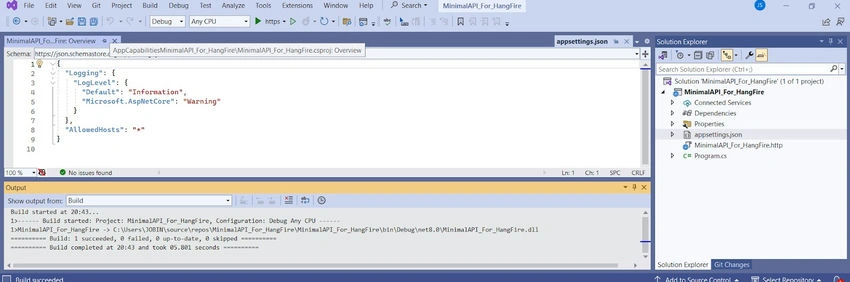
Implementation of the SendMail message integration.
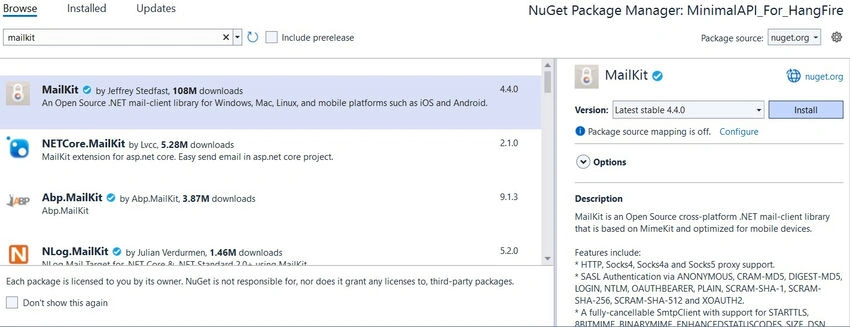
Install the below NuGet packages
MailKit
The main configuration setup for your application's appsettings.json file.
  "EmailSettings": {
    "Email": "yourfrommail",
    "Password": "gmailapppaswords",
    "Host": "smtp.gmail.com",
    "Displayname": "SampleDisplayName",
    "port": 587
  }
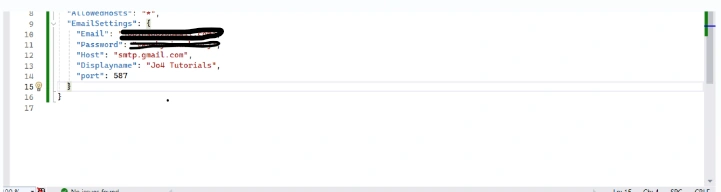
EmailSettings Configuration
We create the EmailSettings class.
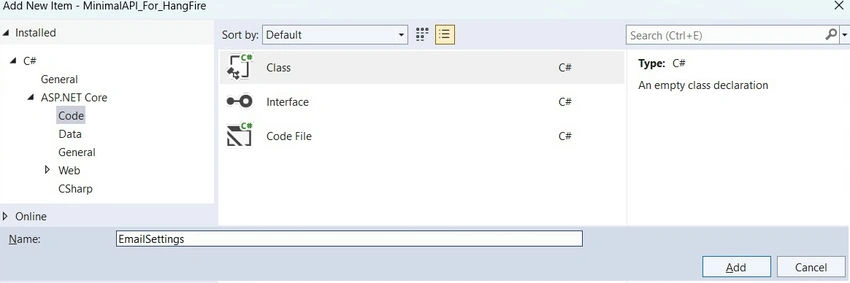
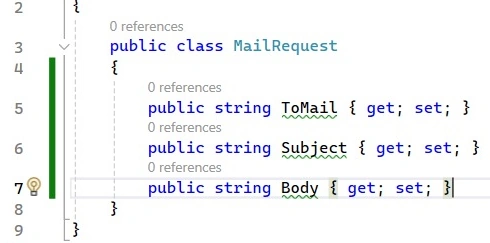
MailRequest Class
Create purpose of Sendmail function request Object.
public async Task SendMail(MailRequest mailrequest)
{
    var email = new MimeMessage();
    email.Sender = MailboxAddress.Parse(emailSettings.Email);
    email.To.Add(MailboxAddress.Parse(mailrequest.ToMail));
    email.Subject = mailrequest.Subject;
    var builder = new BodyBuilder();
    builder.HtmlBody = mailrequest.Body;
    email.Body = builder.ToMessageBody();
    using var smtp = new SmtpClient();
    smtp.Connect(emailSettings.Host, emailSettings.Port, MailKit.Security.SecureSocketOptions.StartTls);
    smtp.Authenticate(emailSettings.Email, emailSettings.Password);
    await smtp.SendAsync(email);
    smtp.Disconnect(true);
}
Step 1
- We create a MimeMessage object, which represents an email message.
- We set the sender's email address to the one specified in the email settings.
- We add the recipient's email address, subject, and body to the email message.
Step 2
- We create a BodyBuilder object, which helps us build the body of the email.
- We set the HTML body of the email to the one specified in the MailRequest object.
Step 3
- We create a SmtpClient object, which is responsible for sending the email.
- We connect to the SMTP server specified in the email settings (e.g., Gmail's SMTP server) using the host and port provided.
- We authenticate with the SMTP server using the email address and password provided.
- We send the email asynchronously using the SendAsync method of the SmtpClient.
- Finally, we disconnected from the SMTP server after sending the email.
public class Recurring_jobs
{
    private readonly IEmailService emailService;

    public Recurring_jobs(IEmailService emailService)
    {
        this.emailService = emailService;
    }

    public async Task Pushmail()
    {
        MailRequest mailreq = new MailRequest();
        mailreq.ToMail = "YourSendmail";
        mailreq.Subject = "Valid Offer Ending Soon";
        mailreq.Body = GetHtml();
        await emailService.SendMail(mailreq);
    }

    private string GetHtml()
    {
        string emailContent = @"
<div style=""width: 80%; margin: auto; padding: 20px; border: 1px solid #ccc; border-radius: 5px;"">
<h1 style=""color: #333;"">Hurry! Limited Time Offer Ending Soon!</h1>
<p style=""color: #666;"">Dear User,</p>
<p style=""color: #666;"">We hope this email finds you well.</p>
<p style=""color: #666;"">This is a friendly reminder that our special offer on Minimal API is ending soon.</p>
<p style=""color: #666;"">Offer Details:</p>
<ul style=""color: #666;"">
    <li>Discount: 50%</li>
    <li>Validity: 5 Days</li>
</ul>
<p style=""color: #666;"">Don't miss out on this opportunity to enroll in Minimal API  at a discounted rate.</p>
<p style=""color: #666;"">Act fast and secure your spot before the offer expires on 14-04-2024.</p>
<p style=""color: #666;"">For more information or to enroll, visit C#corner.</p>
<p style=""color: #666;"">Thank you for choosing C# Corner!</p>
<p style=""color: #666;"">Best Regards,</p>
<p style=""color: #666;"">JobinS<br>Content creator<br>C# Corner</p>
</div>";
        return emailContent;
    }
}
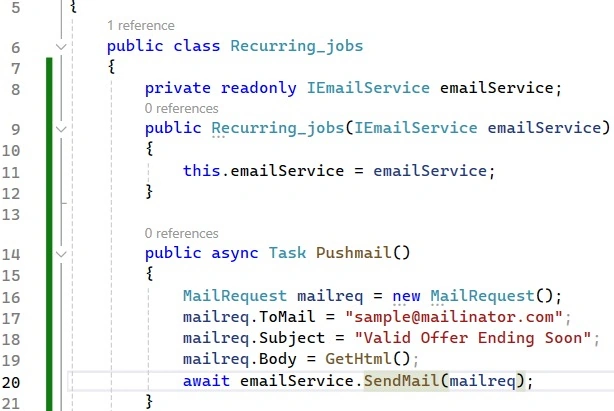
In this section, the 'ToMail' address specifies the recipient of the email, while the 'Subject' line indicates the heading related to our templated content. The 'Body' of the email is constructed using an HTML string template.
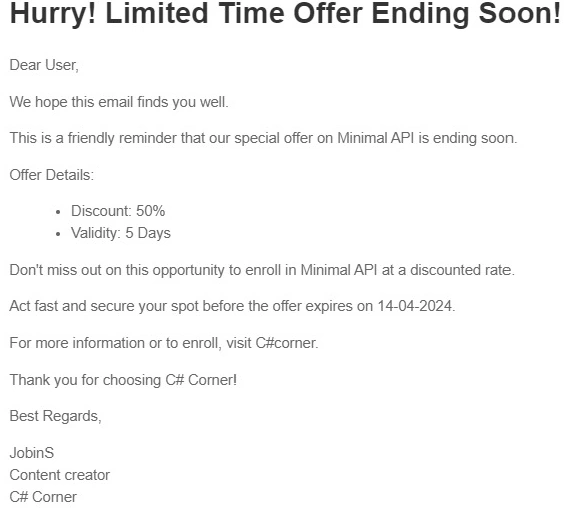
The GetHtml() function generates the HTML template used for composing the body of the email. This template contains the formatted content and styling that will be included in the email message, such as information about the offer ending soon. The generated HTML serves as the visual representation of the email's content when it is received by the recipient.
Note. Integrate Hangfire into the .NET application
Install the below NuGet packages
- Hangfire.AspNetCore
- Hangfire
- HangFire.InMemory

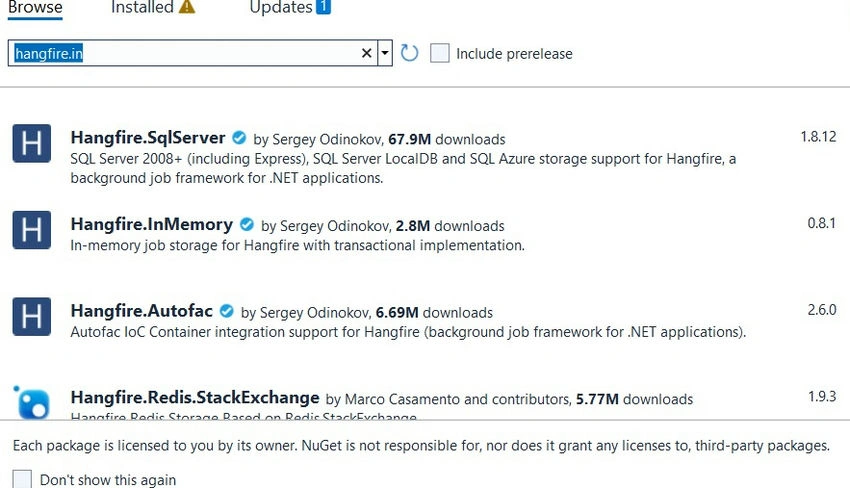
The configuration setup for Hangfire in the Program.cs file.
builder.Services.AddHangfire(configuration => configuration
    .UseSimpleAssemblyNameTypeSerializer()
    .UseRecommendedSerializerSettings()
    .UseInMemoryStorage());
Run the dotnet run command to start the app.
Now, navigate to the URL shown in the console, e.g., http://localhost:5026, to view the Hangfire dashboard.
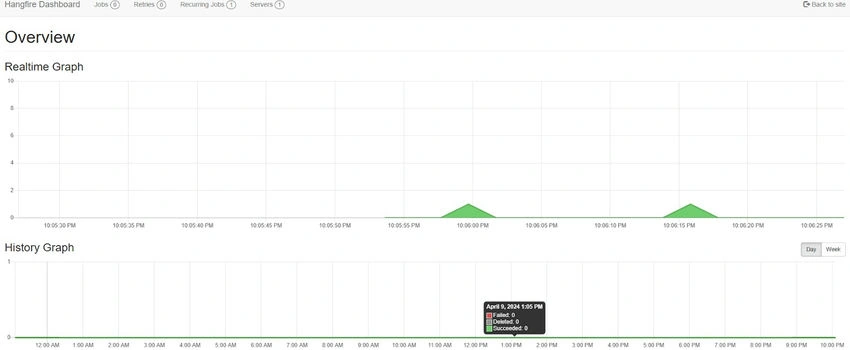
The result in the recipient email should look like this.
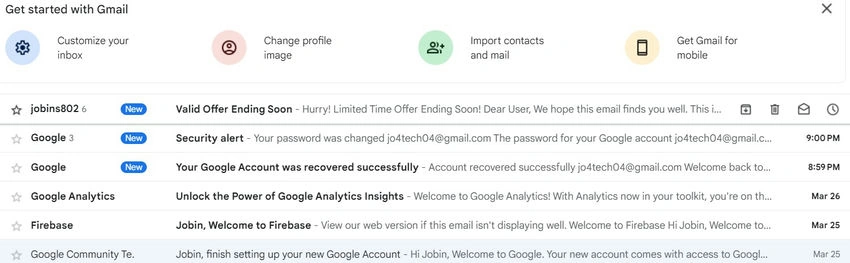
This is the final output for recurring jobs in email push notifications every 15 seconds.
.NET Core Minimal API Source Link: https://github.com/jobin4jo/MinimalAPI_For_HangFire.
Summary
In this article, we looked at Hangfire, which we have used in .NET 8 minimal API to schedule background jobs. Hoping you understand the things related to Hangfire.
Using Hangfire with .NET Core Minimal APIs makes it easy to schedule and send recurring emails. This helps organizations communicate effectively and engage with their audience. By automating these processes, businesses can improve efficiency and provide better experiences for users.


Join the conversation! Your thoughts help the community grow.