

Introduction
This article shall describe the construction of three custom controls; each is used to format its text content to be either all upper case, all lower case, title case, or normal (as typed) case regardless of the format of the input. Such controls may be useful if it is necessary to load the control's text from a source in which the values are in the wrong case; for example, if one were to load a listbox from a column in a database where all of the values were stored as all upper case strings but the desire was to display the text using title case, the Case List control contained in the sample project will make the conversion once the values are loaded into its list.
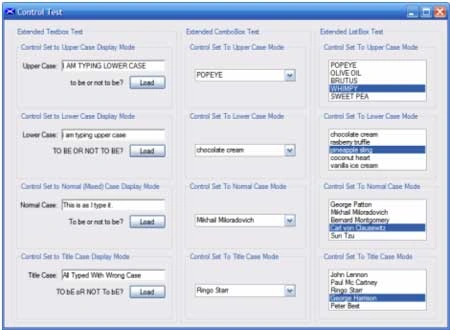
Figure 1: The Case Controls in Use.
Getting Started
The Case Controls solution contains two projects. The first project is called "CaseControls_VB" and it contains three extended controls (the RichTextBox, the ListBox, and the ComboBox). Each of the controls was extended such that the modified version offered the option of formatting the text contained is the control into one of four options (Upper Case, Lower Case, Normal Case, and Title Case). The second project is called "TestCaseControl_VB" and it is provided to demonstrate use of the controls in a Win Forms application.
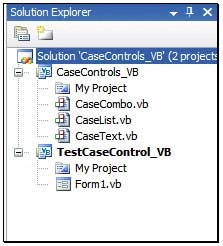
Figure 2: Solution Explorer with
Both Projects Visible.
The Case Controls Project
Code: Case Text
The CaseText control is an extended version of the RichTextBox control; this control was extended such that text sent to the control or keyed directly into it is immediately formatted into one of the four available options (Upper Case, Lower Case, Normal Case, or Title Case). In use, the developer may drop the control onto a form and set a single property "TextCase" that is used by the control to determine how to format the text.
The control is built in a single class entitled "CaseText". The class begins with the following imports and class declaration:
Imports System
Imports System.Collections
Imports System.ComponentModel
Imports System.Data
Imports System.Drawing
Imports System.Text
Imports System.Windows.Forms
Imports System.Globalization
Imports System.Threading
Public Class CaseText
Inherits RichTextBox
The class is declared to inherit from the RichTextBox control. By inheriting from the RichTextBoxcontrol, all of the functionality of that control is included. After declaring the class, the next section of code is used to declare an enumeration defining the case mode options, a private member variable used to hold the currently selected text case mode, and a public property used to set or retrieve the selected case mode:
''' <summary>
''' Enumeration of case type options
''' </summary>
''' <remarks></remarks>
Public Enum CaseType
Title
Upper
Lower
End Enum
''' <summary>
''' Set the current case type for the control;
''' default to normal case
''' </summary>
''' <remarks></remarks>
Private mCaseType As CaseType = CaseText.CaseType.Normal
''' <summary>
''' property used to maintain current case type
''' </summary>
''' <value></value>
''' <returns></returns>
''' <remarks></remarks>
Public Property TextCase() As CaseType
Get
Return mCaseType
End Get
Set(ByVal value As CaseType)
mCaseType = value
End Set
End Property
The next block of code contains the default constructor; since this control is intended to serve as either a textbox or a richtextbox, the control's constructor contains a bit of code to make the control look more like a standard textbox control when it is created (the multi-line property is set to false and the height is set to 20). The initialize component method also includes the addition of a text changed event handler:
''' <summary>
''' Default constructor
''' </summary>
''' <remarks></remarks>
Public Sub New()
' This call is required by the Windows Form Designer.
InitializeComponent()
Me.Text = String.Empty
Me.Multiline = False
Me.Height = 20
End Sub
The last bit of code required by the control is the text changed event handler which is used merely to call a method used to update the case of the text based upon the selected case mode property. Since this method is called whenever text changed event fires, the textbox will update the case as the user types. When the UpdateTextCase method is called, the method stores the text currently contained in the control and it stores the position of the insert cursor. The copy of the text placed in the string varible is operated on within the method and then is used to replace the text contained in the control. The position of the insert is stored so that the cursor may be restored to its original position after the text has been replaced. This supports edits made to sections of the string other than the end or beginning of the string.
''' <summary>
''' Call the Update Text Case function each time
''' the text changes
''' </summary>
''' <param name="sender"></param>
''' <param name="e"></param>
''' <remarks></remarks>
Private Sub CaseText_TextChanged(ByVal sender As System.Object, ByVal e AsSystem.EventArgs) Handles MyBase.TextChanged
UpdateTextCase()
End Sub
''' <summary>
''' Depending upon the Case Type selected,
''' process the textbox accordingly
''' </summary>
''' <remarks></remarks>
Private Sub UpdateTextCase()
Dim sControlText As String = Me.Text
Dim cursorPosition As Integer = Me.SelectionStart
Select Case (Me.TextCase)
Case CaseType.Lower
' convert to all lower case
Me.Text = Me.Text.ToLower()
Case CaseType.Normal
' do nothing
Case CaseType.Title
' convert to title case
Dim sTemp As String = Me.Text.ToLower()
Dim ci As CultureInfo = Thread.CurrentThread.CurrentCulture
Join the conversation! Your thoughts help the community grow.