

Introduction
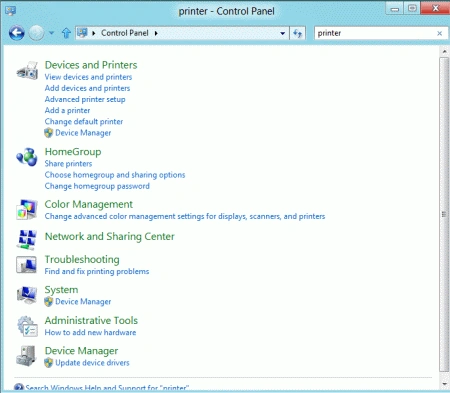
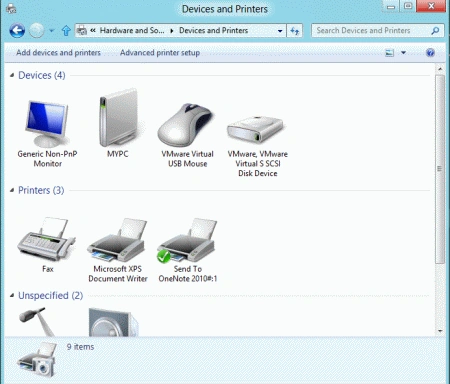
With Remote Desktop Connection, you can sit at one computer and connect to another computer in a different location. Remote Desktop is a feature providing a remote connection between computers over the internet in Windows 8 Consumer Preview. Windows 8 provides the Set Up Printer in Windows 8 Consumer Preview.
Set Up Remote Desktop Connection
Once connected, Remote Desktop gives you mouse and keyboard control over your computer while showing you everything that's happing on the screen. With the Remote Desktop in the Windows 8 Operating System, a Windows 8 user can easily control a computer from another computer. You can leave your computer at the office without losing access to your files and applications. The Windows 8 Remote Desktop provides Aero and multi-monitor support. With the help of a Remote Desktop connection, you can connect to your work from home and access all programs, files, and network resources.
But three requirements must be completed before enabling Windows 8 Remote Desktop. First Windows 8 should be installed on your computer containing those files and programs which you access and be a part of the corporate network permitting a Remote Desktop Connection. So it is called the host. Secondly, this computer must have the client Remote Desktop connection installed so it (the Remote Computer) is named as the client. Both host and client should be connected to the internet by a VPN connection. It does not matter, the actual IP of the host computer should be used for the VPN.
How to install the Windows 8 Remote Desktop Connection:
- Verify you are signed in as administrator.
- Click Start, then right-click on the computer and choose properties and you can press Win + Pause Break at the same time.
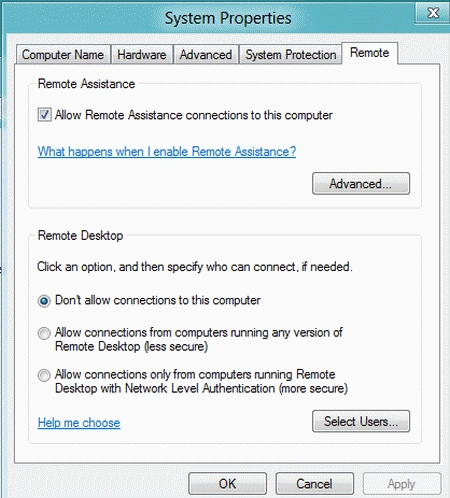
- Choose Remote Setting in the Control Panel; a window pops up after clicking properties.
- After the third step, check "Allow Remote Assistance to this computer". Allow Connection only when computers running Remote Desktop with network-level authentication (more secure) or any version of Remote Desktop (less secure).
- after the above step click apply.
After completing all those steps, you are connected using Remote Desktop in Windows 8 and you can access any machine of your Windows 8 computers.
Remote Desktop is a Metro based full-screen application that allows users to add very important functionality to the system. A Remote Desktop is very useful for developers and other people working as a distributed team that needs to either collaborate their Desktop or help to each other. People of different related fields may need to perform various system tasks, perform system checks, install or uninstall software, manage permissions and provide other solutions to some users from another location.
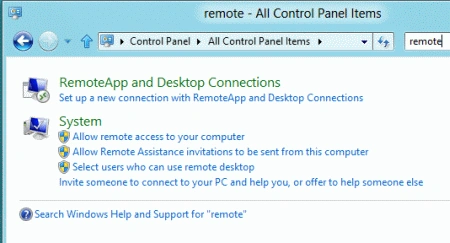
To set up a Remote Desktop Connection, open the Control Panel. For how to access the Control Panel, read the article. Type "Remote" in the search box and click "Select users who can use remote desktop".
Join the conversation! Your thoughts help the community grow.