

Overlay a Sharepoint calendar on another Sharepoint calendar
The procedure given below describes how to overlay one SharePoint calendar onto another SharePoint calendar. After you overlay the calendar, you can use this calendar to create a special calendar view.
To overlay a SharePoint calendar with another SharePoint calendar, follow the steps given below.
- In a SharePoint calendar, choose the Calendar tab, followed by selecting Calendar Overlay.

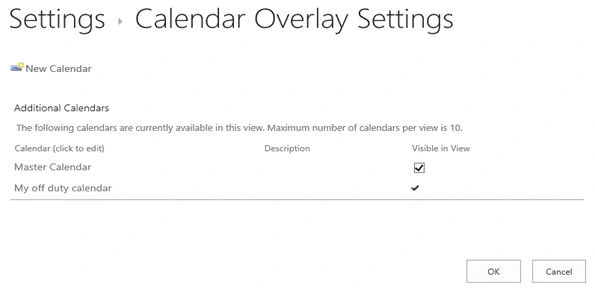
- In the Calendar Overlay Settings page, choose New Calendar.
- In the Name and Type section, type the calendar name and then select, as per the steps given below.
- In the Calendar Overlay Settings section, type a Description for the calendar (optional) and change the color theme for the calendar (optional).
- Type the Web URL for SharePoint site, so that the calendar is in a form such as https://contoso.com/TWGroupWorkSite/calendar and then select Resolve. If the calendar is in the same site as the group calendar, Web URL will already be populated accurately.
Select the list drop-down arrow and then select the calendar, which you want to add to the calendar. - Select the view, which you want to use from the List View options.
- If you want the overlaid SharePoint calendar to always display in SharePoint group calendar, select Always Show. When Always Show is not checked, you will be able to turn different overlay calendars on and off from the page. If it is checked, the overlay calendar will always appear on the page's calendar.
- Click OK to accept the overlay specification and then click OK to complete the process.
How to set the user defined colors for calendar events instead of default colors
SharePoint only allows you to create, apply and color-code 10 calendar overlays. The colors are controlled by CSS classes ms-acal-color1 to ms-acal-color9.You can override to the style, as shown below, followed by adding the style into a content editor Web part in the calendar view.
CSS code
- <style type="text/css">
- .ms-acal-color1{
- background-color:lime !important;
- }
- </style>
If you're just using the Web part view of a calendar overlay, the style given above style override is great. If you're using it on the standard calendar view page, you'll also want to update the style, which is used by the key ('apanel') in the left nav, so the colors match.
CSS code to change left panel calendar colors
- <style type="text/css">
- .ms-acal-color1{
- background-color:#CC9933 !important;
- }
- </style><style type="text/css">
- .ms-acal-apanel-color1{
- background-color:#CC9933 !important;
- }
Note
#CC9933 can change the color code, as per your desire.
Through content editor Web part in a page, we can apply the new colors to calendar overlay event.
Add a content editor Web part in a page
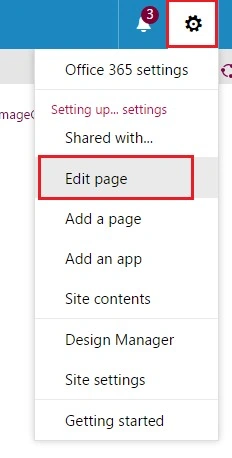
- Click Gear icon on right hand side top and then click Edit page.
Now, click Add a Web Part link.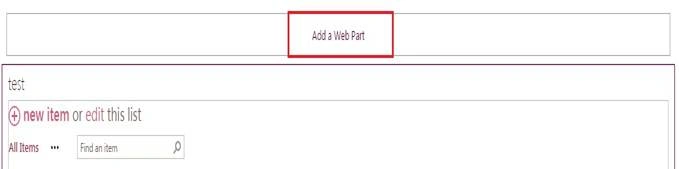
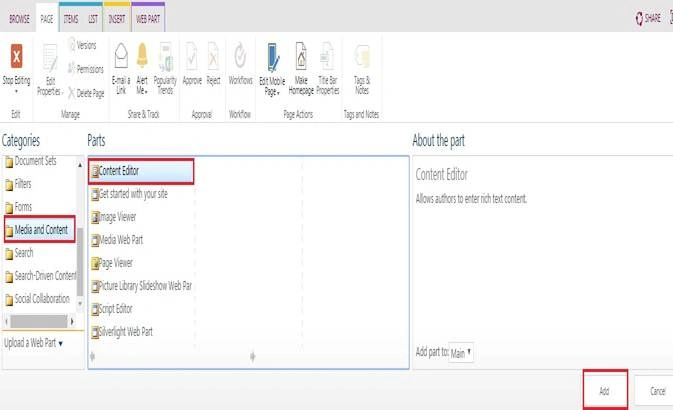
- Now, you need to select “Content Editor” Web part under the category Media and Content. Click Add.
- Click here to add new content.
- Click Edit Source.

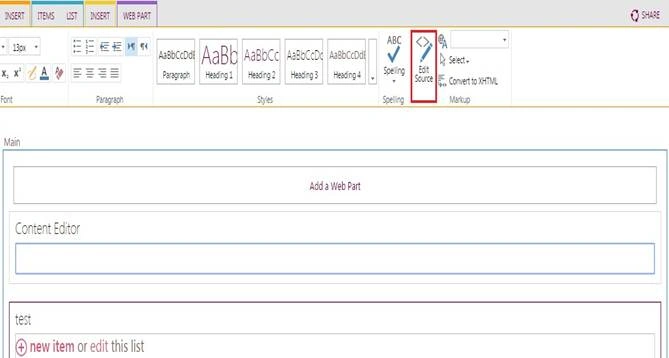
Add CSS code mentioned above in Edit Source page, followed by saving and closing the page.
In this article, I explained how to do a calender overlay and also to set the user defined color for the calender overlays.
Join the conversation! Your thoughts help the community grow.