

The Dynamics GP web service uses ISO codes to identify currencies in Microsoft Dynamics GP.
Note: Web Services for Microsoft Dynamics GP does not support using the same ISO code for more than one currency.
To add ISO codes, complete the following procedure:
Open the Currency Setup window in Microsoft Dynamics GP
- Choose Microsoft Dynamics GP menu, Tools, Setup, then System.
- Currency and enter the system password to display this window.
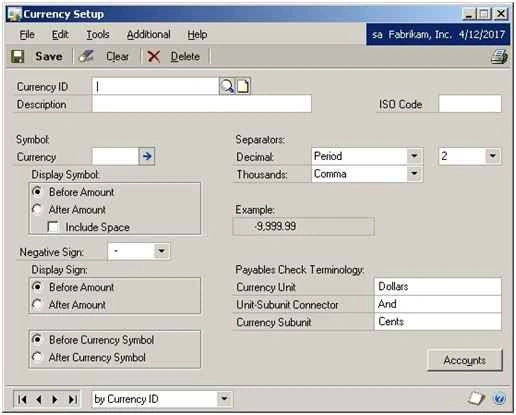
Display each currency
- Use the Currencies lookup to display each currency.
- Press (Ctrl + L) or click the search icon to display the following window.
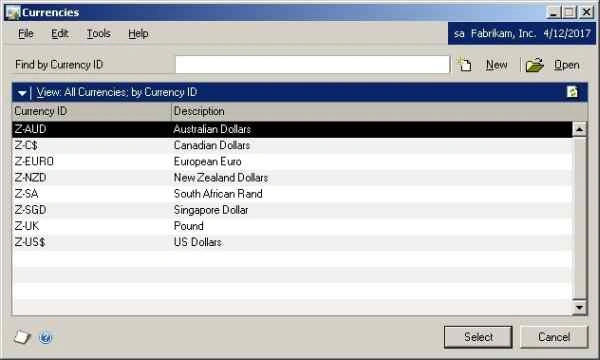
Select the Currency to set the ISO code
For e.g. select US Dollars, the following window appears.
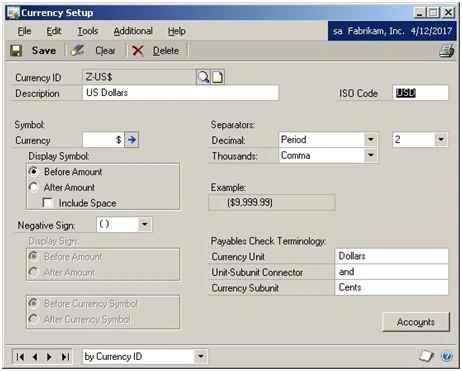
Enter the ISO value and save the currency
- Enter the code in the ISO Code Text Field.
- The following table lists the ISO values for the currencies commonly defined in Microsoft Dynamics GP:
ISO Code Country/Region Currency USD United States Dollars AUD Australia Dollars CAD Canada Dollars EUR European Union Euros JPY Japan Yen MXN Mexico Pesos SGD Singapore Dollars NZD New Zealand Dollars
5. Save and Exit.
After entering the ISO code save the Currency and close the window.
Now the Currency set up is finished and able to access through GP web services.
Refer the article here in my personal blog.
Bhuvanesh MohankumarPosted Apr 30, 2016, 3:14 PM
Good one...
Santhakumar MunuswamyPosted Oct 18, 2015, 4:49 AM
Good one
Sibeesh VenuPosted Oct 9, 2015, 1:13 AM
Nice Share
Nilesh JadavPosted Oct 8, 2015, 9:10 AM
Nice one !!
Harshad PansuriyaPosted Oct 8, 2015, 4:13 AM
Nice one
Rajeesh MenothPosted Oct 8, 2015, 3:56 AM
Good Start!, Welcome to C# Corner Community...!!!