

In the previous article, I have explained how to build FAQ based bot application using QnA maker for questions and answers. In this article, we will discuss how to set up the Bot Framework development environment and we are going to consume QnA maker Service.
This article will walk you through “How to set up a Bot Framework development environment using .NET (C#)” and test the bot application using Bot Framework Emulator.
Prerequisites
Navigate and place the Bot Application.zip template to the below path.
%USERPROFILE%\Documents\Visual Studio 2017\Templates\ProjectTemplates\Visual C#\
Navigate and place the Bot Controller.zip and Bot Dialog.zip template to the below path.
%USERPROFILE%\Documents\Visual Studio 2017\Templates\ItemTemplates\Visual C#\
Launch the Visual Studio
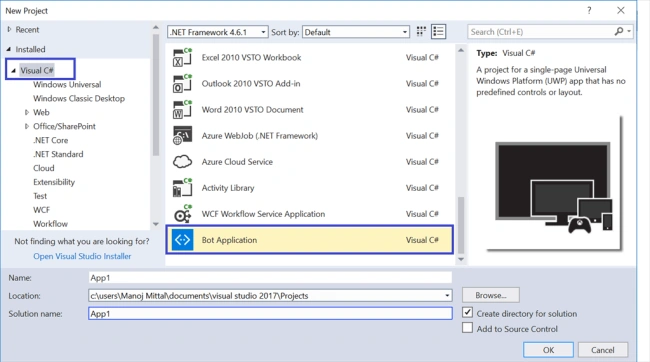
You can create a bot application using Visual Studio Bot Application template or download the Bot Application Solution created by Azure Portal using Bot Framework SDK. In the previous article, I have created the bot application in the Azure portal. I am going to download and update the solution.
Steps to get the Microsoft Azure Bot Application Solution
- Log in to Azure Portal, i.e., https://portal.azure.com and search for the created bot name (my bot name is bot2018).
- Select "Web App Bot" and you will be redirected to the "Web App Bot details" page.
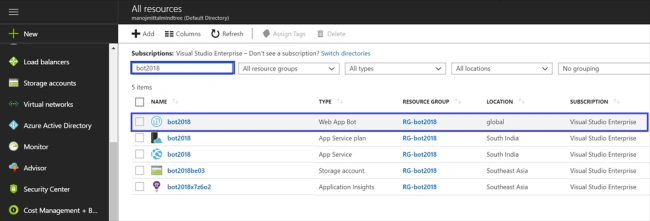
- Select Build under Bot Management. You get two options there.
- In the Online Code Editor Option, open the codebase into Visual Studio online.
- Download the source code using "Download Zip file" option.
Select the second option i.e. Download Zip file.
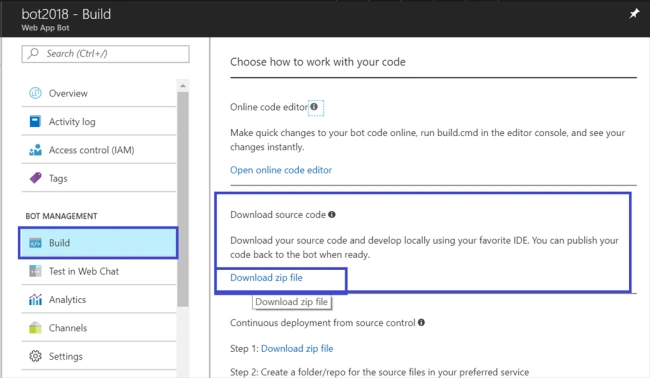
- Once you download the solution, unzip the source code.
- Launch the Visual Studio 2017 and go to File -> Open Project -> Select the solution.
- Expand the Reference Section. The All DLL or Packages link will be in broken mode. So, we need to update this with the latest version and packages.
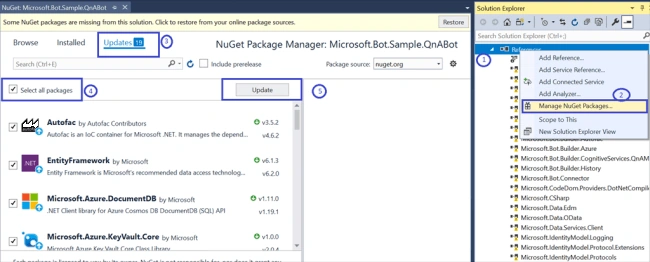
- Right-click the project and select "Manage NuGet Packages". Then, wait for a couple of seconds. The NuGet Package Manager will show the available updates. Select all packages and click "Update".
- Update Microsoft.Net.Compliers V2.6.1 to V1.2.1
- Add Key and Value under App Settings in the Web.Config file.
AzureWebJobsStorage, QnASubscriptionKey, QnAKnowledgebaseId. These values can be get from Azure Bot Application App Service Settings.- <add key="AzureWebJobsStorage" value="DefaultEndpointsProtocol=https;AccountName=bot2018019ada;AccountKey=TPainlj4hGSND3IjYuyP5234m5;"/>
- <add key="QnASubscriptionKey" value="2b523241d6b4a5c105a6e0ad7e"/>
- <add key="QnAKnowledgebaseId" value="453c2a2d-b423-4816-8544-130edf0f593"/>
- Navigate to Project -> Dialog folder -> Basic QnADialog.cs file. Replace below section two places using find and replace.
- Replace -> Utils.GetAppSetting("QnAKnowledgebaseId") with ConfigurationManager.AppSettings["QnAKnowledgebaseId"];
- Replace -> Utils.GetAppSetting("QnASubscriptionKey") with ConfigurationManager.AppSettings["QnASubscriptionKey"];
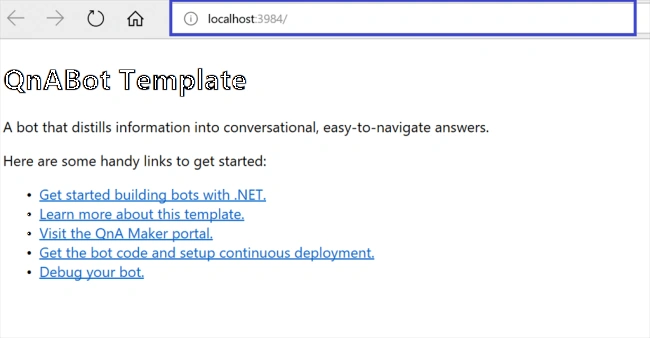
- Press F5 or Run the solution. VS solution executes on the localhost with port number.
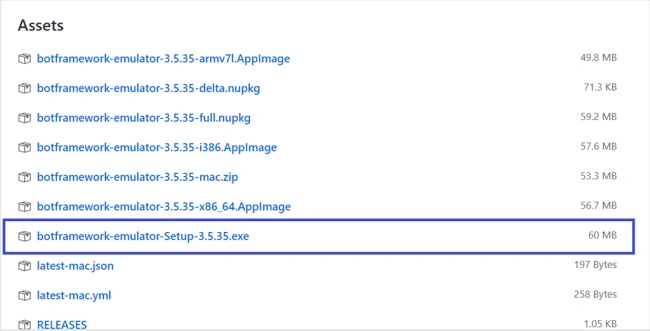
Download Bot Framework Emulator and install the executable.
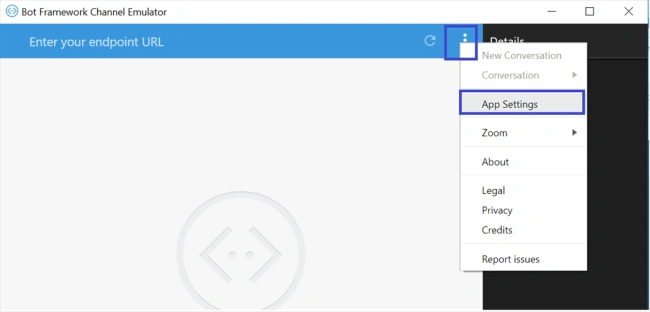
Open installed Bot Emulator. Select the Ellipses menu and click "App Settings".
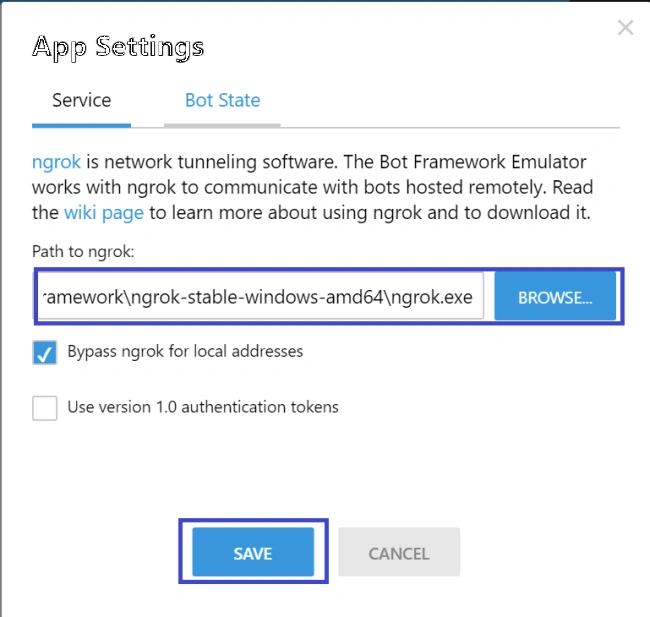
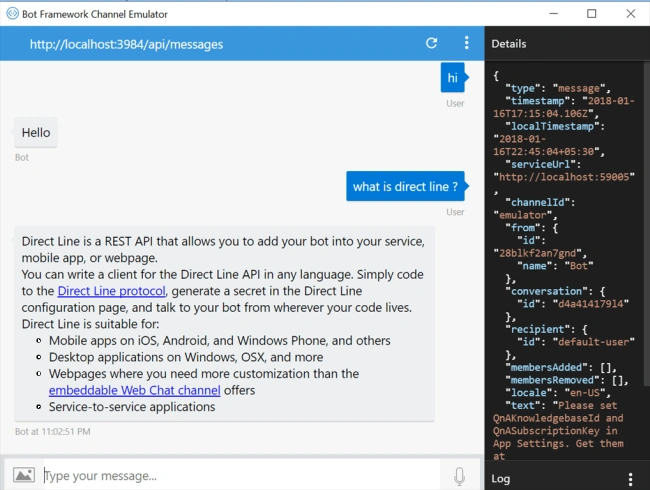
Response by Emulator
You can start asking the question as crawled by QnA Maker and you will get the response like below.
Publish and test Visual Studio solution on the Azure platform
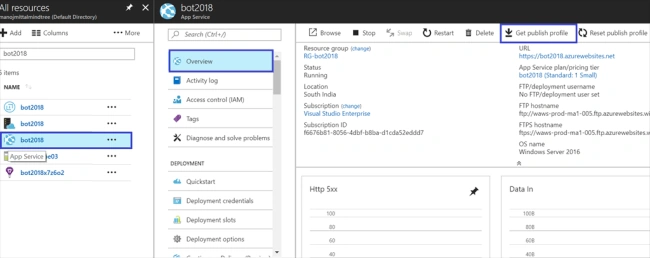
- Navigate to Azure Bot App Services and click "Get Publish Profile".
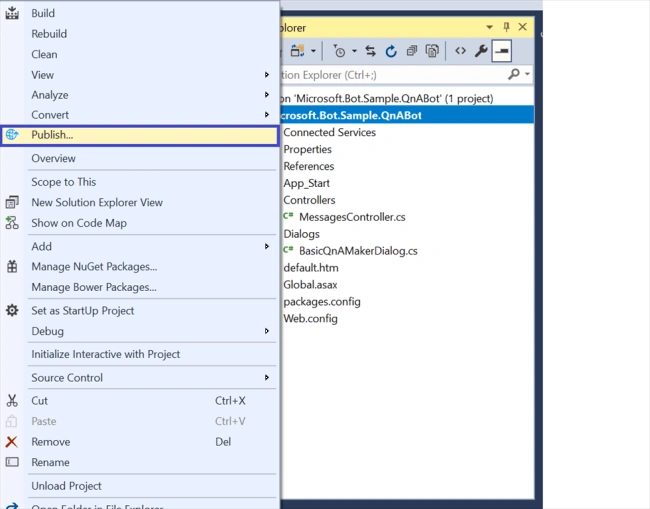
- Select Visual Studio Project -> Right Click -> Publish option.
- Select “Create new profile”.
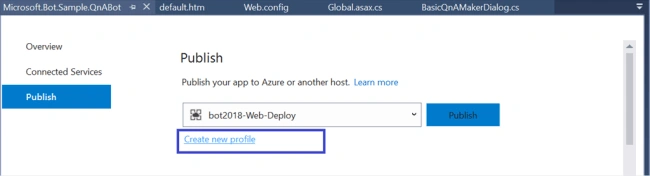
- Select "Import file" and click "Publish".
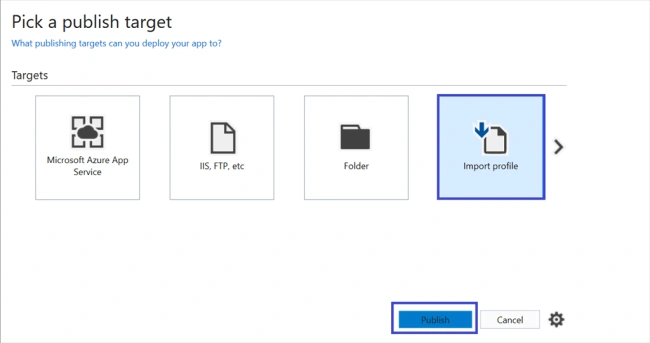
- Solution is successful and published at the Azure Bot website.
- Test the bot framework in the Azure portal.
Navigate to Azure Web App Bot and select "Test in Web Client" under Bot Management section. You can start asking the question as crawled by QnA Maker and you will be prompted with the following response.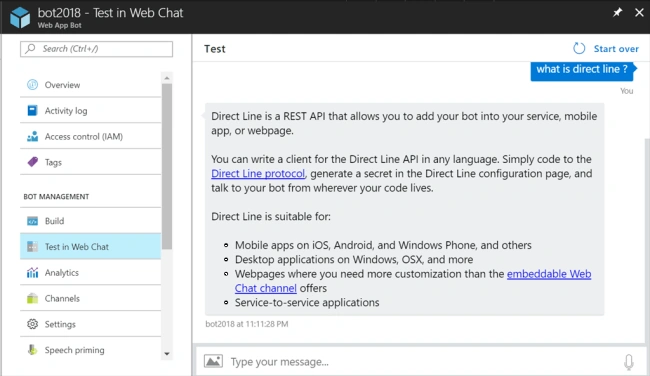
Note
I recorded the comlete article and made it available on my YouTube channel also.
Keerti BommuPosted Nov 6, 2018, 5:46 PM
Awesome great work. Works like charm. Thanks again
vishal goyalPosted Feb 15, 2018, 4:20 AM
Hi Manoj,I have created chatbot demo application from article http://www.c-sharpcorner.com/article/creating-a-simple-bot-application-using-microsoft-bot-framew/ Now I just want to integrate this chat bot to my existing asp.net web application, for this I have created a sample asp.net website and hosted locally on IIS can anyone please tell how should I publish bot application locally and on IIS and integrate this to my demo asp.net web application?
Manoj MittalPosted Feb 7, 2018, 12:19 PM
Previous Article Link is http://www.c-sharpcorner.com/article/faq-based-bot-application-using-qna-maker-part-one/
Sagar Pandurang KapPosted Jan 23, 2018, 11:38 PM
Very nice great work..