

Step 1
Open Expression Blend 4 -> select Silverlight -> select Silverlight Application + Website, hit OK, a blank window appears.
Step 2
Select Assets -> select Shapes -> select Rectangle, manage width & height, color and shadow effect as shown below:

Step 3
Again, select Rectangle, draw a rectangle and move the Plus Sign accordingly and give shape to the rectangle according to your choice, manage the width & height, color and shadow effect as shown below:
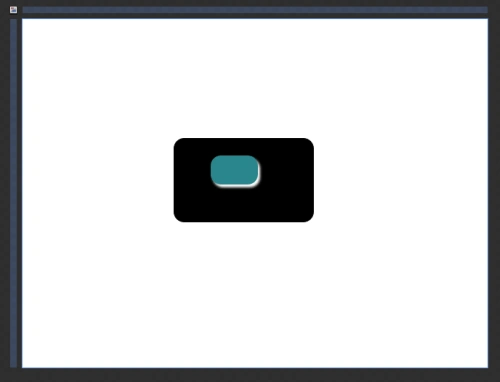
Note: Here, when we select a Rectangle Shape, a Plus Sign exists above the shape. So that we can create any shape according to our choice.
Step 4
Select Assets -> select Shapes -> select Triangle (Regular Polygon), draw a triangle, manage the width & height, color and shadow effect as shown below:
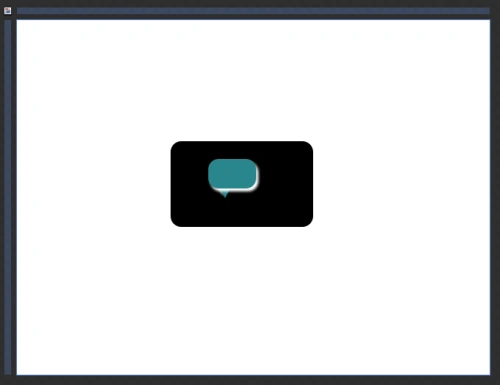
Step 5
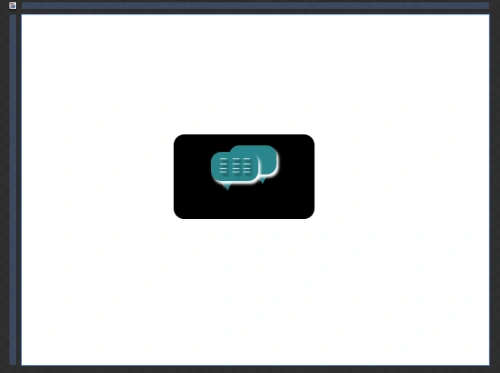
Follow Steps 3-4, copy & paste the rectangle and triangle again, send them back to the previous rectangle and triangle using the "Send to Back Option" of the Order Tool from the Object Menu as shown below:

Step 6
Go To Tool-Box -> select Line Tool, draw a line, manage its width & height, color and shadow effect as shown below:
Step 7
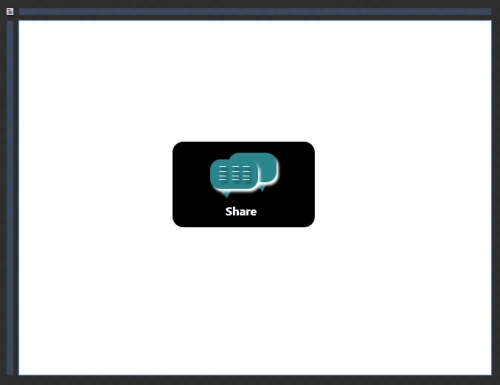
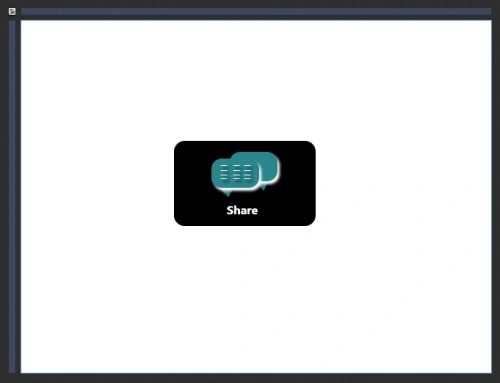
Select Text-Block from the ToolBox, write Share, manage the width & height, foreground color, font family, font size and shadow effect as shown below:
Step 8
Have a look at the XAML code shown below:
<UserControl
xmlns="http://schemas.microsoft.com/winfx/2006/xaml/presentation"
xmlns:x="http://schemas.microsoft.com/winfx/2006/xaml"
xmlns:ed="http://schemas.microsoft.com/expression/2010/drawing"
xmlns:d="http://schemas.microsoft.com/expression/blend/2008" xmlns:mc="http://schemas.openxmlformats.org/markup-compatibility/2006" mc:Ignorable="d"
x:Class="Third_Article.MainPage"
Width="640" Height="480">
<Grid x:Name="LayoutRoot" Background="White">
<Rectangle Fill="Black" Margin="208,164,239,200" RadiusY="14" RadiusX="14" Stroke="Black"/>
<ed:RegularPolygon Fill="#FF2B868D" InnerRadius="1" Margin="269,219,0,239" PointCount="3" Stretch="Fill" UseLayoutRounding="False" RenderTransformOrigin="0.5,0.5" HorizontalAlignment="Left" Width="25">
<ed:RegularPolygon.Effect>
<DropShadowEffect Color="White"/>
</ed:RegularPolygon.Effect>
<ed:RegularPolygon.RenderTransform>
<CompositeTransform Rotation="-182.135"/>
</ed:RegularPolygon.RenderTransform>
</ed:RegularPolygon>
<ed:RegularPolygon Fill="#FF2B868D" InnerRadius="1" Margin="317,210,298,0" PointCount="3" Stretch="Fill" UseLayoutRounding="False" RenderTransformOrigin="0.5,0.5" Height="22" VerticalAlignment="Top">
<ed:RegularPolygon.Effect>
<DropShadowEffect Color="White"/>
</ed:RegularPolygon.Effect>
<ed:RegularPolygon.RenderTransform>
<CompositeTransform Rotation="-182.135"/>
</ed:RegularPolygon.RenderTransform>
</ed:RegularPolygon>
<Rectangle Fill="#FF2B868D" Height="40" VerticalAlignment="Top" Margin="284,179,291,0" RadiusY="14" RadiusX="14">
<Rectangle.Effect>
<DropShadowEffect Color="White"/>
</Rectangle.Effect>
</Rectangle>
<TextBlock Margin="280,0,316,213" TextWrapping="Wrap" Text="Share" Foreground="White" FontSize="16" FontWeight="Bold" FontFamily="Segoe UI" Height="20" VerticalAlignment="Bottom"/>
<Rectangle Fill="#FF2B868D" Margin="259,188,316,0" RadiusY="14" RadiusX="14" Height="40" VerticalAlignment="Top">
<Rectangle.Effect>
<DropShadowEffect Color="White"/>
</Rectangle.Effect>
</Rectangle>
<Path Data="M135,187 L171,187" Fill="White" HorizontalAlignment="Left" Height="3" Margin="271,197,0,0" Stretch="Fill" UseLayoutRounding="False" VerticalAlignment="Top" Width="10" Stroke="White">
<Path.Effect>
<DropShadowEffect/>
</Path.Effect>
</Path>
<Path Data="M135,187 L171,187" Fill="White" HorizontalAlignment="Left" Height="3" Margin="271,204,0,0" Stretch="Fill" UseLayoutRounding="False" VerticalAlignment="Top" Width="10" Stroke="White">
<Path.Effect>
<DropShadowEffect/>
</Path.Effect>
</Path>
<Path Data="M135,187 L171,187" Fill="White" HorizontalAlignment="Left" Height="3" Margin="271,210,0,0" Stretch="Fill" UseLayoutRounding="False" VerticalAlignment="Top" Width="10" Stroke="White">
<Path.Effect>
<DropShadowEffect/>
</Path.Effect>
</Path>
<Path Data="M135,187 L171,187" Fill="White" HorizontalAlignment="Left" Height="3" Margin="271,215,0,0" Stretch="Fill" UseLayoutRounding="False" VerticalAlignment="Top" Width="10" Stroke="White">
<Path.Effect>
<DropShadowEffect/>
</Path.Effect>
</Path>
<Path Data="M135,187 L171,187" Fill="White" HorizontalAlignment="Left" Height="3" Margin="288.342,197,0,0" Stretch="Fill" UseLayoutRounding="False" VerticalAlignment="Top" Width="10" Stroke="White">
<Path.Effect>
Deepak MiddhaPosted Sep 19, 2012, 11:58 PM
Hi Sonia!Good demonstration,Your article provide a deep knowledge of that topic.
Deepak MiddhaPosted Sep 19, 2012, 11:58 PM
Hi Sonia!Good demonstration,Your article provide a deep knowledge of that topic.