

The site collection used here has the Team Site template with:
- Announcements
- Links
- Team Discussion
- Content Editor
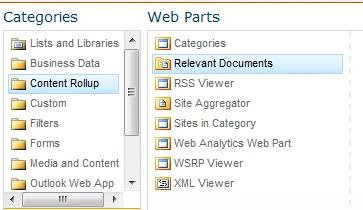
- Relevant Documents
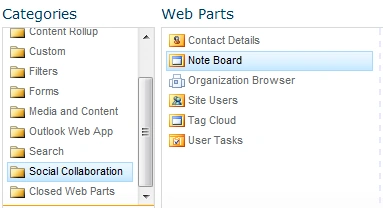
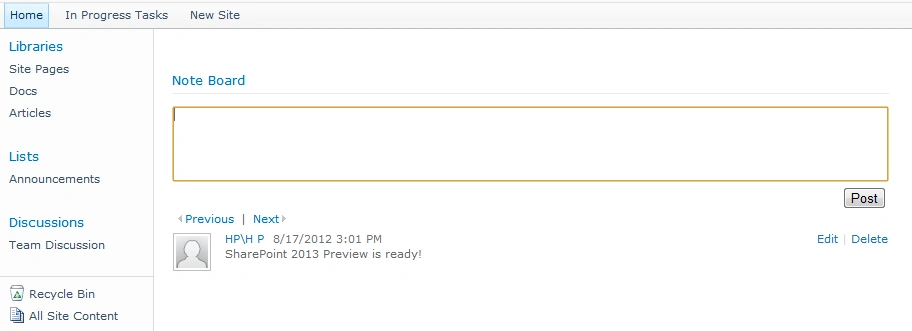
- Note Board
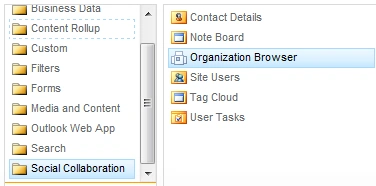
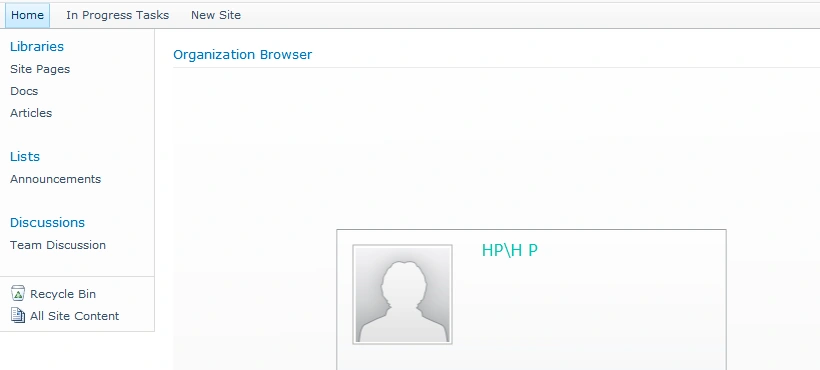
- Organization Browser
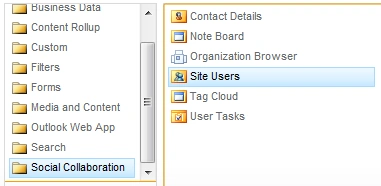
- Site Users
Testing the Web Parts
You can create a new Site Page for testing the Web Parts.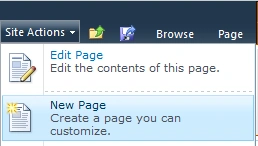
After creating the page use the Edit Page option and from the Insert tab click on the Web Part button.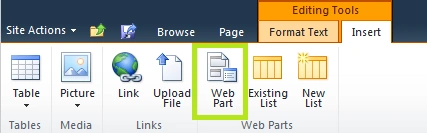
After inserting the specified web part you can use the Save & Close button from the Page tab to save the changes.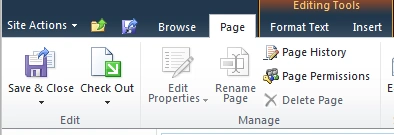
Announcements Web Part
We can start playing with the Announcements Web Part.
Purpose: This web part can be used to track upcoming events, status updates or other team news.
Group: Lists and Libraries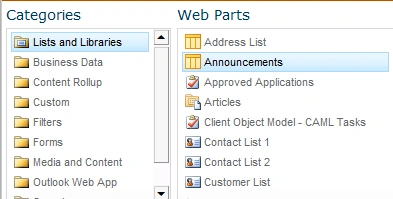
In Action
The following is the saved page after inserting the web part.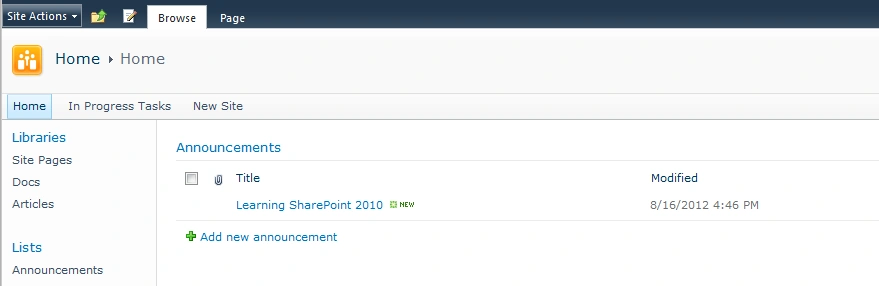
Note: From this group you can add any existing list or library. This is a more convenient way of showing multiple lists in a page. If you cannot see an Announcements from the preceding group, go to the Lists and create a new list using the Announcements template.
Links Web Part
Purpose: This web part can be used for creating links to Web pages that your team members will find interesting or useful.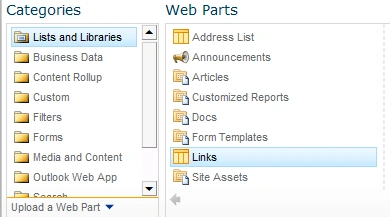
In Action
The following is the saved page after inserting the web part.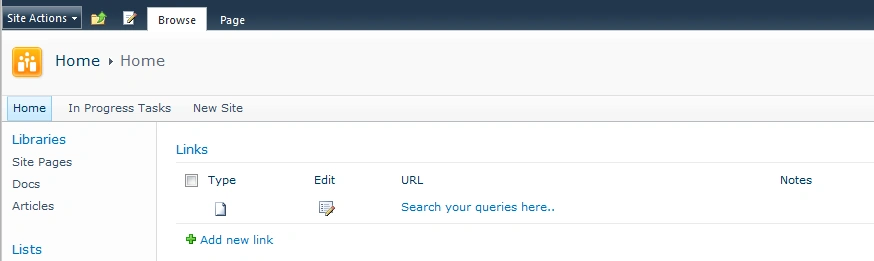
Team Discussion Web Part
Purpose: This web part can be used to list to hold newsgroup-style discussions on topics relevant to your team.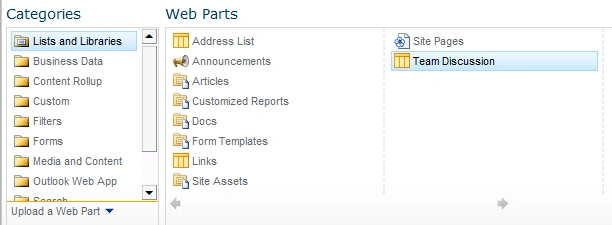
In Action
The following is the saved page after inserting the web part.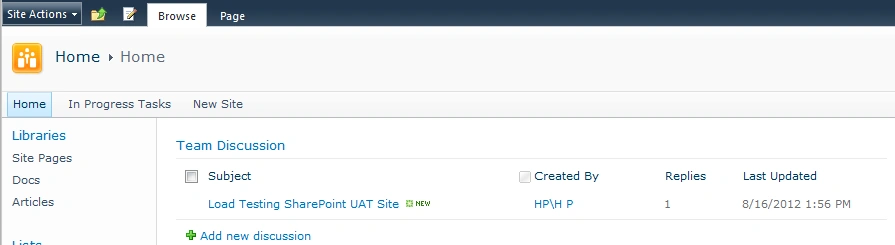
Content Editor Web Part
Purpose: This web part can be used to use rich content. So this web part helps in adding formatted text, tables, hyperlinks, and images to a Web Part Page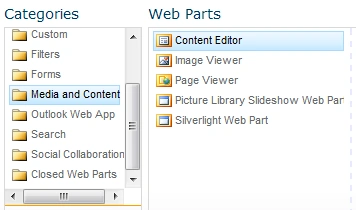
In Action
The following is the saved page after inserting the web part.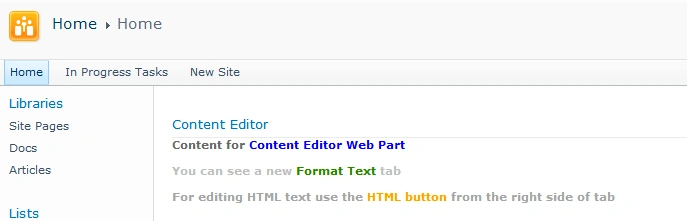
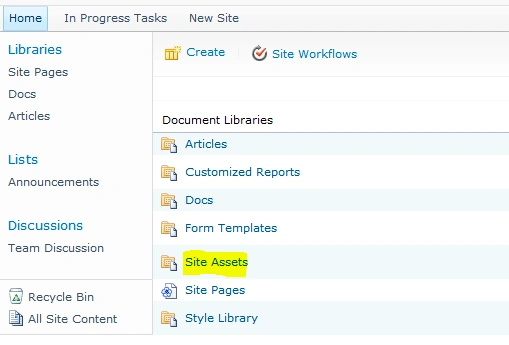
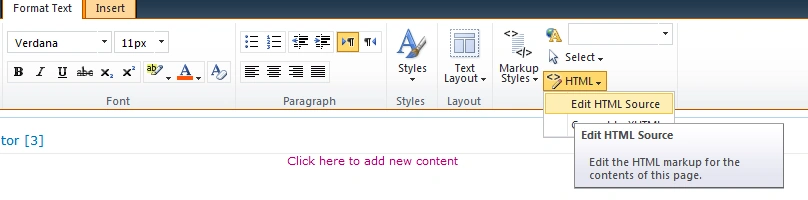
For adding formatted text you can use the Edit Page option; the Format Text tab is visible like below:


Gowtham RajamanickamPosted Apr 28, 2016, 2:17 AM
good work..