

In this article we can explore the creation of Document Library through code.
Here we are using existing Document Templates inside SharePoint to create a new
document library.
Following are the activities involved in Document Library creation:
- Find the List Template
- Find the Document Template
- Create Document Library
Inside Visual Studio
Create a new console application and name it as DocLibCreation. Make sure you
change the target framework to .Net 3.5.
Add the following code into the Program.cs file:
using
(SPSite site = new
SPSite("http://appes-pc/my/personal/dotnet"))
{
using (SPWeb
web = site.OpenWeb())
{
SPListTemplate listTemplate =
web.ListTemplates["Document Library"];
SPDocTemplate docTemplate = (from
SPDocTemplate dt in
web.DocTemplates
where
dt.Type == 122
select
dt).FirstOrDefault();
Guid guid = web.Lists.Add("My
Docs", "My Documents", listTemplate,
docTemplate);
SPDocumentLibrary library = web.Lists[guid]
as SPDocumentLibrary;
library.OnQuickLaunch = true;
library.Update();
}
}
Now run the application and you can see the new Document Library created inside
SharePoint.

Document Templates
Following are the SharePoint 2010 document templates available:
Template ID | Description |
100 | No Template |
101 | Word 2003 document |
103 | Excel 2003 document |
104 | PowerPoint 2003 document |
121 | Word document |
122 | Excel document |
123 | PowerPoint document |
111 | OneNote Notebook |
102 | SharePoint Designer HTML document |
105 | ASPX Web Page |
106 | ASPX Web Part Page |
1000 | InfoPath document |
Uploading Document
Now we can try uploading a document to the above library programmatically. Use
the following code to upload an excel file. Make sure the application bin folder
contains a file named sample.xlsx.
using
(SPSite site = new
SPSite("http://appes-pc/my/personal/dotnet"))
{
using (SPWeb
web = site.OpenWeb())
{
SPDocumentLibrary library =
web.Lists["My Docs"]
as SPDocumentLibrary;
SPFile file = library.RootFolder.Files.Add("sample.xlsx",
File.ReadAllBytes("sample.xlsx"));
}
}
You can see that the file is uploaded into SharePoint:

Downloading Document
Now we can try downloading a document from the above library programmatically.
Use the following code:
using
(SPSite site = new
SPSite("http://appes-pc/my/personal/dotnet"))
{
using (SPWeb
web = site.OpenWeb())
{
SPDocumentLibrary library =
web.Lists["My Docs"]
as SPDocumentLibrary;
SPFile file =
web.GetFile(library.RootFolder.Url + "/sample.xlsx");
Stream stream = file.OpenBinaryStream();
FileStream fileStream =
new FileStream("out.xlsx",
FileMode.OpenOrCreate,
FileAccess.Write);
int buffer = 4096;
int read = buffer;
byte[] bytes =
new byte[buffer];
while (read == buffer)
{
read = stream.Read(bytes, 0, buffer);
fileStream.Write(bytes, 0, read);
if (read < buffer)
break;
}
stream.Dispose();
fileStream.Dispose();
}
}
After running the program, you can see that the file is created in the bin
folder.
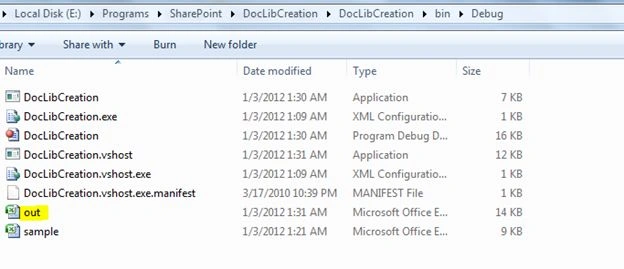
This concludes the following activities:
Create Document Library
Upload a Document
Download a Document
References
http://www.learningsharepoint.com/2010/06/30/programatically-creating-document-sets-in-sharepoint-2010/
Summary
In this article we have the creation of document library through code. Please
note that using the Document Type we can create different types of document
library.
Join the conversation! Your thoughts help the community grow.