

In this small article we explore user creation in Active Directory and adding a user to a SharePoint site.
About Active Directory
Active Directory is a directory service created by Microsoft. (from here onward, referred to as AD). AD is used by most of the Windows Server operating systems like 2003, 2008 etc.
AD allows storing user information, credentials, application settings, authentication management etc. AD can be considered as a database.
The following are the components involved:
- Active Directory Domain Services: ADDS is the central location for storing user information, handling authentication requests etc.
- Active Directory Rights Management Services: ADRMS manages the rights of a user within the network. The right could be like read, write and print a file.
- Active Directory Federation Services: ADFS is a highly secured, Internet scalable Identity Access solution. ADFS helps in integration between untrusted resources and domain resources within the organization.
- Active Directory Certificate Services: ADCS allows persisting a user identity along with a private key.
- Active Directory Lightweight Directory Services: ADLDS provides many advantages over Active Directory Domain Services for directory enabled applications. The advantages include lesser bandwidth, less overhead with domain information, easier replication etc.
Note: While installing SharePoint 2010 to a Windows Server machine, please ensure that the Active Directory is already configured.
Back to Practical
In a production deployment SharePoint will be installed in a Windows Server operating system. Now we can try creating a user and adding to a SharePoint site.
You need a Windows Server 2008 Installation / Virtual Machine to try this scenario.
Step 1: Open Server Manager
Open Server Manager Application from the desktop or through Start Menu.
Start Menu > Programs > Administrative Tools > Server Manager
In the application that appears, choose the following node:
Server Manager > Roles > ADDS > (domain) > Users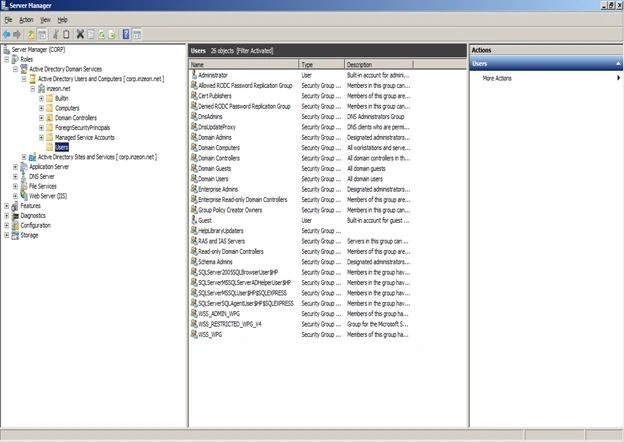
Step 2: Create a new user inside ADDS.
You can right-click on the Users item and choose New > User menu item.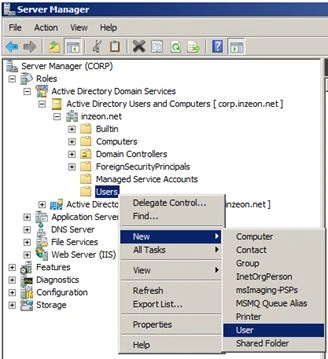
In the dialog that appears enter the following details: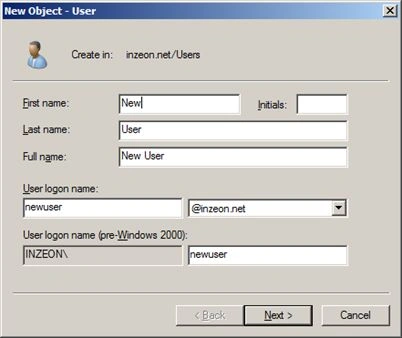
Click on the Next button; you will get the following Password dialog: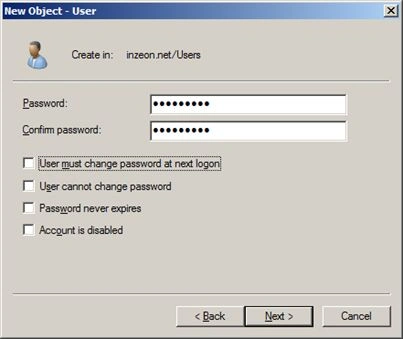
Enter the password and uncheck the change password option. Click Next button to continue.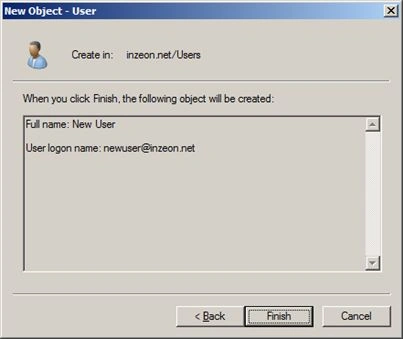
Now click the Finish button and the user will be created.
You will see the new user inside the list: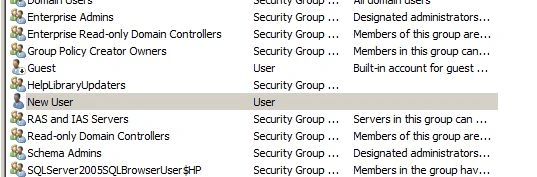
Step 3: Try the user in the SharePoint site.
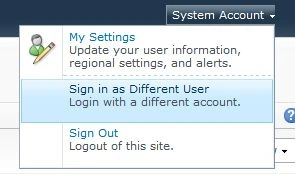
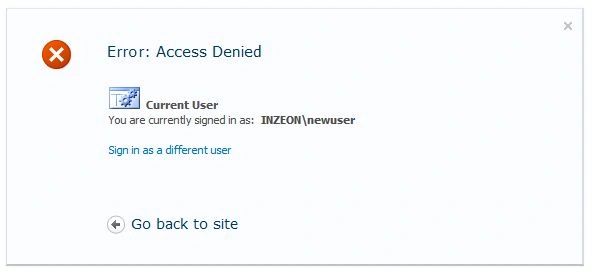
Next you can try signing in using the new user created. You will get the following error message since the user does not have permission to the site.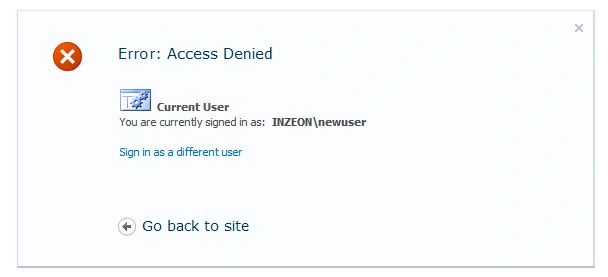
Step 4: Add the User to SharePoint site.
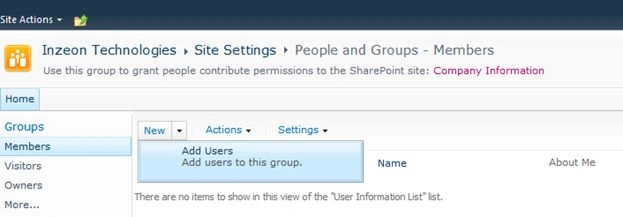
Now sign in to the SharePoint site with administrative privileges. Choose the Site Actions > Site Permissions option to get the following screen: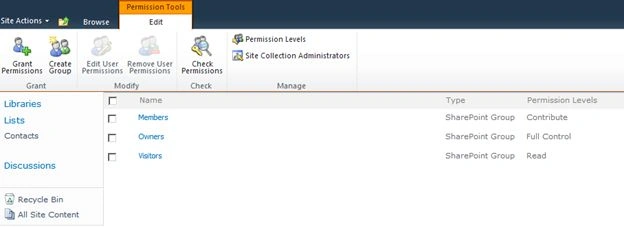
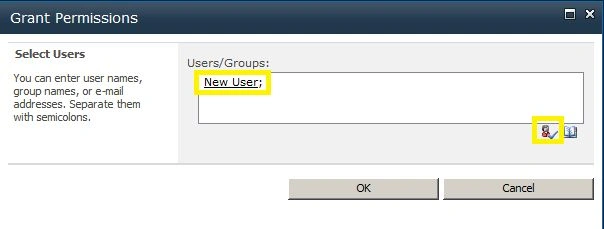
You can add the new user to any of the groups above.

Mahesh BabuPosted Sep 21, 2012, 6:35 AM
Thanks for posting.....