

This article explores Term creation and association.
Term Creation
The following is a summary of activities involved:
- Create Term Store and Terms
- Create Library
- Create Managed Metadata Column
- Associate Terms
Create Term Store and Terms
We will create a Local Term Set. A Term Set is a group of Terms and Local denotes the scope of the Term Set, in other words only the site collection and sub sites.
Open a SharePoint site and go to "Site Actions" > "Site Settings" > "Term store management".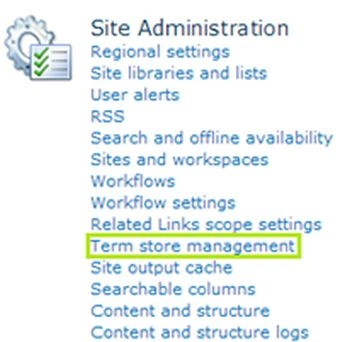
You will get the following Term Store Management Tool: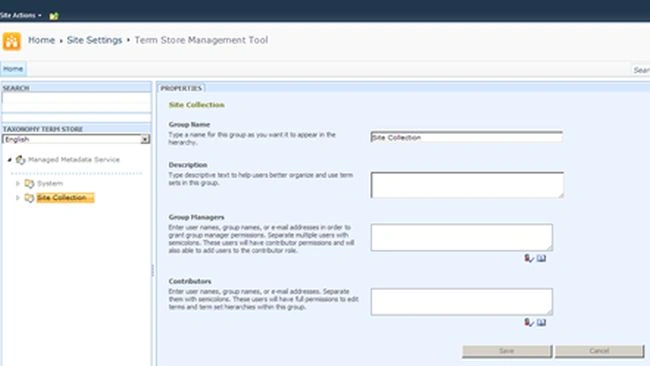
Click on the Site Collection item then select the Context drop down menu then select "New Term Set".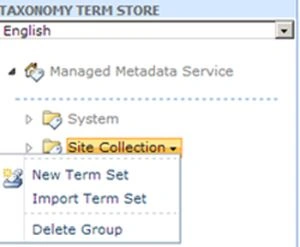
In the page that appears, enter the name for the Term Set and press the Enter key. You can even set the Owner of the term set.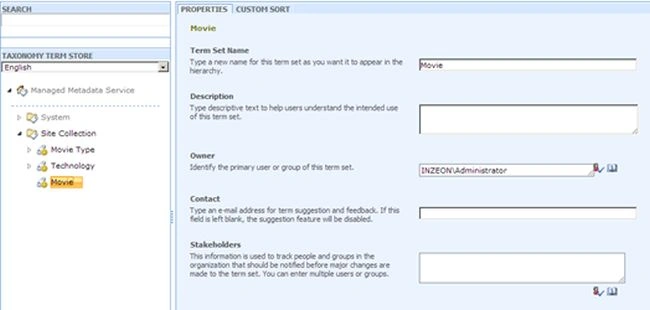
Now again open the Movie context menu and create a Term as in the following: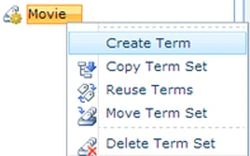
Enter the name of the term as in the following and create Terms for the following items.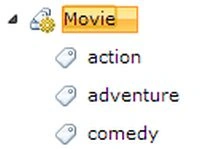
Note: If you do not have enough permission, you will not see the context menu item.
Create Library
Now our Term Store is ready and we are good to create the library. Go ahead and create a new library and name it Movies.

Create Managed Metadata Column
In the library settings choose create column and add the following column, type as Managed Metadata.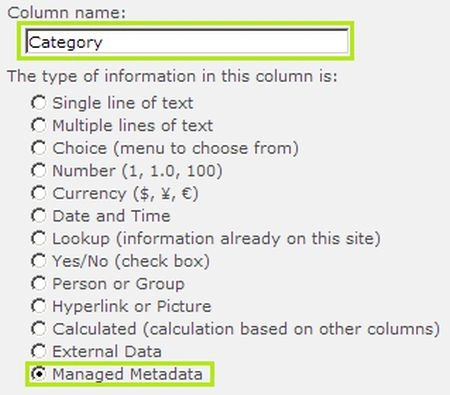
Scroll down and choose the Managed Metadata set.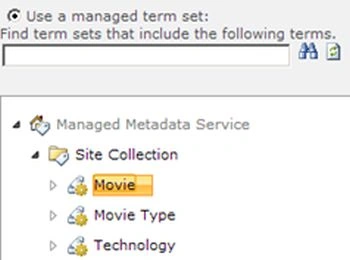
Click the Ok button to save changes, now you are ready with the Library and Term column.
Associate Terms
In this step, we will assign a Term (metadata) along with the movie file (data).
Upload a file and in the dialog you will be able to enter the Term in the Category column.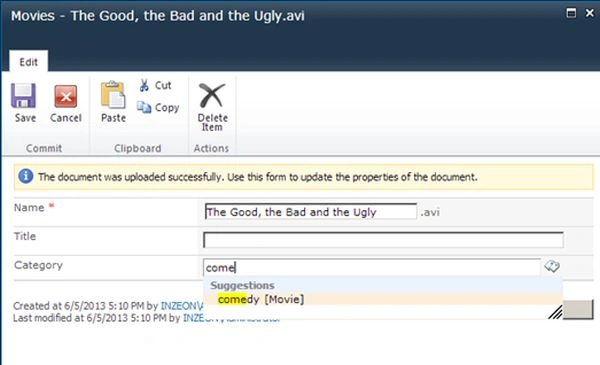
Please note that there is auto-complete guidance.
On saving the changes, you will see the item as in the following:
This concludes our article on Term Creation and Association.
If you want to associate multiple values for a Managed Column then you can do this through the Allow Multiple Values for the library column property.
References
http://bit.ly/10uiVpB
Summary
In this article we have explored Term creation and association.
Join the conversation! Your thoughts help the community grow.