

In this article we will see the usage of InfoPath Forms along with SharePoint 2010.

What is InfoPath?
InfoPath is an application to create XML based data entry forms and targeted for end users and developers. The flexibility to create more sophisticated forms with little or no code is one of the highlighted advantages of using InfoPath.
The InfoPath Designer is the tool to create forms and it has a ribbon interface plus the Designer tools. InfoPath is a part of Microsoft Office Professional Plus.
What are the advantages of using InfoPath with SharePoint?
You might be thinking that SharePoint provides lists which creates forms for data entry. Then why do we need InfoPath Forms?
The answer would be the additional features provided by InfoPath like:
- Rules support for validating Fields
- More flexibility in capturing repeated entries
- Managed Code Support
- Digital Signature support
- Users without Programming skills can create Forms
The following table gives a comparison of the various tools and the expertise level required.
|
Requirement |
Solution |
Skill |
|
Simple Forms |
SharePoint List & Forms |
User |
|
Forms with more features |
InfoPath Forms |
User |
|
Complex Forms |
ASP.NET WebParts |
Developer |
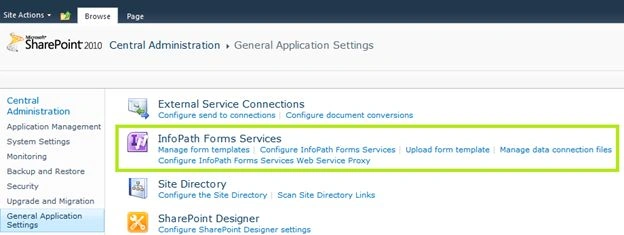
InfoPath Forms are managed inside SharePoint through the:
- Central Administration > General Application Settings > InfoPath Forms Services
What are the Tools needed?
You need InfoPath Designer 2010 to work with the examples in this article. You can download a Trial Version of Office 2010 Professional Plus 64 bit from here.
After installation you can start InfoPath Designer 2010 from the Start Menu. 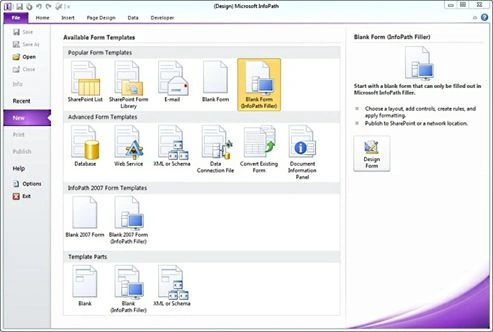
Creating a Form
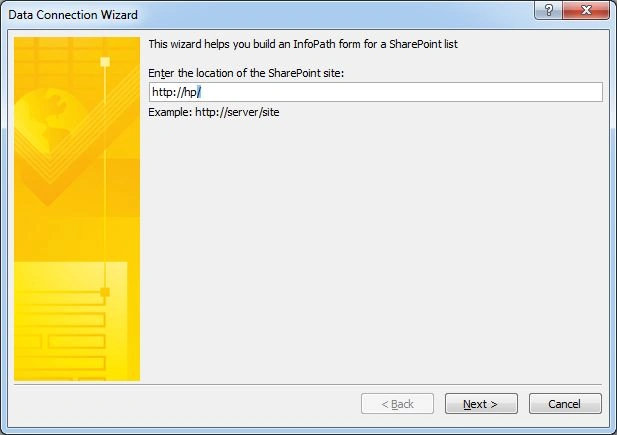
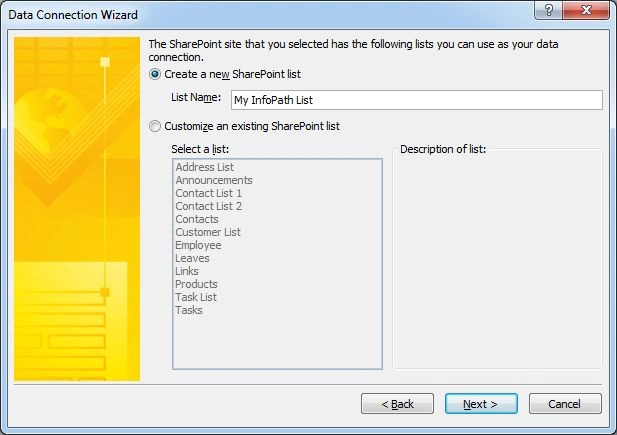
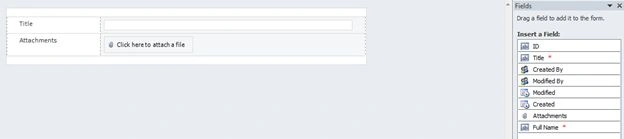
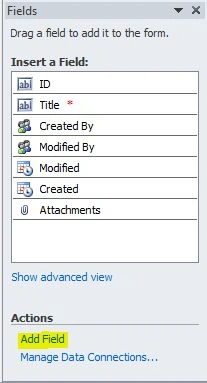
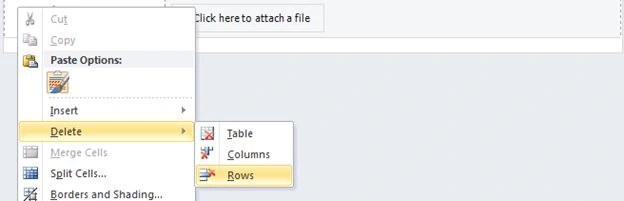
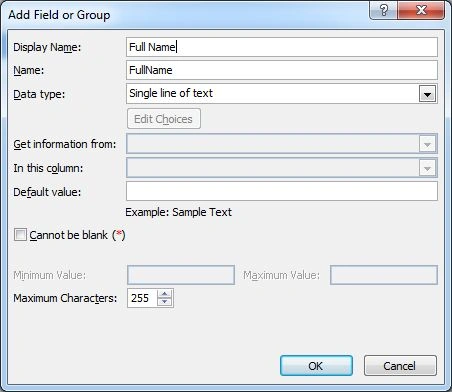
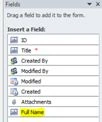
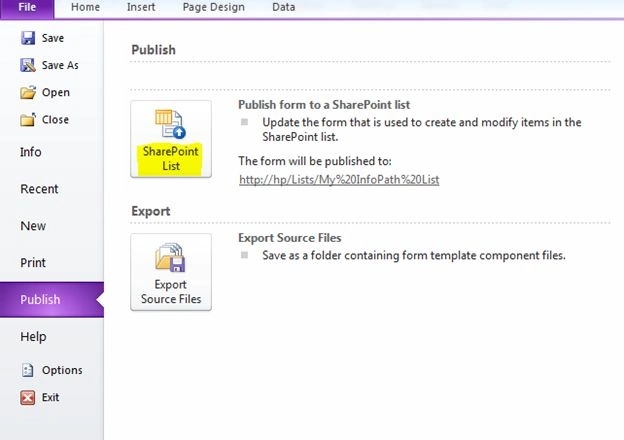
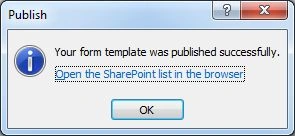
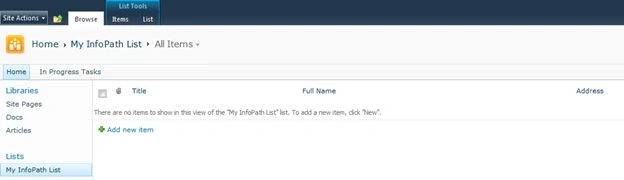
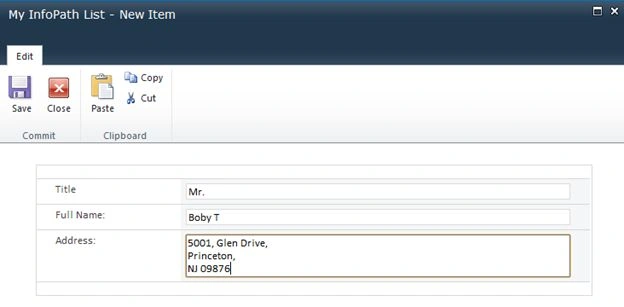
Now we can start by creating a Form and Deploying to our SharePoint site. Our aim is to have a simple form to capture the following fields:





Jean PaulPosted Sep 21, 2012, 6:26 PM
Thank You for the good words Mahesh!
Mahesh BabuPosted Sep 21, 2012, 7:31 AM
Great article for Beginers....... Thanks Jean..