

In this article we can explore the class SPListItemCollectionPosition and its advantage. This is a server object model type and should be used along with the modules executed on the server.
What is SPListItemCollectionPosition?
This class enables Pagination for Lists inside SharePoint. It stores the state of a page and thus helps in fetching the next page in the dataset.
The class can be used along with the SPQuery object.
What are the advantages of SPListItemCollectionPosition?
It provides the following advantages:
- Reduced network traffic
- Reduced memory
- Faster result delivery
Going Practical
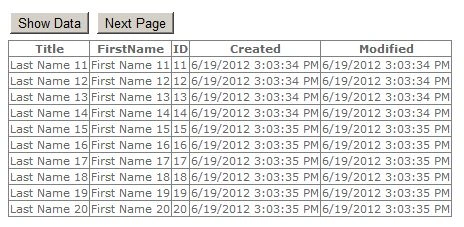
Now we can try usng SPListItemCollectionPosition ourselves. Here we are going to create 1000 list items then fetch 10 at a time. The associated web part will contain page navigation buttons.
Step 1: Create a Visual WebPart solution
Create a new Visual WebPart solution and give it a meaningful name.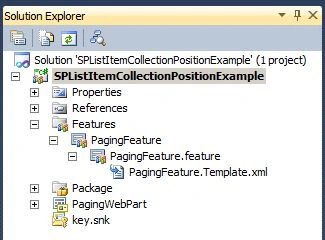
Step 2: Place the following controls
Place the following controls for the WebPart.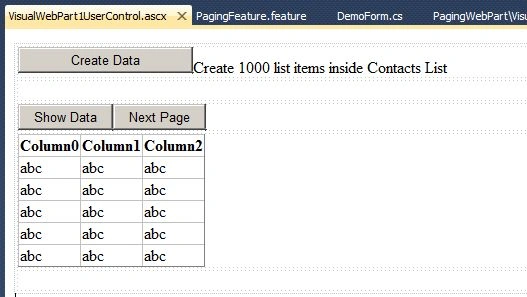
Step 3: Create the Data
Now we needed to create a list with 1000 items. The following code does the purpose. Place the code inside the Created Data button click event.
protected void CreateDataButton_Click(object sender, EventArgs e)
{
using (SPWeb web = SPContext.Current.Web)
{
string listName = "Contacts 1000";
SPList list = null;
// Create Lists
try
{
list = web.Lists[listName];
}
catch
{
web.Lists.Add(listName, "A Contact List of 1000 items", SPListTemplateType.Contacts);
list = web.Lists[listName];
// Create Data
for (int i = 1; i <= 1000; i++)
{
SPListItem item = list.Items.Add();
item["First Name"] = "First Name " + i.ToString();
item["Last Name"] = "Last Name " + i.ToString();
item.Update();
}
}
}
}
Now we can try creating the data by executing the above code. The steps are:
-
Build the solution
-
Deploy the solution
-
Insert WebPart into Page
-
Click the Create Data button
You can see that inside the Lists link a new list named Contacts 1000 is created with the following data.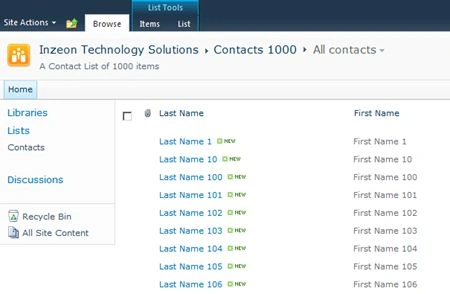
Step 4: Show the Data
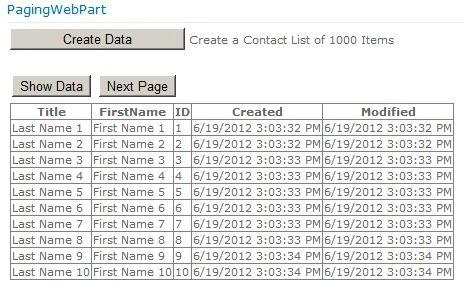
Now we are ready to show the first 10 list items. Here we are showing only 10 items per page and saving the Page information in the View State of User Control.
protected void ShowDataButton_Click(object sender, EventArgs e)
{
SPQuery query = new SPQuery();
query.RowLimit = 10;
query.ViewFields = "<FieldRef Name=\"Title\" />" + /* Title is LastName column */
"<FieldRef Name=\"FirstName\" Nullable=\"TRUE\" Type=\"Text\"/>";
string listName = "Contacts 1000";
SPList list = SPContext.Current.Web.Lists[listName];
SPListItemCollection collection = list.GetItems(query);
Join the conversation! Your thoughts help the community grow.